

The Projects page
Click Projects in the left navigation to see all of your projects.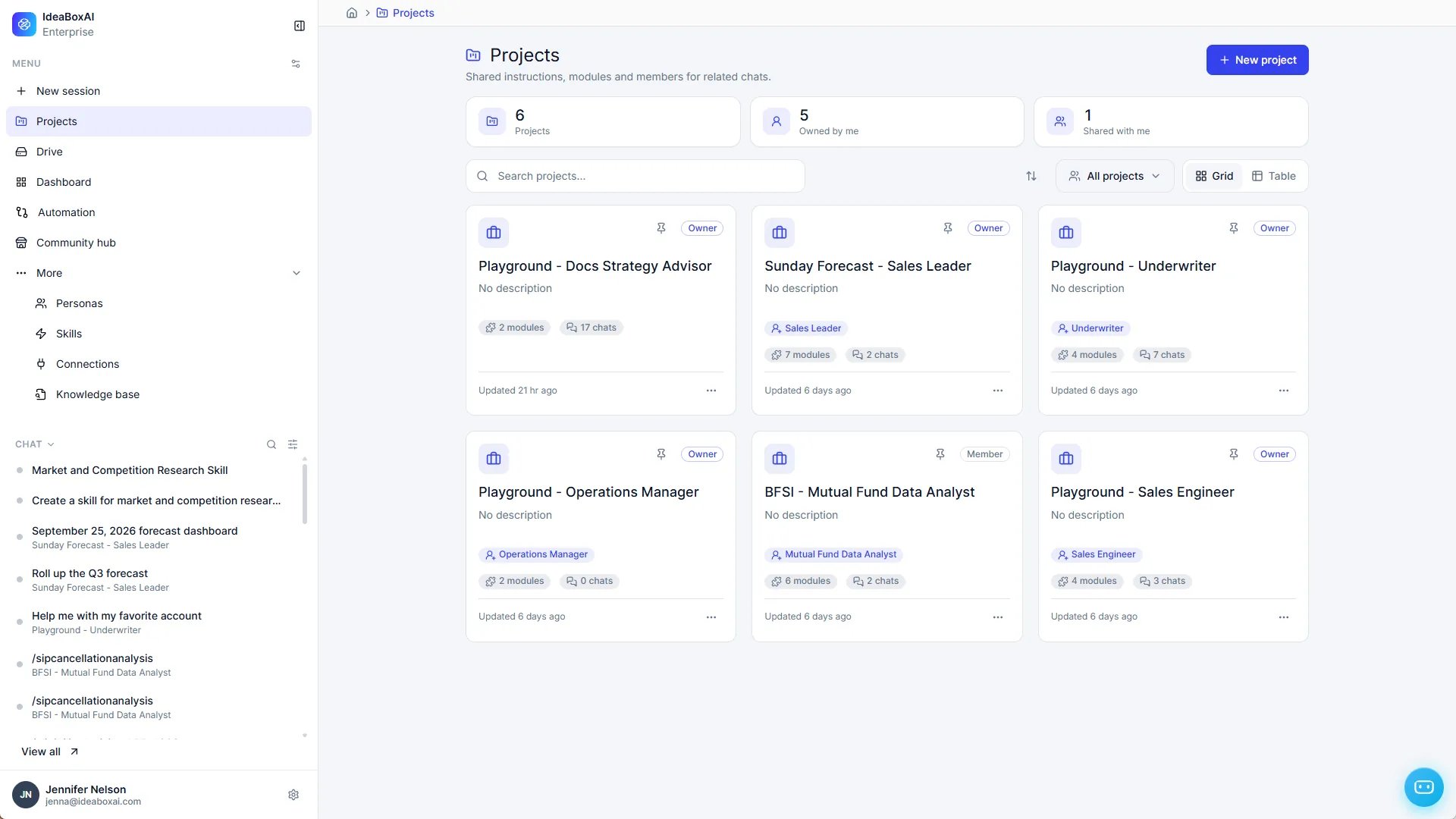
- Summary: See how many projects you have, how many you own, and how many are shared with you.
- Search, sort, and filter: Find a project by name, change the order, or filter the list.
- Grid and Table: Switch between card and list views.
- Project cards: Each card shows the project’s name, description, default persona, number of modules and chats, and whether you’re its Owner or a Member.
Create a project
1
Open the New project window
On the Projects page, click New project.
2
Name the project
Enter a Project name. You can also add a Description.
3
Create it
Click Create. The project page opens.
Set up your project
The right side of the project page holds the project’s setup. Click Add or Edit in any section to change it.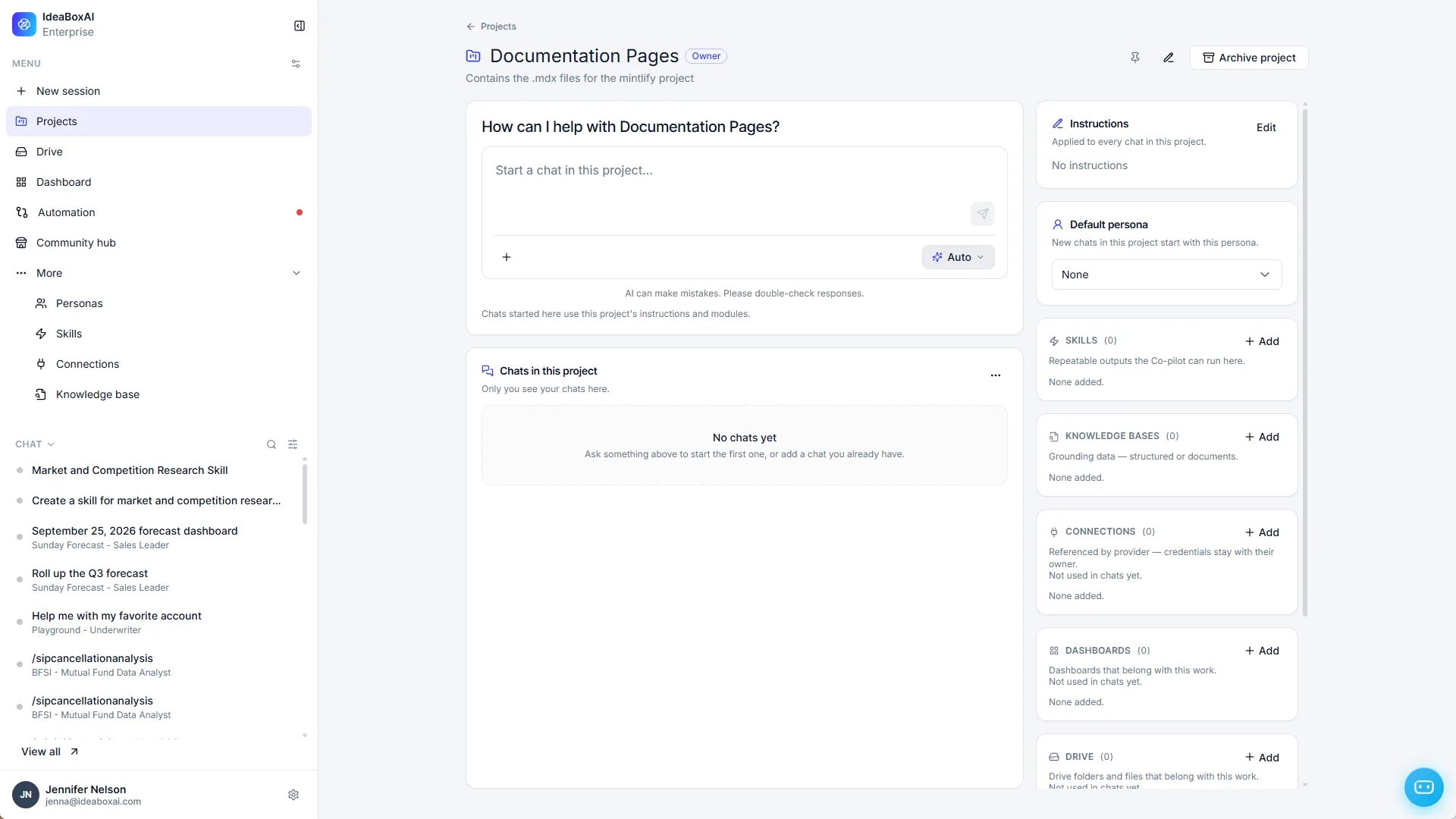
Connections, Dashboards, and Drive help you keep related resources together in the project. Chats in the project don’t use them yet.
Chat in a project
There are three ways to put a chat in a project:- From the project page: Type in Start a chat in this project.
- From a new session: Click the project dropdown under New chat at the top of the page and select a project. You can also search for a project or click Create a new project.
- From the chat input: Select the project from the project selector next to the + button.
Manage a project
Use the buttons in the top-right corner of the project page.- Pin: Add the project to the Pinned group in the left navigation.
- Edit: Change the project’s name or description.
- Archive project: Archive the project.