
Documentation Index

Fetch the complete documentation index at: https://docs.ideaboxai.com/llms.txt

Use this file to discover all available pages before exploring further.

Knowledge Bases in IdeaBoxAI centralize structured and unstructured data for Agentic BI, AI agents, and automation workflows. This guide covers the complete lifecycle from creation through querying.

Access the dashboard

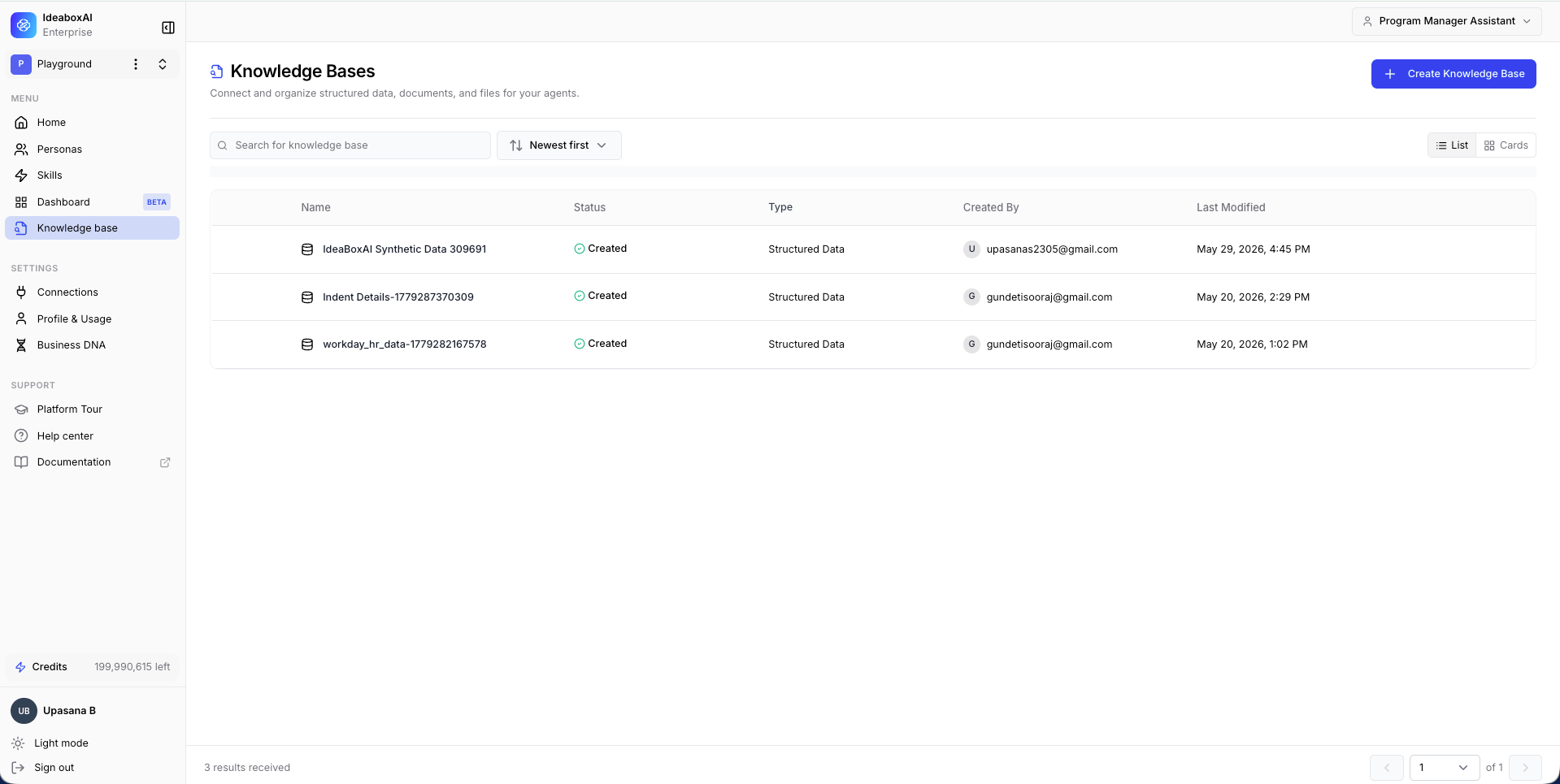
The Knowledge Bases section is accessible from the Knowledge Bases item in the left navigation sidebar. The dashboard displays a searchable table of all existing knowledge bases. The table includes the following columns.
ColumnDescription
NameThe knowledge base name. Sortable.
StatusProcessing state, Created or Processed.
TypeStructured Data or Unstructured Data.
Created ByThe user who created the knowledge base.
Last ModifiedDate and time of the last change. Sortable.
Knowledge Bases dashboard showing a table of knowledge bases with Name, Status, Type, Created By, and Last Modified columns. From the dashboard you can:
  • Search for an existing knowledge base by name.
  • View metadata and processing status at a glance.
  • Click + Create Knowledge Base to start a new one.
Use clear and consistent naming conventions for knowledge bases to help your team quickly identify the right data source for each task.
Best practices
  • Review the Last Modified column to track stale knowledge bases.
  • Limit KB creation to meaningful datasets to avoid fragmentation.
  • Document the purpose and scope of each knowledge base clearly.

Create a knowledge base

Select the knowledge base type

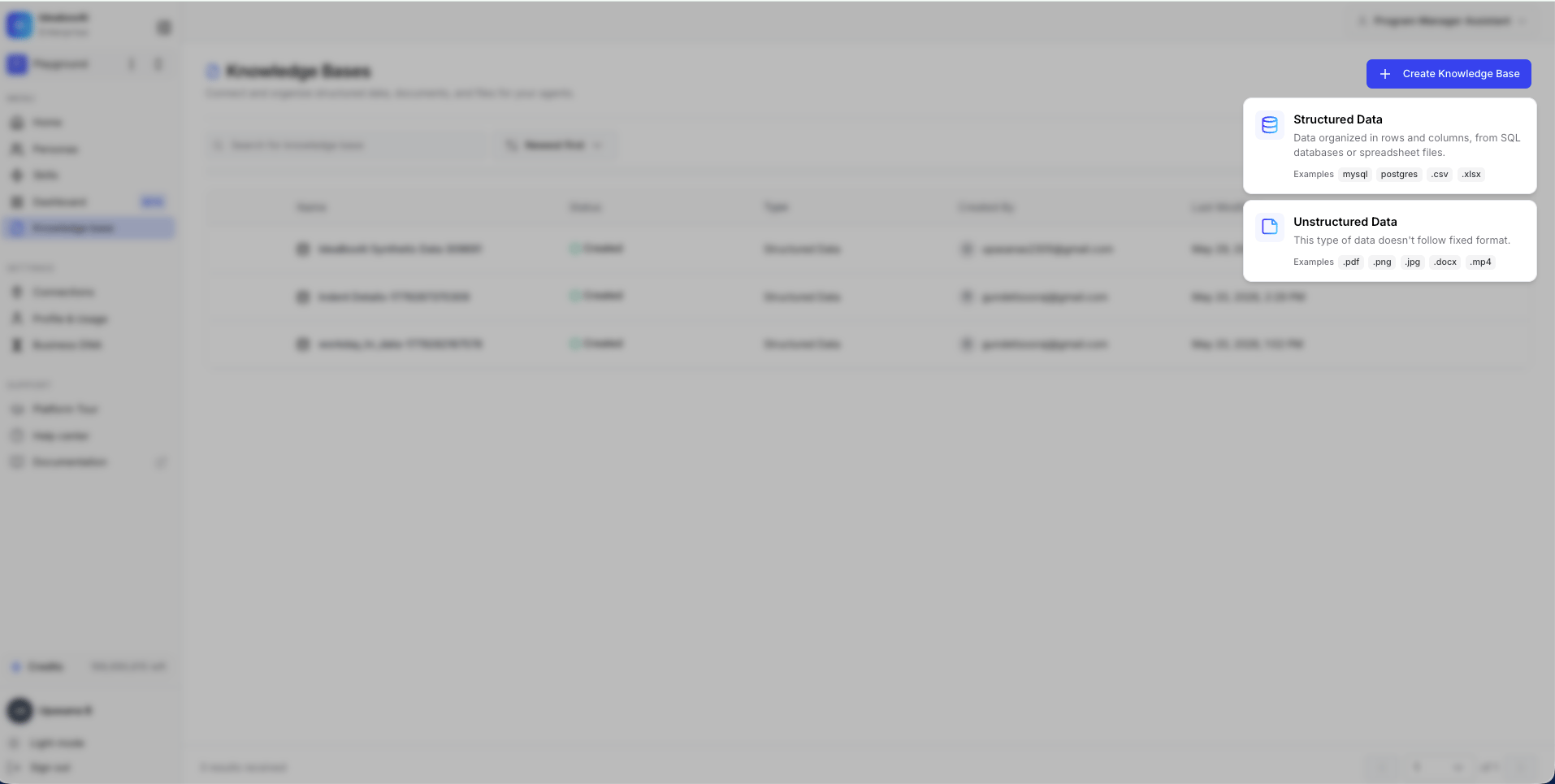
Click + Create Knowledge Base from the dashboard. A modal presents three types.
TypeDescriptionSupported formats
Unstructured DataData that does not follow a fixed format. Best for semantic search and AI reasoning..pdf, .png, .jpg, .docx, .mp4
Structured DataData organized in rows and columns, from SQL databases or spreadsheet files.mysql, postgres, .csv, .xlsx
Financial DocumentsSpecialized knowledge base for financial PDF documents, reports, and statements..pdf
Knowledge base type selection dropdown showing three options: Unstructured Data, Structured Data, and Financial Documents with supported file formats. The system routes you to a type-specific configuration flow based on your selection.
Choose Structured Data only when relational integrity and schemas exist. Use Unstructured Data for documents intended for semantic search or AI reasoning.
Best practices
  • Avoid mixing heterogeneous data types in a single knowledge base.
  • Select the type that matches your data format and intended use case.
  • Consider how agents will query the data before choosing.

Configure knowledge base metadata

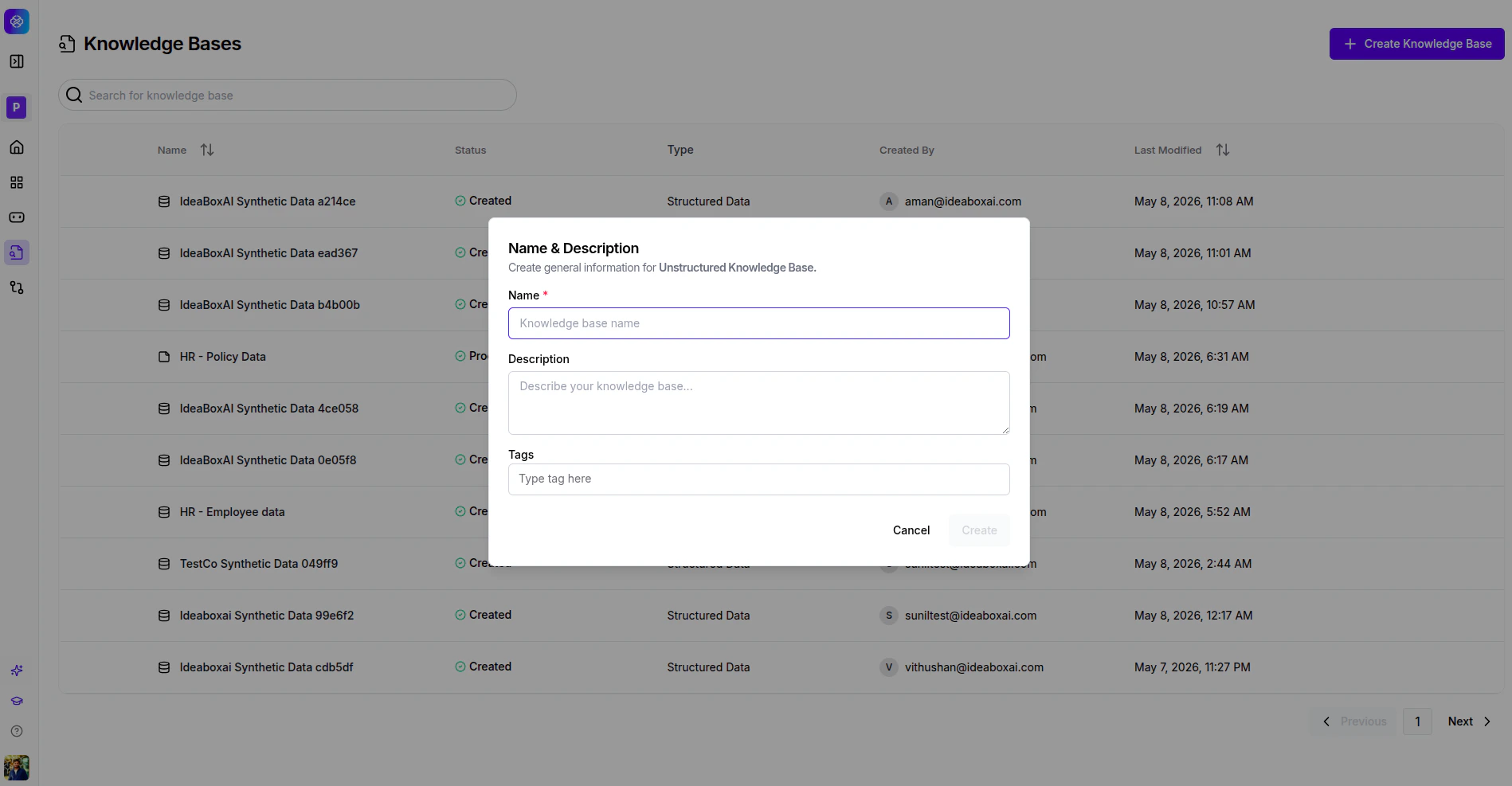
After selecting a type, the Name & Description modal appears. Fill in the following fields:
FieldDescription
Name (required)A unique, descriptive identifier for the knowledge base.
DescriptionExplains the purpose and scope of the knowledge base.
TagsKeywords for domain, team, or project association. Type a tag and press enter to add it.
Click Create to initialize the knowledge base. Name and Description modal for creating a knowledge base with fields for Name, Description, and Tags.
Integrating with agents

Knowledge bases connect to AI agents. Once connected, agents can:
  • Query unstructured documents to answer questions.
  • Run analytical queries on structured data cubes.
  • Combine multiple knowledge bases for comprehensive insights.
  • Cite specific sources when providing answers.
To connect a knowledge base to an agent, navigate to the agent configuration and select the knowledge base from the dropdown.

Next steps

Unstructured Data

Upload documents and connect external sources like Google Drive and Confluence.

Structured Data

Connect a database, explore schemas, and enrich metadata with AI.

Cubes

Build analytical models with measures, dimensions, and queryable APIs.