

Connect your database
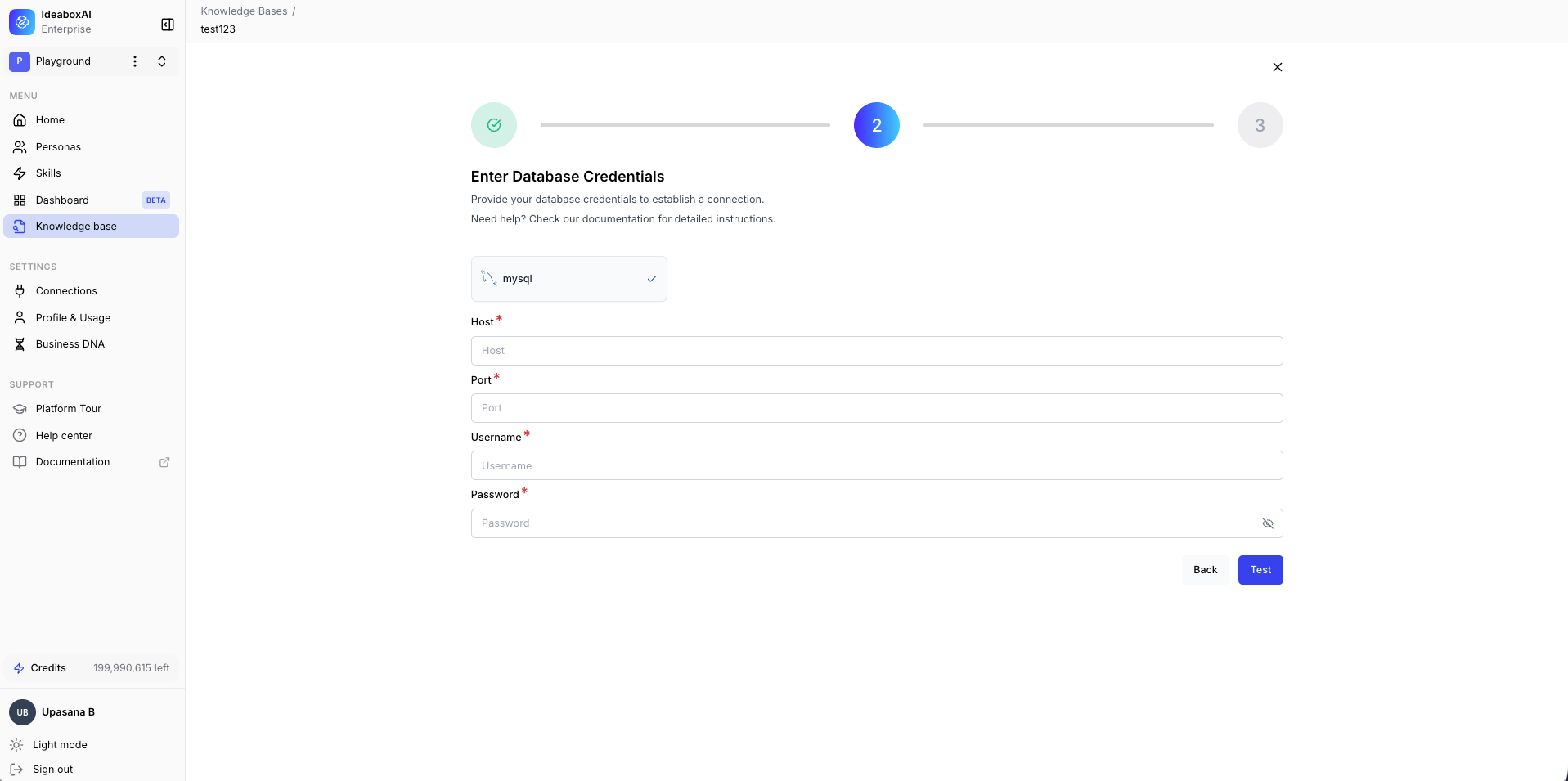
Enter the connection credentials for your database.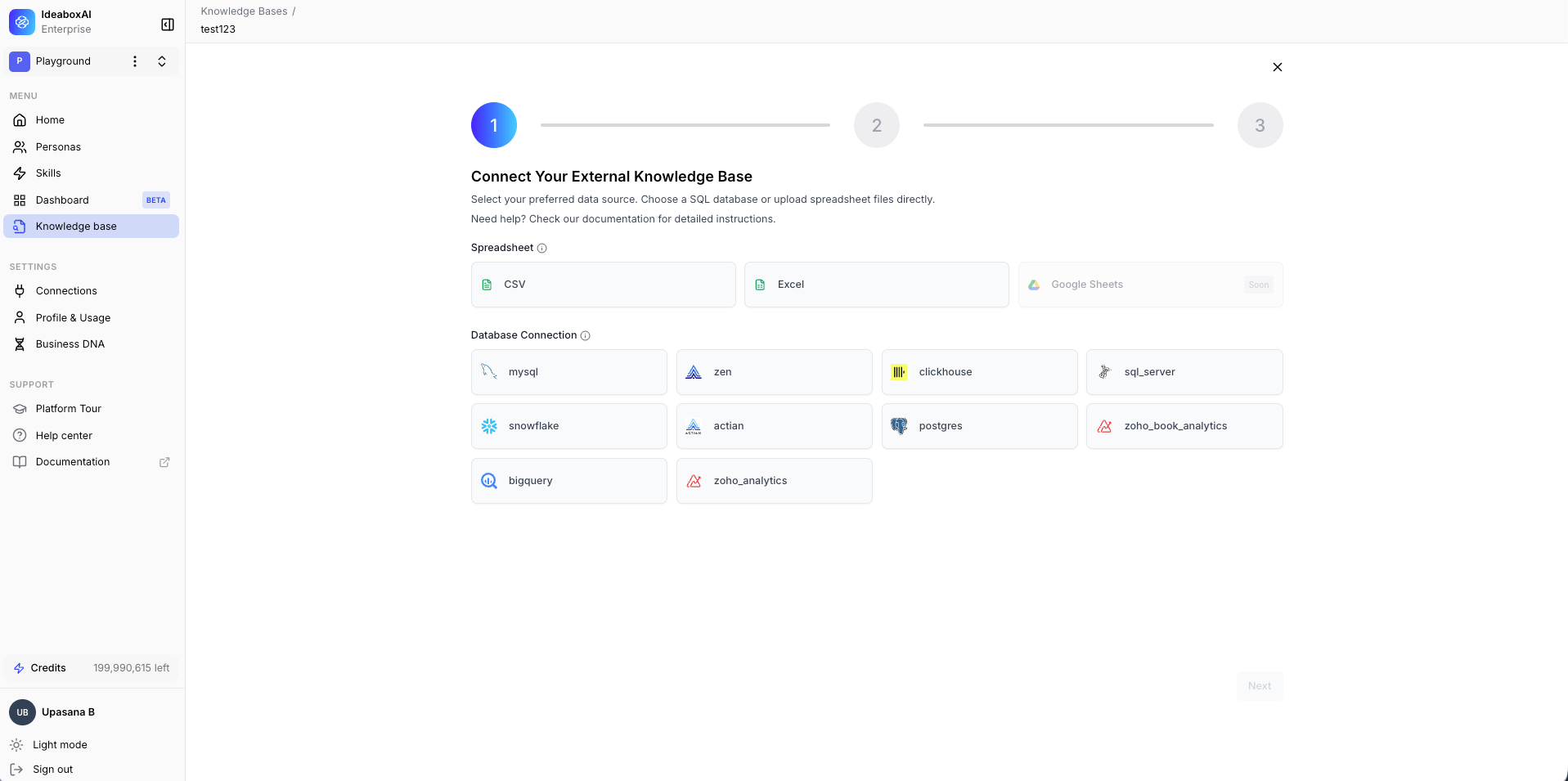
Explore the Datasets view
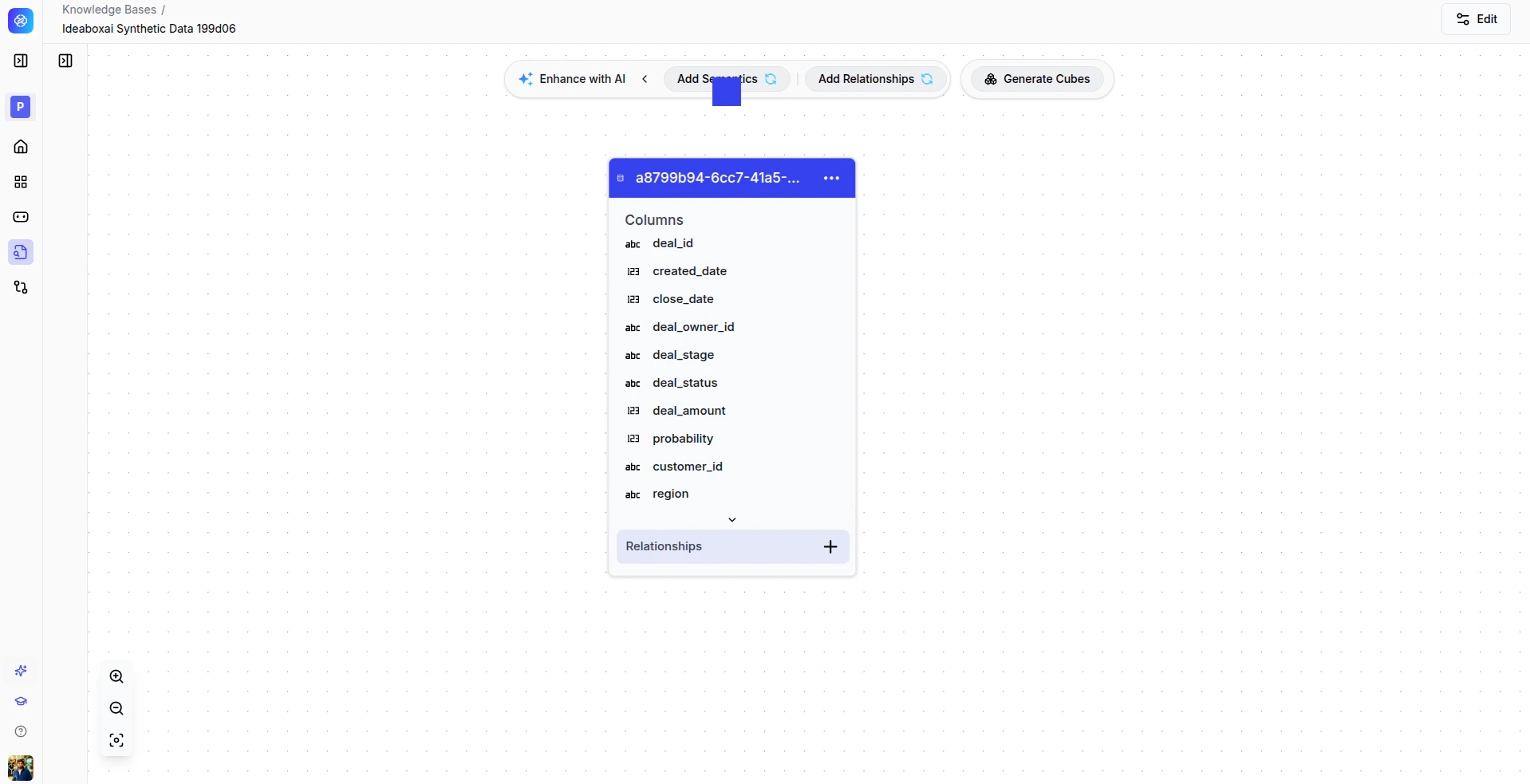
Once connected, the Datasets view displays a schema visualization of your database.- Data Sets sidebar: Lists all imported database tables.
- Table relationships: Shows joins and foreign key relationships between tables.
- AI enrichment: Options to enhance metadata with AI, add semantic definitions, and define relationships.
- Browse all database tables and their columns.
- Define joins and relationships between tables.
- Enhance schema metadata using AI assistance.
- Document business logic for columns and tables.
- Validate relationships against source database constraints.
- Avoid circular or ambiguous joins.
- Document semantic definitions clearly so agents can reason about your data.
Query with the SQL Editor
Once your database is connected and its schema is explored, you can query it directly using the built in SQL Editor, a real query workbench inside the knowledge base rather than a plain text box. Where: open a structured knowledge base and select the Editor tab. The sidebar splits into Tables and Queries, and the header shows which database engine you’re connected to along with a read only badge, since every query run from the Editor executes as a read only statement.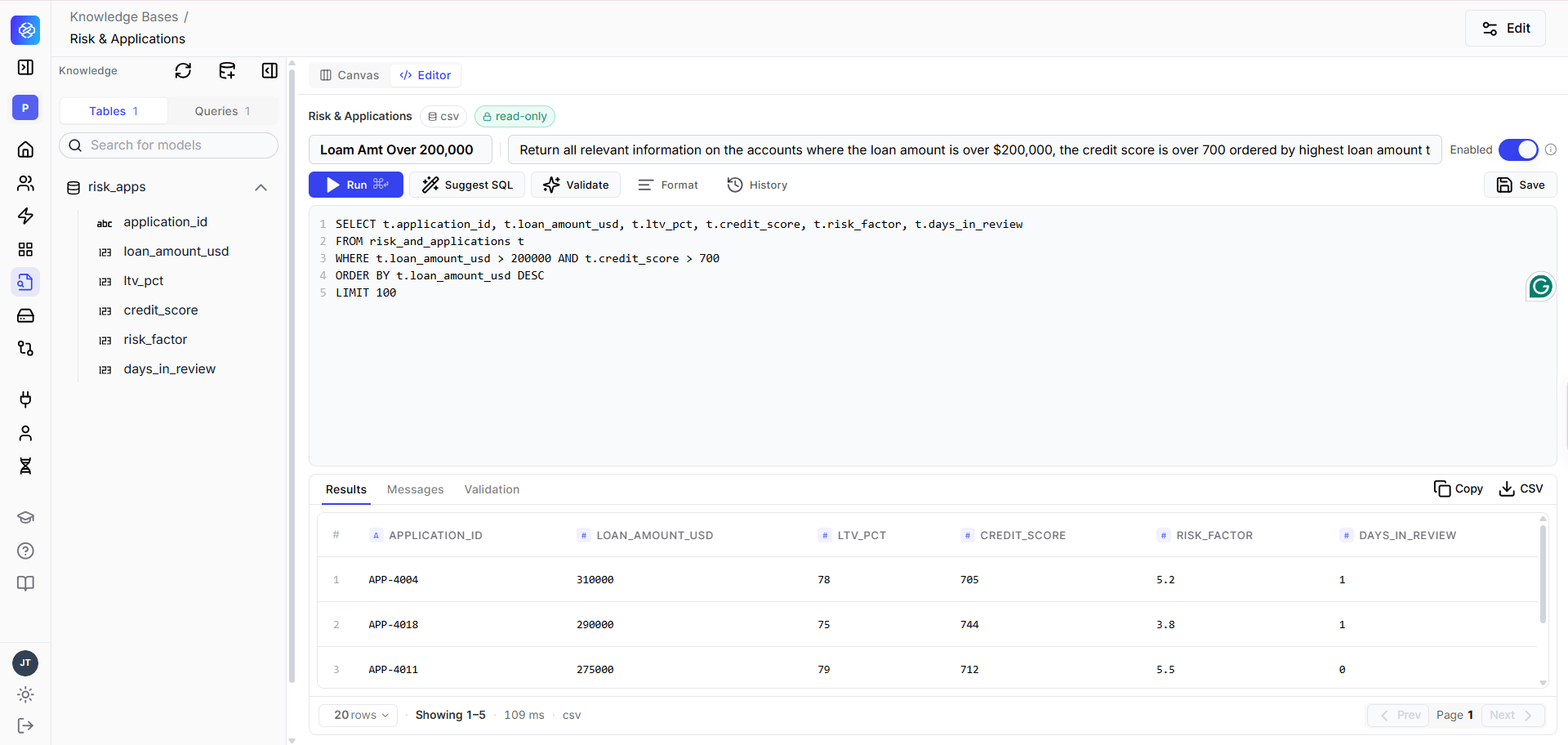
- Browse the schema: every table and column in the knowledge base is listed in the sidebar. Click one to insert it into your query, correctly qualified for the connected engine.
- Run: executes your query as read only and paged, with a row cap and a statement timeout. The footer reports rows returned, elapsed time, and the engine that was reached.
- Validate: static checks plus an optional AI review of your query, each returning a labeled advisory so you know exactly what it’s flagging.
- Suggest SQL: describe what you want in plain language and get a draft query built from the knowledge base’s real schema and dialect. A starting point, not a final answer.
- Format: tidy up a query’s formatting.
- History: recall what you’ve run earlier in the session.
- Copy or export to CSV: take a result set out of the Editor.
- Save: store a query together with a name, an example question, or both, so it can be reused later.
- Manage queries: search, filter, enable or disable, edit, or delete saved queries from the same view.
Table names are qualified the way your connected engine actually resolves them, not just however they read on screen. Snowflake, for example, has no default database or schema for a session, so a query written as ORDERS won’t resolve, while SNOWFLAKE_SAMPLE_DATA.TPCH_SF1.ORDERS will. The Editor, autocomplete, and Suggest SQL all qualify names automatically for the engine you’re connected to.
Saved queries
Saving a query does more than store it for your own reuse. Once a query is saved, Persona AI can find and run that exact query instead of writing a new one from scratch.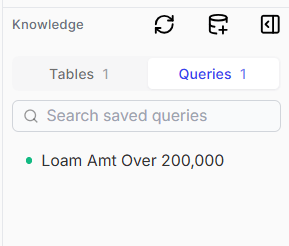
- An exact match on the query’s name.
- An exact match on the question it was saved with.
- A close match in meaning, so a rephrased version of a saved question still resolves to it. If nothing matches, Persona AI says so and generates a fresh query instead, rather than guessing at a saved query that doesn’t fit.