

AE use cases
The following table summarizes the primary use cases for the AE persona.Set up the AE persona
1
Open Persona Management
In the Admin Console, click Persona Management and then + Create New Persona.
2
Configure the persona
- Name: Account Executive
- Behavior: “You are an Account Executive. Help manage accounts, track deal health, prepare for meetings, generate proposals, and surface competitive intelligence. Ground all responses in CRM data, data warehouse signals, and internal knowledge.”
- Enable Memory: ON
3
Set permissions
Enable Access Connections, Access Knowledge Base, and Use Email Tools. Disable Browse Web unless needed.
4
Assign skills
Assign the following skills to the persona:
- Account Research
- Deal Analysis
- Email Drafting
- Meeting Prep
- Competitive Intelligence
5
Configure starter prompts
Add starter prompts tailored to the AE role:
- “Show me my current pipeline.”
- “Which deals are at risk of slipping?”
- “Prep me for my QBR with [account name].”
- “Draft a follow-up email for [account name].”
- “How do we compare to competitors?”
- “Am I on track to hit my quota?”
- “Show me my top accounts by revenue.”
6
Assign users and go live
Assign your AE team members to this persona. They will see the AE-specific home screen on their next login.
Walkthrough: accessing your sales folders
This walkthrough demonstrates how the AE persona connects to Google Drive to access your account folders.1
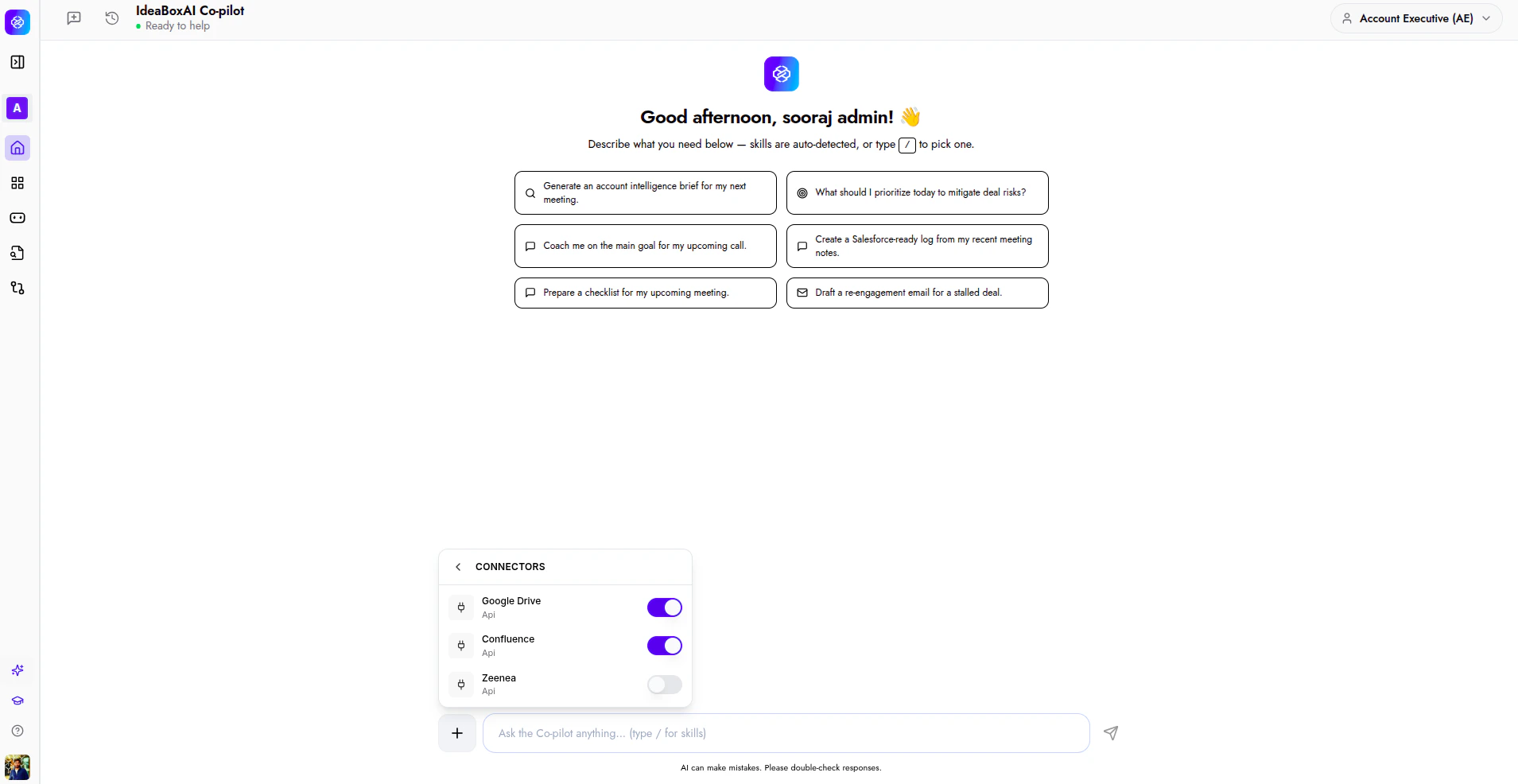
Connect Google Drive
Before the Persona AI can access your files, Google Drive must be connected to the current session. If you ask a Drive-related question without a connection, then the Persona AI prompts you to connect.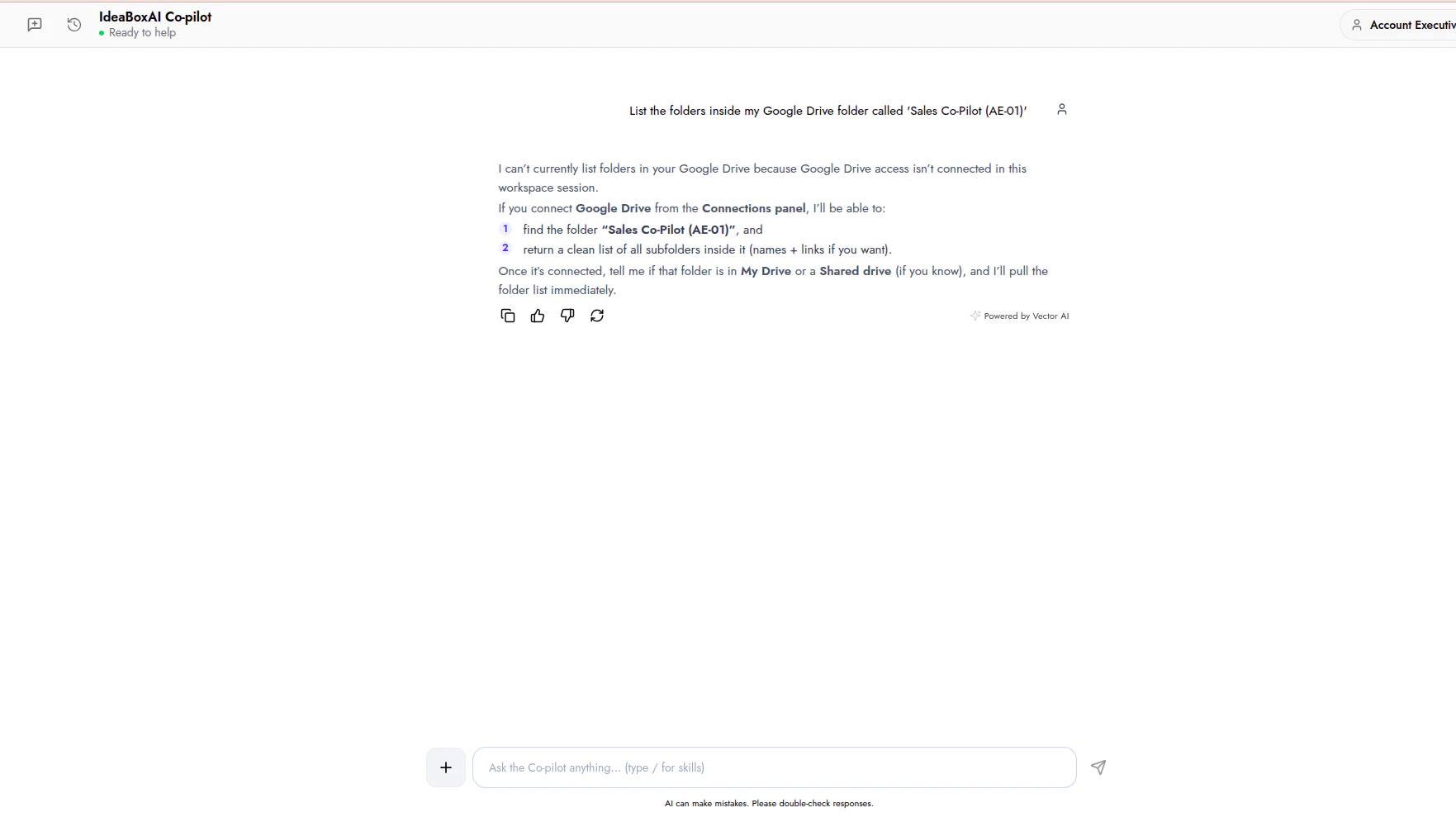
2
List your account folders
Once Google Drive is connected, type:“List the folders inside my Google Drive folder called ‘Sales Persona AI (AE-01)’”The Persona AI searches your Drive, locates the folder, and returns a list of all subfolders with direct links.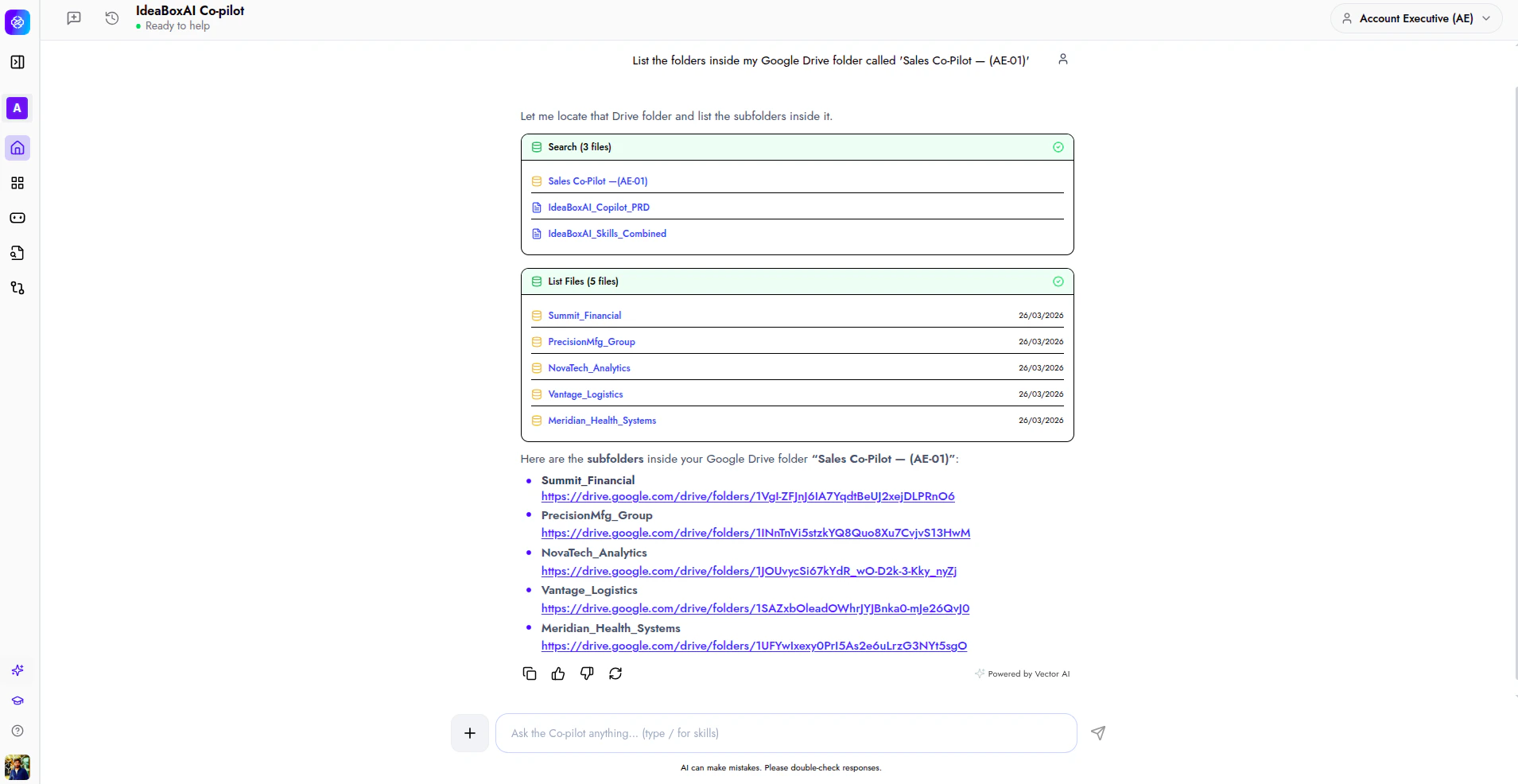
3
Open an account folder
Click any subfolder name or link to open it directly in Google Drive. You can also ask the Persona AI to list the files inside a specific account folder.
Walkthrough: meeting prep
This walkthrough shows how the AE persona prepares you for an upcoming meeting. The Persona AI pulls from your Drive files, runs web research, and generates a tailored briefing.1
Send the prompt
Type a prompt that includes the account name, meeting context, and any relevant details:“Prep me for my first meeting with Meridian Health Systems next Tuesday. Healthcare company, $200K opportunity, Stage 1. I’ve never engaged with them before.”
2
Review the multi-source briefing
The Persona AI automatically: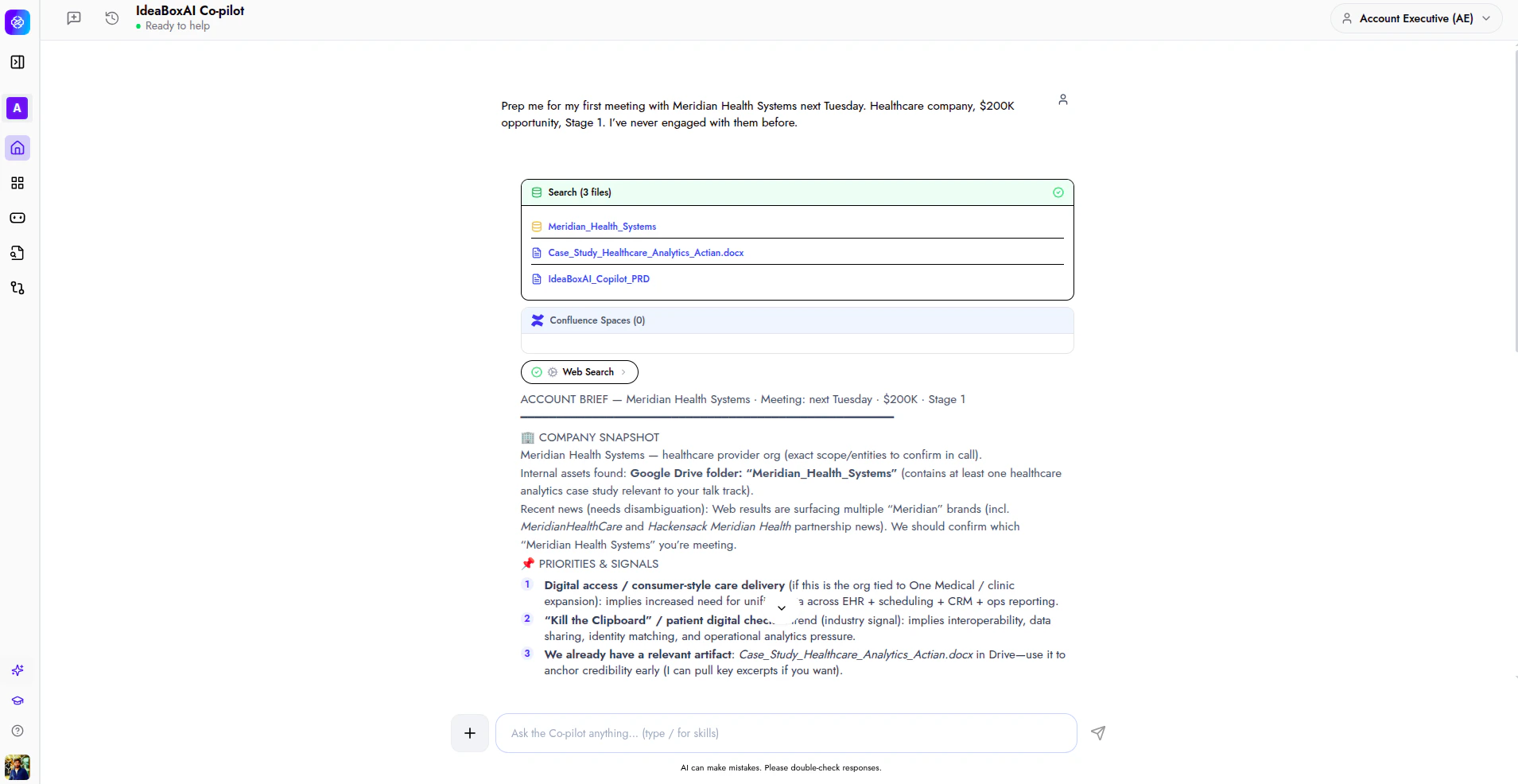
- Searches Google Drive for relevant files in your account folders, such as case studies and benchmark decks.
- Retrieves file content from matched documents to extract key talking points.
- Runs a web search on the account to surface recent news, company profile, industry context, and key contacts.
- Company overview: Industry, key roles, and business context.
- Internal assets: Relevant case studies, benchmark decks, and collateral from your Drive.
- Suggested talk track: An opening approach and top questions tailored to the account’s industry and deal stage.
3
Take action
Use the suggested talk track directly or ask follow-up questions such as “What objections should I expect?” or “Draft the follow-up email.” The Persona AI retains the full meeting context.
Walkthrough: email follow-up
This walkthrough shows how to draft and send a follow-up email directly from the Persona AI after a meeting prep or account interaction.1
Send the prompt
After completing a meeting prep or account research, type:“Draft the follow-up email to [contact name]. Send the email to [email address].”
2
Review the email draft
The Persona AI generates a follow-up email and opens the Email Composer. The draft includes: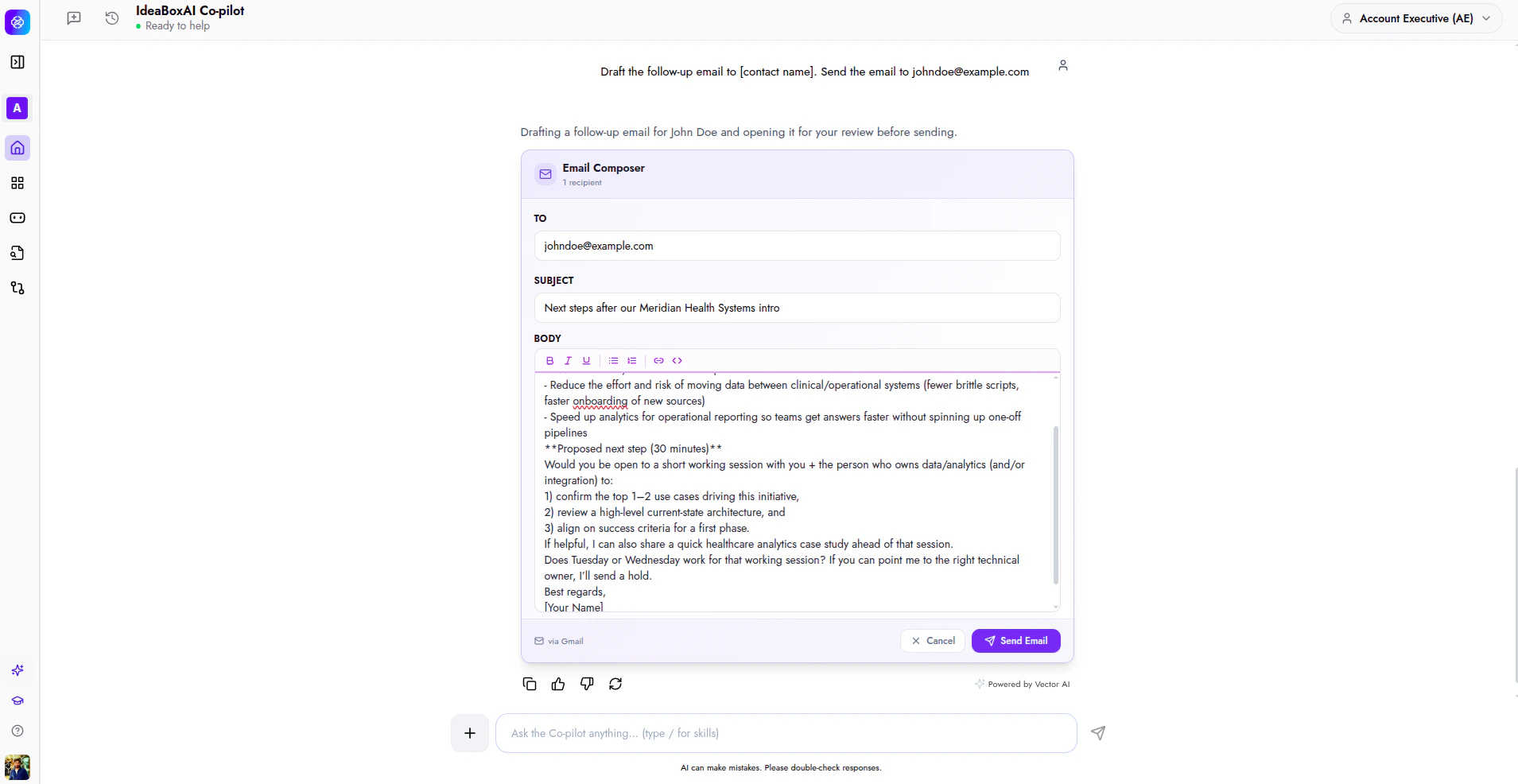
- To: Pre-filled with the contact’s email address.
- Subject line: A clear subject referencing the account and proposed next step.
- Body: A professional follow-up grounded in the meeting context, including action items and next steps.
3
Edit and send
Review the draft in the Email Composer. Click Edit draft to make changes, Cancel to discard, or Send Email to deliver it directly from the Persona AI.
Next steps
Now that the AE persona is configured, explore related tutorials to expand your setup.Using the Persona AI
Learn how to send prompts, hold multi-turn conversations, and generate documents.
Sales Engineer persona
Configure the SE persona for technical discovery, demo prep, and POC planning.
Sales Development Rep persona
Set up the SDR persona for prospect research and outreach generation.
Connectors overview
Learn how to set up and manage data source connectors for your workspace.