How personas work
Each persona configures three key areas.- Starter prompts: Natural-language prompt cards shown on the home screen, based on the persona description and how the user interacts with the Persona AI. These help users get started quickly with common tasks for their role.
- Skills: Purpose-built capabilities assigned to the persona that define what it can do. Skills handle specific tasks such as generating reports, drafting documents, or analyzing data.
- Knowledge base scope: Which connected data sources and documents the persona can access and query.
When a user switches personas, all three areas update immediately; no page refresh required.
Supported personas
The platform ships with built-in personas, and administrators can create custom personas for any role in the organization. Each persona is designed around a specific role, its goals, and the workflows it performs daily. A well-configured persona includes:- Role definition: A clear description of who the persona is for and what they do.
- Goals: The outcomes the persona is optimized to support.
- Pain points addressed: The manual or inefficient processes the persona eliminates.
Navigate to persona management
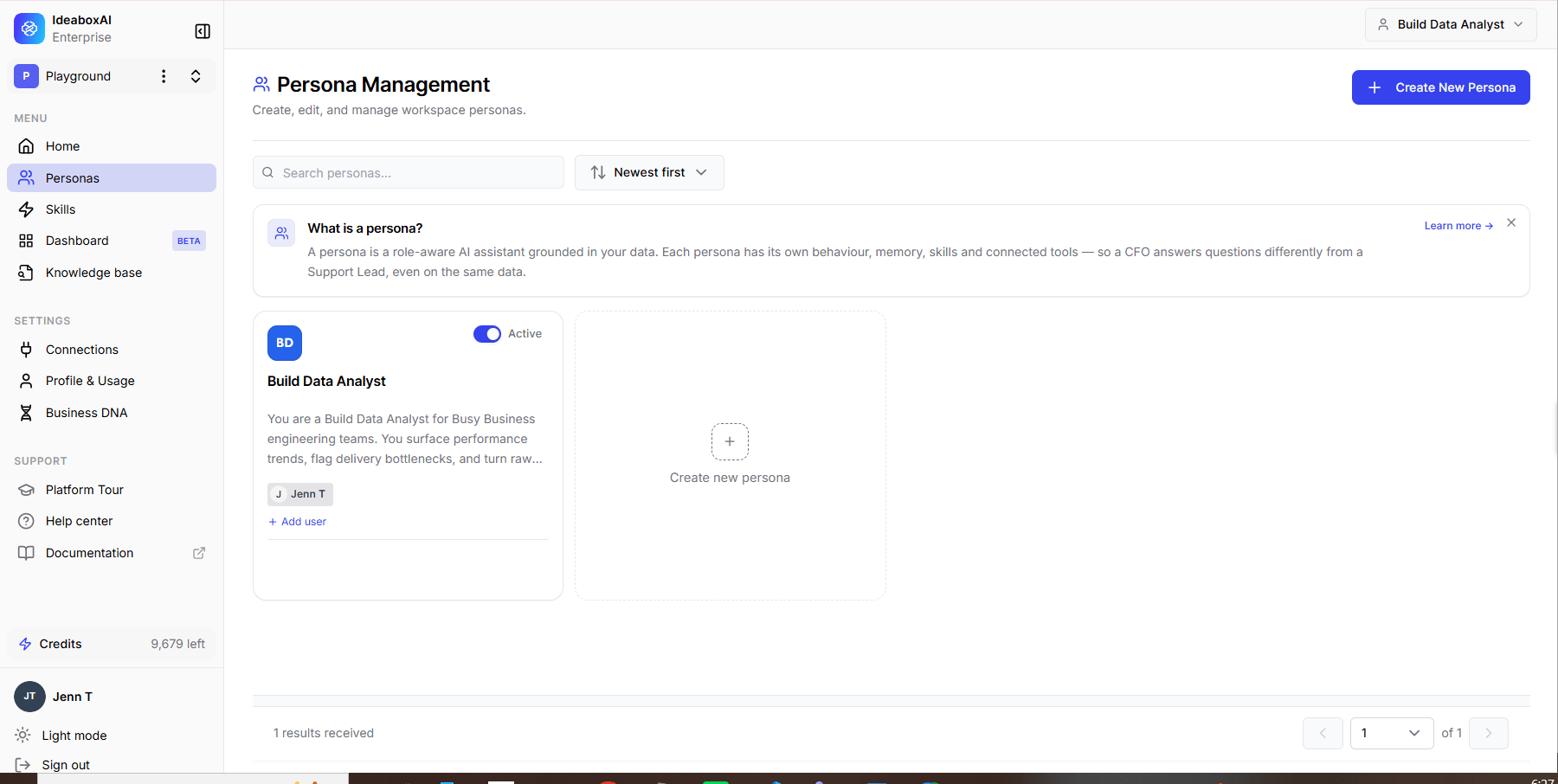
Open Persona Management from the left navigation. The Persona Management page lists every existing persona as a card. Use the Search personas box to filter by name and the Newest first dropdown to change the sort order. Each persona card shows the following.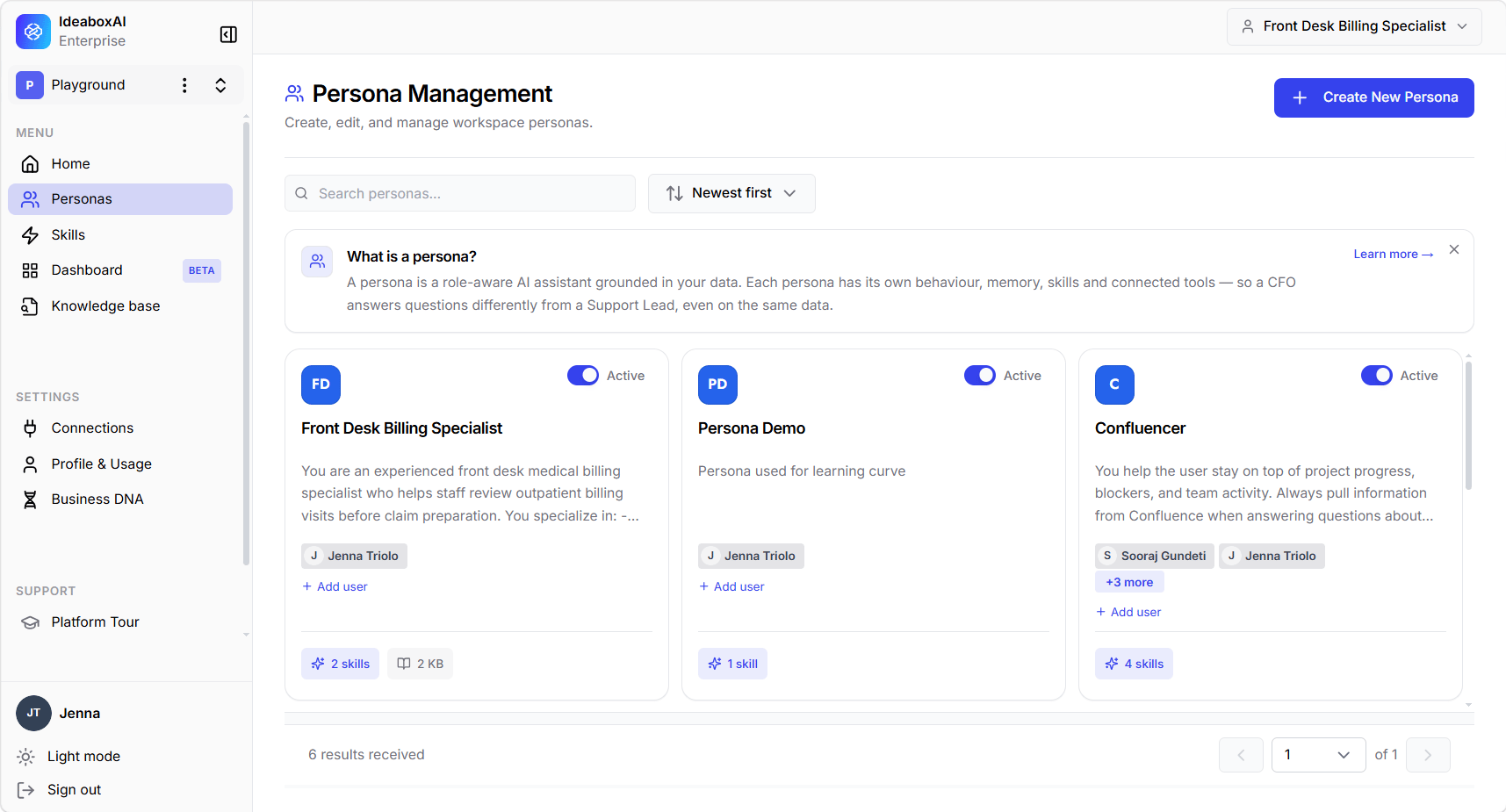
Create or edit a persona
Click Create New Persona in the top-right corner, or click the Edit action on an existing persona. When no personas exist yet, the page shows a No personas yet empty state with a Create new persona button.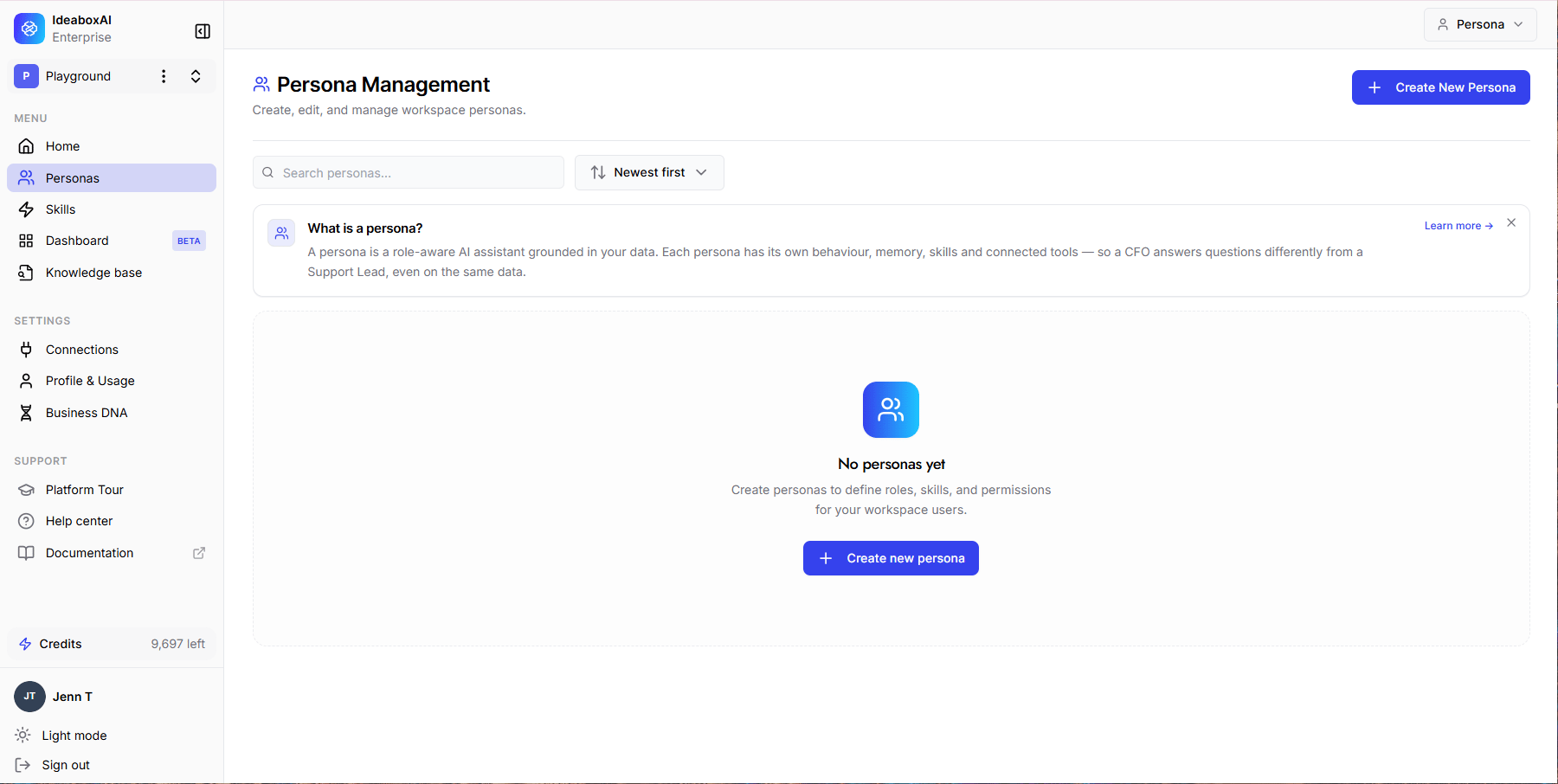
1
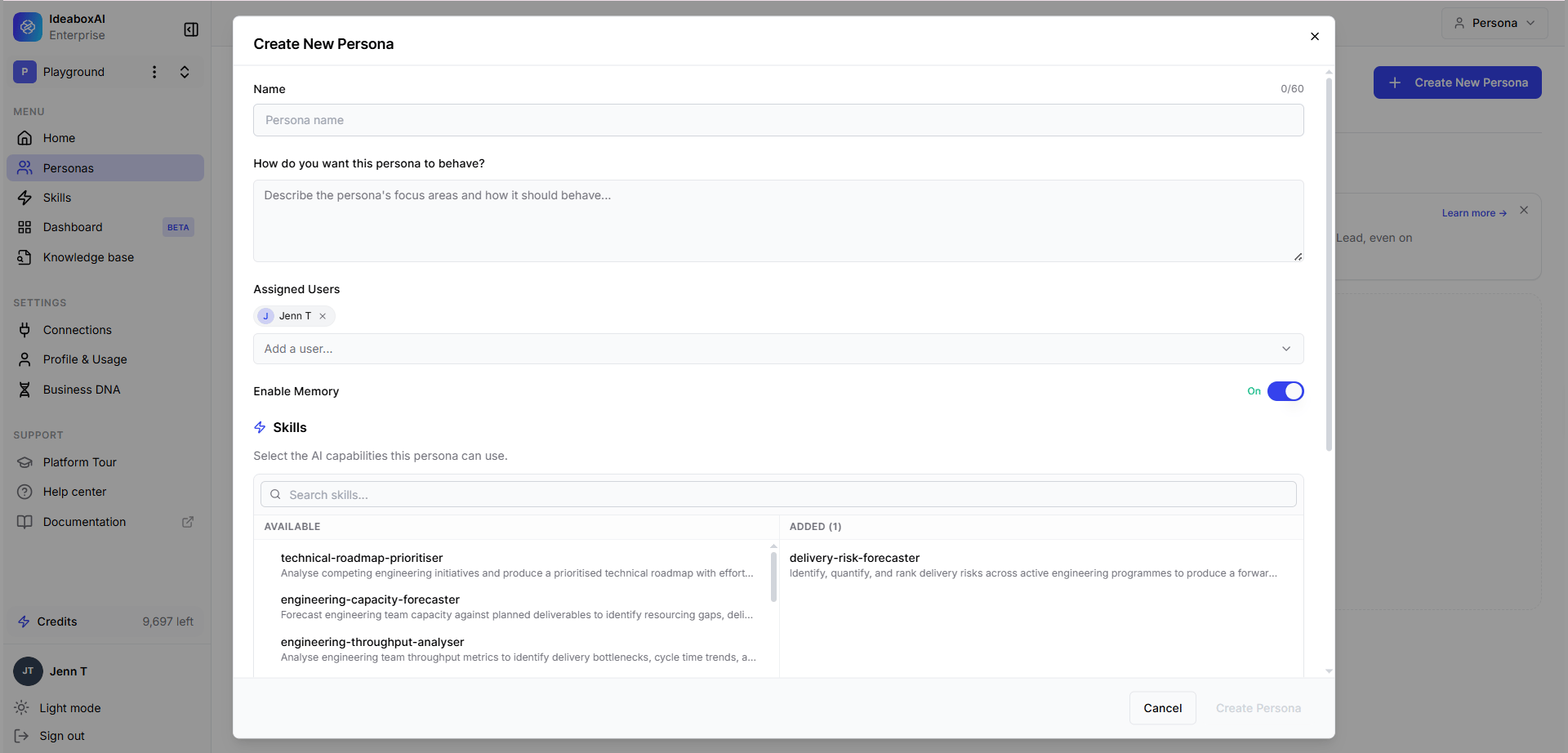
Configure identity and behavior
Fill in the following fields:
2
Enable Memory
Toggle Enable Memory to control whether the persona retains context across sessions.
- ON: The Persona AI remembers previous conversations and builds on prior context.
- OFF: Each session starts fresh with no retained history.
3
Save the Persona
Click Create Persona (or Save Changes when editing). The persona appears in the Persona Management list with an Active status by default. Assigned users will see it in their persona dropdown immediately.
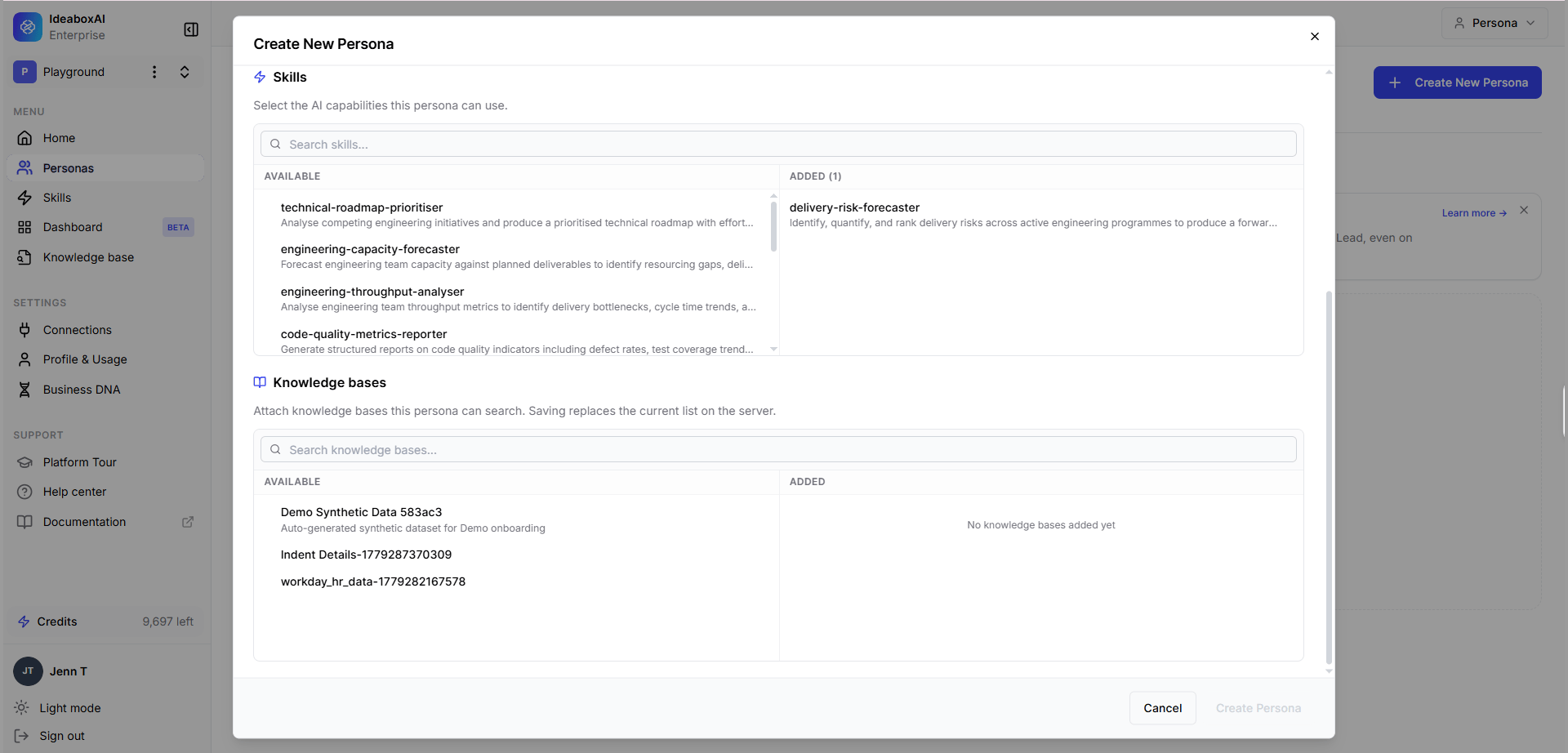
Attach skills and knowledge bases
Further down the Create New Persona modal, you can scope what the persona can do and what it can access.- Skills: Select the AI capabilities this persona can use, and search, and select skills. Selected skills appear on the right side, and the count is shown (for example, ADDED (2)).
- Knowledge bases: Attach knowledge bases this persona can search; select the data sources the persona can query, and they appear on the right side.
Admin: assign users to a persona
Personas are assigned to existing platform users directly from the Persona Management page. Each persona card includes a + Add user action to grant additional users access to that persona.1
Open Personas
In the Admin Console, click Personas in the left sidebar.
2
Click + Add user
On the persona card you want to update, click + Add user.
3
Select existing users
Search for and select one or more existing users in the platform. Selected users appear as avatar chips on the persona card.