

User Management
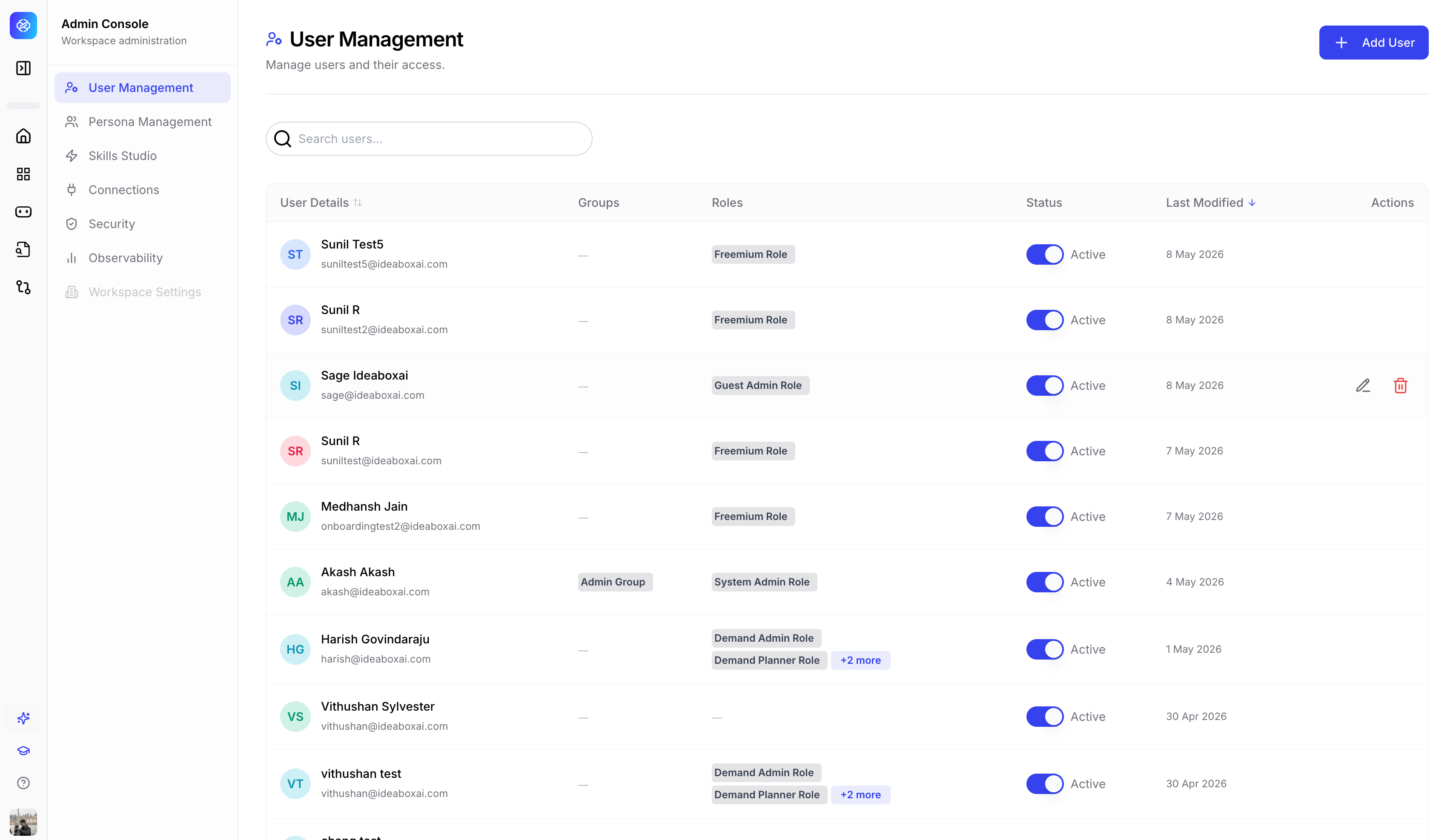
Manage all users in your workspace and control their access. The user management table displays the following columns.
Use the + Add User button to invite new users to the workspace. Use the search bar to quickly find users by name or email.
Bulk invite
Admins can now invite multiple users in a single flow instead of one at a time. The Bulk Invite dialog has two steps: Set up the batch and Review and send.Step 1: Set up the batch
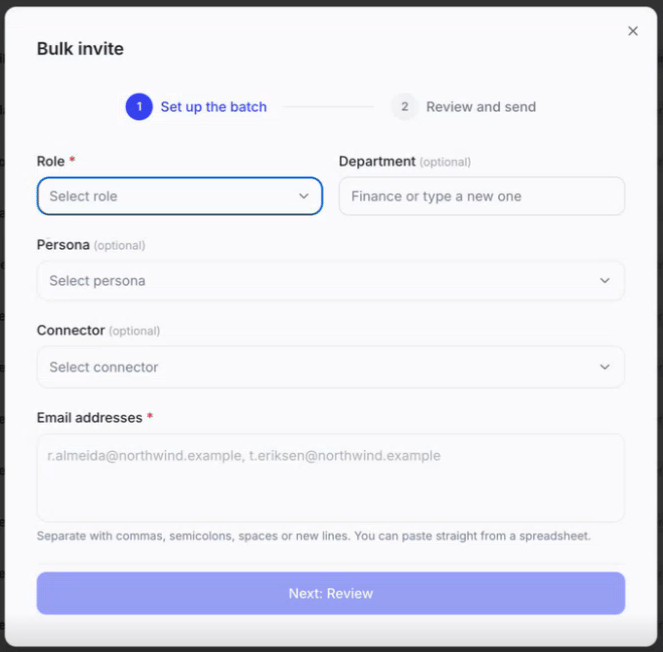
- From the User Management table, click + Add User and choose the bulk invite option.
- Select a Role (required).
- Optionally fill in:
- Department — pick an existing one or type a new one.
- Persona — a starting persona to assign to every invited user.
- Connector — one or more connectors to recommend to the invited users.
- In Email addresses, paste or type the addresses to invite. Separate them with commas, semicolons, spaces, or new lines — you can also paste directly from a spreadsheet.
- Click Next: Review.
Step 2: Review and send
The review screen summarizes the role, persona, and connectors selected, and lists the status of each address:
If the batch would put the workspace over its plan’s concurrent-user limit, a warning banner explains this is a warning, not a block — accounts are unlimited, and people are only turned away at login if more than the plan’s limit are active at once.
Click Invite to send the batch.
Persona assignment
If a persona is attached to the invite, each new user receives their own independent copy of it on first login, including its skills. Editing or deleting the source persona afterward has no effect on copies that have already been distributed.Admin-initiated password reset
Workspace admins can trigger a password reset directly from a user’s record, without ever generating, seeing, or sending the user’s password.- From the User Management table, open a user’s record to bring up the Edit User dialog.
- Under Status, click Reset password.
- Confirm in the dialog that appears.
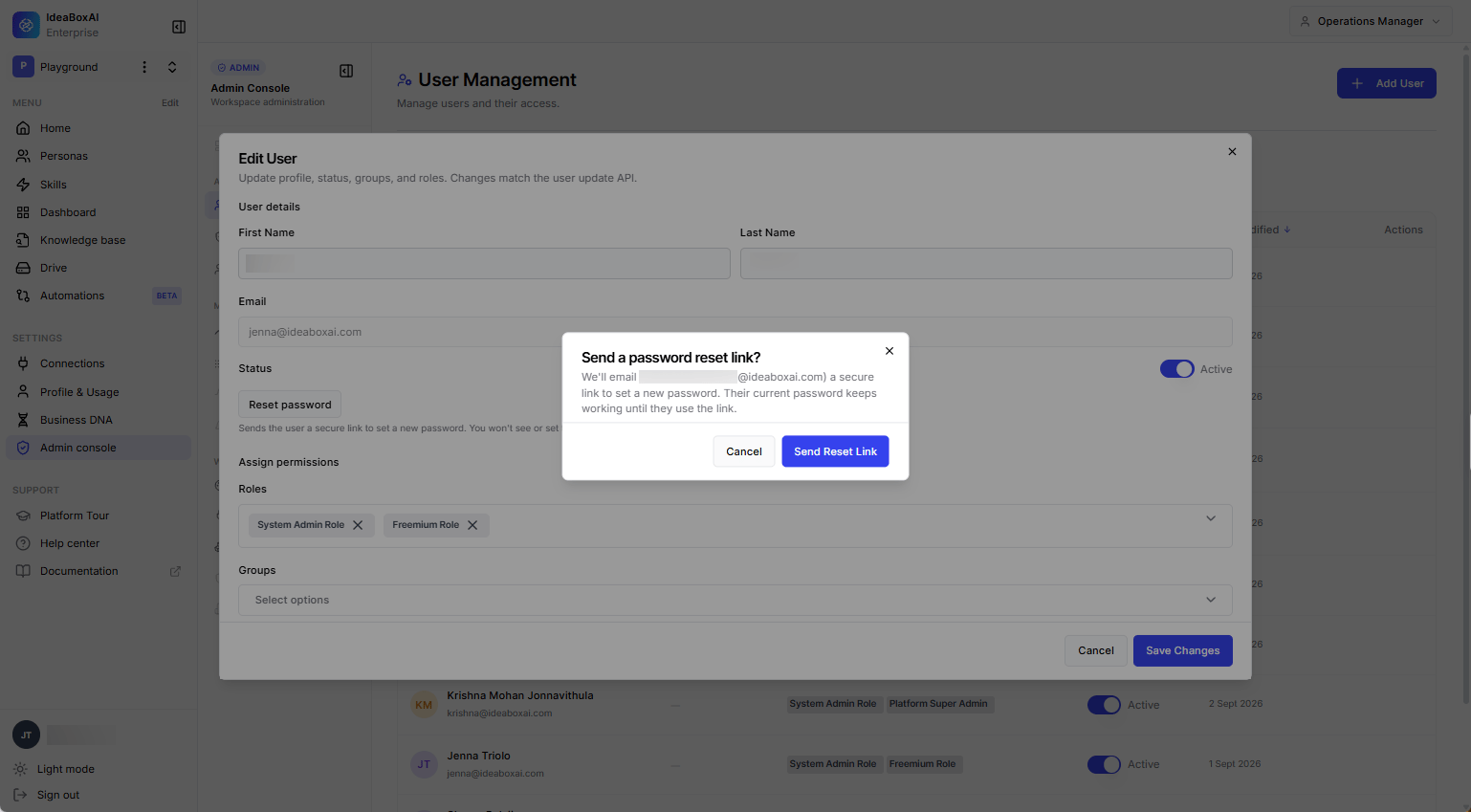
- Click Send Reset Link.
Persona Management
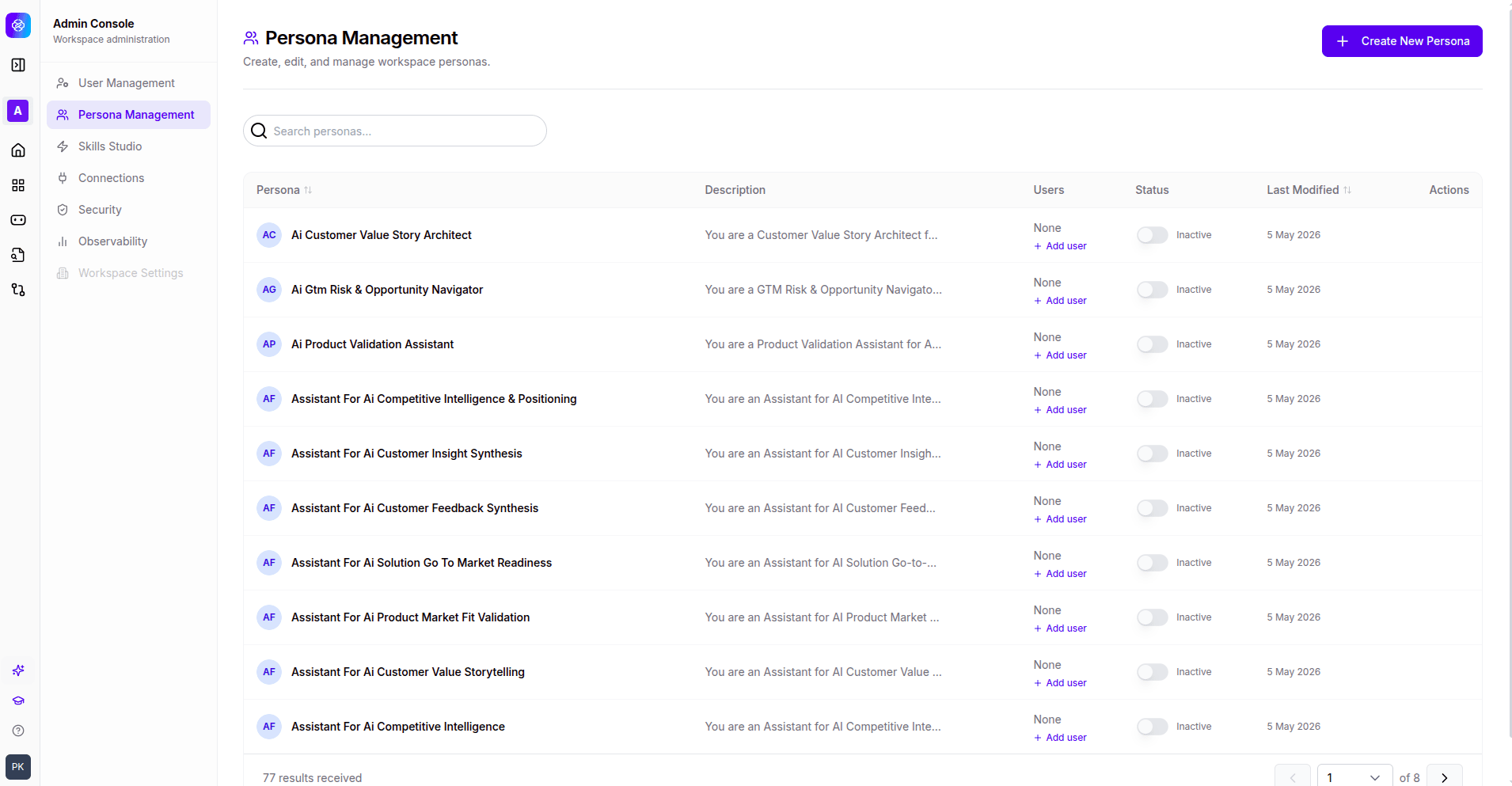
Create, edit, and manage workspace personas. The persona management table displays the following columns.
Use the + Create New Persona button to add a new persona to the workspace. Each persona defines a distinct role with its own skills, knowledge bases, and data source access.
Connection management
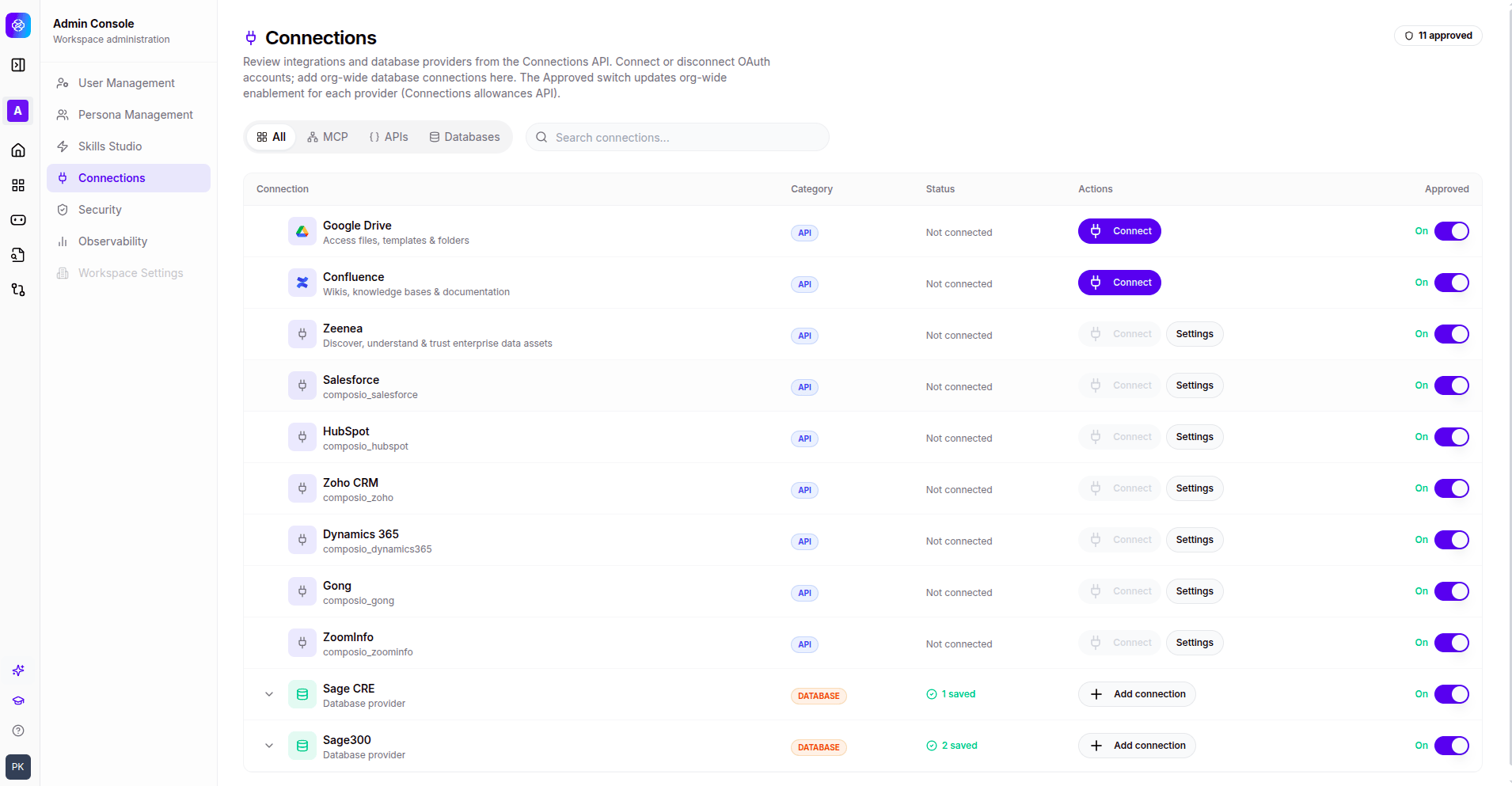
Admin-level connection management determines which integrations are visible to users. Only approved connections appear in user Settings > Connections. The header displays the total count of approved connections.Connection list
The connection list is presented as a table with the following columns.
The list is filterable by All, MCP, APIs, and Databases, and includes a search bar for quick lookup.
Approved ON means users can see and connect the integration in their own Settings. Approved OFF hides the integration from all non-admin users.
APIs
Filter by APIs to view all API-based integrations. Each row shows the connection name, category badge, connection status, and an Approved toggle. Use the Connect button to initiate OAuth or API key setup, and Settings to reconfigure existing connections.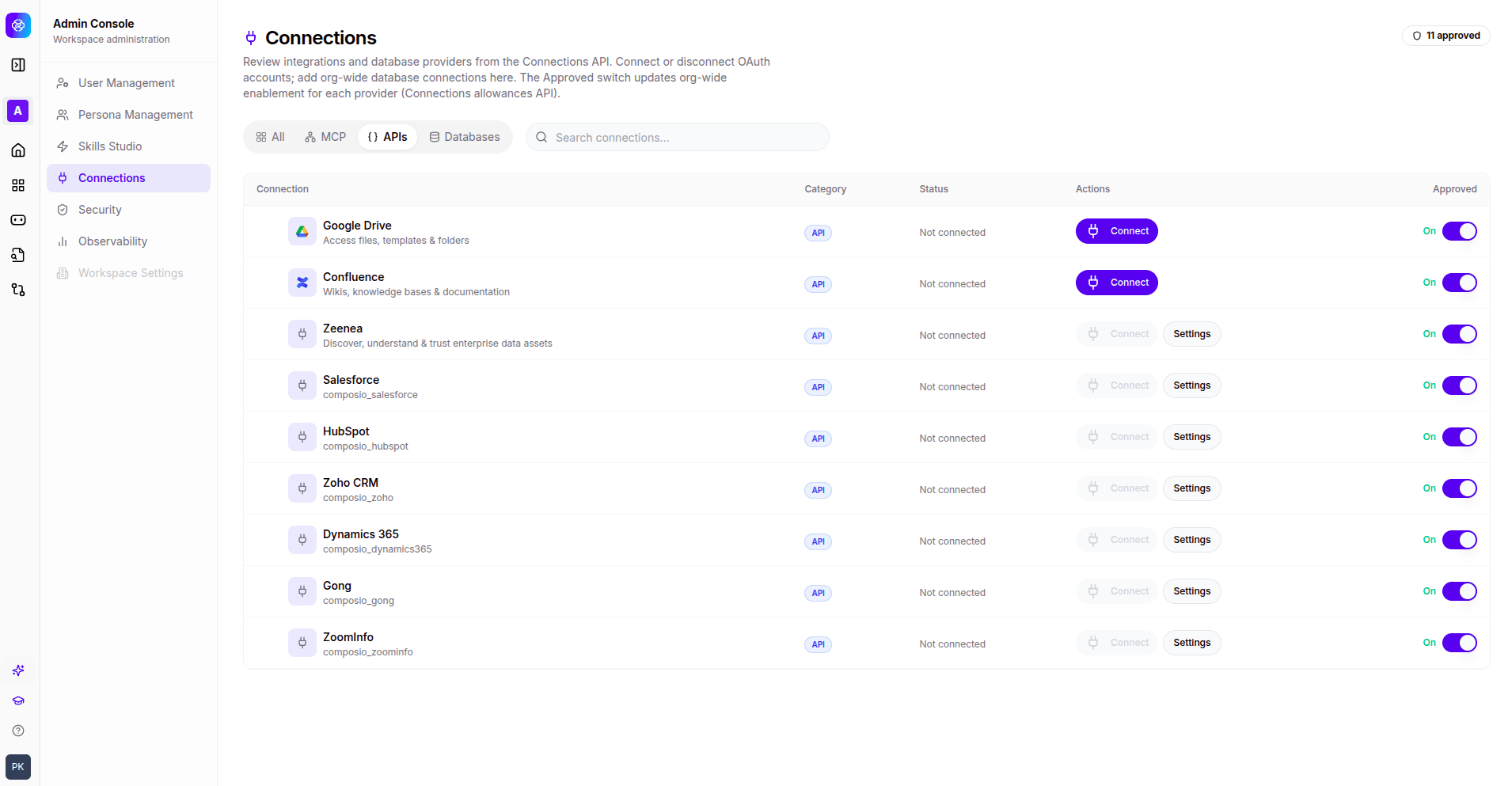
Databases
Filter by Databases to view database providers. Each database connection shows the provider name, category badge, saved connection count, and an Add connection action for configuring additional database instances.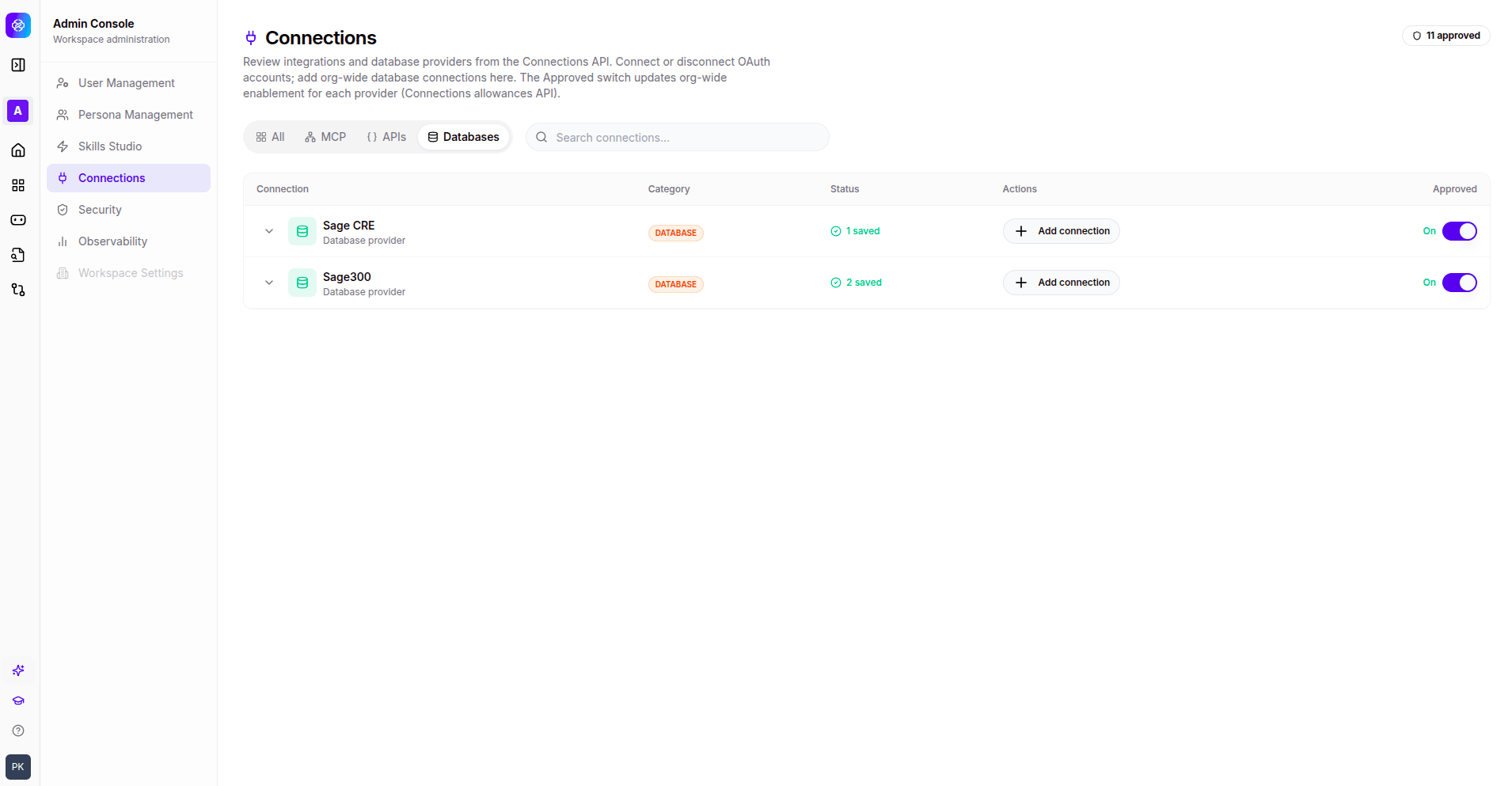
AI Models
AI Models is currently in Beta.
Model categories
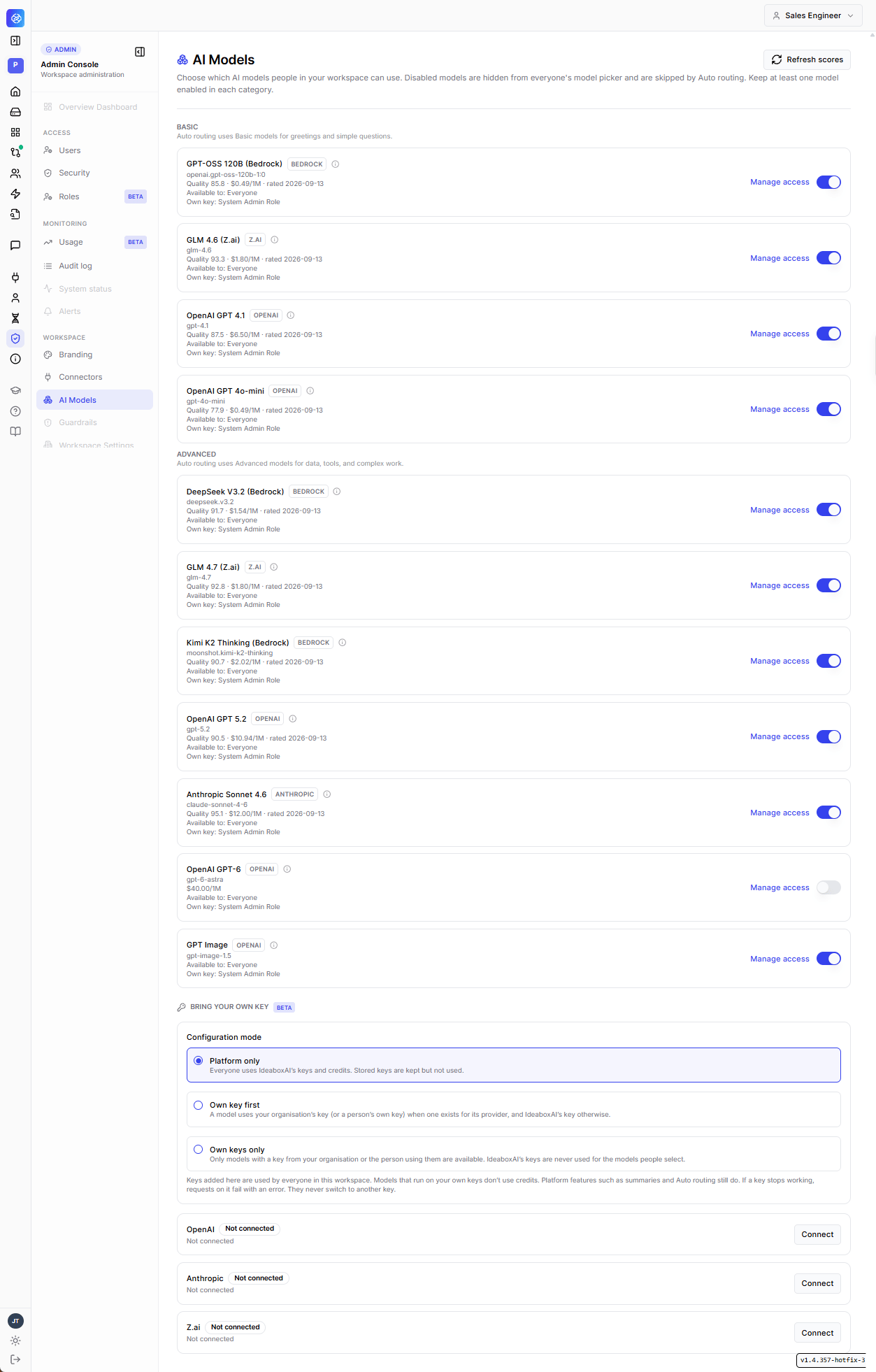
Models are grouped into two categories, both used by Auto routing.
Each model card shows a quality score, price per million tokens, the date it was last rated, who it’s available to, and which role owns the key used for it. Use the toggle on each card to enable or disable a model — disabling it hides the model from everyone’s picker and Auto routing skips it. At least one model must stay enabled in each category.
Use Refresh scores to pull the latest quality and pricing ratings for all models.
Manage access
Click Manage access on any model to control exactly who can use it.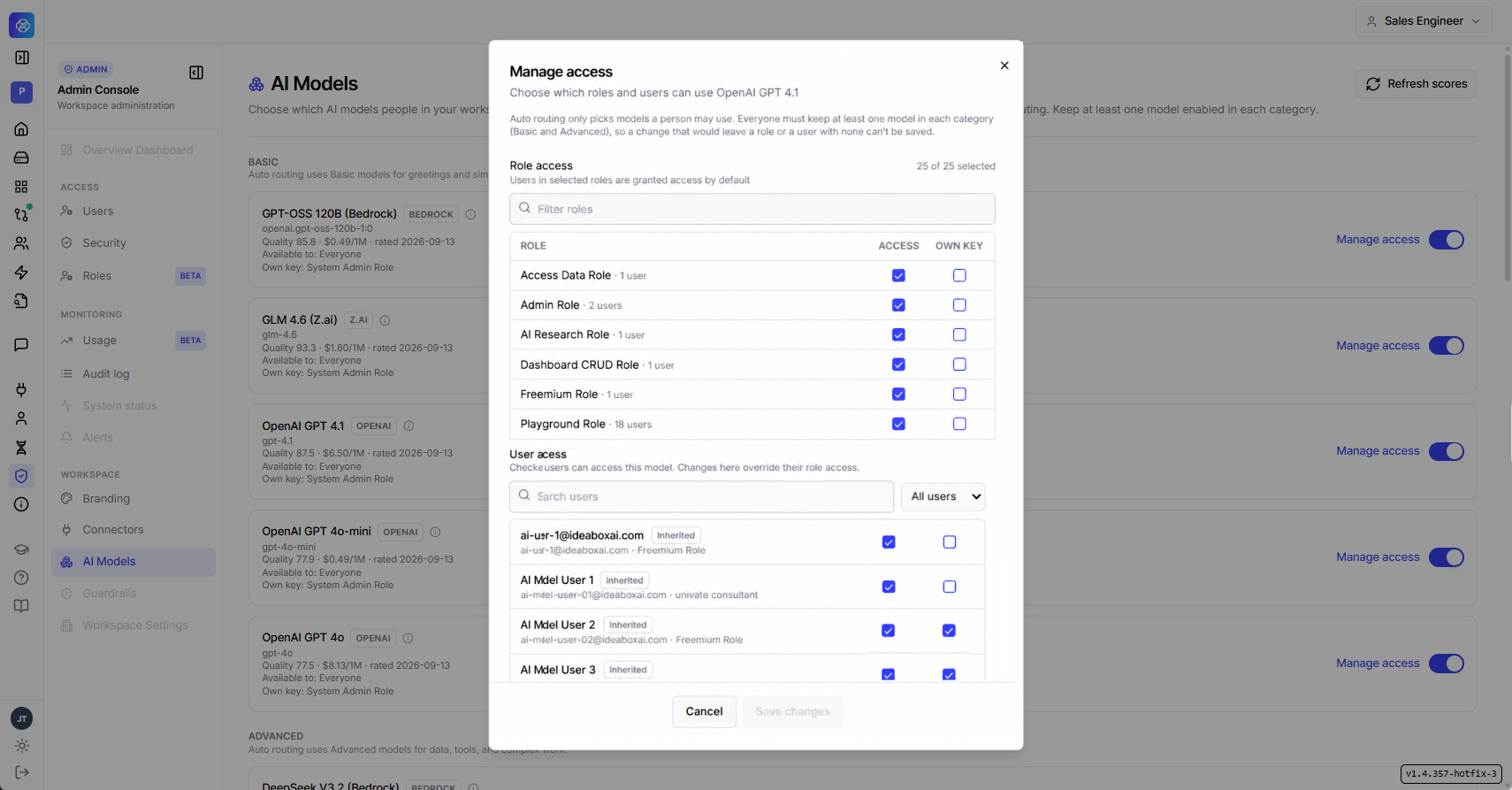
- Role access: Search or filter roles, then check Access to grant a role use of the model, and Own Key to allow that role to use its own connected key for it. A running count (e.g. “25 of 25 selected”) shows how many roles currently have access.
- User access: Check individual users’ Access and Own Key boxes to override their role-level access. Users are marked Inherited when their access still comes from their role rather than an individual override. Search or filter by user to find someone quickly.
- Minimum per category: Auto routing only considers models a person may use, so every role and every user must keep at least one enabled model in each category (Basic and Advanced). A change that would leave a role or user with none can’t be saved.
Bring Your Own Key (BYOK)
In addition to platform-provided models, connect your own LLM provider credentials — OpenAI, Anthropic, Azure OpenAI, Z.ai, and other OpenAI-compatible endpoints. Once a connection is added and tested, your own models become selectable throughout the platform, in Copilot Chat, Personas, Workflows, and Automations.- Encrypted credentials: Credentials are encrypted at rest and are never exposed again after entry.
- Separate usage tracking: Usage through your own keys doesn’t consume platform credits, and is tracked separately on the Observability page.
- Your responsibility: You’re responsible for all costs, compliance, and data handling associated with the provider you connect.
Keys added here are used by everyone in the workspace. Models running on your own keys don’t use credits, but platform features such as summaries and Auto routing still do. If a key stops working, requests on it fail with an error — they never silently switch to another key.
Security
Granular access control organized into four tabs: Resources, Policies, Roles, and Groups.Resources tab
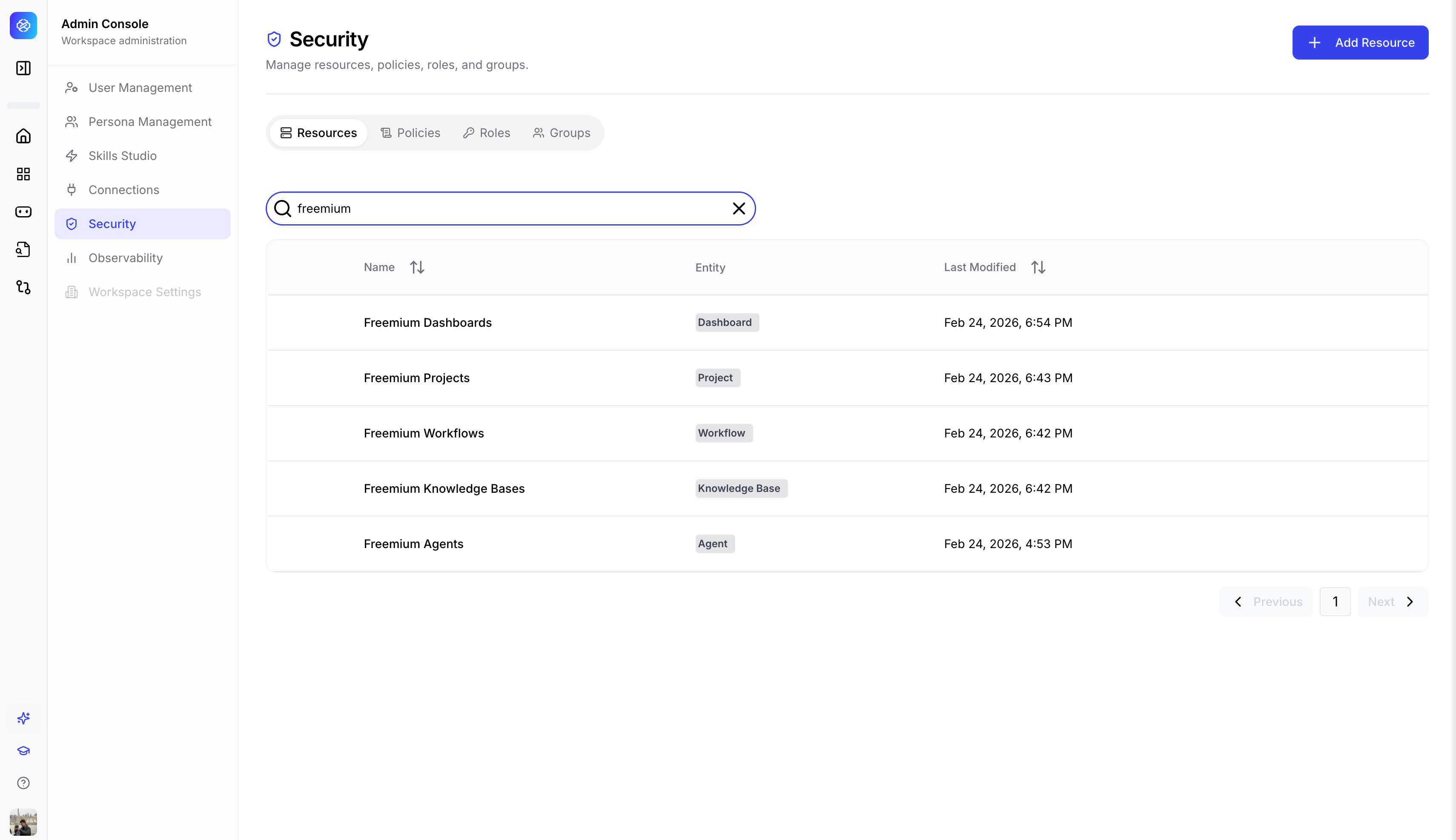
Resources are named groups that represent collections of platform entities. The resources table displays the following columns.Add resource modal
1
Select entity type
Choose from the available entity types: Dashboard, Knowledge Base, Project, User, Resource, Policy, Role, or Group.
2
Define the resource
Enter a Resource Name and Description.
3
Add conditions (optional)
Build conditional rules using a field dropdown, operator, and value. Combine conditions with AND / OR logic.
Policies tab
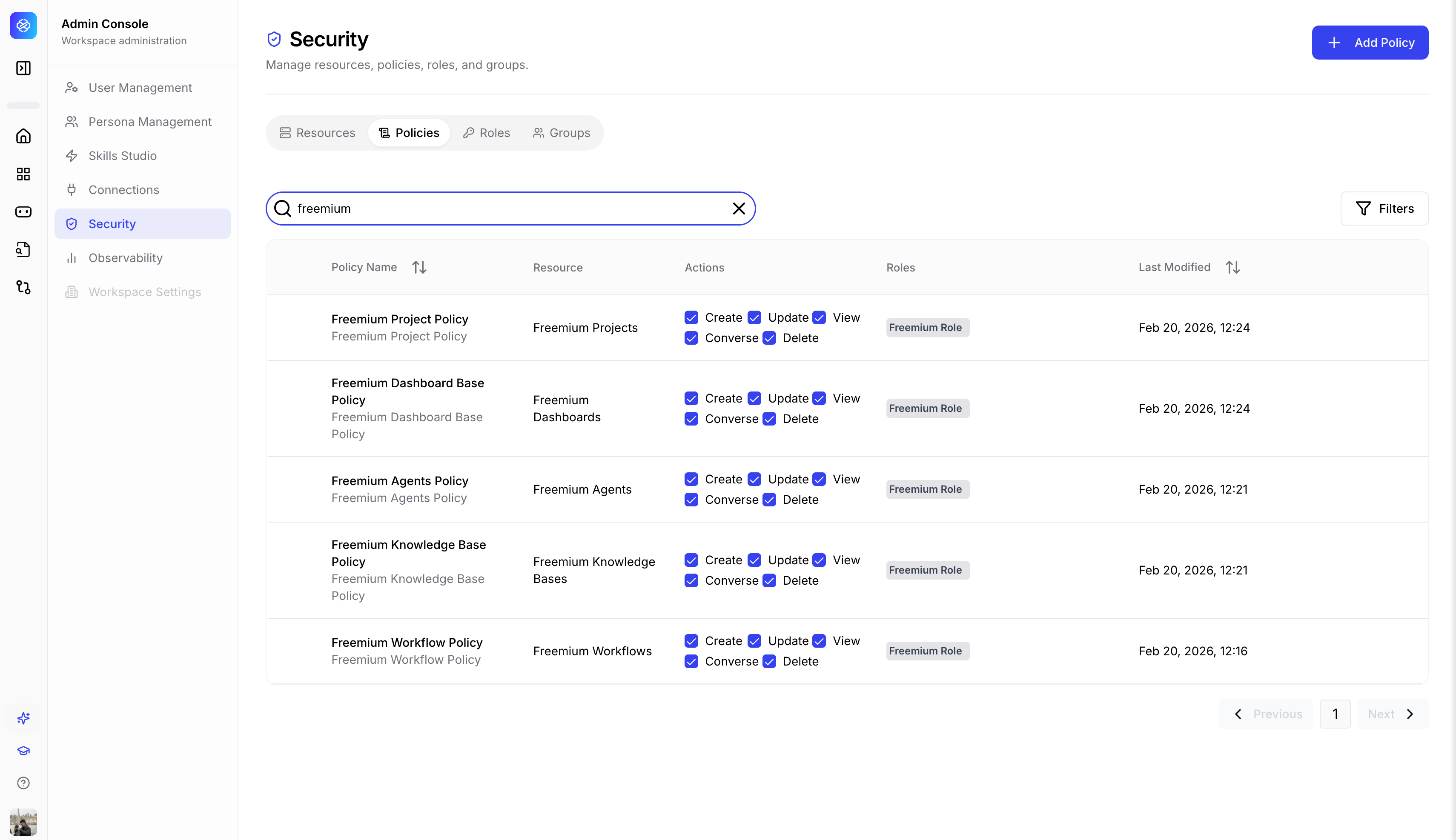
Policies define access rules by combining a subject (role), actions (permissions), and a resource. The policies table displays the following columns.
Use the + Add Policy button to create a new access rule.
Roles tab
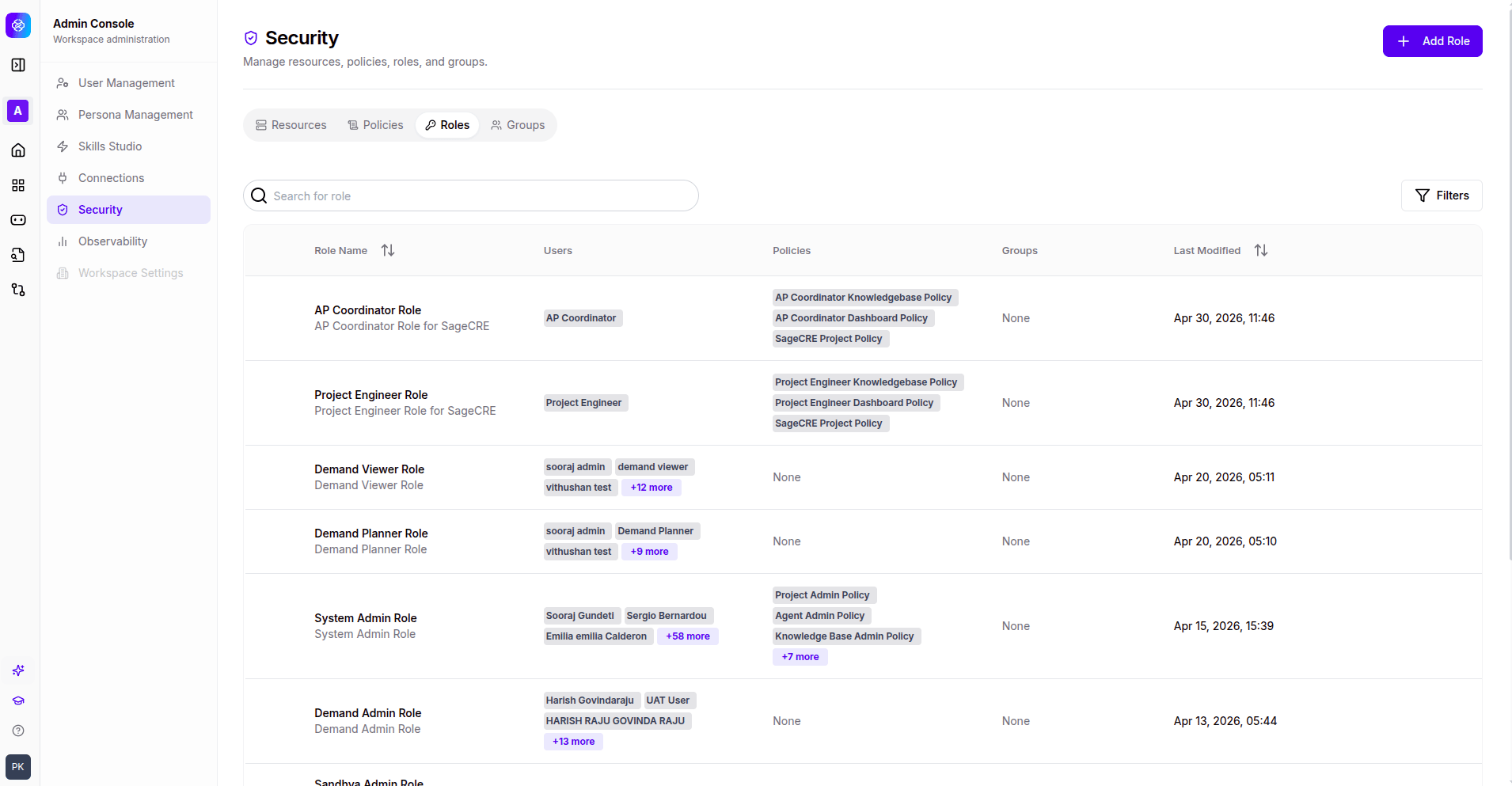
Roles are named permission levels that control what users can do within the workspace. The roles table displays the following columns.
Use the + Add Role button to create a new role. Use the Filters button to narrow down the list.
Groups tab
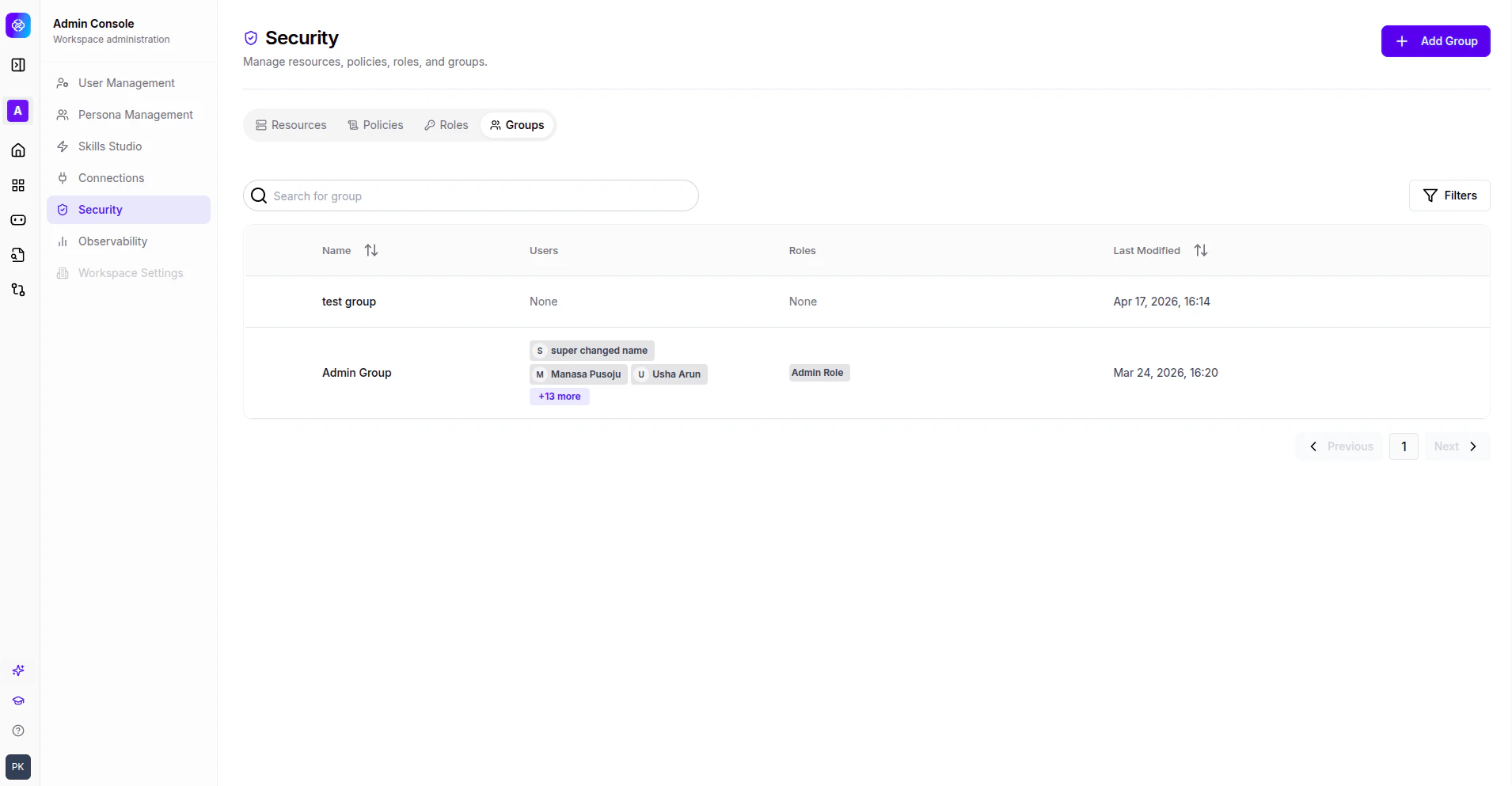
Groups are named collections of users for bulk role assignment. The groups table displays the following columns.
Use the + Add Group button to create a new group. Use the Filters button to narrow down the list.
Roles and Access (Beta)
Role-based access control — define what each group of users can see and do.Role list
- From the Admin Console, open Roles & Access.
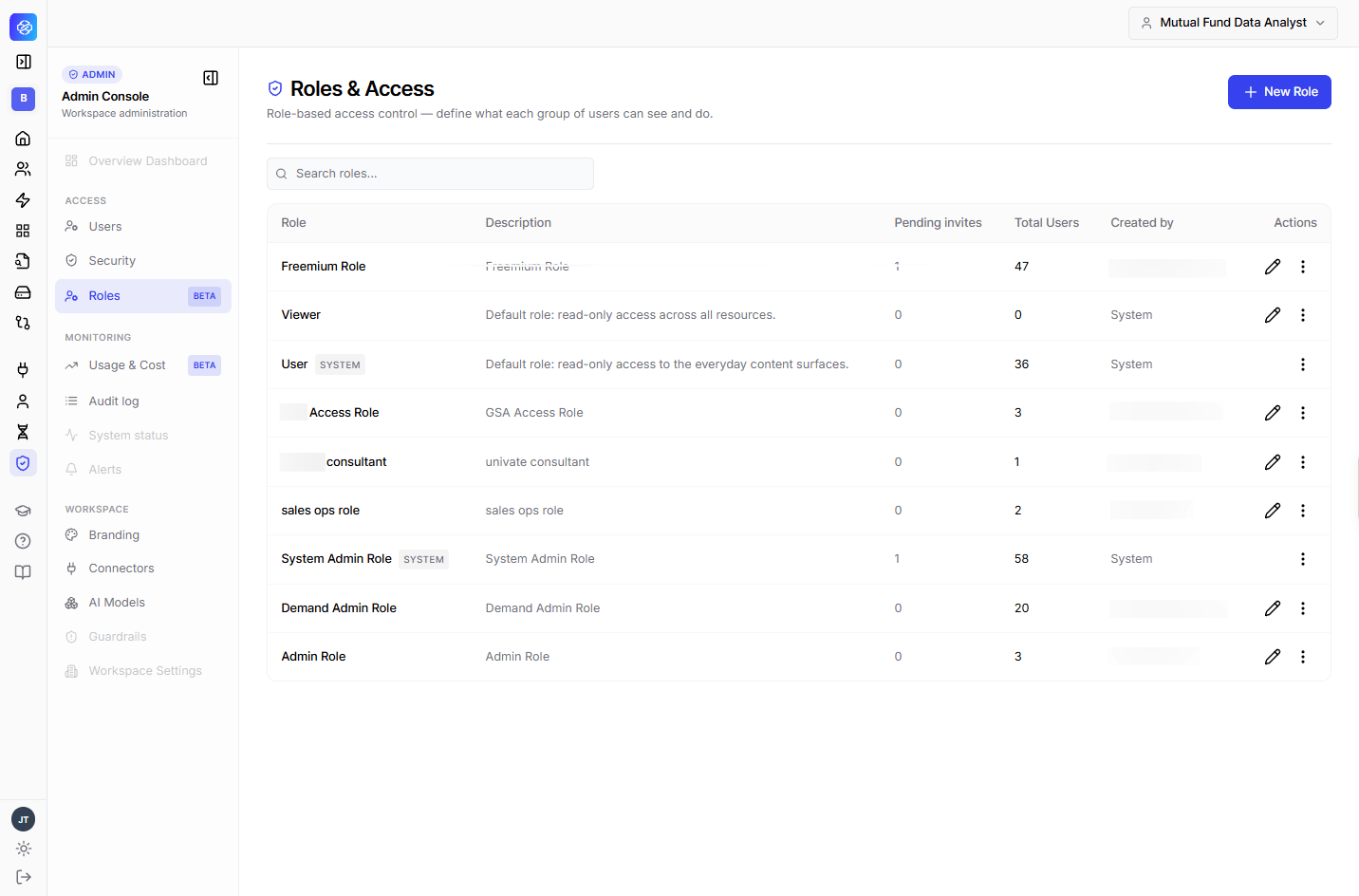
- System Admin Role — full access.
- User — read-only access to everyday content surfaces.
Creating a custom role
- Click + New Role.
- Optionally, under Base this role on, choose an existing role to copy its permissions as a starting point — otherwise start blank.
- Enter a Name (required) and an optional Description (up to 200 characters).
- Configure the permission grid. Filter by All, Menu, or Settings, or use Select all / Clear all.
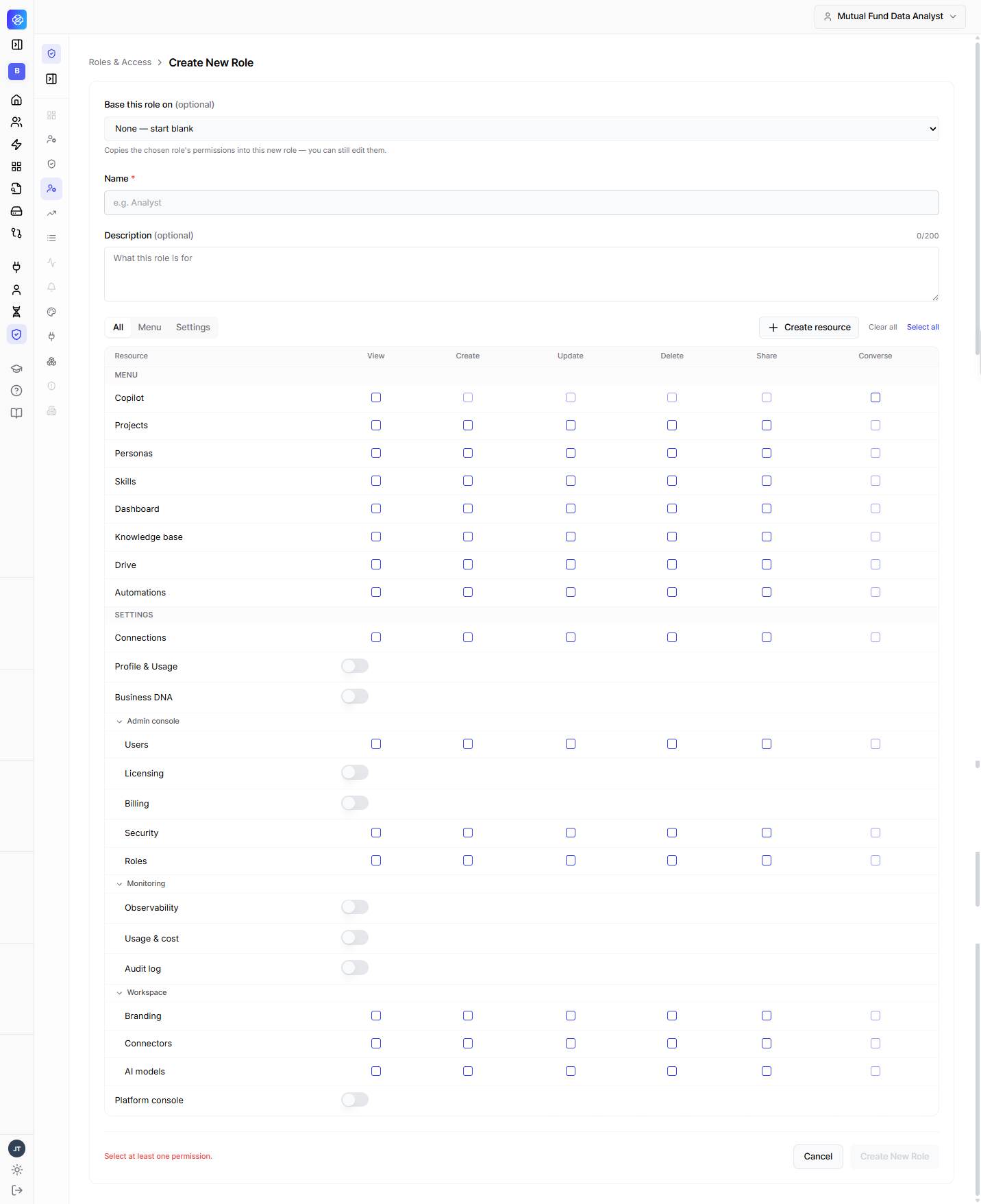
- Click Create New Role. At least one permission must be selected.
Navigation follows permissions
Any section a user does not have View access to is hidden from their navigation entirely.Deleting a role
A role can’t be deleted while users are still assigned to it. You’ll be shown how many users are affected and need to reassign them to another role first.Branding
Customize the identity, colors, typography, and chat experience for your workspace. Branding changes can be applied at the organization level or overridden for an individual project.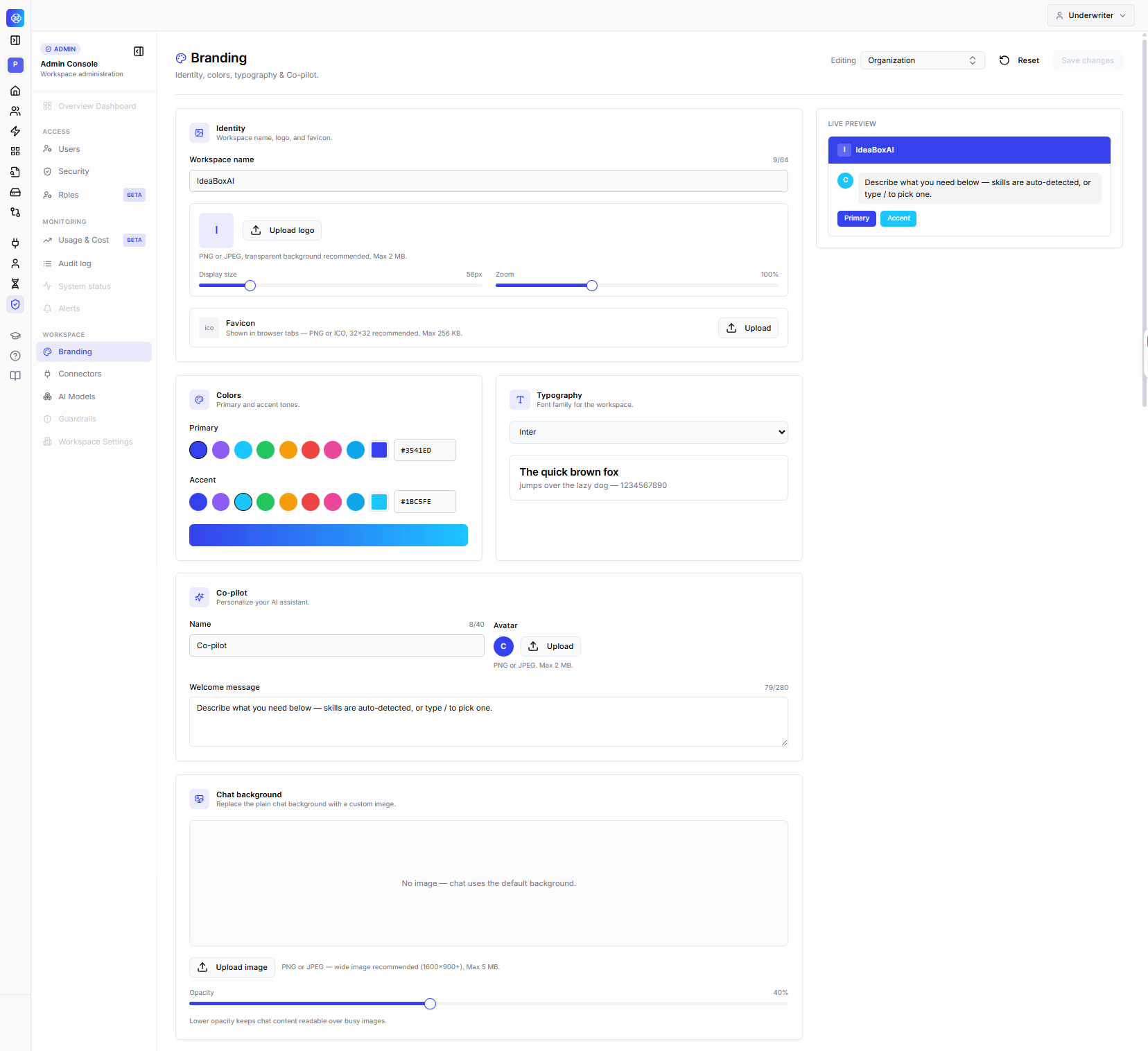
Identity
Colors
Set separate Primary and Accent colors, each with a swatch picker or a direct hex input.Typography
Choose a font family from the dropdown. A live sample line updates immediately to preview the selected font.Persona AI
Personalize the AI assistant itself.Chat background
Replace the plain chat background with a custom image. Upload a PNG or JPEG, wide images (1600x900 or larger) recommended, up to 5 MB. An opacity slider controls how strong the image appears behind chat content, lower opacity keeps text readable over busy images. If no image is uploaded, chat uses the default background.A Live Preview panel updates in real time as you make changes, so you can see the effect of your workspace name, colors, and welcome message before saving.
Usage and Cost (Beta)
The Usage and Cost section gives workspace admins tenant-level visibility into how the platform is being used and what it’s costing.Overview dashboard
- From the Admin Console, open Usage and Cost.
- Use the filter bar to scope the view by user, persona, project, model, or feature.
- Select a time window — 7 days, 30 days, 90 days, 1 year, or a custom range.
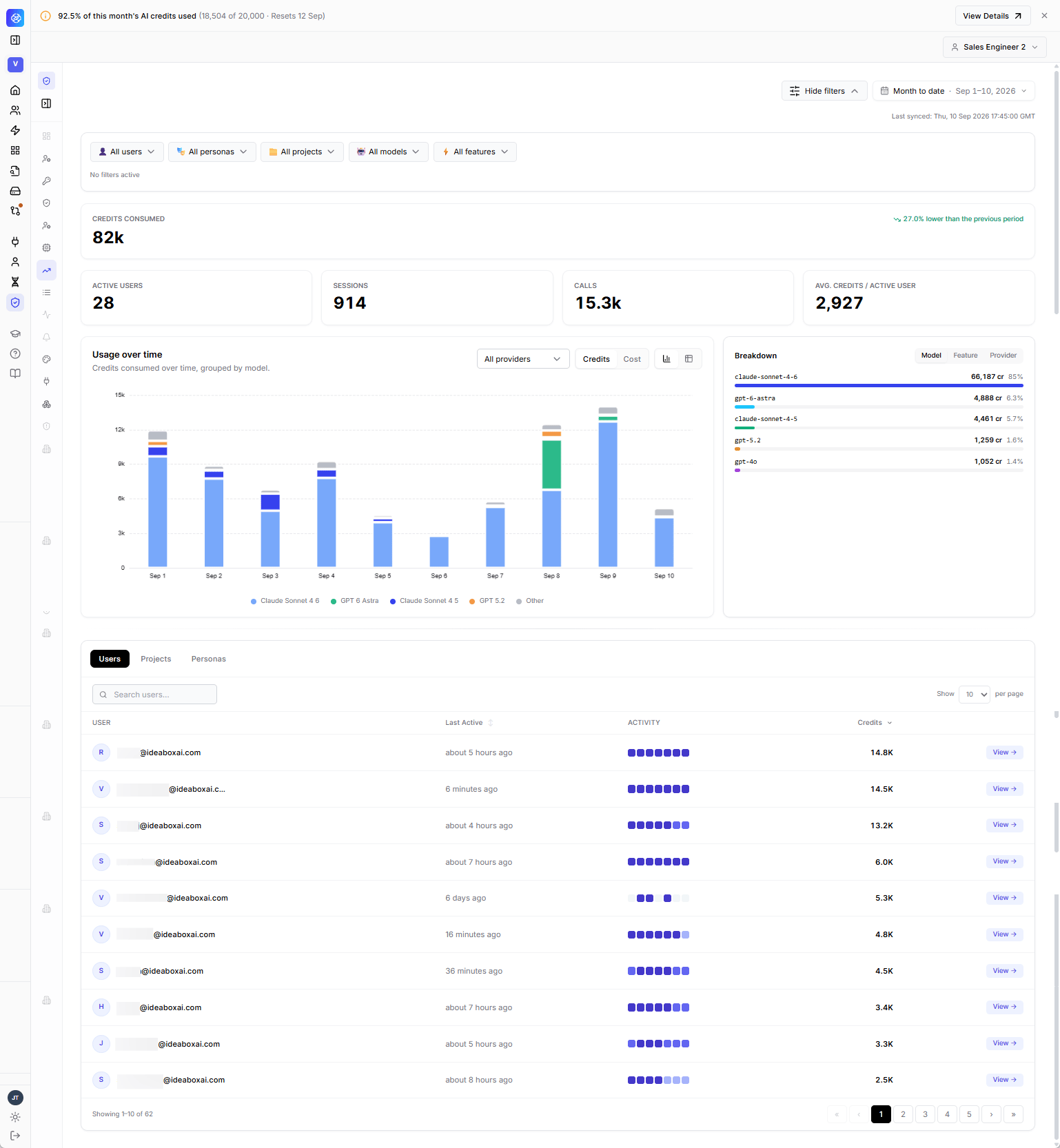
Usage over time
A chart tracks credits consumed over time, grouped by model. Toggle between Credits and Cost, and switch between chart and table view.Breakdown by model, feature, and provider
The breakdown panel switches between Model, Feature, and Provider tabs, showing exactly where credit spend is going, with both the amount and percentage of total for each.Drill-down views
Below the chart, switch between Users, Projects, and Personas tabs to explore usage in detail. Each table shows:- Last-active timestamp
- An activity heatmap
- Credit spend
AI Models
Choose which AI models people in your workspace can use.- From the Admin Console, open AI Models.
- Models are grouped into two categories:
- Basic — used by Auto Routing for greetings and simple questions.
- Advanced — used by Auto Routing for data, tools, and complex work.
- Toggle any model on or off. Models are further labeled by provider (Anthropic, OpenAI, Bedrock, Z.AI, and others).
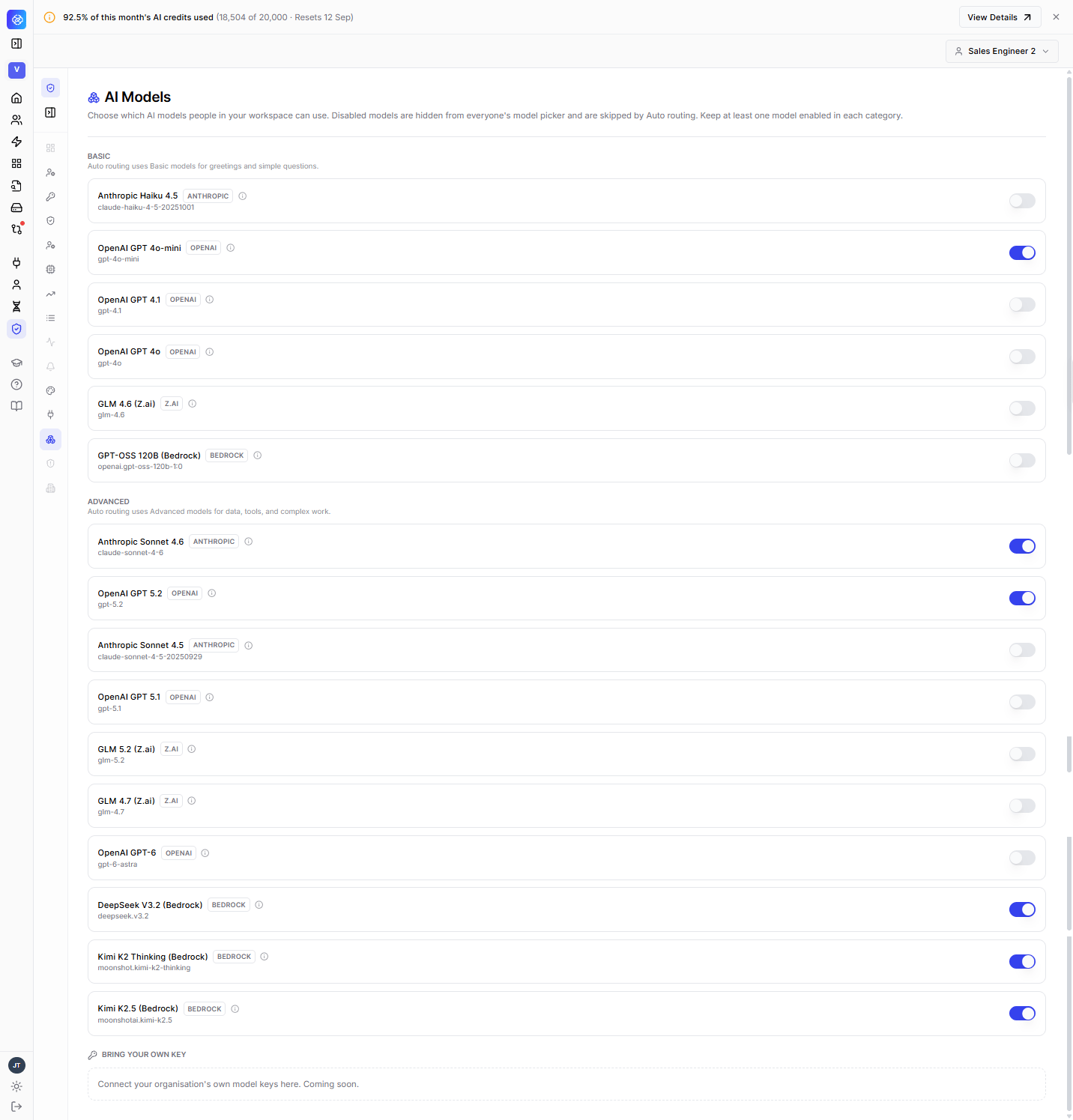
Bring your own key (BYOK) will let you connect your organization’s own model-provider API keys (for example, your own Anthropic or OpenAI account) so your team can use those models through the platform, with usage billed to your own account instead of your platform credits. This is coming soon and is not yet available — the field in AI Models is a placeholder.