

Open the Persona AI and describe your skill
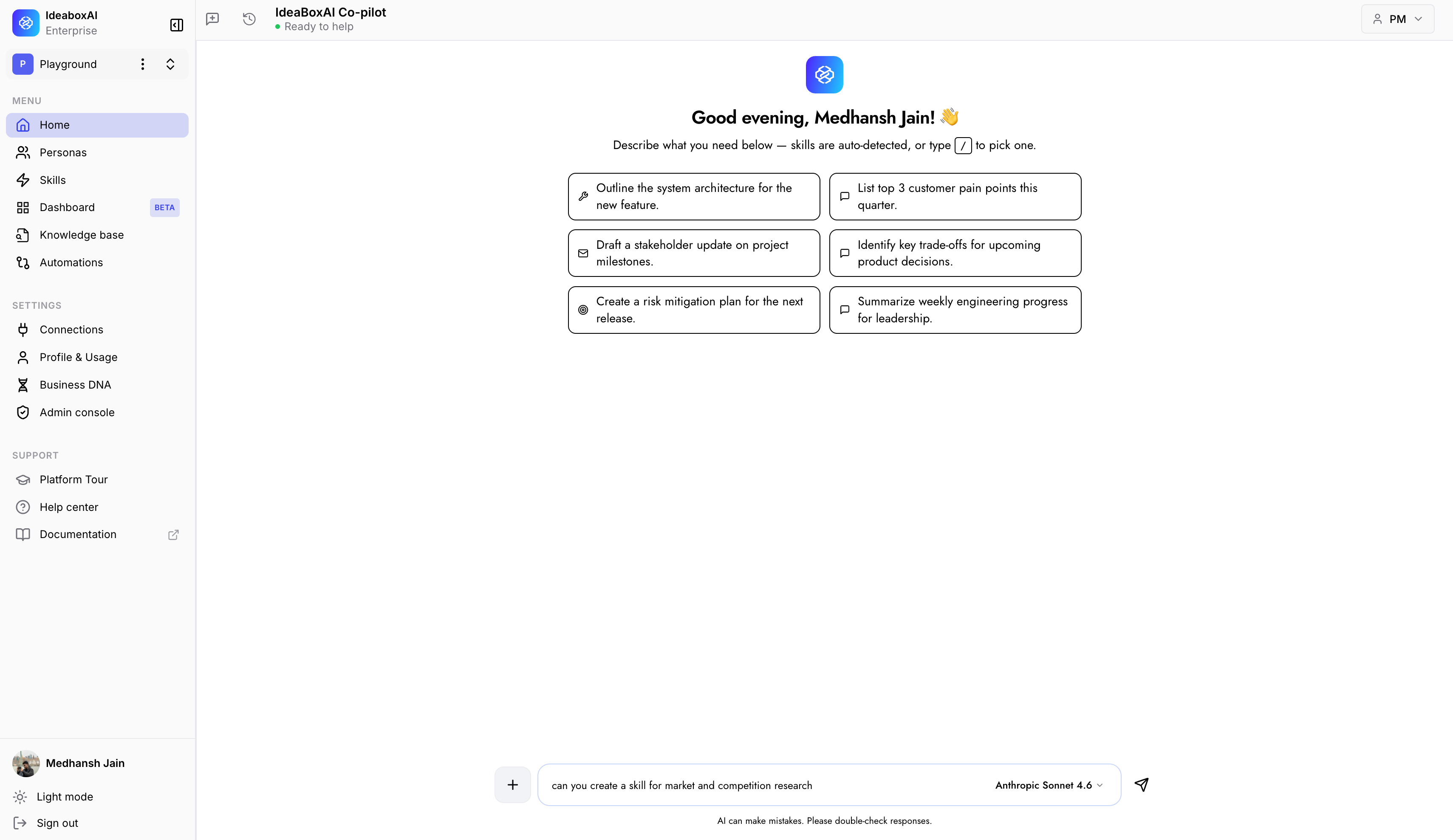
Start from the Persona AI home screen and describe what you need.1
Open the Persona AI
Click Home in the left menu to open the IdeaboxAI Persona AI.
2
Describe the skill
In the chat box, describe the skill you’d like. Try to be clear about three things:
- What the skill should do.
- When you’d want to use it.
- What its finished result should look like.
Look over the plan
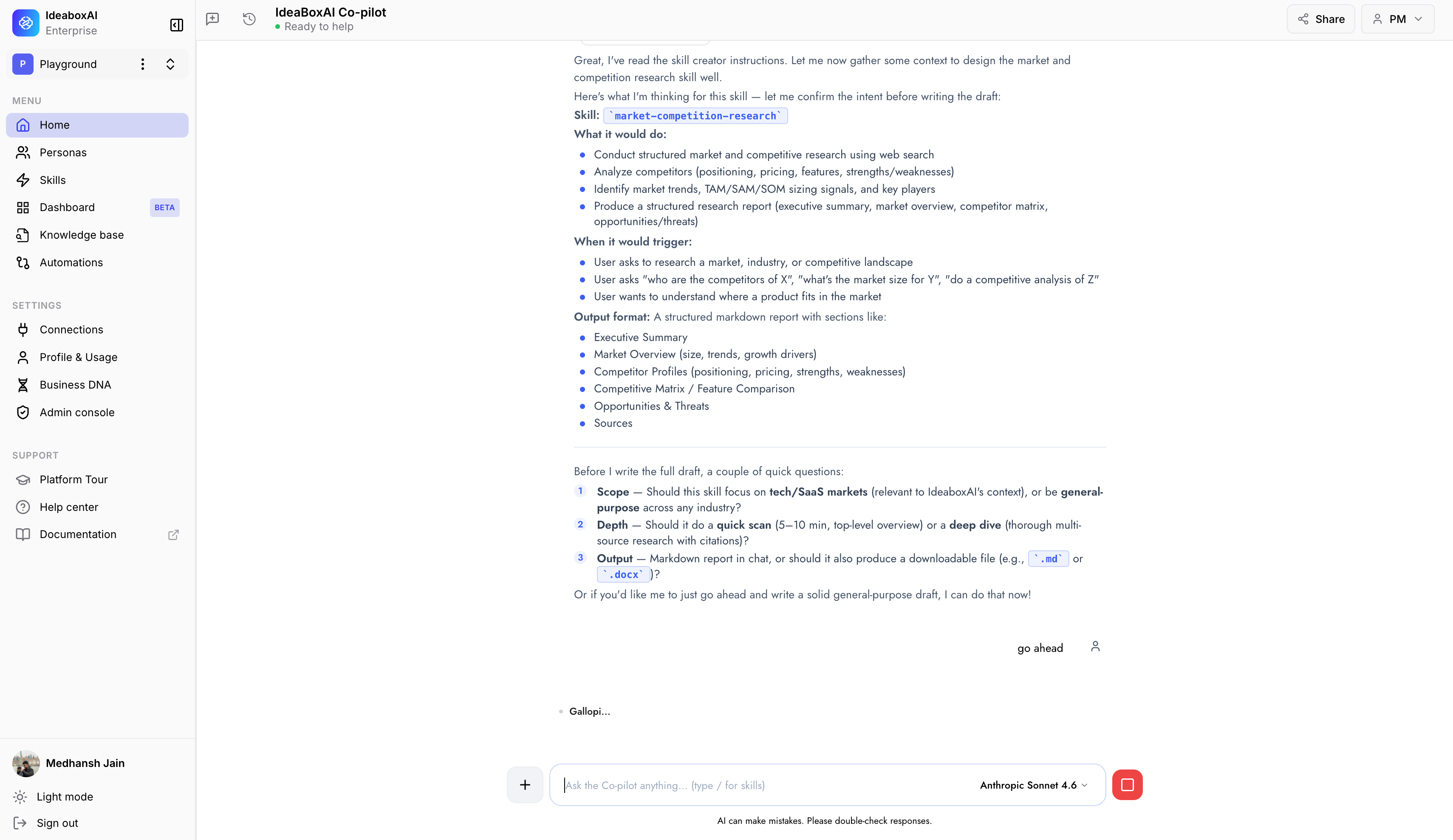
Before writing anything, the Persona AI shows you a plan so you can check it first. It shows the following.- Skill name - A suggested name, for example,
market-competition-research. - What it would do - A short list of what the skill covers.
- When you’d use it - The kinds of questions or situations it’s meant for.
- What the result looks like - The sections the finished output will have, for example, a summary, a market overview, competitor profiles, a comparison, opportunities and risks, and sources.
The Persona AI builds your skill
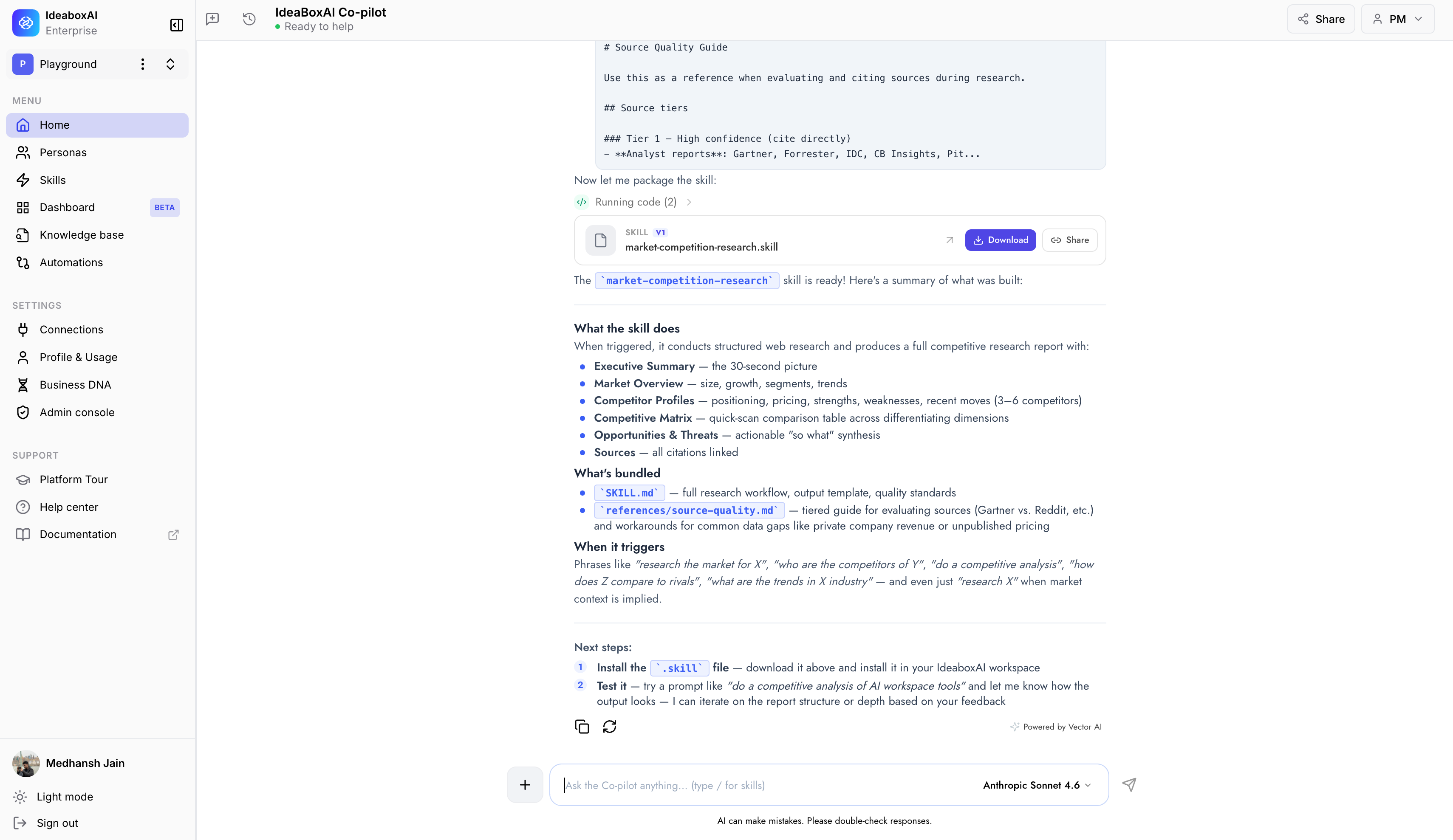
Once you say yes, the Persona AI writes the whole skill for you: the instructions, the layout for the results, a guide for choosing good sources, and any extra supporting files. You see it working as it goes. When it’s finished, you see the following.- A skill card with the skill’s name and version, for example,
market-competition-researchSkill V1. - A Download button to save the skill file.
- A Share button to send the skill to someone.
- A short recap of what the skill does, what’s included, and when to use it.
- Next steps for how to install and try out your new skill.
Install your skill
With the skill file saved, upload it to Skills Studio to make it available to your personas.1
Download the file
Click Download to save the skill file to your computer.
2
Open Skills Studio
Go to Skills Studio by clicking Skills in the left menu.
3
Upload the skill
Click + Create Skill, then Upload, and choose the file you just saved.
Tips for creating good skills
A little upfront detail produces a sharper skill on the first try.- Be clear about the result you want. The more you describe how the finished output should look, its sections, layout, and length, the more useful your skill will be.
- Say when you’d use it. Tell the Persona AI what kinds of questions this skill should help with. This helps it know when to step in.
- Answer the questions it asks. These questions clear up anything unclear, and answering them gives you a better skill on the first try.
- Try it before adding it to a persona. Once installed, run three to five realistic questions through it to check the results before you put it to work in a live persona.
- Keep improving it with the Persona AI. If the result isn’t quite right, tell the Persona AI what you’d like to change in the same chat, and it makes a new, improved version.
- Keep each skill focused. A skill that does one thing well is easier to look after and works more reliably than one that tries to do too much at once.
Once your skill is installed, add it to a persona from the Edit Persona panel. See About skills for how skills connect to personas, and Share a skill to send it to teammates.