

Browse your files
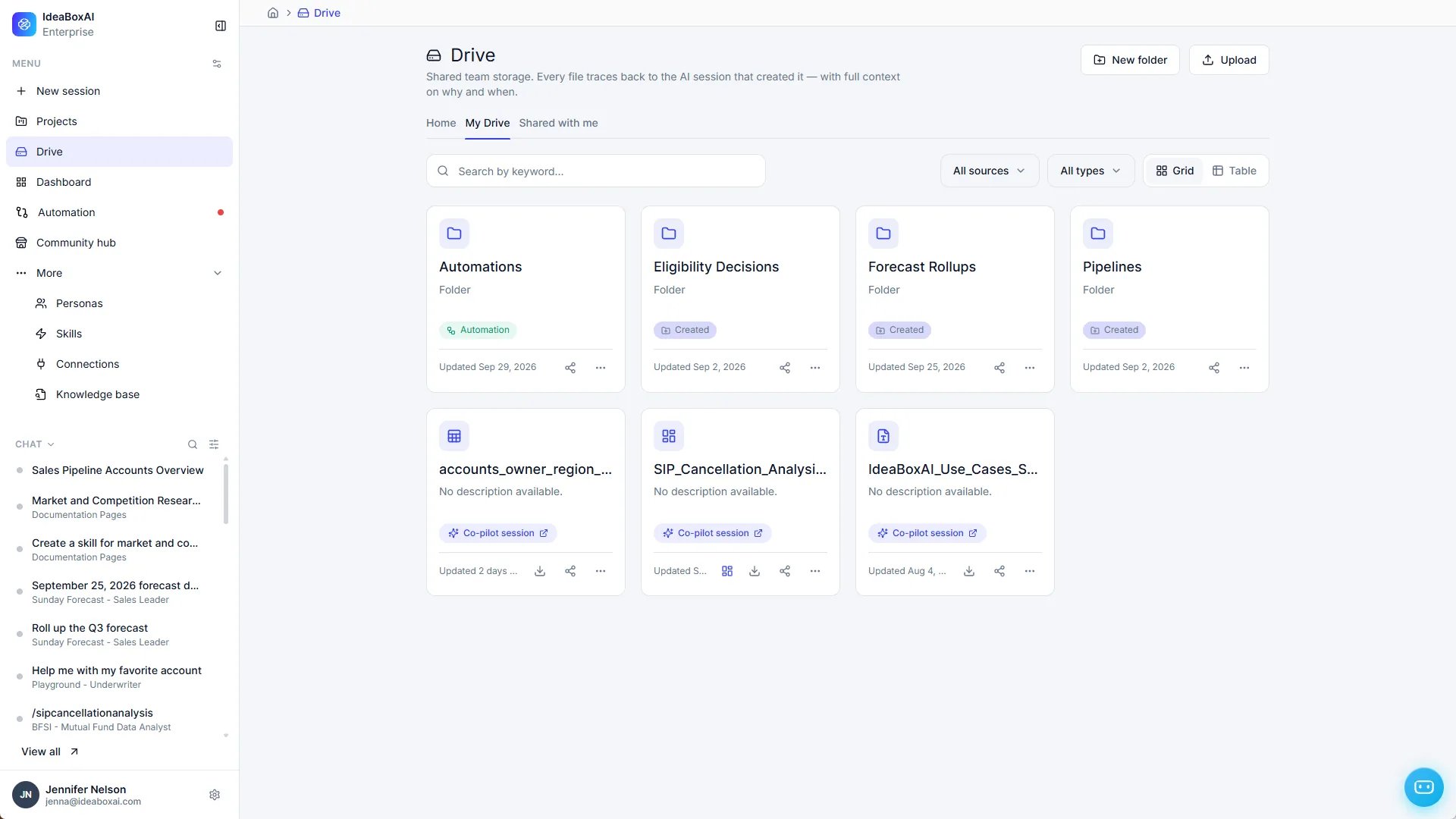
Open Drive from the left navigation. Drive has three tabs:- Home: Everything you can access.
- My Drive: Only what you own.
- Shared with me: Only what others shared with you.
- Search by keyword.
- Filter by source: AI generated, Automation, or Uploaded.
- Filter by type: Folders, Presentations, Reports, Spreadsheets, Documents, Datasets, Images, Dashboards, or Other.
- Switch between Grid and Table view.
What’s on a card
Each card shows the item’s name, type or description, and last-updated date. Labels show where it came from:
Uploaded files have no label.
Add files and folders
- Create a folder: Select New folder.
- Upload: Select Upload, then choose Files or Folder.
File actions
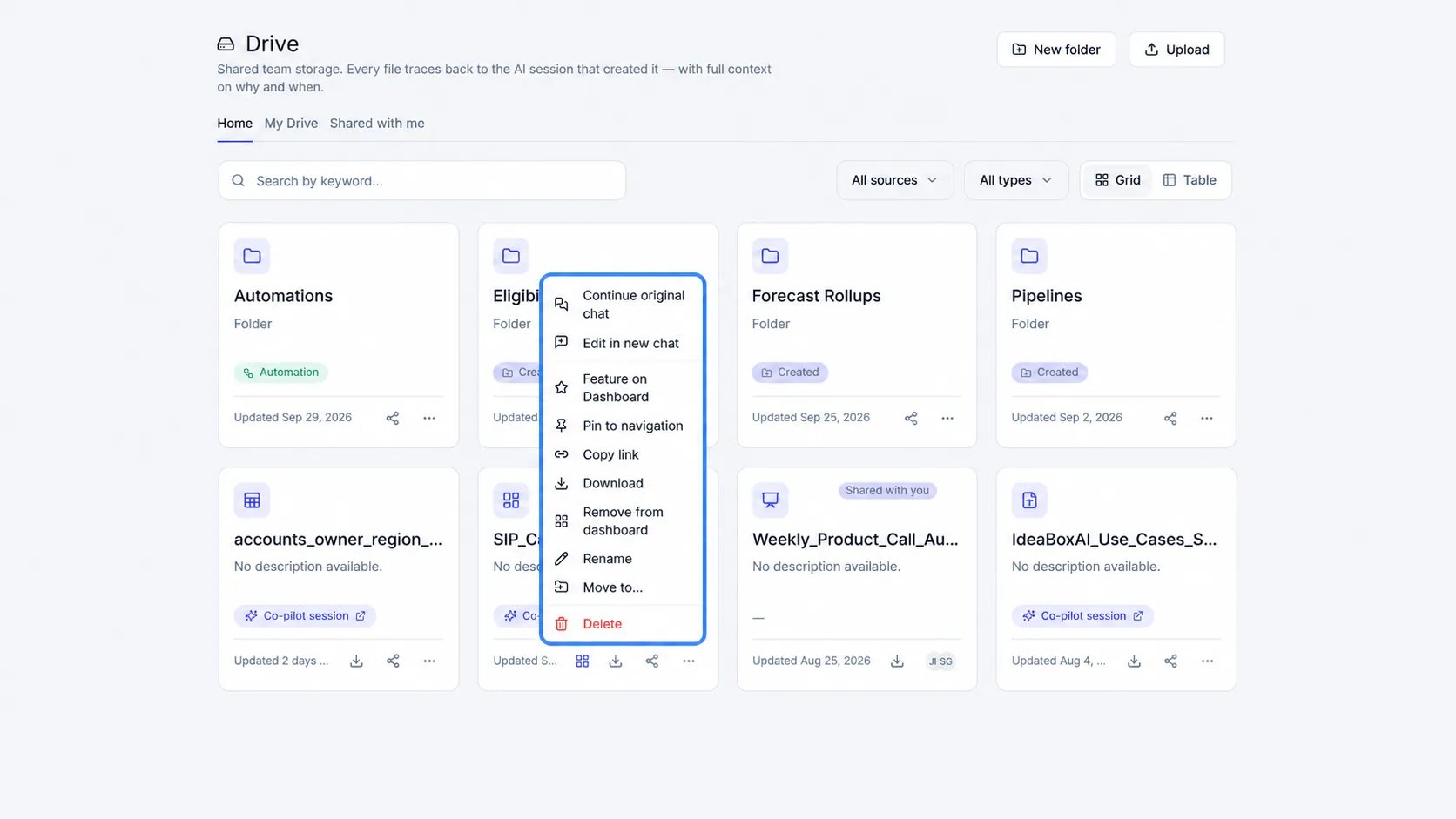
Use the icons at the bottom of a card to download or share the item. Select ⋯ for more actions.
To pin a file without opening the menu, hover in the upper right corner of its card, and select the pin icon.
Files on the Dashboard page show a dashboard icon at the bottom of their card. Select it to remove the file from the Dashboard page.
Open a file
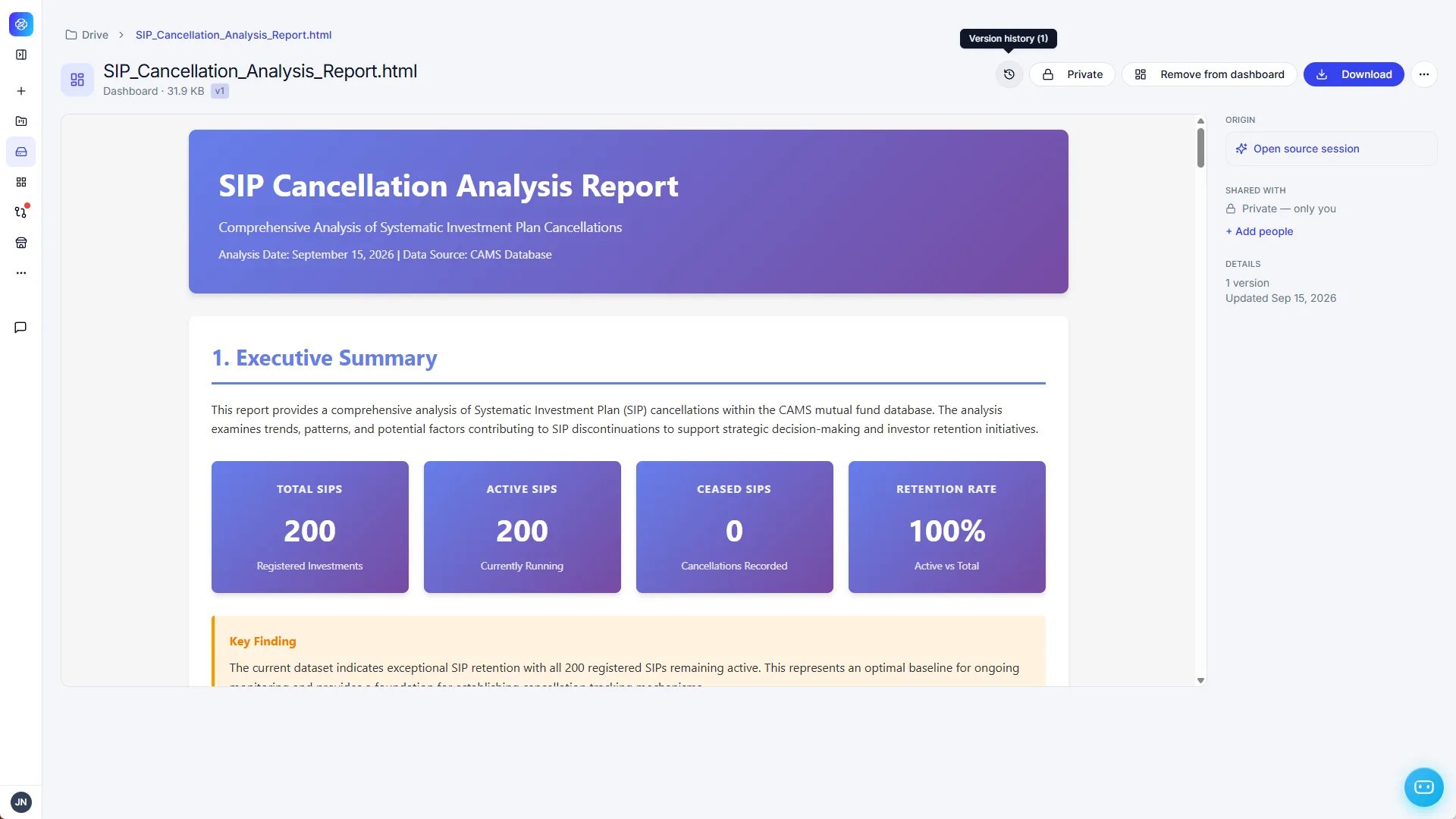
Select the icon in the upper left of a card to open the file. The header shows the file type, size, and version. Most files show their contents right away. For larger files, such as presentations, select Preview to view the file or Download to save it. From the top of the page, you can:- Select the Version history icon to see earlier versions.
- Select the sharing button, such as Private, to change who has access.
- Select Remove from dashboard if the file is on the Dashboard page.
- Select Download.
- Origin: Where the file came from. For files Persona AI created, select Open source session to open the chat that created it. Uploaded files show Uploaded.
- Shared with: Who has access. Select Add people to share the file.
- Details: The number of versions and the last-updated date.
Use Drive files in a chat
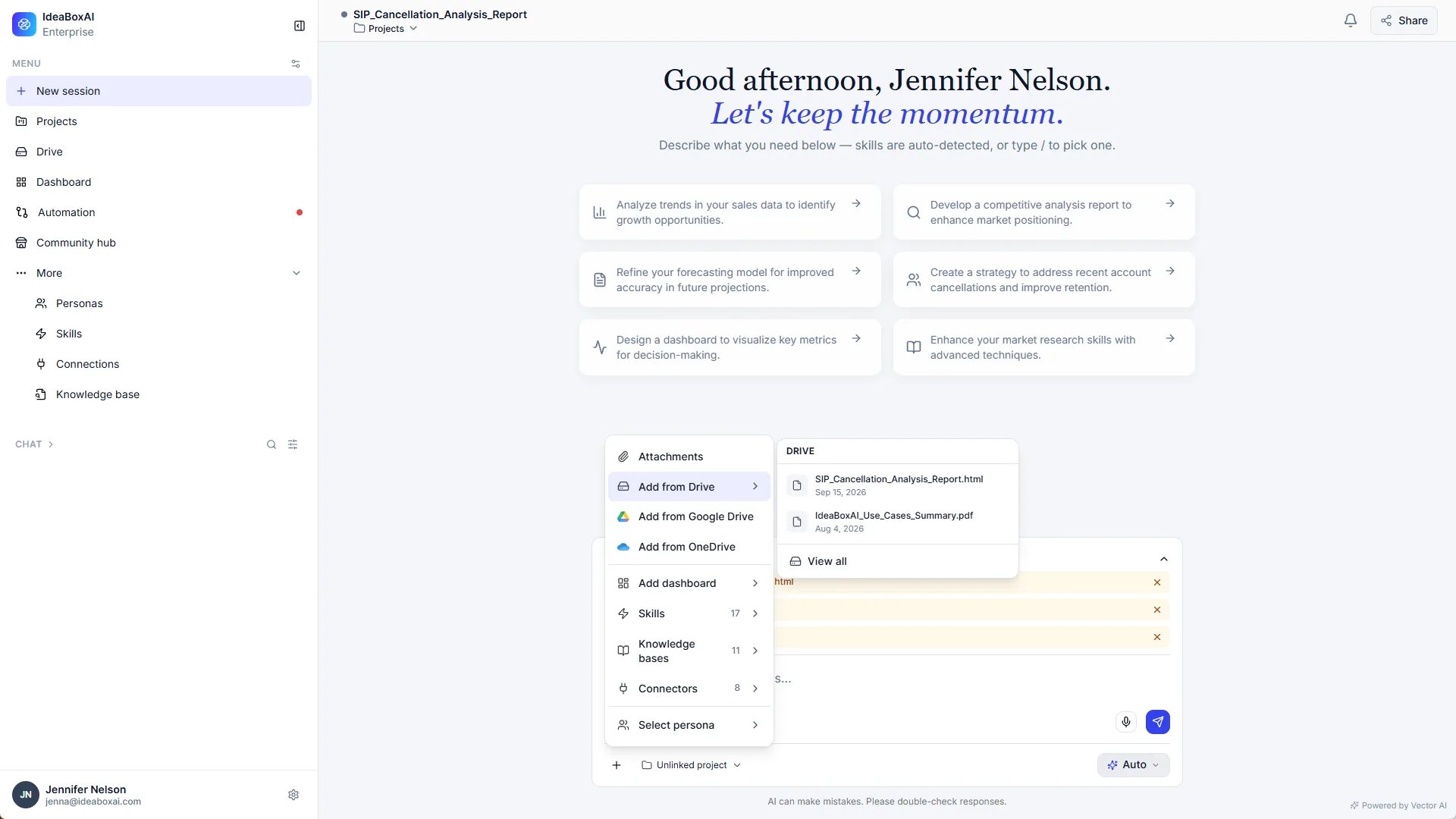
Attach Drive files and folders to any chat so Persona AI can work with them.1
Open Add from Drive
In the chat input, select +, then select Add from Drive. Your recently attached items appear.
2
Pick a recent item or view all
Select a recent item to attach it, or select View all to open the Add from drive dialog.
3
Find and select files or folders
Search by keyword, filter by source or type, or switch between grid and table view. Select the checkbox next to each file or folder you want. Selected items appear below the list.
4
Add to chat
Select Add to chat. The items are attached to your message.
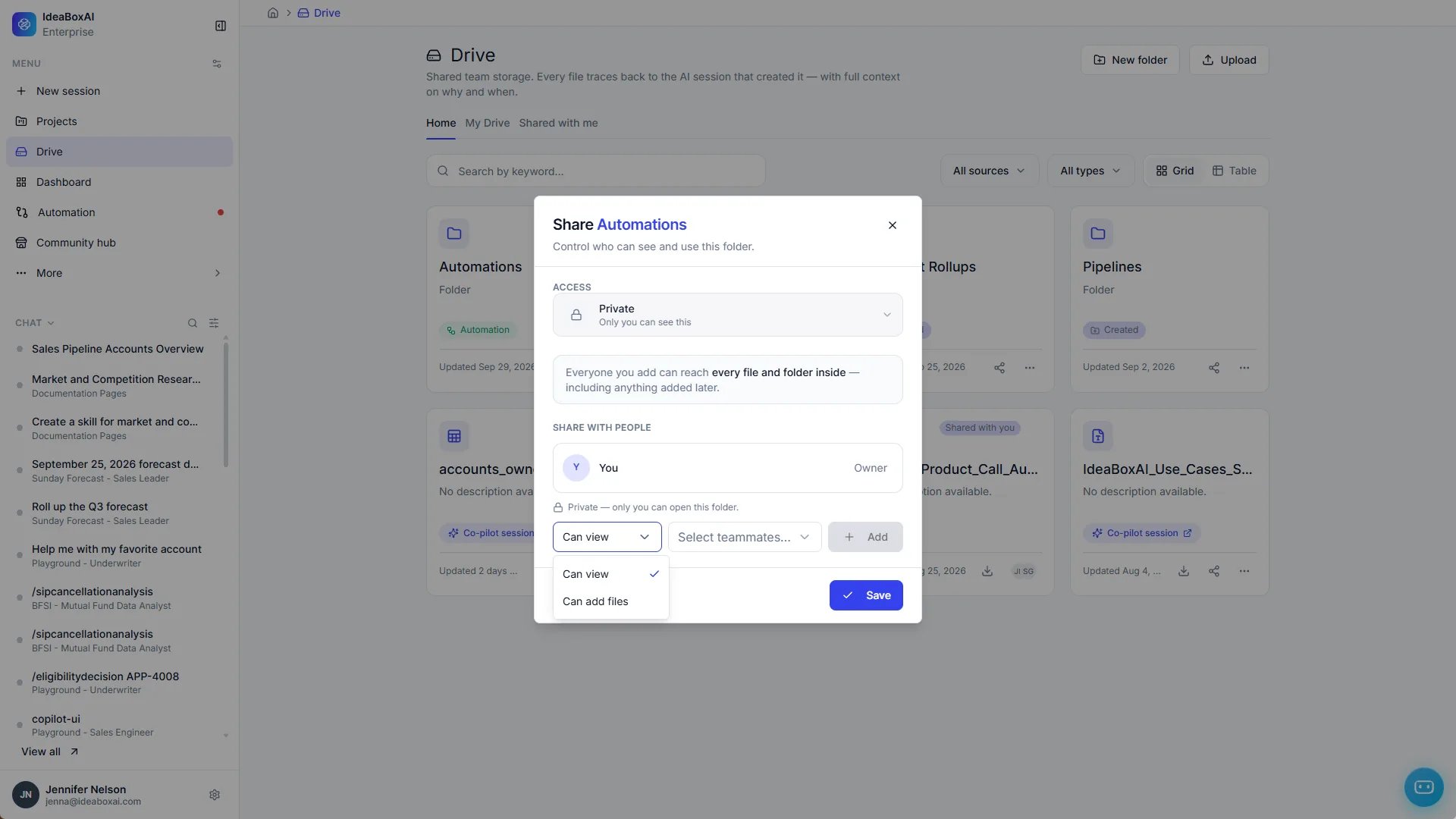
Share a file or folder
1
Open sharing
Select the share icon on the card. You can also select Add people on the file’s detail page.
2
Choose access
Under Access, choose Private (only you can see it) or Organization (specific people in your organization).
3
Add people
Under Share with people, choose Can view or Can add files, select teammates, then select Add.
4
Save
Select Save.
Automations file their own output
When an automation run produces a file, Drive files it automatically in a folder for that automation, organized by month. No setup is needed.Persona AI reads Drive files only as the person asking, so it can’t see anything you couldn’t open yourself. It treats the contents of files as data, never as instructions. Text inside a file can’t direct Persona AI to take an action, even if it’s phrased like a command.