

Subscribe
To use Sales Persona AI in your enterprise environment, you need to subscribe to the service and create resources through the IBM Cloud Catalog. This process ensures that your account is licensed for a compliant service instance.1
Access the public catalog
Log in to your IBM Cloud console. Click Catalog in the top navigation bar. Enter Sales Persona AI in the search bar.
2
Configure the service instance
Click the Sales Persona AI tile to go to the details page.
- Select a plan: From the Pricing list, choose a plan that suits your business size (for example, a usage-based plan).
- Set instance information: In the right-hand panel, enter the Service name, select the Resource group, and choose the deployment region.
3
Confirm and create
Review the cost estimate on the right side of the page. Read and agree to the Third-Party Terms of Service and the EULA. Click Create.When you click Create, IBM Cloud immediately sends an API call to the IdeaBoxAI Service Broker. The system automatically assigns you a unique Resource ID (CRN) and API key. It then provisions the corresponding multi-agent computing resources in the IdeaBoxAI backend.
4
View the resource
Once the instance is provisioned, find it in the Resource List on IBM Cloud. Click the instance name to go to the Manage page and view the control panel.
Connection and authorisation
Although the agent is ready, you must complete the OAuth authorisation for your personal account in Connections so that it can process your Salesforce records or send Gmail.1
Navigate to Connections
Go to Manage then Connections in the watsonx Orchestrate sidebar.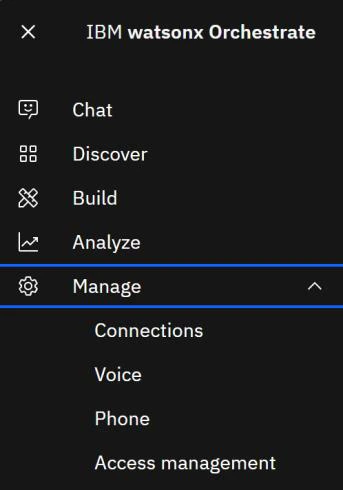
2
Find your connections
Locate the connections related to the Sales Persona AI tools such as Salesforce, Jira, Google, and Microsoft.
3
Verify login
In the official login window that appears, enter your business account credentials and grant authorisation. Once successful, the connection status must display as Live. Only then can the agent perform read and write operations on your behalf.You may refer to Connecting apps for prebuilt agents - IBM Documentation for more details.
4
Access check
In the chat box, try asking: “Please list my top 3 opportunities in Salesforce this week, AE Assistant.” If the system returns the data accurately, then authorisation is complete.
Using the tools
Each tool registered on watsonx Orchestrate exposes a defined input schema. When you talk to Sales Persona AI, the agent requests the minimum fields required by that schema. You can either provide every parameter in a single instruction or let the agent ask targeted follow-up questions when something is missing. For the best first experience, start with a read action before using a write action:- Ask Persona AI to retrieve or summarise information from Salesforce, Jira, Outlook, Teams, or ZoomInfo.
- Review the result and correct any account name, date range, stakeholder, or business context if needed.
- Ask Persona AI to turn that context into a customer-facing email, internal update, or next-step checklist.
- Only then ask Persona AI to send the message through Gmail or Outlook if the content is ready.
How to ask Persona AI effectively
Use plain business language, but include the fields a sales operator would normally need.Example 1: Sending an email via Gmail (a write action)
The Send an email using Gmail tool requires three required inputs: the recipient address (to), the subject line, and the message body.
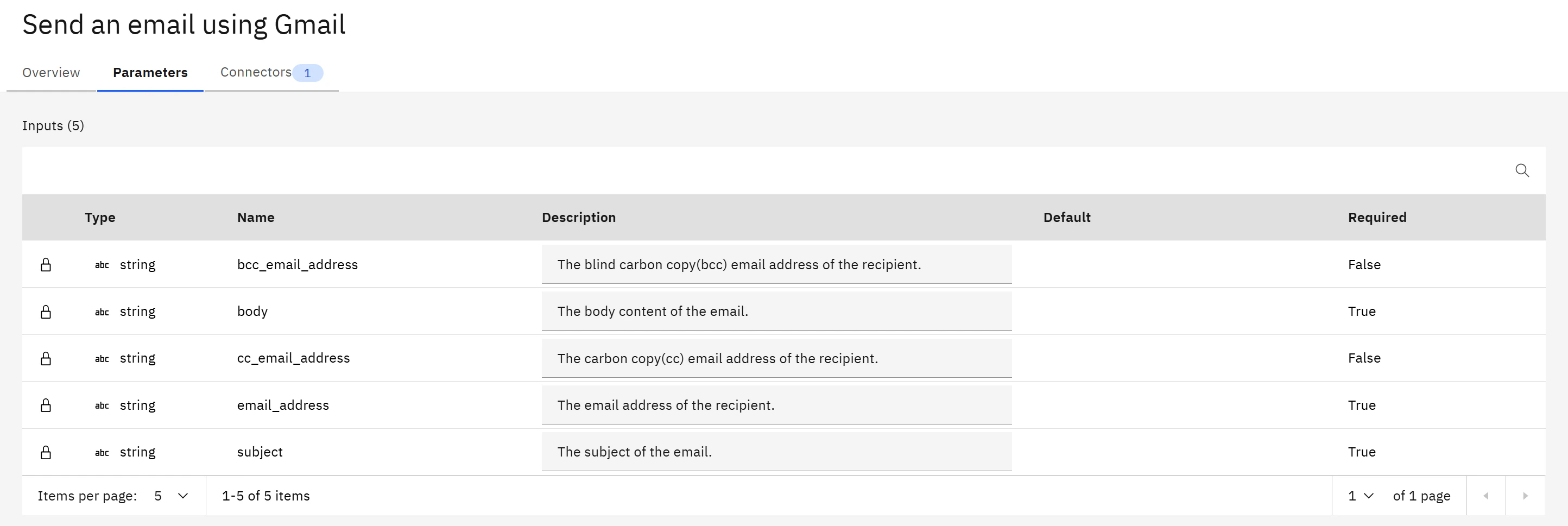
“Compose and send an email from my Gmail account to jane.doe@client.com. The subject line should be Follow-up on Yesterday’s POC Review, and the email body should read: Please finalise the data solution as soon as possible.”If you omit one of the required fields, then Persona AI will ask a targeted follow-up question to fill the gap. For example, if you forget the subject, then it will prompt you for one. Optional fields such as
cc and bcc can be included by mentioning them in the instruction (for example, “also cc the SE lead at alex@client.com”).
Example 2: Retrieving Salesforce cases (a read action)
The Get list of cases from Salesforce tool accepts an optional search query and pagination controls (limit, offset).
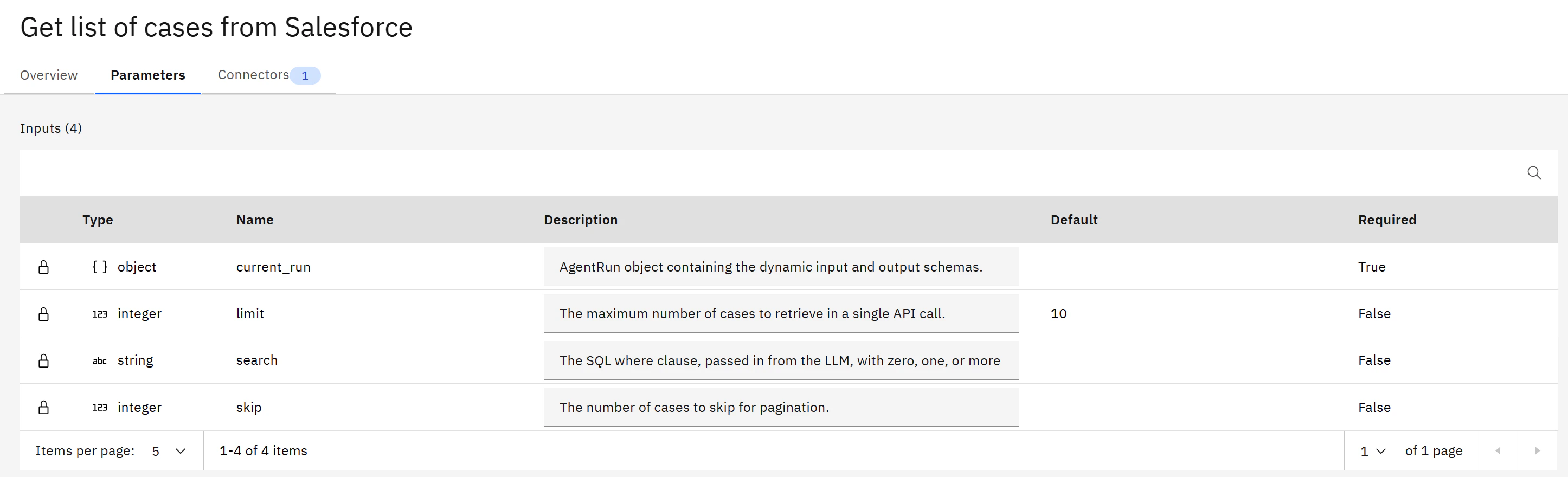
“List the 10 most recent open Salesforce cases that mention ‘Acme Corp’ so I can prepare for my renewal call tomorrow.”Persona AI will invoke the tool, apply the search filter, and return a structured summary. You can then chain follow-up instructions without repeating any context. For example, ask Persona AI to draft a Gmail message to the account owner summarising the open cases.
Example 3: Preparing for a technical POC review with Jira
The Jira tools help SE users understand implementation status and technical risk before customer-facing meetings. Start with a focused question:“Review the Jira issues for the Acme POC project and summarise unresolved technical blockers, owners, and recommended next steps for the SE.”Persona AI will use the available Jira project or issue information to produce a concise risk summary. If the project name or filter is ambiguous, then it will ask a follow-up question before retrieving the data.
Example 4: Researching a prospect with ZoomInfo
ZoomInfo is most useful when the user needs account enrichment before outreach or account planning:“Use ZoomInfo to research Acme Corp. Summarise the company profile, likely decision-makers, and three SDR outreach angles based on recent business signals.”After Persona AI returns the research summary, you can continue with:
“Turn the strongest outreach angle into a short first-touch email for the VP of Sales.”
Example 5: Preparing from Teams and Outlook context
When meeting and message context are spread across collaboration tools, ask Persona AI to collect the latest signals first:“Check my upcoming Teams meetings for Acme Corp this week and review recent Outlook messages from that account. Prepare an AE briefing with risks, open questions, and recommended talking points.”If Persona AI needs a folder name, date range, or contact address to complete the request, then it will ask for that missing field instead of guessing.
Recommended first-session workflow
New users should try the following sequence in watsonx Orchestrate:- Start with account context: “Summarise what I should know about Acme Corp before my next meeting.”
- Add system-specific evidence: “Include recent Salesforce cases and any Jira blockers related to the POC.”
- Choose a role lens: “Frame the summary for an AE” or “Frame the summary for an SE.”
- Create an output: “Draft a customer follow-up email with the next steps.”
- Review before sending: Read the generated message, then ask Persona AI to send it through Gmail or Outlook only when it is ready.
Working with missing information
If a request is incomplete, Persona AI will ask for only the missing fields required by the tool. For example:- If an email request lacks a recipient, then Persona AI asks for the recipient address.
- If a Salesforce query is too broad, then Persona AI may ask for an account name, case status, or result limit.
- If a Jira request does not identify a project or issue, then Persona AI may ask which project should be searched.
- If a Teams or Outlook request needs a time window, then Persona AI may ask for the date range.
Discovering the input schema for any tool
Every tool listed in the agent’s Toolset follows the same pattern. This includes Outlook send/read, Microsoft Teams, Jira issues and projects, Salesforce cases and events, Gmail send, and ZoomInfo enrichment. Open the tool entry on watsonx Orchestrate to view its required and optional input fields. Then phrase your instruction to Persona AI so those fields are either stated explicitly or inferred from prior conversation context. When in doubt, describe the business outcome instead of the technical operation. For example, say “prepare me for the renewal call” rather than “call the Salesforce case API.” Persona AI will map the request to the available tool, ask for any missing input, and return the result in the sales role format you need.Starting a conversation
The core interaction logic of Sales Persona AI is based on natural language. You do not need to learn complex code or fixed commands. Simply input your business requirements into the watsonx Orchestrate chat window as if you were communicating with a professional sales assistant.Persona-based triggers
The system automatically identifies and invokes the most appropriate role-based assistant based on your instructions. For the most precise response, it is recommended to explicitly reference the role in your request. Collaborating with the AE Assistant. Focused on deal strategy, meeting preparation, and risk assessment.“Ask the AE Assistant to prepare a briefing for my meeting with Acme Corp this afternoon and analyse potential deal risks.”Collaborating with the SE Assistant. Focused on technical architecture, rebuttal handling, and POC planning.
“Regarding the ‘data scalability’ doubt from the client, ask the SE Assistant to generate an evidence-backed rebuttal card.”Collaborating with the SDR Expert. Focused on lead generation, personalised outreach, and data enrichment.
“Ask the SDR Expert to draft 3 personalised outreach angles based on the latest funding signals from ZoomInfo.”
Multi-agent workflows
Due to the system’s context-awareness, you can switch roles seamlessly within the same conversation window without repeating client background information.After the AE summarises customer pain points, you can follow up directly: “Based on these pain points, ask the SE Assistant to generate a tailored technical discovery questionnaire.”
Guided interactions
If your instruction lacks sufficient information to invoke a specific tool, then Persona AI will proactively ask follow-up questions to fill the gaps. This applies to actions such as sending an email or querying a specific record.- If you request to send an email without providing a recipient, it will ask: “To which contact’s email address should this message be sent?”
- If your query is too broad, it may suggest: “Should I retrieve the 10 most recent or all related Salesforce cases?”
First-session tips
To help you quickly build trust and familiarise yourself with the process, follow the read-before-write principle during your first session.- Research: First, ask Persona AI to retrieve and summarise existing data. For example: “Summarise recent POC blockers recorded in Jira.”
- Content generation: Once you have confirmed the research is accurate, ask it to generate an output. For example: “Turn these blockers into a follow-up email draft for the client.”
- Final execution: Issue the send command only when you are satisfied with the draft.