
Knowledge Bases
Centralize structured and unstructured data for Agentic BI, AI agents, and automation workflows
Introduction
Knowledge Bases (KBs) in IdeaboxAI enable you to centralize structured and unstructured data for Agentic BI, AI agents, and automation workflows. This guide walks you through the end-to-end lifecycle—from creation to querying—empowering you to transform your data into actionable intelligence.
Getting started
Access the knowledge bases dashboard
Navigate to Knowledge Bases in the sidebar to view your workspace's knowledge base dashboard. Here you'll find:
- A searchable table of all existing knowledge bases
- KB metadata including name, status, type, creator, and last modified date
- The + Create Knowledge Base button to start building a new KB
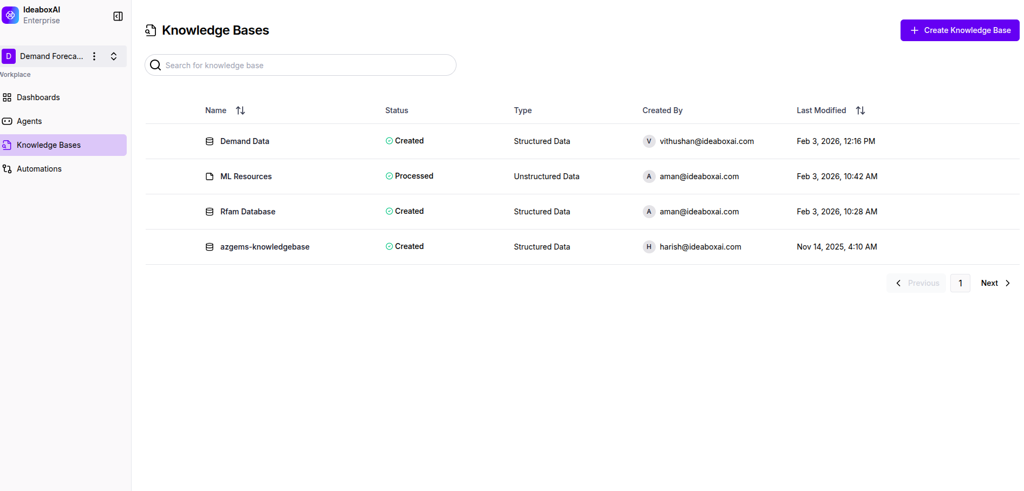
Actions you can perform:
- Navigate to the Knowledge Bases section
- Search for an existing knowledge base
- Initiate creation of a new knowledge base
💡 Tip: Use clear and consistent naming conventions for knowledge bases to help your team quickly identify the right data source for each task.
Best practices:
- Periodically review the Last Modified column to track stale knowledge bases
- Limit KB creation to meaningful datasets to avoid fragmentation
- Document the purpose and scope of each KB clearly
Creating a knowledge base
Select the knowledge base type
When you click + Create Knowledge Base, you'll see three KB types to choose from:
- Unstructured Data - PDFs, CSVs, images, text documents
- Structured Data - Databases such as MySQL, PostgreSQL
- Financial Documents - Specialized PDF financial data
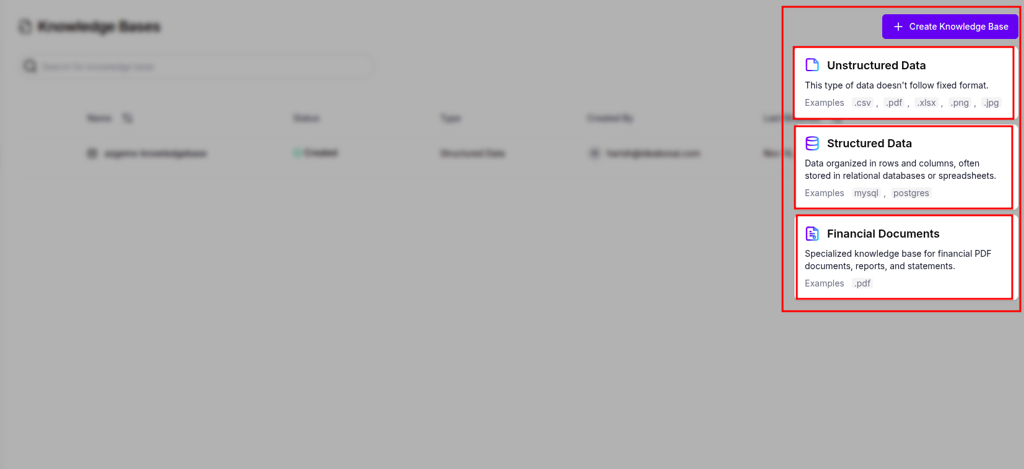
The system routes you to a configuration flow specific to the selected KB type.
⚠️ Warning: Choose Structured Data only when relational integrity and schemas exist. Use Unstructured Data for documents intended for semantic search or AI reasoning.
Best practices:
- Avoid mixing heterogeneous data types in a single KB
- Select the type that best matches your data format and use case
- Consider how agents will query the data when making your selection
Configure knowledge base metadata
After selecting the type, you'll see a form requesting:
- Knowledge Base Name (required) - A unique, descriptive identifier
- Description - Explain the purpose and scope of the KB
- Tags - Add keywords for domain, team, or project association
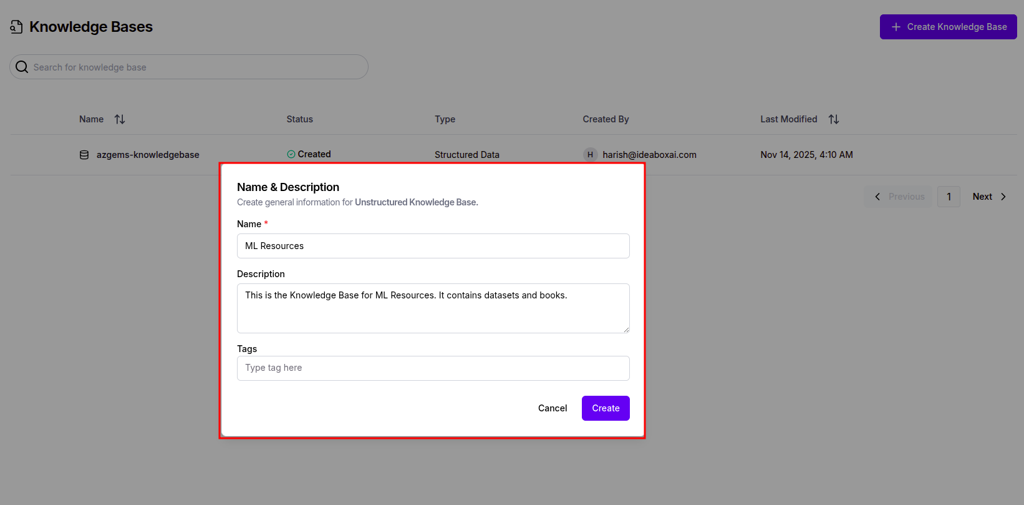
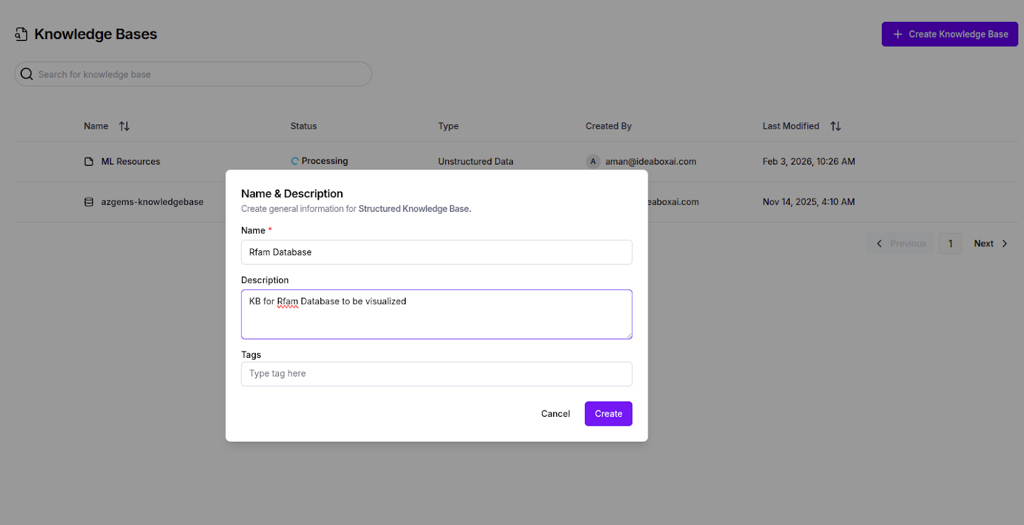
Click Create to initialize your knowledge base.
Best practices:
- Write concise but descriptive KB descriptions
- Use tags for easy discovery and organization
- Avoid renaming KBs after downstream integrations are established
Working with unstructured data
Ingest data from multiple sources
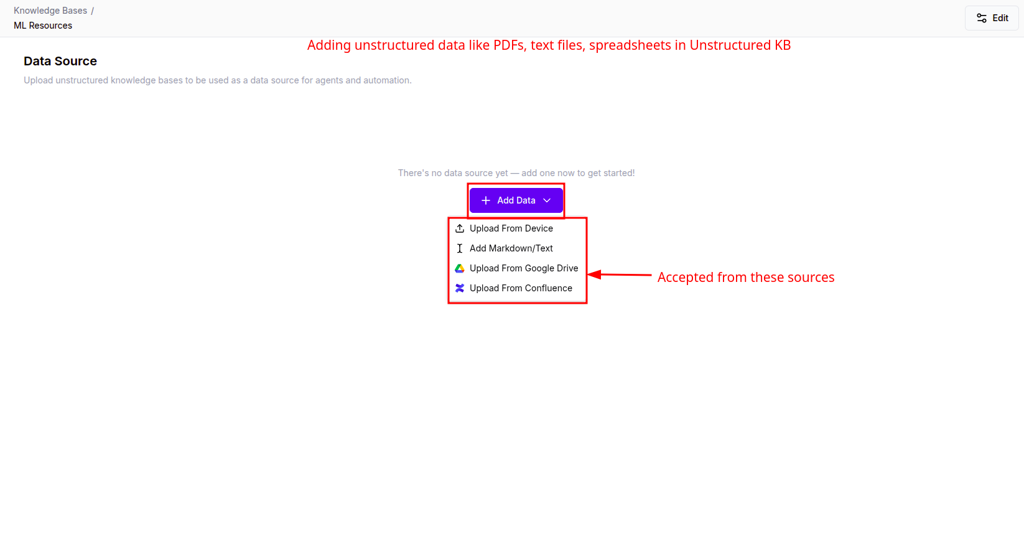
After creating an unstructured knowledge base, you'll see an empty Data Source panel prompting you to add data. Click Add Data to access multiple ingestion options:
- Upload from Device - Upload local files
- Add Markdown/Text - Create or paste text content
- Upload from Google Drive - Connect your Drive account
- Upload from Confluence - Import Confluence pages
Actions you can perform:
- Upload files such as PDFs, CSVs, and text documents
- Connect external sources (Drive, Confluence)
- Batch upload multiple files at once
💡 Tip: Ensure documents are machine-readable (avoid scanned PDFs when possible) for better processing results.
Best practices:
- Upload logically related documents together
- Re-index data after bulk uploads
- Validate that files are accessible and not corrupted before uploading
Monitor data processing status
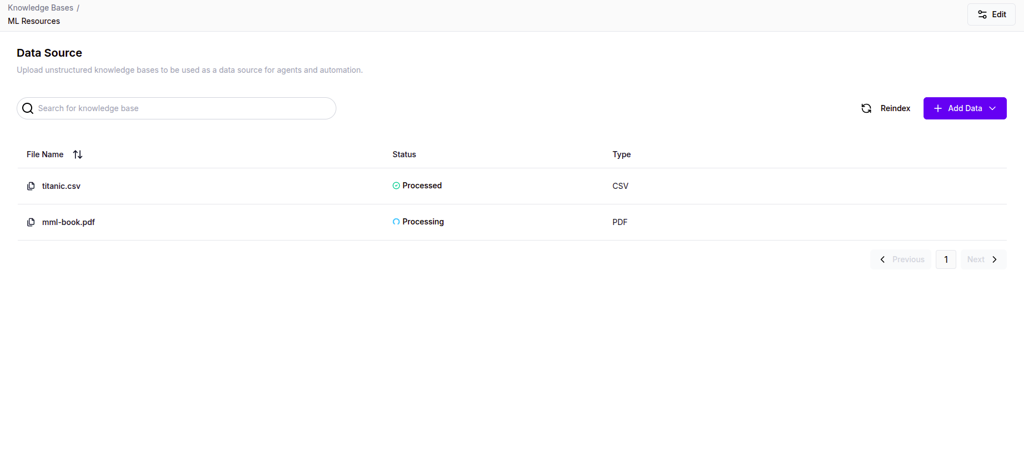
Once files are uploaded, they enter a processing state. You'll see a tabular list with columns:
- File Name - The name of the uploaded file
- Status - Processing / Processed
- File Type - PDF, CSV, TXT, etc.
Actions you can perform:
- Monitor ingestion and processing status
- Trigger manual re-indexing if required
- Remove files that failed processing
⚠️ Warning: Wait for all files to reach Processed status before querying. Investigate repeated processing failures promptly.
Once processed, data becomes searchable and usable by your agents.
Working with structured data
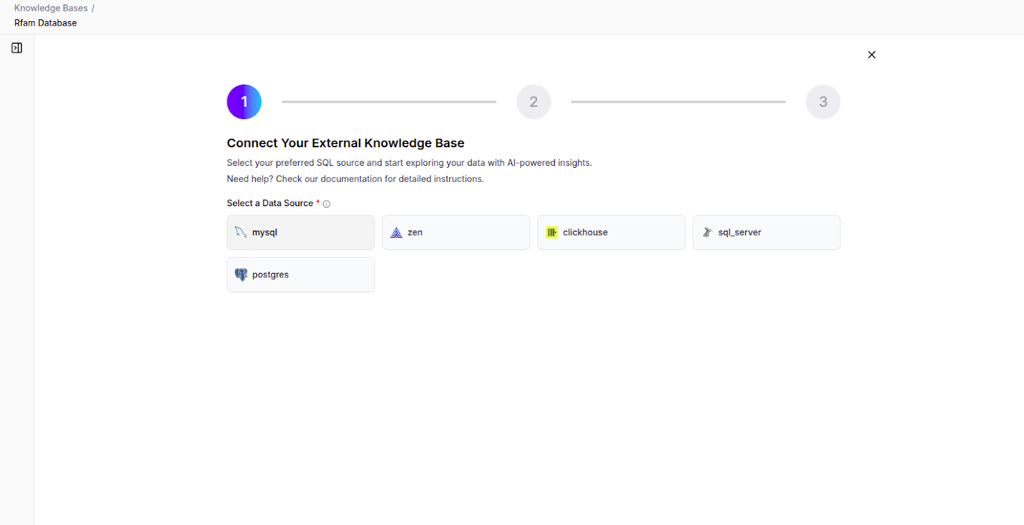
Connect your database
For structured knowledge bases, you'll start by connecting to your external data source. Enter the following credentials:
- Host - Your database server address
- Port - Connection port (e.g., 5432 for PostgreSQL)
- Database Name - The specific database to connect to
- Username & Password - Authentication credentials
- SSL Mode - Security settings for the connection
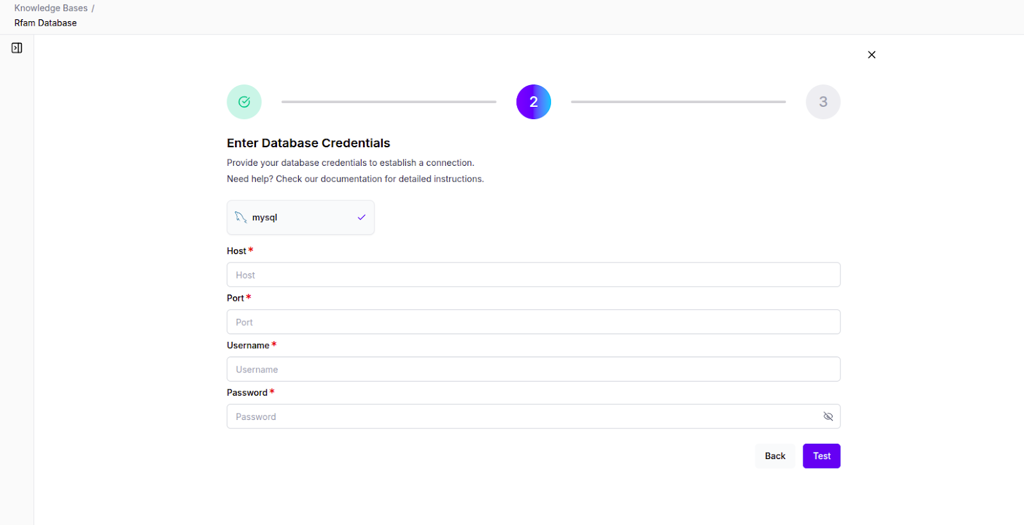
After a successful connection, IdeaboxAI imports your database schema.
Explore the datasets view
Once connected, you'll see a schema visualization showing:
- Database tables (Data Sets) listed in the sidebar
- Table relationships and joins
- Options to enhance with AI, add semantics, or define relationships
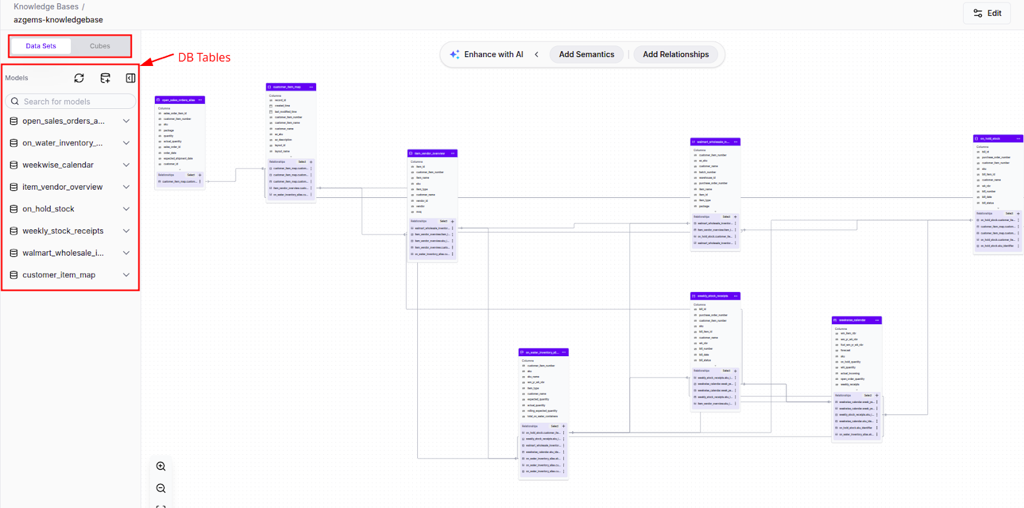
Actions you can perform:
- Browse database tables
- Define joins and relationships
- Enhance schema metadata using AI assistance
- Document business logic for columns and tables
Best practices:
- Validate relationships against source database constraints
- Avoid circular or ambiguous joins
- Document semantic definitions clearly
The result is a semantically enriched data model suitable for analytics and AI queries.
Creating and querying cubes
Understanding cubes
Cubes are analytical models built on top of your structured data. They define:
- Measures - Metrics you want to calculate (e.g., total revenue, average price)
- Dimensions - Attributes to group and filter by (e.g., date, category, region)
- SQL Logic - The underlying query that generates the cube data
Access the cube configuration interface
In the structured knowledge base view, you'll see:
- A list of existing cubes on the left panel
- Measures and dimensions associated with the selected cube
- Query execution controls and result preview on the main panel
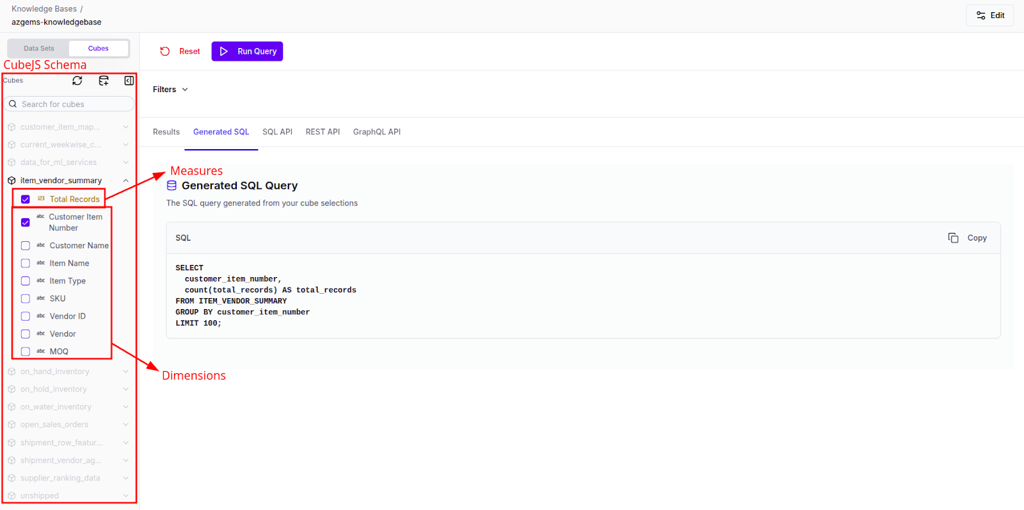
Click the Add Cube button to initiate cube creation.
💡 Tip: Ensure the underlying datasets are already validated and available before creating cubes. Follow consistent naming conventions for cubes to simplify discoverability.
Create a new cube
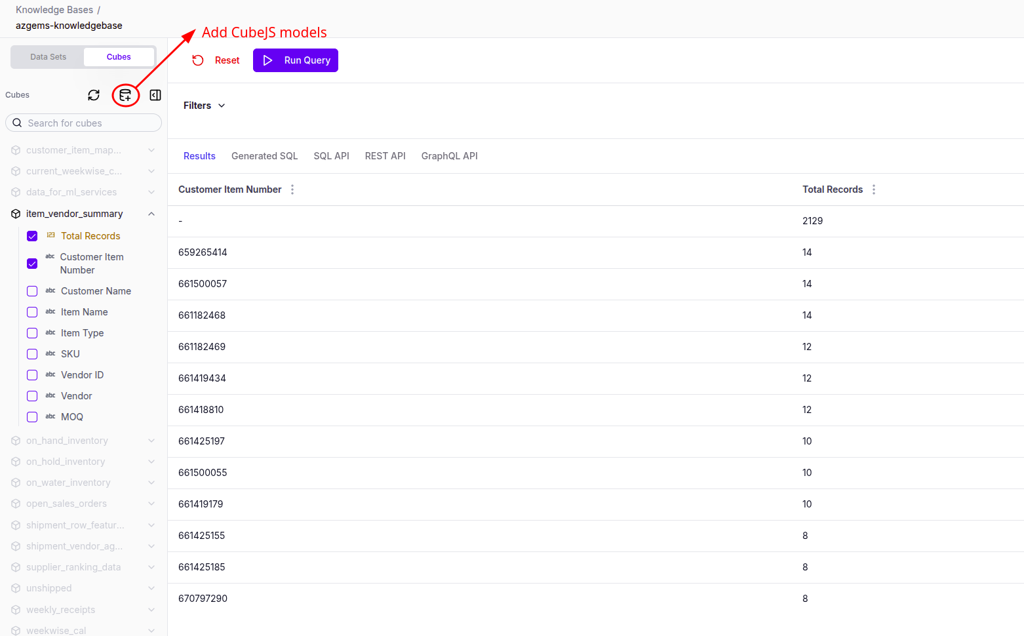
The Add New Cube modal provides two approaches:
AI Generate (Recommended)
Let AI automatically generate the base SQL, measures, and dimensions using natural language:
- Cube Name - A unique, descriptive identifier (e.g.,
ITEM_VENDOR_SUMMARY) - Cube Description - A concise explanation of the cube's analytical purpose
- Natural Language Query - Describe the desired analytics logic in plain language
- Business Context - Provide domain context to improve relevance and correctness
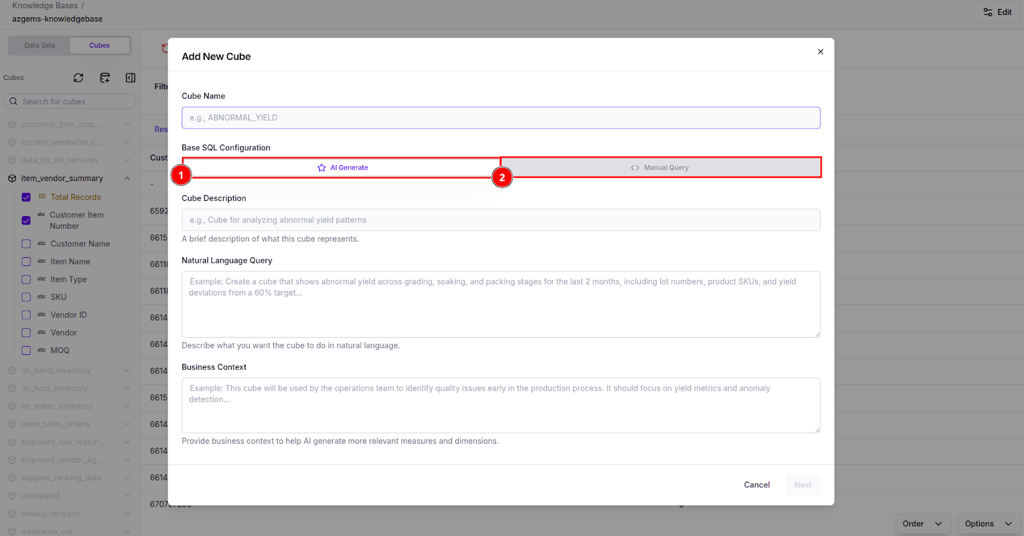
The AI analyzes your datasets and business context to generate optimized SQL and relevant measures/dimensions.
Manual Query
For advanced users, directly author the SQL query:
- Cube Name - Unique identifier
- Base SQL Configuration - Write custom SQL for the cube
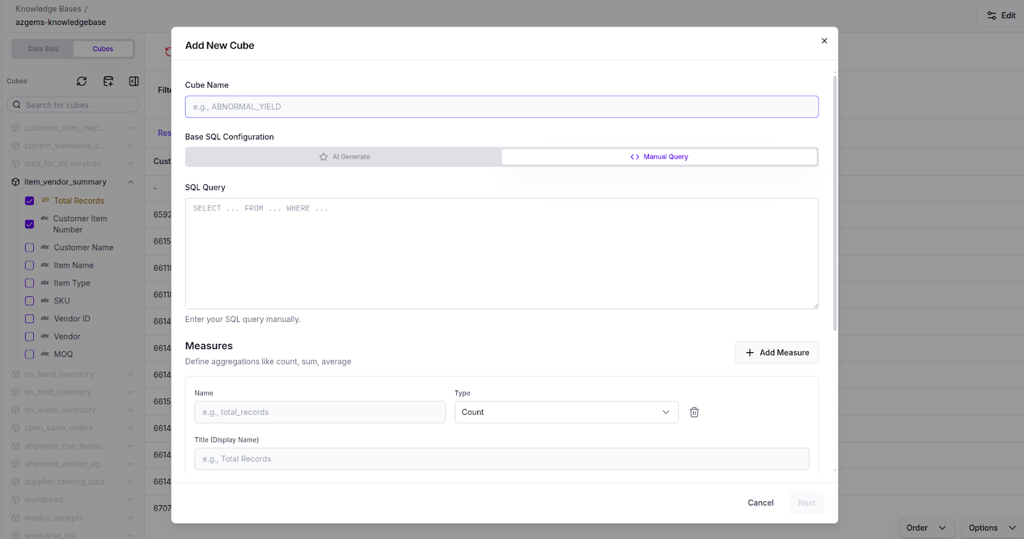
⚠️ Warning: Prefer AI Generate for rapid prototyping and exploratory analytics. Use Manual Query for performance-critical or highly customized analytical logic.
Best practices:
- Clearly document business intent in the description and context fields
- Test generated SQL before deploying to production
- Start with simple cubes and iterate based on user feedback
Execute queries and access results
Once your cube is created, you can query it using the cube selection panel:
Select your analysis parameters:
- Choose Measures - The metrics you want to calculate
- Choose Dimensions - How to group or filter the data
- Apply Filters - Narrow down the results
Click Run Query to execute.
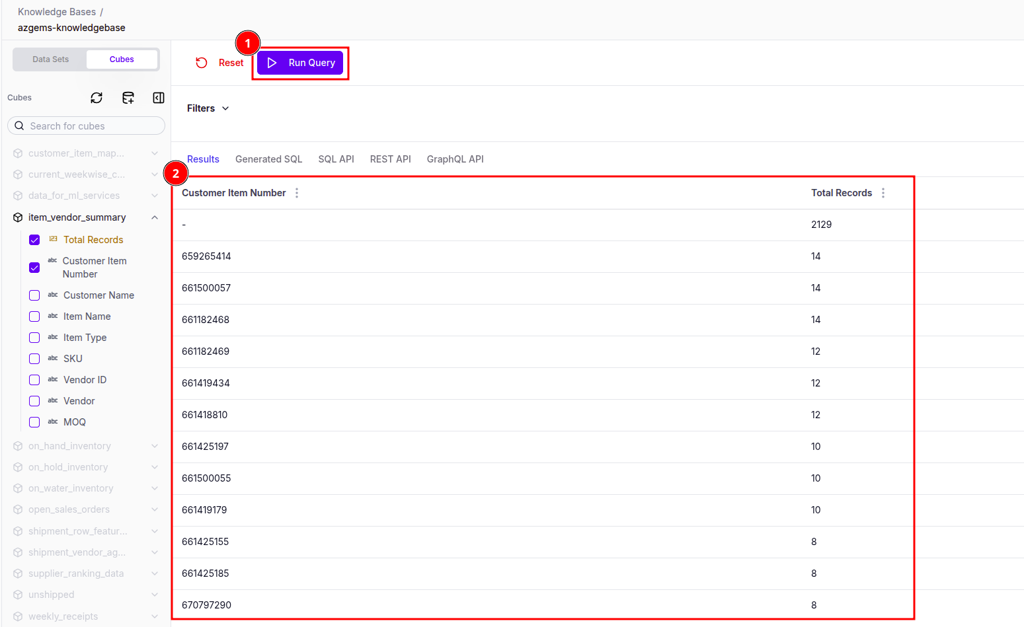
View results in multiple formats:
The interface provides several tabs for different use cases:
- Results - Interactive table or chart view
- Generated SQL - See the SQL that powers your query
- SQL API - Endpoint for SQL-based integrations
- REST API - RESTful endpoint for application integration
- GraphQL API - GraphQL endpoint for flexible data fetching
Best practices:
- Start with limited dimensions to optimize performance
- Reuse generated APIs instead of re-running UI queries
- Validate results against source systems for critical analytics
- Export and share query results with your team
Integrating with agents
Your knowledge bases become even more powerful when connected to AI agents. Agents can:
- Query unstructured documents to answer questions
- Run analytical queries on structured data cubes
- Combine multiple knowledge bases for comprehensive insights
- Cite specific sources when providing answers
To connect a knowledge base to an agent, navigate to the agent's configuration and select your KB from the dropdown menu. For detailed instructions, see the Agents documentation.
Next steps
- Agents — Learn how to create AI agents that leverage your knowledge bases
- Agentic BI — Explore advanced business intelligence capabilities