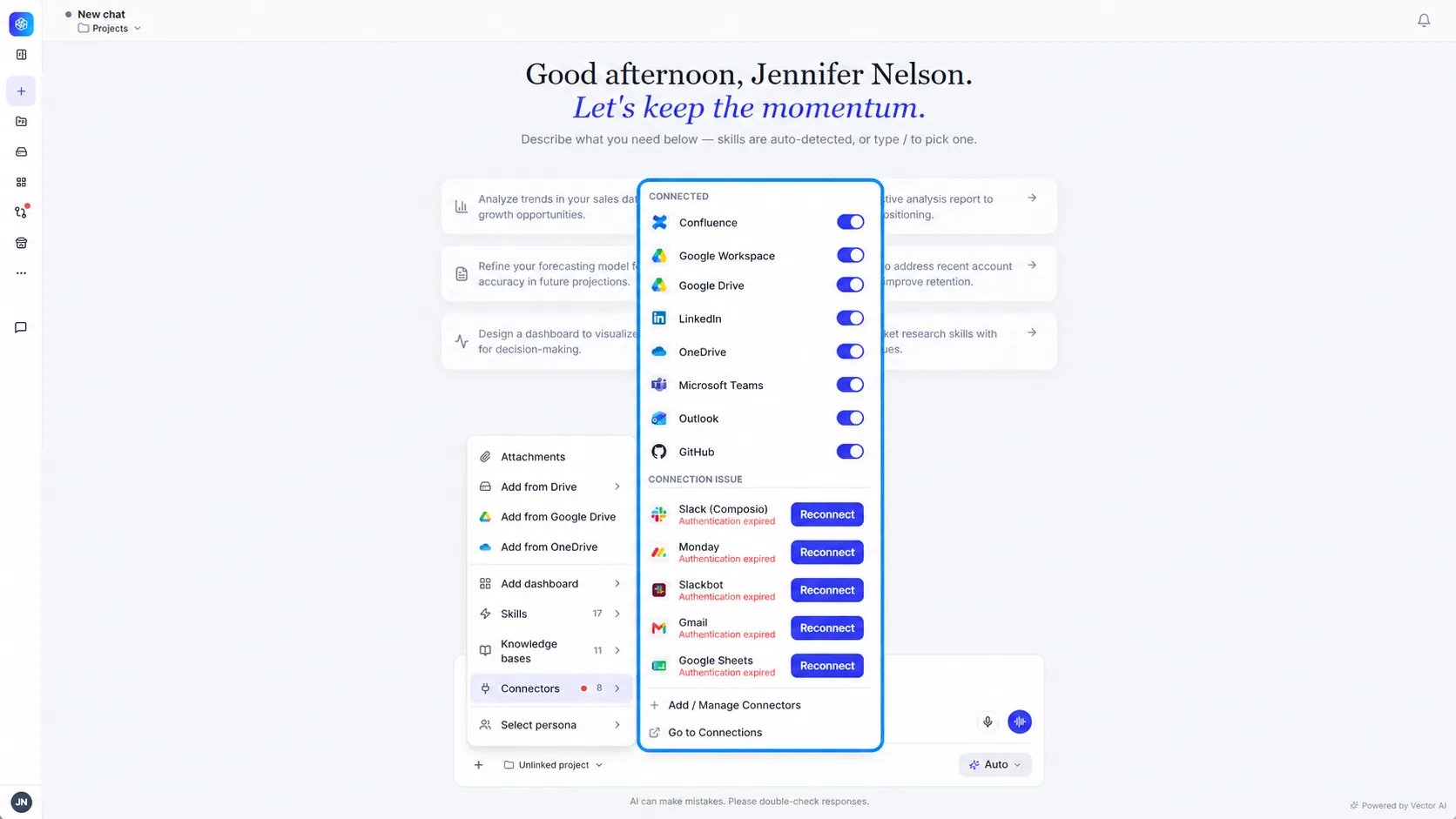
Open the Connectors menu
In the chat input, select +, then select Connectors. The number shows how many connectors you have connected. A red dot means a connection needs attention. The menu has two sections:- Connected: Connectors that are ready to use.
- Connection issue: Connectors that need you to sign in again or require attention.
Pause a connector
Turn off a connector’s toggle to pause it in chat. Persona AI won’t use it until you turn it back on. Pausing doesn’t disconnect the connector. It stays connected on the Connections page.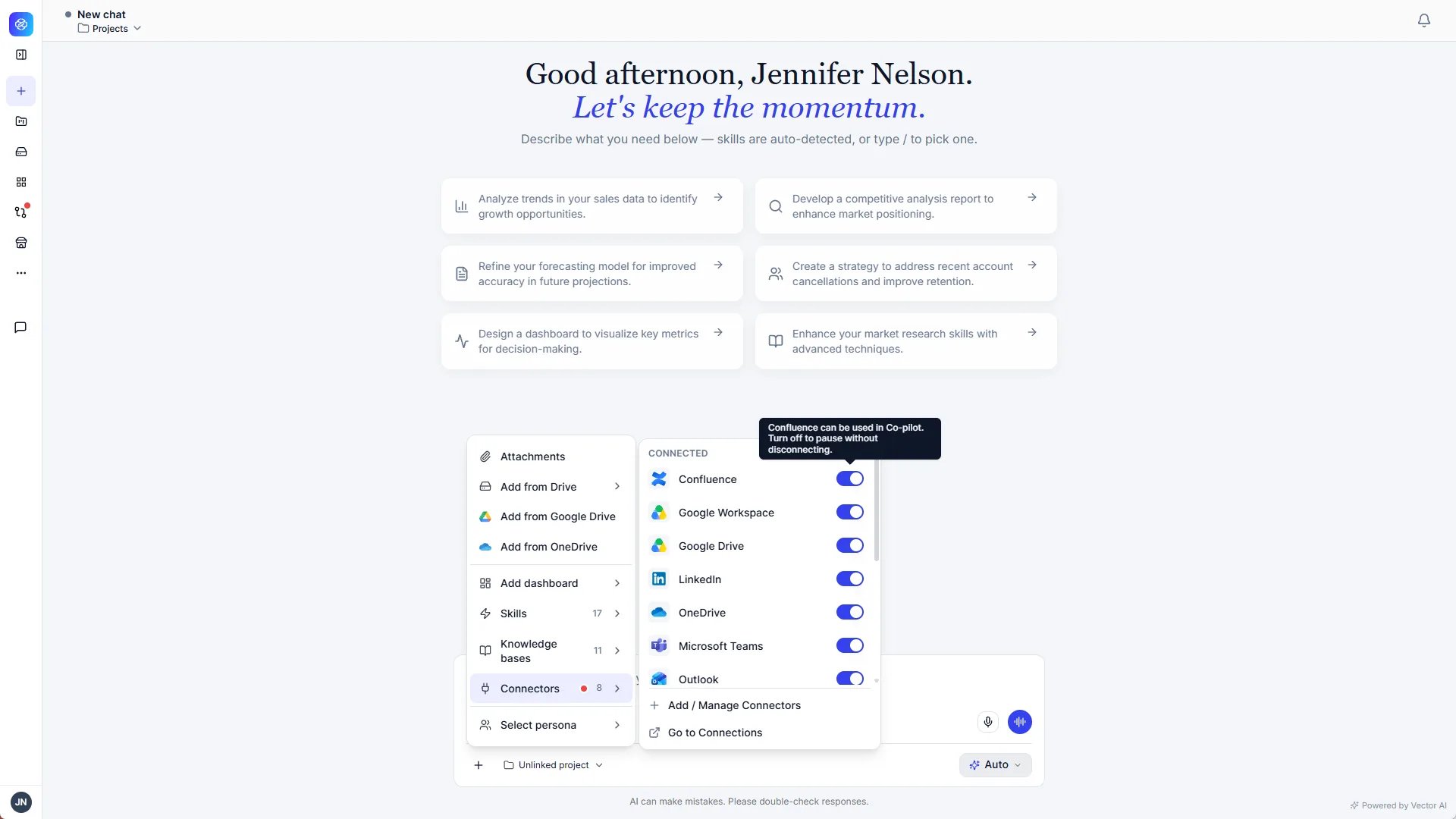
Reconnect a connector
If a connector shows Authentication expired, select Reconnect and sign in again.Add or manage connectors
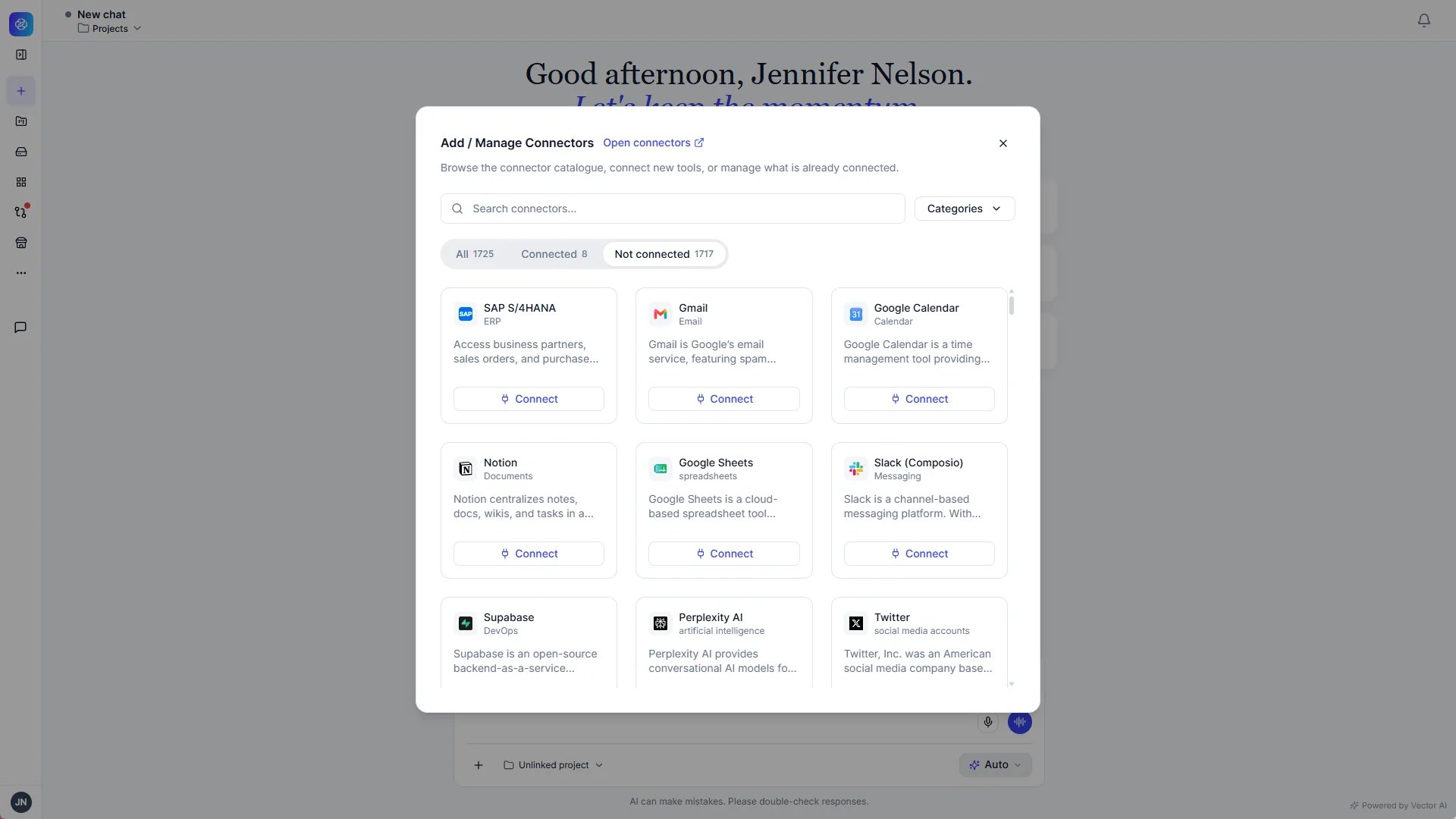
Select Add / Manage Connectors to open the connector catalog in chat.1
Find a connector
Search by name or filter with Categories. Use the All, Connected, and Not connected tabs to narrow the list. Each card shows the connector’s category under its name.
2
Connect
Select Connect on the connector’s card, then sign in or enter the requested details.
3
Use it in chat
Close the dialog. The connector is available in the chat right away.