

Getting started
1
Open Automations
Go to Automations in the left navigation and click Create.
2
Describe the workflow
Describe the workflow you want, or pick an example prompt to start from.
3
Review the draft
Check the trigger, the steps, and where the output goes.
4
Activate it
Turn it on, or keep refining with Persona AI until it’s ready.
5
Monitor
Keep an eye on the Automation Overview dashboard to track runs and catch anything that needs attention.
Creating an automation
Automations live in their own section in the left-hand navigation. To start one, click Create and you’ll land on a blank canvas with a single prompt: “What would you like to automate?”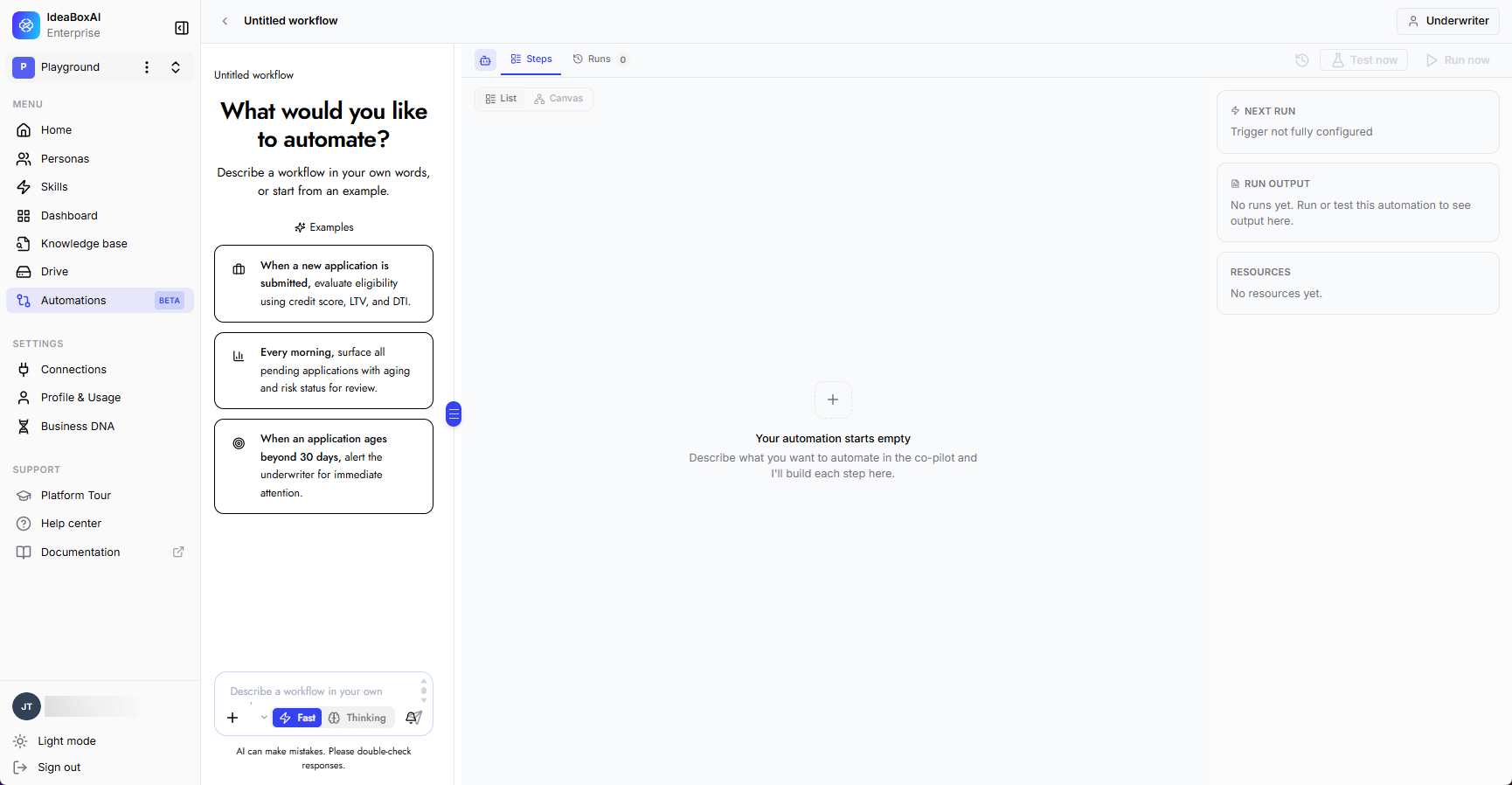
- “When a new application is submitted, evaluate eligibility using credit score, LTV, and DTI.”
- “Every morning, surface all pending applications with aging and risk status for review.”
- “When an application ages beyond 30 days, alert the underwriter for immediate attention.”
From prompt to running workflow
Once you describe what you want, Persona AI breaks the request into steps, picks the right connectors and knowledge bases, and builds the automation for you, including a plain-language explanation of what it created and why.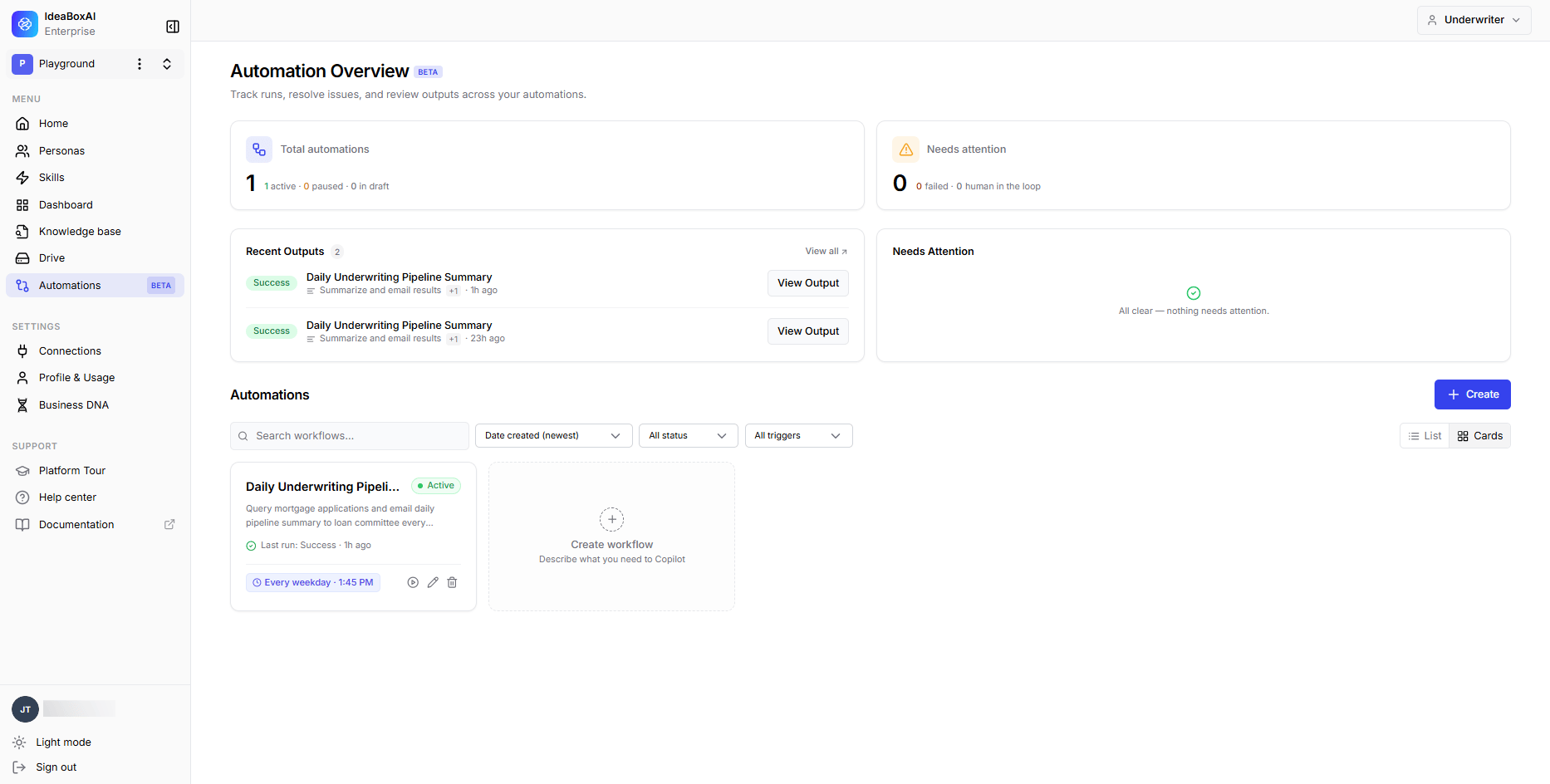
- Query today’s applications — pulls approved and pending mortgage applications from a connected knowledge base, including status, risk tier, credit score, LTV, and DTI.
- Create summary and email results — generates a breakdown by priority tier and SLA status, then sends it to the loan committee over Outlook.
Editing and managing steps
Once an automation is active, every part of it stays editable. You can adjust the trigger, add new steps, or fine-tune an individual step without rebuilding the workflow from scratch.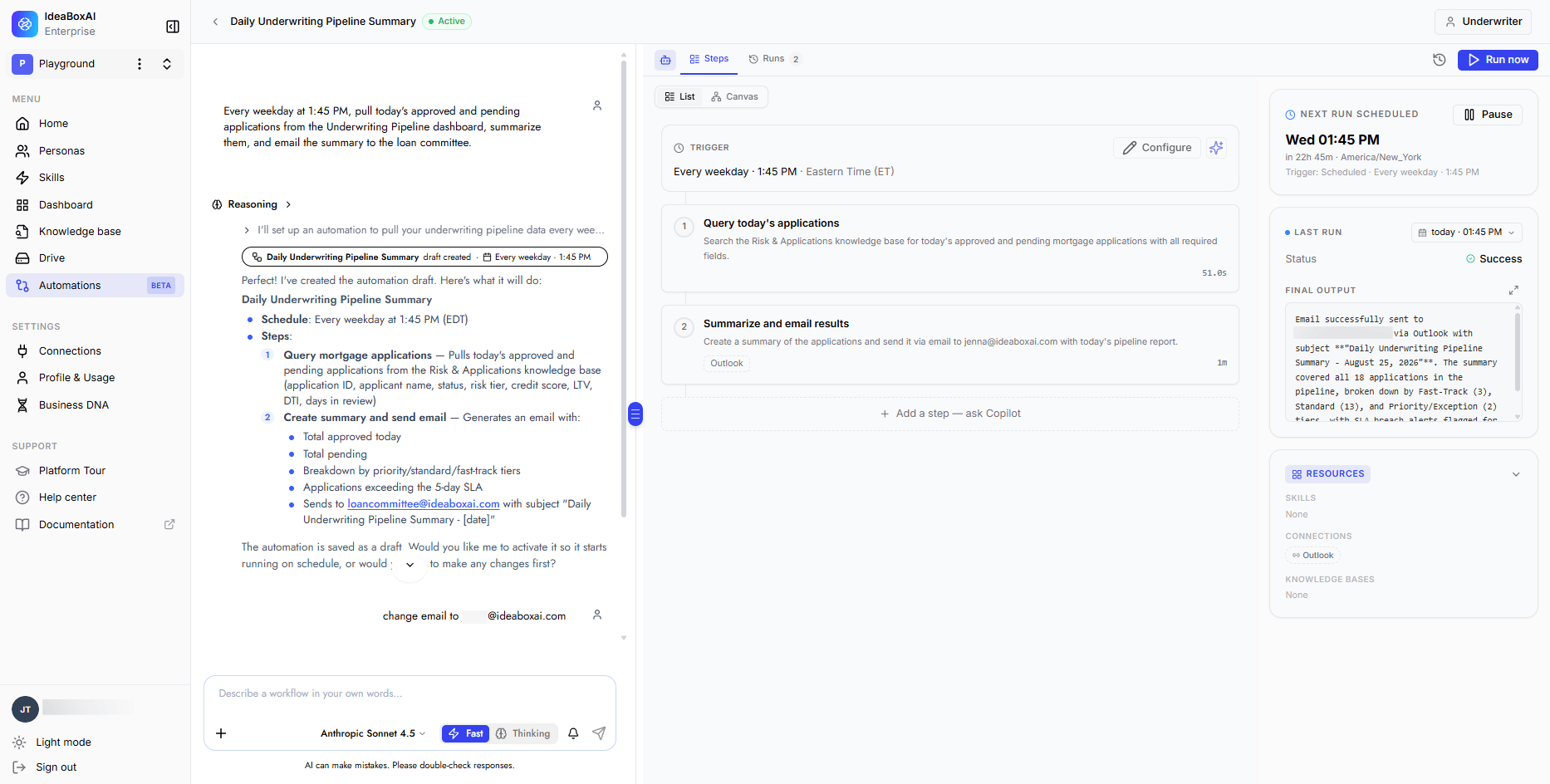
Because everything is conversational, corrections are just as easy as the original request; asking Persona AI to change the email updates that field directly, no form-hunting required.
Monitoring your automations
The Automation Overview dashboard is your control tower for everything you’ve built. It shows totals at a glance, along with recent outputs and anything that needs a second look.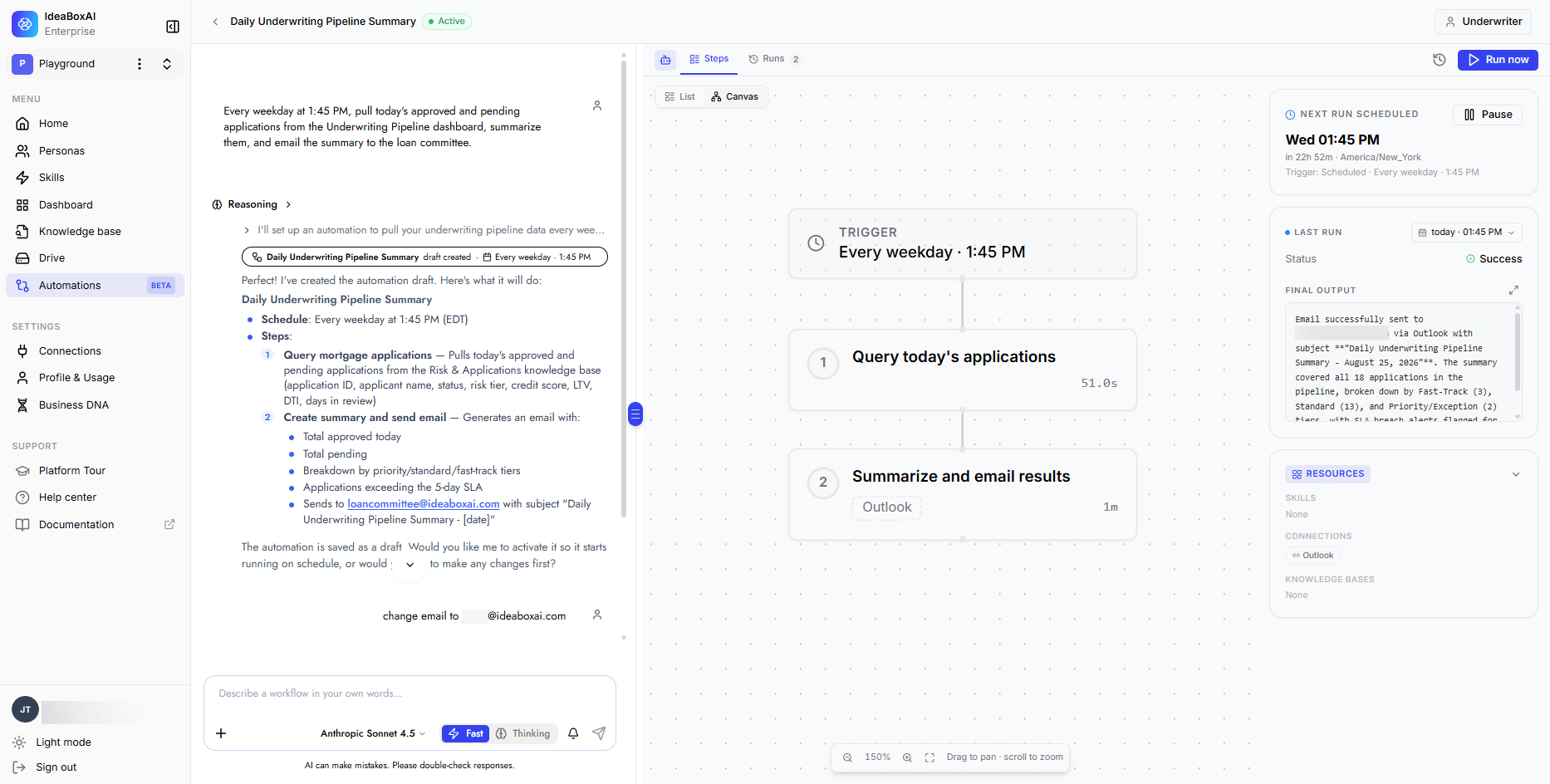
- Total automations: how many are active, paused, or still in draft
- Needs attention: a live count of failed runs or steps waiting on human input, so problems don’t get buried
- Recent outputs: the latest results across all your automations, with a direct link to view the full output
- All automations: a searchable, filterable list (by status, trigger type, or date created), switchable between List and Card layouts When everything is healthy, the Needs Attention panel simply confirms it: “All clear — nothing needs attention.”
Attention beacon in navigation
You don’t have to be on the Automation Overview dashboard to know something needs you. A beacon appears next to Automations in the left navigation whenever an automation requires your attention, so you can keep working elsewhere and still catch it.- Green beacon: A completed output is ready for you to review.
- Red beacon: Something needs action — a pending human-in-the-loop approval, a connection issue, or another item blocking a run.
The beacon clears as soon as you navigate to the Automations page, regardless of whether every item has actually been resolved yet — think of it as a “something needs eyes” signal rather than an unread count.