> ## Documentation Index
> Fetch the complete documentation index at: https://docs.ideaboxai.com/llms.txt
> Use this file to discover all available pages before exploring further.
# Quickstart
> Learn how to create your IdeaBoxAI account, complete onboarding, and launch your workspace.
This guide walks you through registering for an IdeaBoxAI account, completing the three-step onboarding wizard, and launching your workspace. By the end, you will have a fully configured workspace with personas and connected tools.
## Create your account
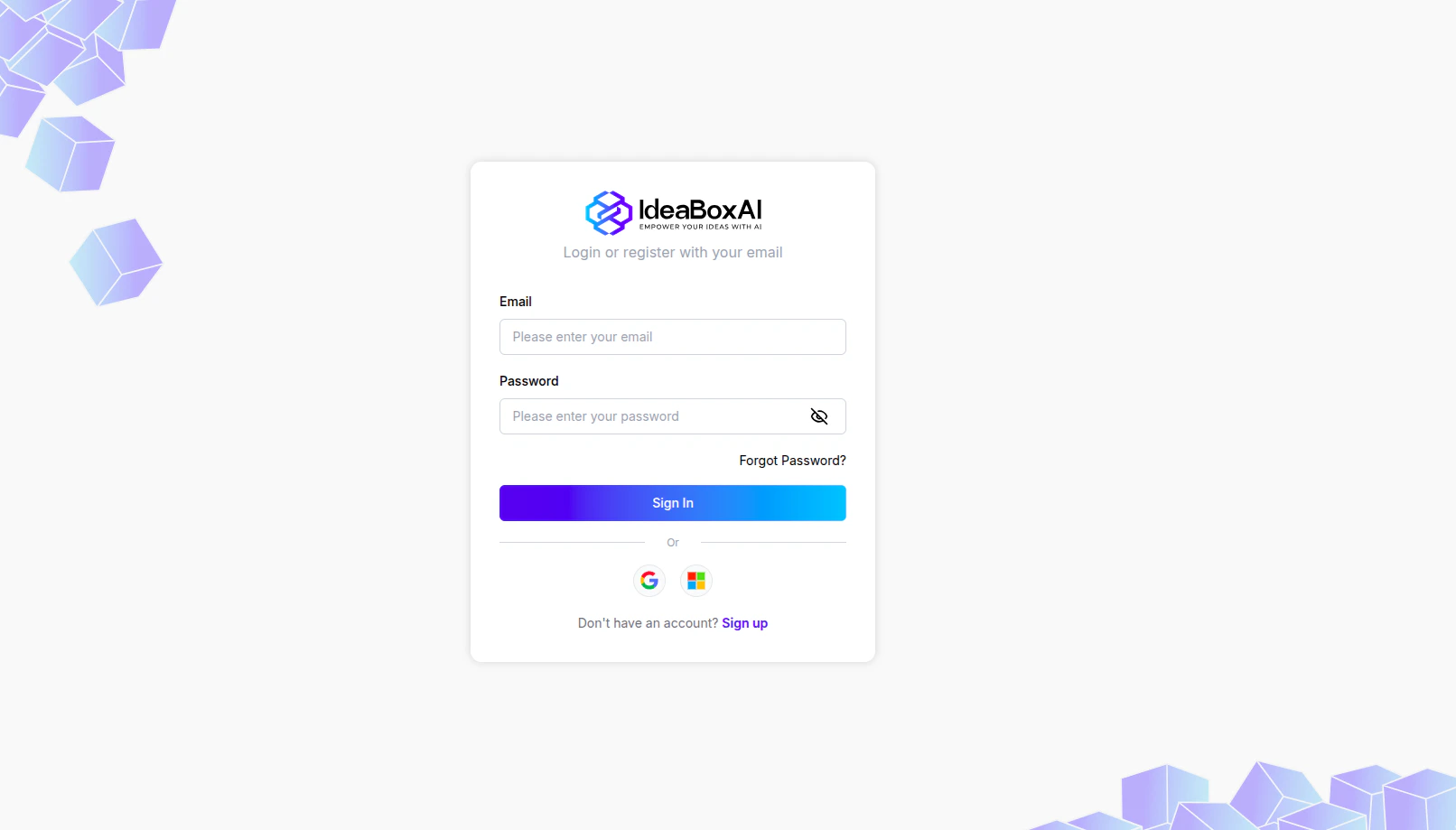
To get started, navigate to the [IdeaBoxAI login page](https://app.ideaboxai.com/auth/login). The registration screen gives you two ways to create an account: email and password or single sign-on.
 ## Register with email
Follow these steps to create an account using your email address.
Go to [app.ideaboxai.com/auth/login](https://app.ideaboxai.com/auth/login) and click the **Sign up** link at the bottom of the form. The Create your account page appears.
## Register with email
Follow these steps to create an account using your email address.
Go to [app.ideaboxai.com/auth/login](https://app.ideaboxai.com/auth/login) and click the **Sign up** link at the bottom of the form. The Create your account page appears.
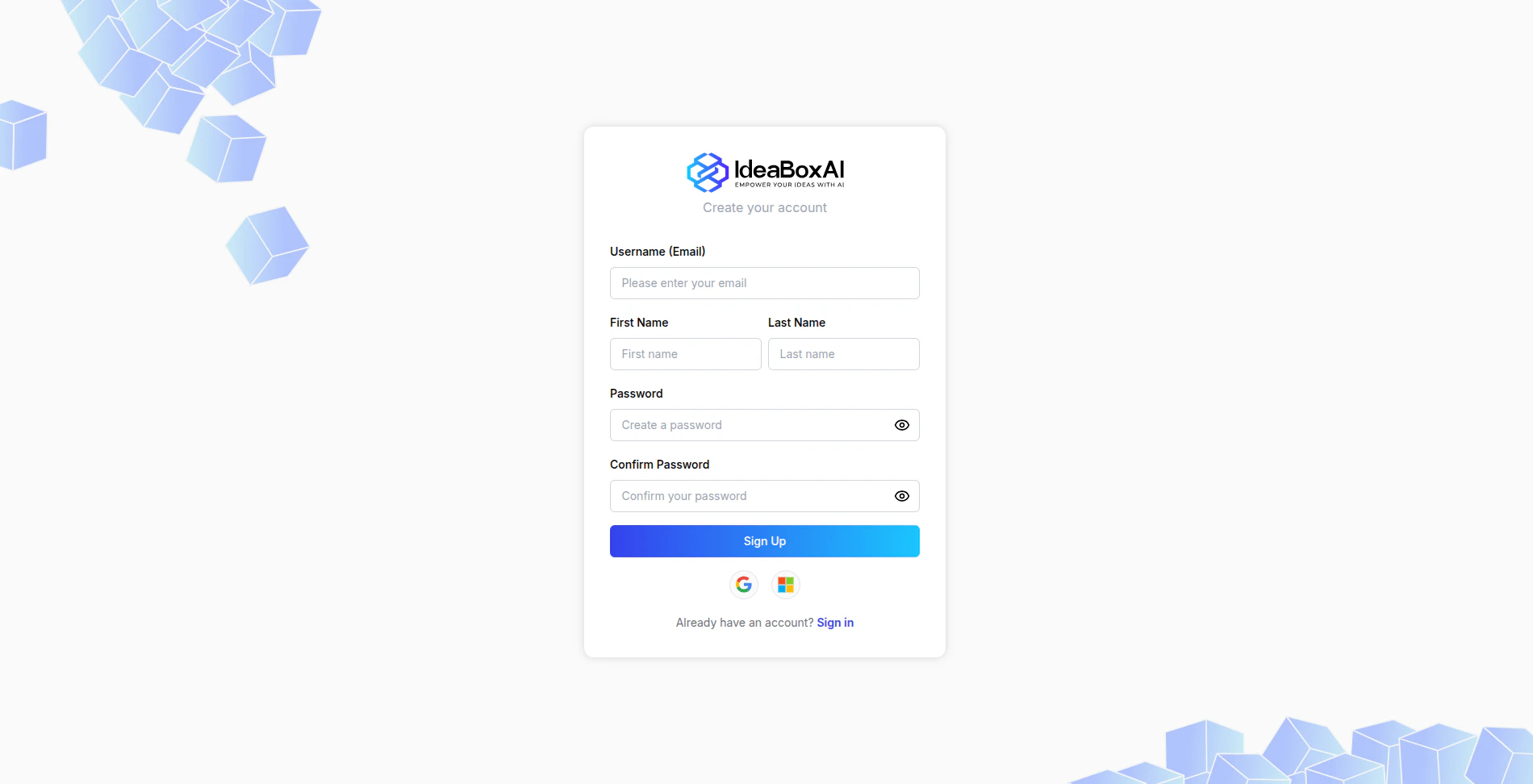 Fill in the following fields:
* **Username (Email)**: Your email address.
* **First Name** and **Last Name**: Your full name.
* **Password**: Choose a password.
* **Confirm Password**: Re-enter your password.
Then click **Sign Up** to create your account.
Check your inbox for a verification email from IdeaBoxAI. Click the link to confirm your account.
## Register with SSO
If your organisation uses Google or Microsoft, you can register with a single click. Click the **Google** or **Microsoft** icon below the sign-in button to authenticate with your existing account. No separate password is required.
## Sign in to an existing account
If you already have an account, enter your email and password on the [login page](https://app.ideaboxai.com/auth/login) and click **Sign In**. You can also sign in using **Google** or **Microsoft** SSO by clicking the relevant icon below the sign-in button. If you forget your password, click **Forgot Password?** to receive a reset link by email.
## Onboarding wizard
After signing in for the first time, IdeaBoxAI walks you through a three-step setup wizard. The left sidebar tracks your progress across each step.
Want to get started immediately? Click the **Quick Launch** button at any point during onboarding to skip the remaining steps and jump straight into your workspace with default settings. You can always update your profile, personas, and connections later from Settings.
### Step 1: About You
This step takes about 30 seconds. IdeaBoxAI collects basic information about you and your business to tailor the workspace experience.
Fill in the following fields:
* **Username (Email)**: Your email address.
* **First Name** and **Last Name**: Your full name.
* **Password**: Choose a password.
* **Confirm Password**: Re-enter your password.
Then click **Sign Up** to create your account.
Check your inbox for a verification email from IdeaBoxAI. Click the link to confirm your account.
## Register with SSO
If your organisation uses Google or Microsoft, you can register with a single click. Click the **Google** or **Microsoft** icon below the sign-in button to authenticate with your existing account. No separate password is required.
## Sign in to an existing account
If you already have an account, enter your email and password on the [login page](https://app.ideaboxai.com/auth/login) and click **Sign In**. You can also sign in using **Google** or **Microsoft** SSO by clicking the relevant icon below the sign-in button. If you forget your password, click **Forgot Password?** to receive a reset link by email.
## Onboarding wizard
After signing in for the first time, IdeaBoxAI walks you through a three-step setup wizard. The left sidebar tracks your progress across each step.
Want to get started immediately? Click the **Quick Launch** button at any point during onboarding to skip the remaining steps and jump straight into your workspace with default settings. You can always update your profile, personas, and connections later from Settings.
### Step 1: About You
This step takes about 30 seconds. IdeaBoxAI collects basic information about you and your business to tailor the workspace experience.
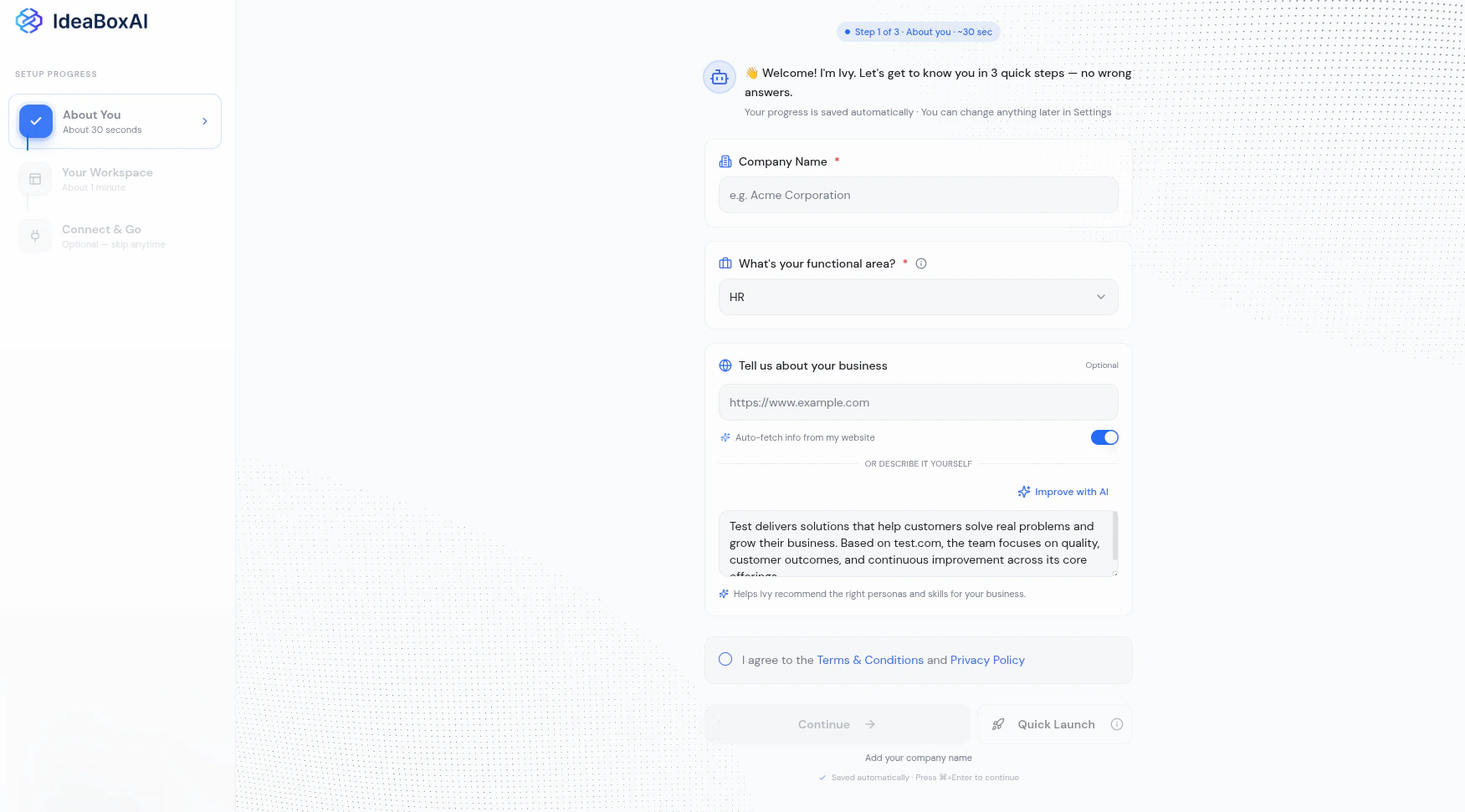 Fill in the following fields:
* **Company Name**: Your organisation's name.
* **Functional area**: Select the department or function you work in (e.g., HR, Sales, Operations). This determines which personas and skills IdeaBoxAI recommends.
* **Website URL**: Enter your company website. IdeaBoxAI uses this to auto-generate a business context summary.
Once you enter the website URL, IdeaBoxAI analyses it and generates an **AI business summary** describing what your company does. You can review and edit this summary before continuing.
Fill in the following fields:
* **Company Name**: Your organisation's name.
* **Functional area**: Select the department or function you work in (e.g., HR, Sales, Operations). This determines which personas and skills IdeaBoxAI recommends.
* **Website URL**: Enter your company website. IdeaBoxAI uses this to auto-generate a business context summary.
Once you enter the website URL, IdeaBoxAI analyses it and generates an **AI business summary** describing what your company does. You can review and edit this summary before continuing.
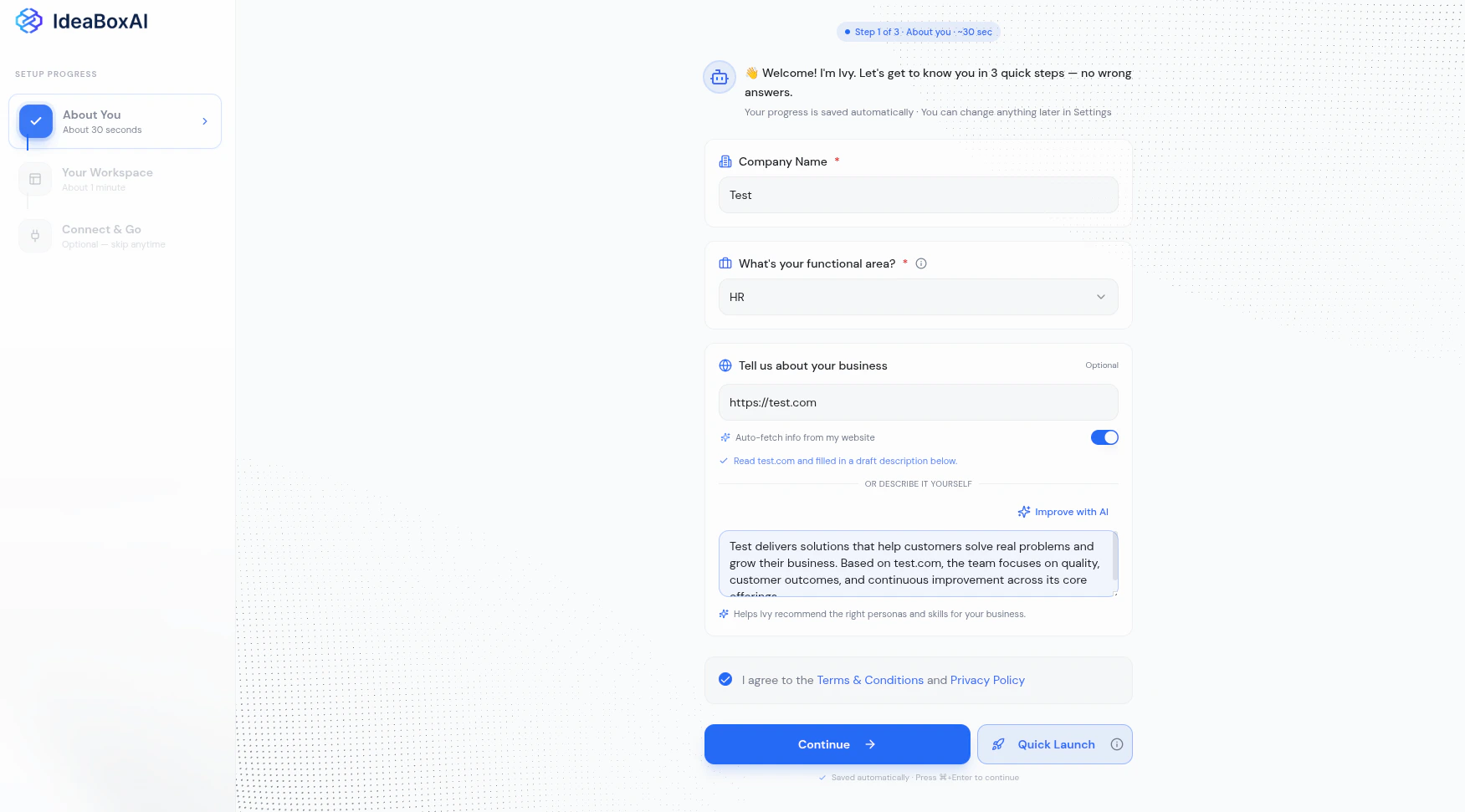 Check the **Terms & Conditions and Privacy Policy** checkbox, then click **Continue** to proceed. You can also click **Quick Launch** to skip ahead with defaults.
### Step 2: Your Workspace
This step takes about 1 minute. IdeaBoxAI presents your AI Business Context and recommends personas based on the functional area you selected.
Check the **Terms & Conditions and Privacy Policy** checkbox, then click **Continue** to proceed. You can also click **Quick Launch** to skip ahead with defaults.
### Step 2: Your Workspace
This step takes about 1 minute. IdeaBoxAI presents your AI Business Context and recommends personas based on the functional area you selected.
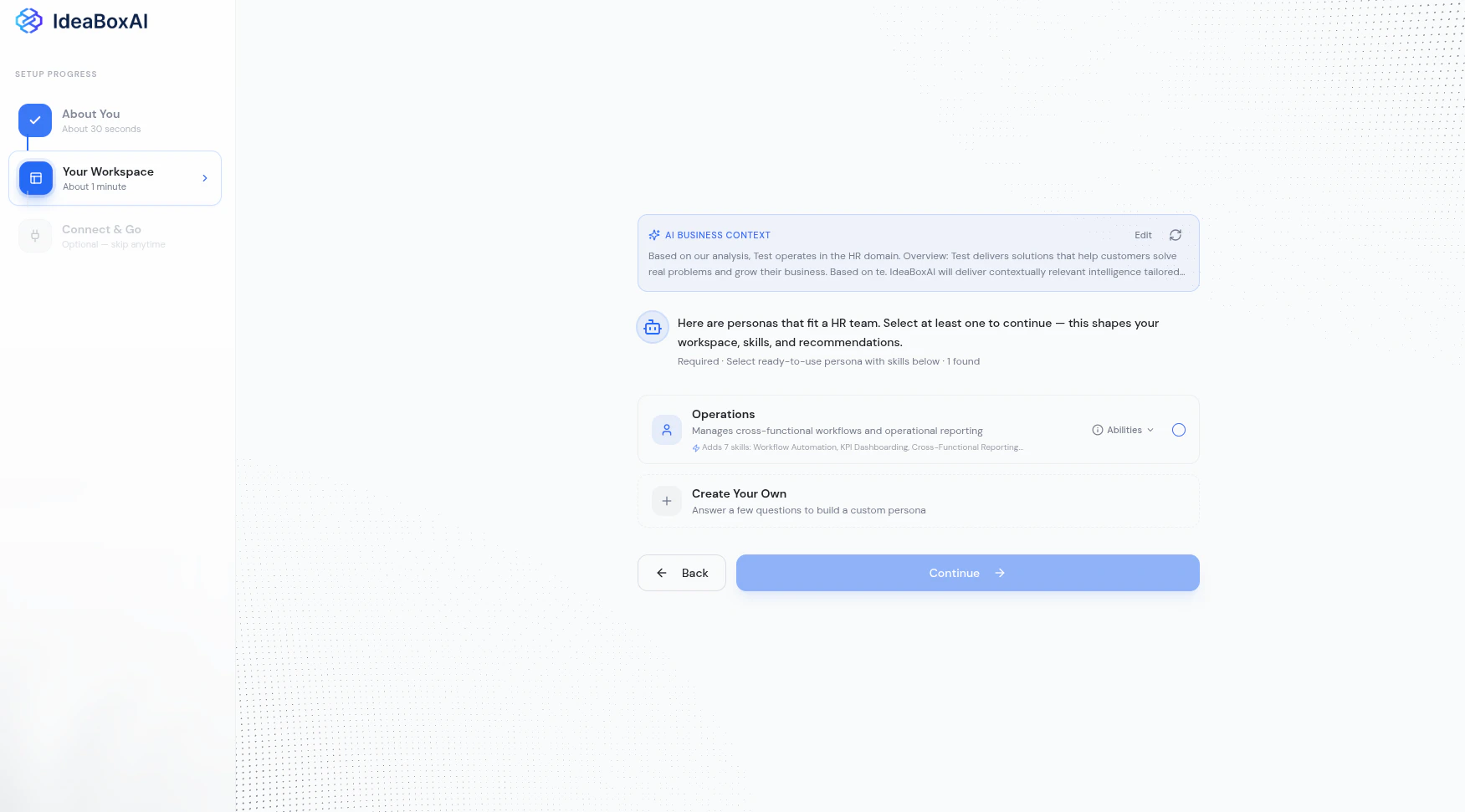 At the top, the **AI Business Context** card shows the profile IdeaBoxAI built from your inputs. Click **Edit** to refine it or the refresh icon to regenerate.
Below that, you see persona recommendations tailored to your functional area. Each persona comes with pre-configured skills:
* **Select a persona** by clicking the radio button next to it. You must select at least one to continue.
* **View abilities** by expanding the Abilities dropdown on any persona to see the skills it includes.
* **Create Your Own** if none of the suggestions fit. Click this option to build a custom persona by answering a few questions.
Click **Continue** to proceed or **Back** to return to Step 1.
### Step 3: Connect & Go
This final step lets you choose how to populate your workspace with data.
At the top, the **AI Business Context** card shows the profile IdeaBoxAI built from your inputs. Click **Edit** to refine it or the refresh icon to regenerate.
Below that, you see persona recommendations tailored to your functional area. Each persona comes with pre-configured skills:
* **Select a persona** by clicking the radio button next to it. You must select at least one to continue.
* **View abilities** by expanding the Abilities dropdown on any persona to see the skills it includes.
* **Create Your Own** if none of the suggestions fit. Click this option to build a custom persona by answering a few questions.
Click **Continue** to proceed or **Back** to return to Step 1.
### Step 3: Connect & Go
This final step lets you choose how to populate your workspace with data.
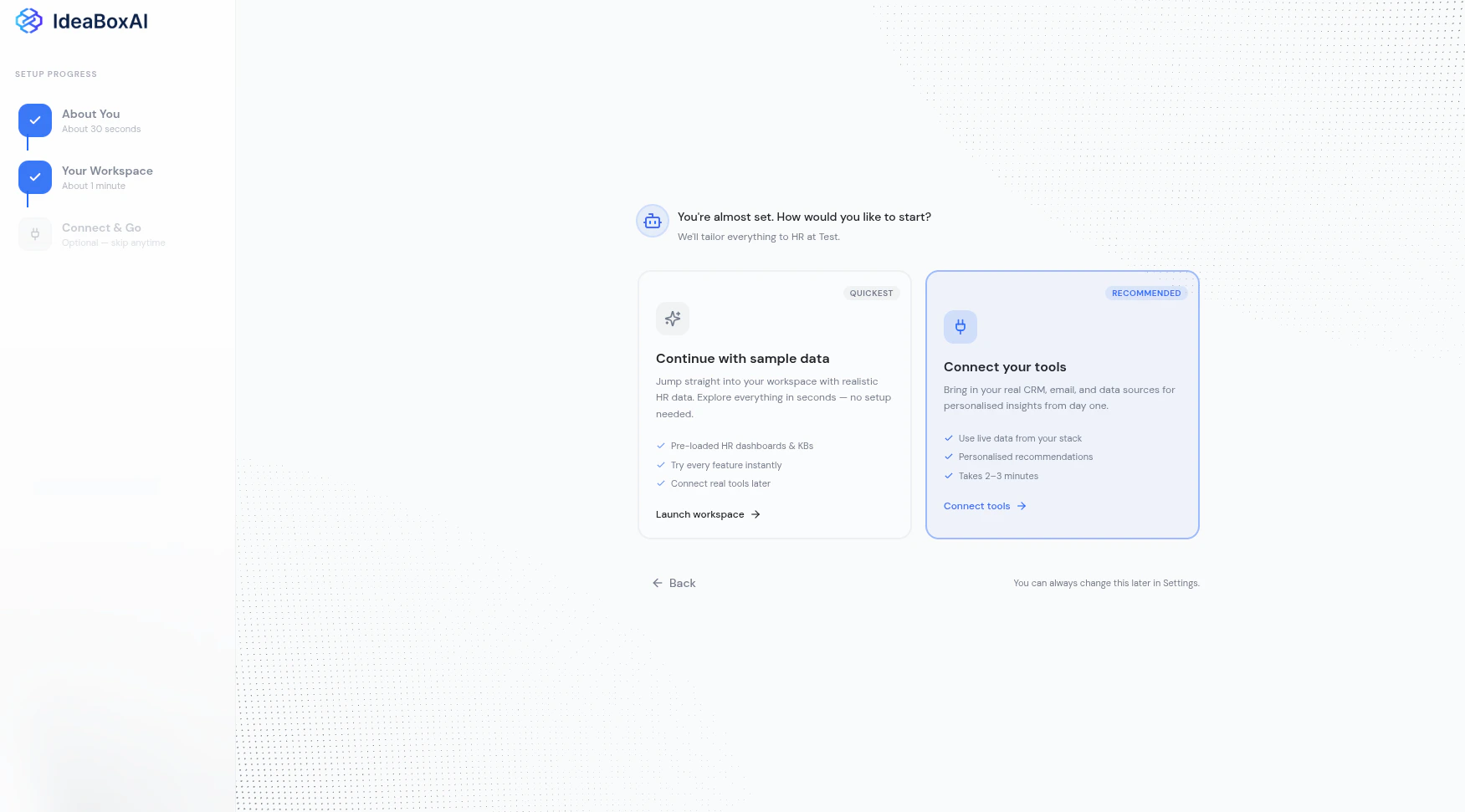 You have two options:
**Continue with sample data** — Jump straight into your workspace with realistic, pre-loaded data for your functional area. This lets you explore every feature instantly with no setup. You can connect real tools later from Settings.
* Pre-loaded dashboards and knowledge bases
* Try every feature instantly
* Connect real tools later
**Connect your tools** — Bring in your real CRM, email, and data sources for personalised insights from day one. This takes 2-3 minutes and is the **recommended** path.
* Use live data from your stack
* Personalised recommendations
* Takes 2-3 minutes
#### Connecting your tools
If you choose **Connect your tools**, IdeaBoxAI shows a tool selection screen with categories recommended for your functional area.
You have two options:
**Continue with sample data** — Jump straight into your workspace with realistic, pre-loaded data for your functional area. This lets you explore every feature instantly with no setup. You can connect real tools later from Settings.
* Pre-loaded dashboards and knowledge bases
* Try every feature instantly
* Connect real tools later
**Connect your tools** — Bring in your real CRM, email, and data sources for personalised insights from day one. This takes 2-3 minutes and is the **recommended** path.
* Use live data from your stack
* Personalised recommendations
* Takes 2-3 minutes
#### Connecting your tools
If you choose **Connect your tools**, IdeaBoxAI shows a tool selection screen with categories recommended for your functional area.
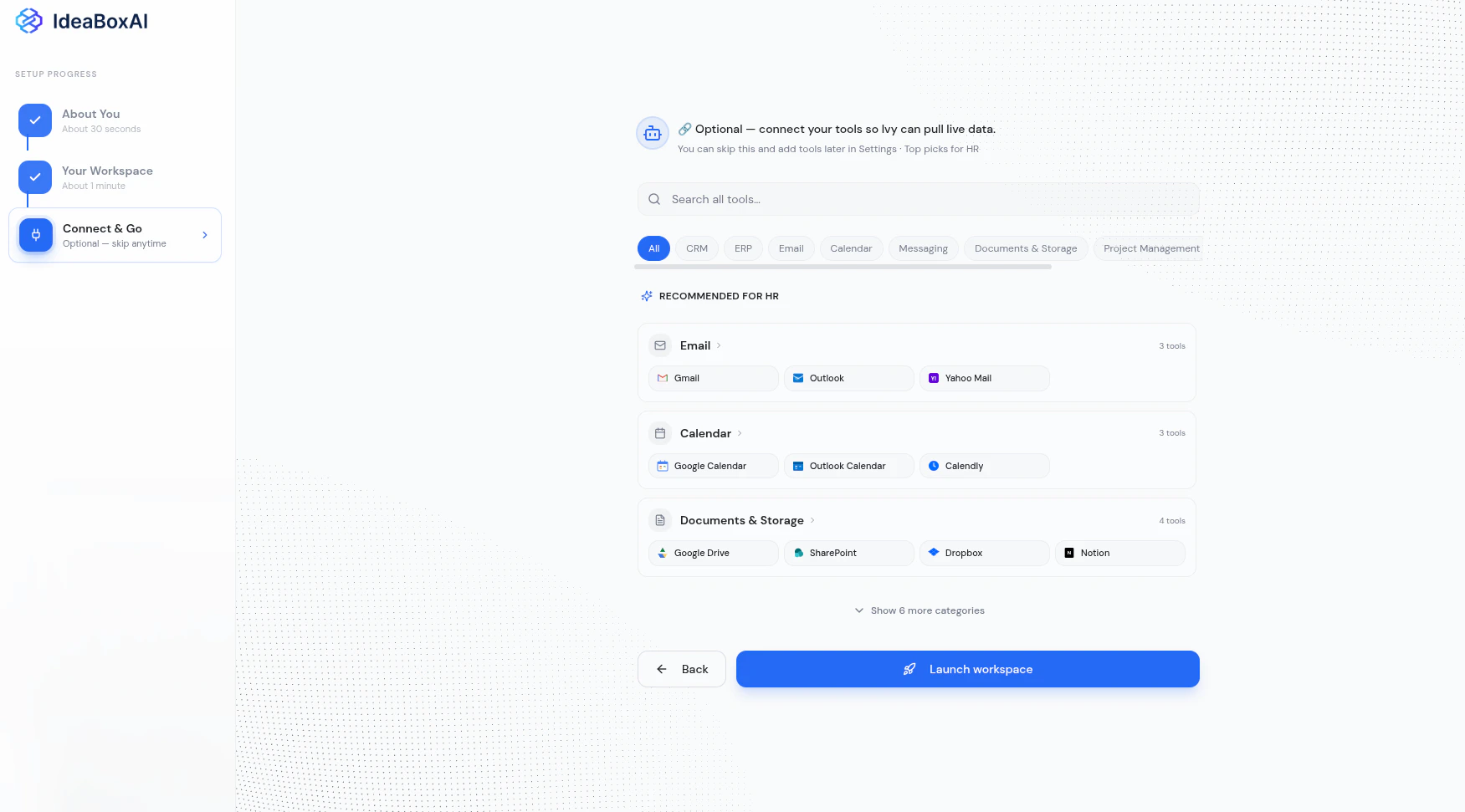 * **Search** for a specific tool using the search bar at the top.
* **Filter by category** by selecting from the available category tabs. The categories shown vary based on your functional area and role.
* **Recommended tools** appear at the top, tailored to your functional area (e.g., Gmail, Google Calendar, and Google Drive for an HR team).
* Click **Show more categories** to see additional tool categories.
Select the tools you want to connect, then click **Launch workspace** to finish setup. You can always add or remove tools later from **Settings > Connections**.
## Your workspace
After completing the onboarding wizard, you land in your IdeaBoxAI workspace. A guided tutorial walks you through the key features in 6 steps.
* **Search** for a specific tool using the search bar at the top.
* **Filter by category** by selecting from the available category tabs. The categories shown vary based on your functional area and role.
* **Recommended tools** appear at the top, tailored to your functional area (e.g., Gmail, Google Calendar, and Google Drive for an HR team).
* Click **Show more categories** to see additional tool categories.
Select the tools you want to connect, then click **Launch workspace** to finish setup. You can always add or remove tools later from **Settings > Connections**.
## Your workspace
After completing the onboarding wizard, you land in your IdeaBoxAI workspace. A guided tutorial walks you through the key features in 6 steps.
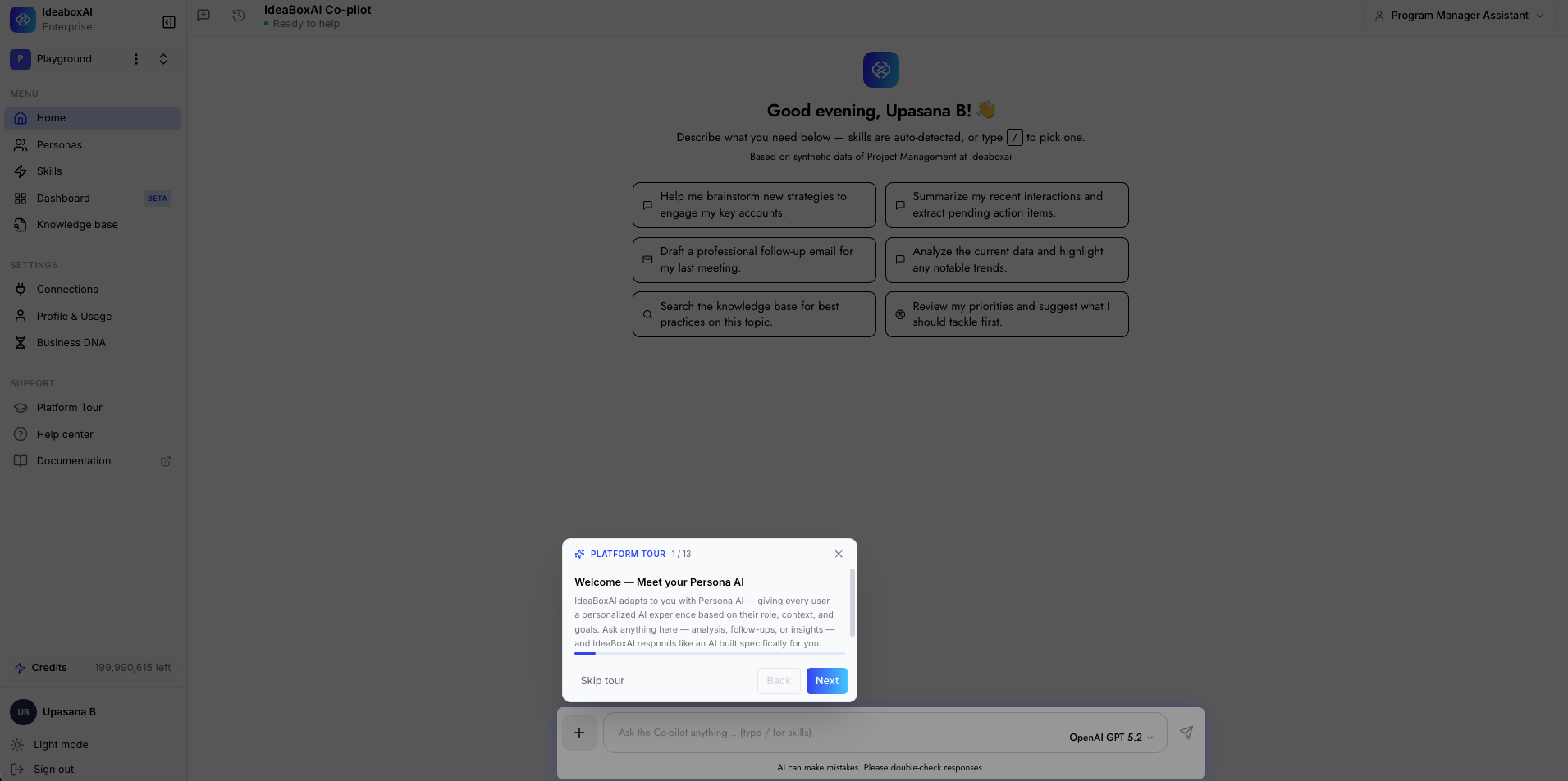 The workspace includes:
* **Co-pilot chat**: Ask anything using natural language. Skills are auto-detected, or type `/` to pick one.
* **Skill suggestion cards**: Quick-action cards based on your persona and functional area.
* **Sidebar navigation**: Access the Assistant, Dashboards, Personas, Skill Studio, Knowledge Bases, Connections, and Profile pages.
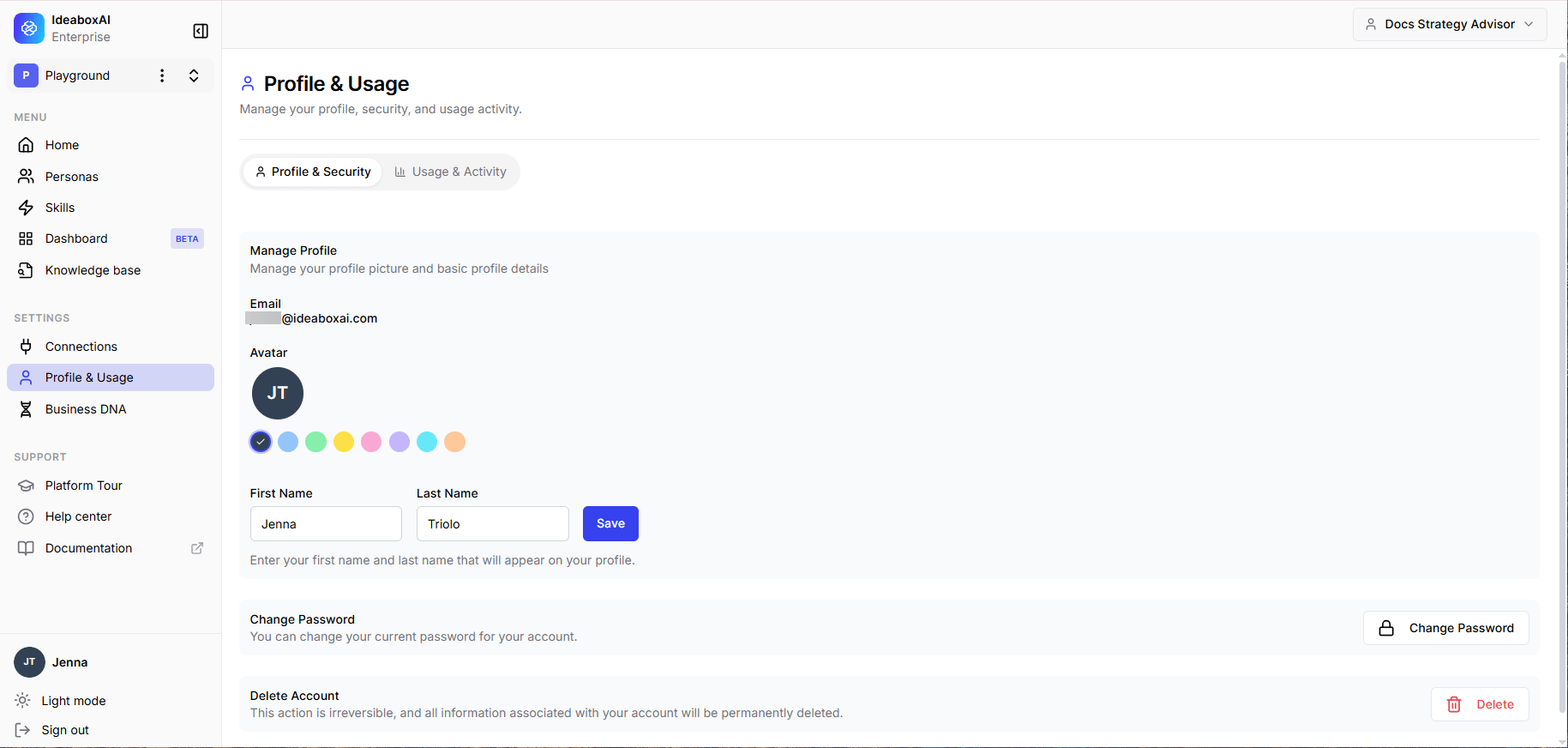
Your profile is automatically configured with the persona you selected during onboarding. You can view and update your display name, personas, and language from **Settings > Profile**.
The workspace includes:
* **Co-pilot chat**: Ask anything using natural language. Skills are auto-detected, or type `/` to pick one.
* **Skill suggestion cards**: Quick-action cards based on your persona and functional area.
* **Sidebar navigation**: Access the Assistant, Dashboards, Personas, Skill Studio, Knowledge Bases, Connections, and Profile pages.
Your profile is automatically configured with the persona you selected during onboarding. You can view and update your display name, personas, and language from **Settings > Profile**.
 ## Next steps
Explore the seven core capabilities that power IdeaBoxAI.
Learn how the Persona AI delivers role-specific intelligence for your team.
## Next steps
Explore the seven core capabilities that power IdeaBoxAI.
Learn how the Persona AI delivers role-specific intelligence for your team.