> ## Documentation Index
> Fetch the complete documentation index at: https://docs.ideaboxai.com/llms.txt
> Use this file to discover all available pages before exploring further.
# Working with unstructured data
> Upload documents, connect external sources, and monitor processing status for unstructured knowledge bases.
After creating an unstructured knowledge base, you need to ingest data from one or more sources. This guide walks you through uploading files, connecting external sources, and monitoring processing status.
## Ingest data from multiple sources
After creating the knowledge base, an empty **Data Source** panel appears. Click **Add Data** to see the available ingestion options.
| Source | Description |
| ---------------------------- | --------------------------------------------------- |
| **Upload from Device** | Upload local files such as PDFs and text documents. |
| **Add Markdown/Text** | Create or paste text content directly. |
| **Upload from Google Drive** | Connect your Google Drive account and import files. |
| **Upload from Confluence** | Import pages from your Confluence workspace. |
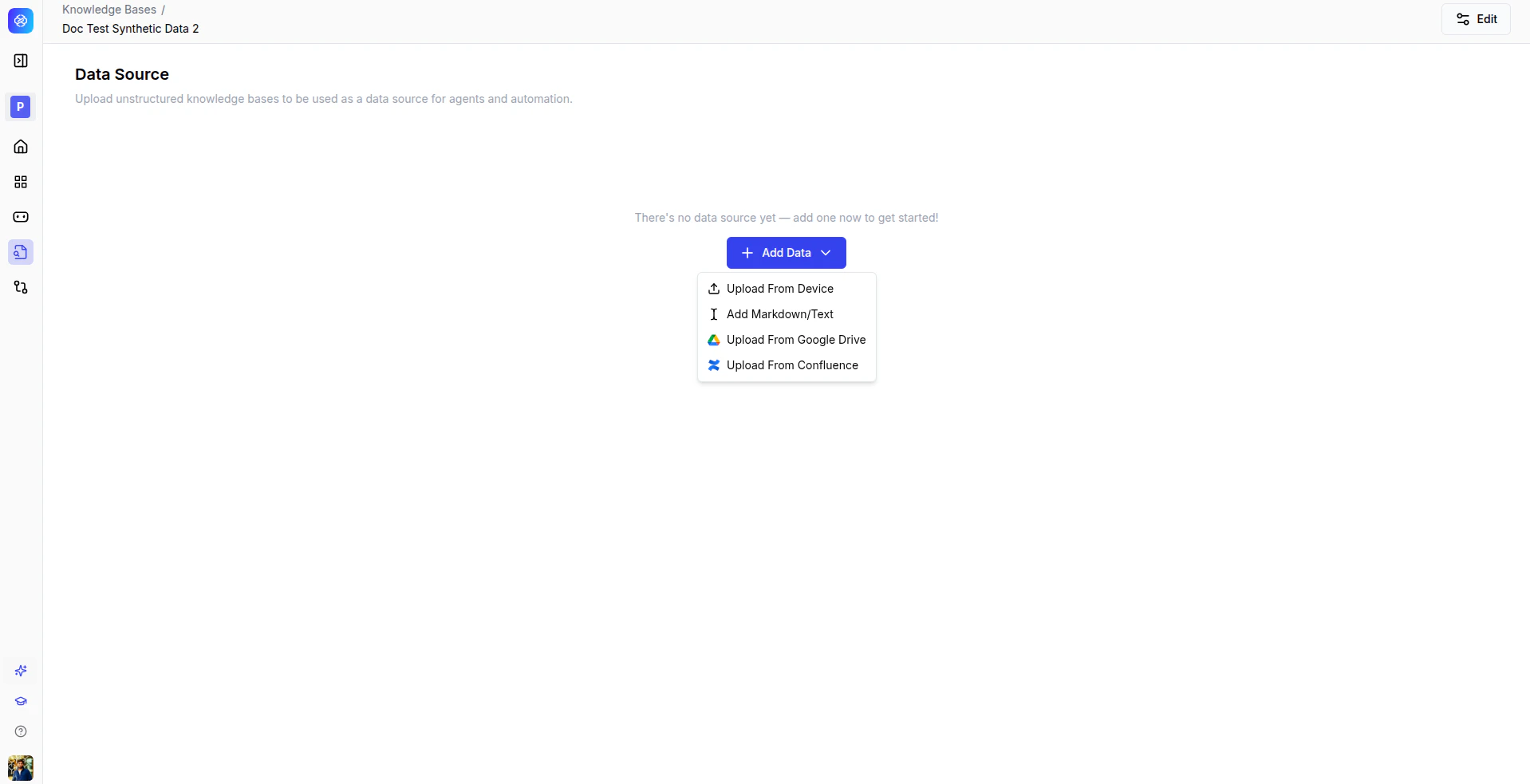 From this panel you can:
* Upload PDFs and text documents from your local machine.
* Connect external sources such as Google Drive and Confluence.
* Batch upload multiple files at once.
Ensure documents are machine-readable. Avoid scanned PDFs when possible for better processing results.
**Best practices**
* Upload logically related documents together.
* Re-index data after bulk uploads.
* Validate file accessibility before uploading from external sources.
## Monitor data processing status
After uploading, files enter a processing state. The data source table displays the status of each file.
| Column | Description |
| ------------- | --------------------------------------- |
| **File Name** | The name of the uploaded file. |
| **Status** | Current state: Processing or Processed. |
| **File Type** | The file format: PDF, TXT, and others. |
From this view you can:
* Monitor ingestion and processing status in real time.
* Trigger manual re-indexing if required.
* Remove failed files and re-upload them.
Wait for all files to reach **Processed** status before querying. Investigate repeated processing failures promptly.
Once all files are processed, the data becomes searchable and usable by agents, Agentic BI, and automation workflows.
From this panel you can:
* Upload PDFs and text documents from your local machine.
* Connect external sources such as Google Drive and Confluence.
* Batch upload multiple files at once.
Ensure documents are machine-readable. Avoid scanned PDFs when possible for better processing results.
**Best practices**
* Upload logically related documents together.
* Re-index data after bulk uploads.
* Validate file accessibility before uploading from external sources.
## Monitor data processing status
After uploading, files enter a processing state. The data source table displays the status of each file.
| Column | Description |
| ------------- | --------------------------------------- |
| **File Name** | The name of the uploaded file. |
| **Status** | Current state: Processing or Processed. |
| **File Type** | The file format: PDF, TXT, and others. |
From this view you can:
* Monitor ingestion and processing status in real time.
* Trigger manual re-indexing if required.
* Remove failed files and re-upload them.
Wait for all files to reach **Processed** status before querying. Investigate repeated processing failures promptly.
Once all files are processed, the data becomes searchable and usable by agents, Agentic BI, and automation workflows.