> ## Documentation Index
> Fetch the complete documentation index at: https://docs.ideaboxai.com/llms.txt
> Use this file to discover all available pages before exploring further.
# Working with structured data
> Connect a database, explore the schema, and enrich metadata with AI for structured knowledge bases.
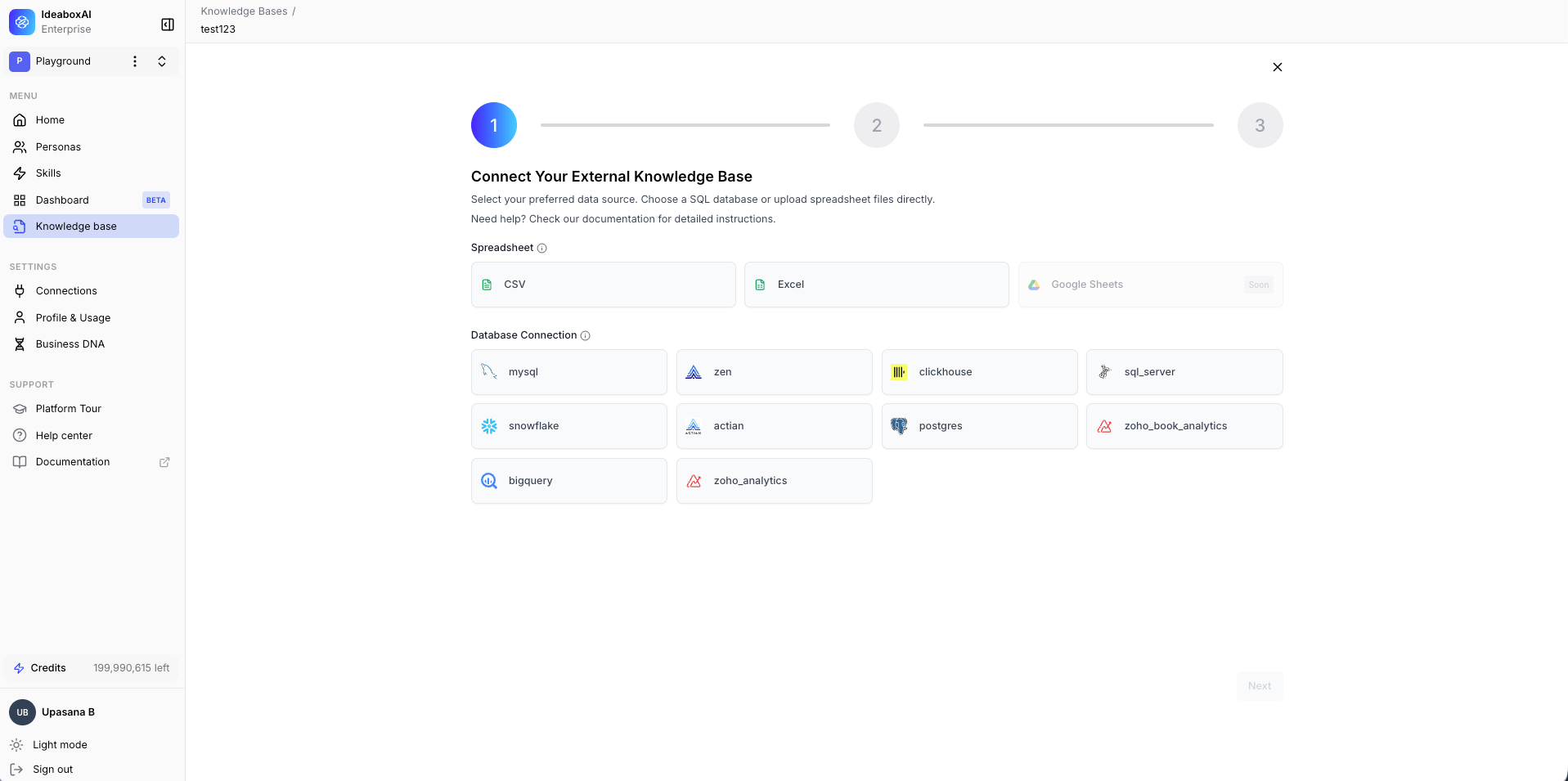
After creating a structured knowledge base, you connect it to a database and explore the imported schema. This guide walks you through entering connection credentials, browsing tables, and enriching metadata.
## Connect your database
Enter the connection credentials for your database.
| Field | Description |
| ----------------- | --------------------------------------------------- |
| **Host** | Database server address. |
| **Port** | Connection port, for example `5432` for PostgreSQL. |
| **Database Name** | The specific database to connect. |
| **Username** | Authentication username. |
| **Password** | Authentication password. |
| **SSL Mode** | Security settings for the connection. |
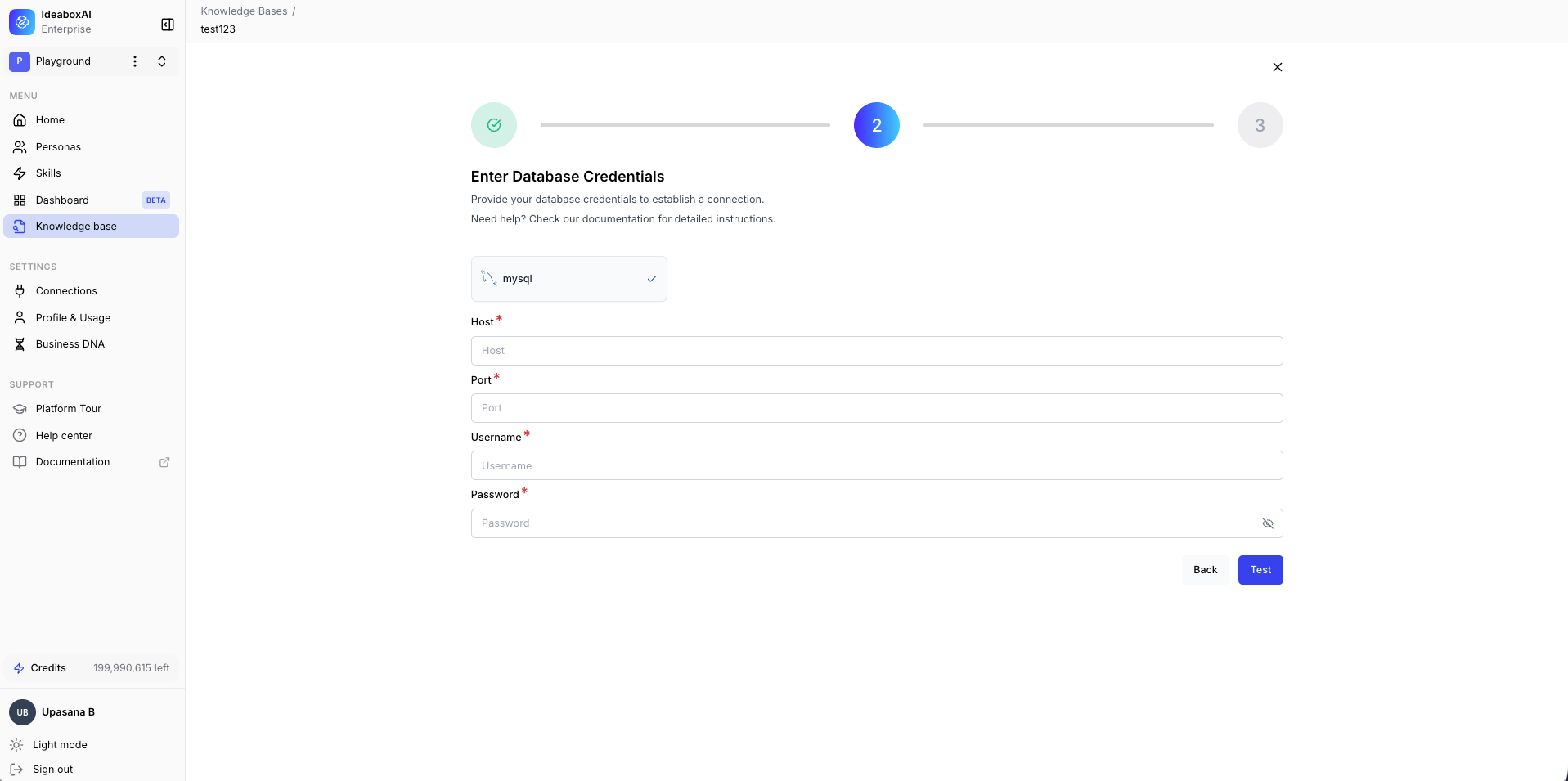 After a successful connection, IdeaBoxAI imports the database schema automatically.
## Explore the Datasets view
Once connected, the Datasets view displays a schema visualization of your database.
* **Data Sets sidebar**: Lists all imported database tables.
* **Table relationships**: Shows joins and foreign key relationships between tables.
* **AI enrichment**: Options to enhance metadata with AI, add semantic definitions, and define relationships.
After a successful connection, IdeaBoxAI imports the database schema automatically.
## Explore the Datasets view
Once connected, the Datasets view displays a schema visualization of your database.
* **Data Sets sidebar**: Lists all imported database tables.
* **Table relationships**: Shows joins and foreign key relationships between tables.
* **AI enrichment**: Options to enhance metadata with AI, add semantic definitions, and define relationships.
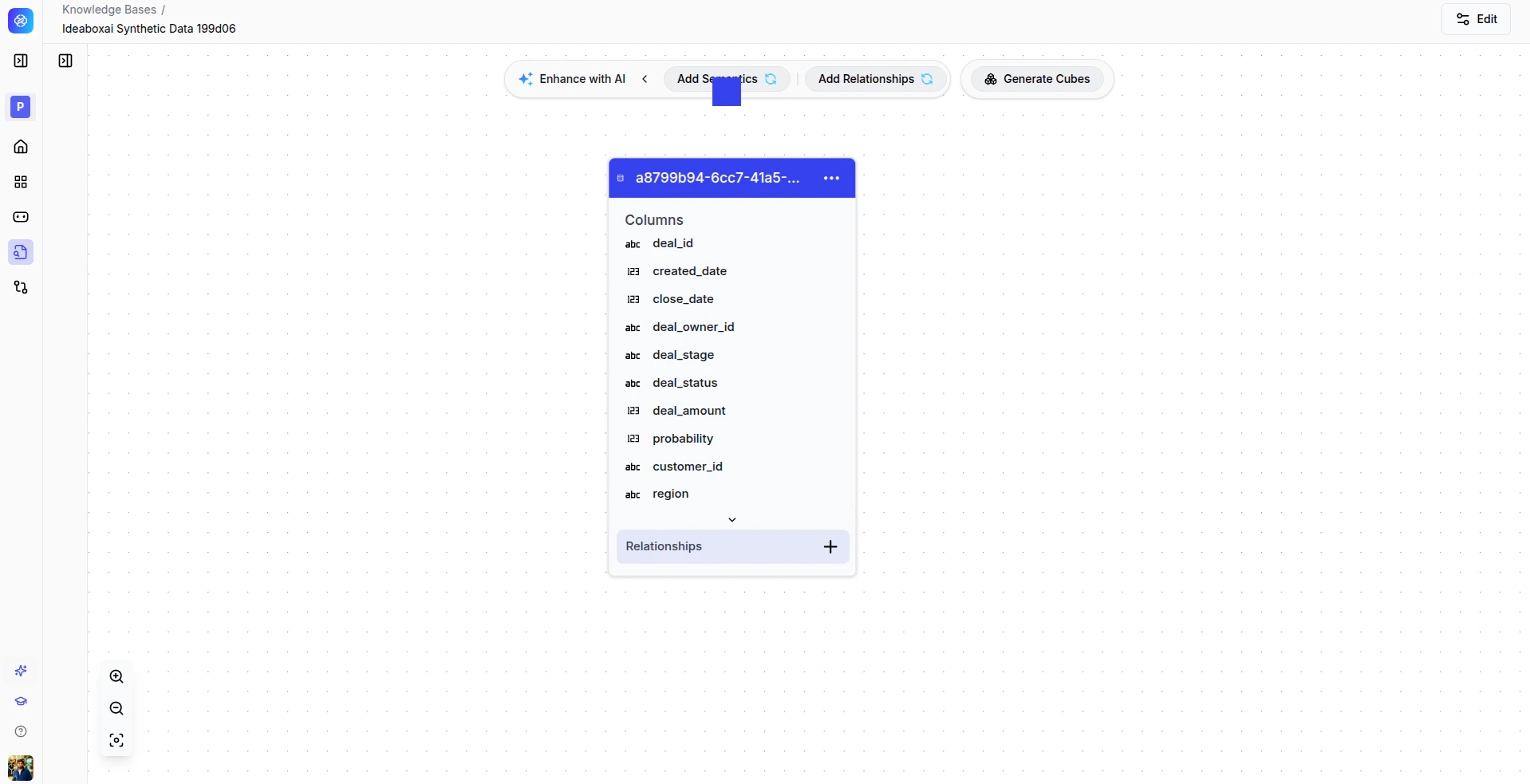 From this view you can:
* Browse all database tables and their columns.
* Define joins and relationships between tables.
* Enhance schema metadata using AI assistance.
* Document business logic for columns and tables.
**Best practices**
* Validate relationships against source database constraints.
* Avoid circular or ambiguous joins.
* Document semantic definitions clearly so agents can reason about your data.
The result is a semantically enriched data model ready for analytics and AI queries through cubes.
From this view you can:
* Browse all database tables and their columns.
* Define joins and relationships between tables.
* Enhance schema metadata using AI assistance.
* Document business logic for columns and tables.
**Best practices**
* Validate relationships against source database constraints.
* Avoid circular or ambiguous joins.
* Document semantic definitions clearly so agents can reason about your data.
The result is a semantically enriched data model ready for analytics and AI queries through cubes.