> ## Documentation Index
> Fetch the complete documentation index at: https://docs.ideaboxai.com/llms.txt
> Use this file to discover all available pages before exploring further.
# Account Executive persona
> Learn how to configure the Account Executive persona for deal intelligence, meeting prep, and pipeline management.
In this tutorial, you will configure the Account Executive (AE) persona, connect it to Google Drive, and walk through three common workflows: accessing sales folders, preparing for meetings, and sending follow-up emails. The AE persona is built for users who own pipeline and revenue. It surfaces deal intelligence, account briefings, competitive context, and relationship insights, reducing research time from 30: 60 minutes to under 5 minutes per account.
## AE use cases
The following table summarises the primary use cases for the AE persona.
| Use Case | Problem Solved | Key Output |
| ----------------------------- | ----------------------------------------------------------------- | -------------------------------------------------------------------------- |
| Account Research and Briefing | 30–60 min manual research before every engagement. | Auto-generated value brief: snapshot, priorities, tech stack, talk tracks. |
| Deal Coaching and Next Steps | Deal risk invisible; missing artefacts undetected until too late. | Deal health scorecard, risk flags, next best action, momentum alerts. |
| Meeting Prep | Generic prep regardless of audience; AE/SE misaligned. | Audience-aware brief per attendee role; unified prep sheet. |
| Proposal and Email Drafting | Proposals take hours; follow-ups delayed; copy-paste errors. | Template auto-population from CRM; post-meeting email drafts. |
| Competitive Intelligence | Battlecards static and not deal-specific; no pre-call framing. | Deal-specific competitive briefs; pre-call positioning notes. |
| Exec Stakeholder Mapping | Single-threaded deals; no visibility into buying committee gaps. | Dynamic stakeholder map, buying committee gap analysis. |
## Set up the AE persona
In the Admin Console, click **Persona Management** and then **+ Create New Persona**.
* **Name:** Account Executive
* **Behaviour:** "You are an Account Executive. Help manage accounts, track deal health, prepare for meetings, generate proposals, and surface competitive intelligence. Ground all responses in CRM data, data warehouse signals, and internal knowledge."
* **Enable Memory:** ON
Enable **Access Connections**, **Access Knowledge Base**, and **Use Email Tools**. Disable **Browse Web** unless needed.
Assign the following skills to the persona:
* Account Research
* Deal Analysis
* Email Drafting
* Meeting Prep
* Competitive Intelligence
Add starter prompts tailored to the AE role:
* "Show me my current pipeline"
* "Which deals are at risk of slipping?"
* "Prep me for my QBR with \[account name]"
* "Draft a follow-up email for \[account name]"
* "How do we compare to competitors?"
* "Am I on track to hit my quota?"
* "Show me my top accounts by revenue"
Assign your AE team members to this persona. They will see the AE-specific home screen on their next login.
## Walkthrough: accessing your sales folders
This walkthrough demonstrates how the AE persona connects to Google Drive to access your account folders.
Before the Co-pilot can access your files, Google Drive must be connected to the current session. If you ask a Drive-related question without a connection, then the Co-pilot prompts you to connect.
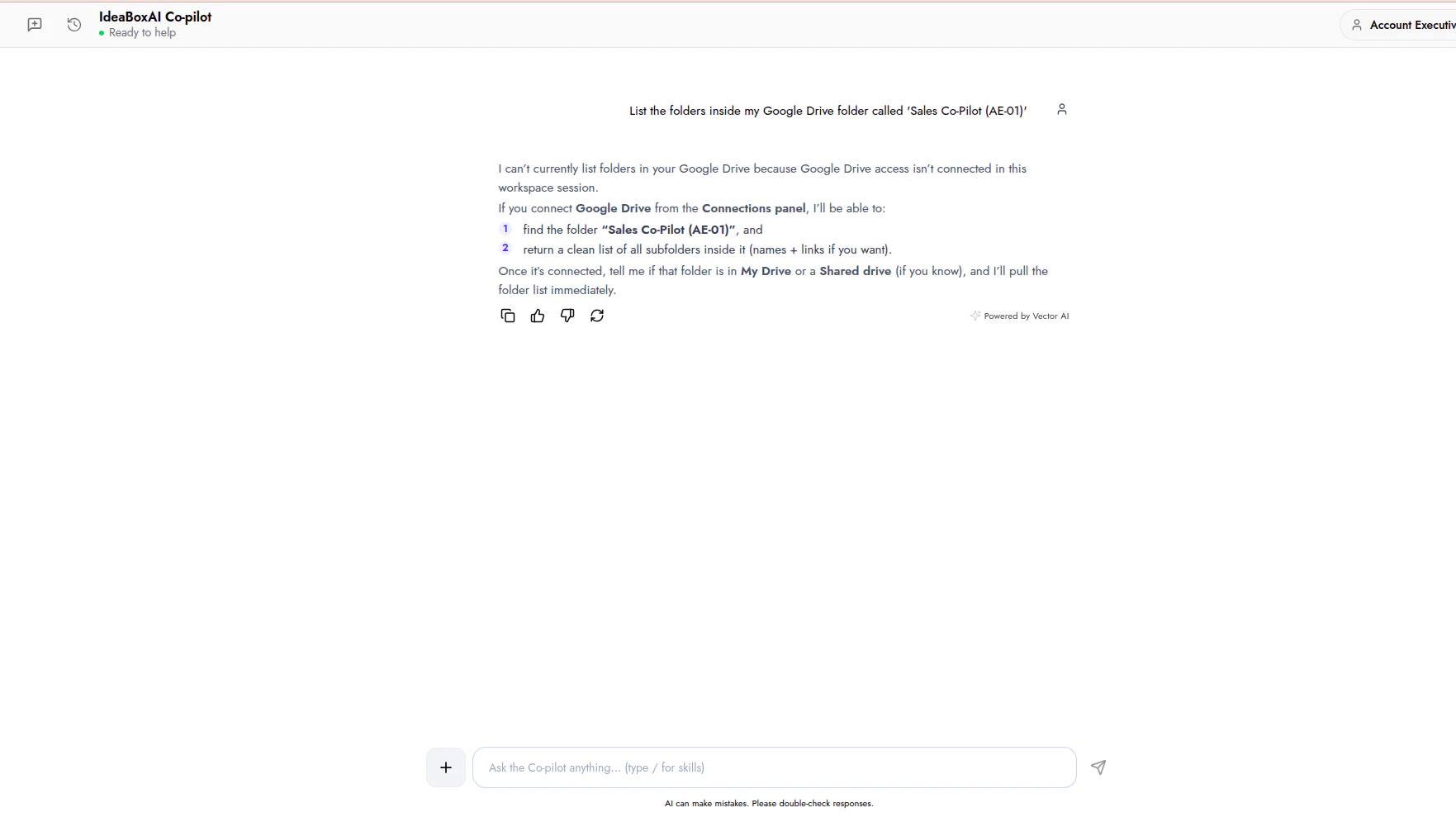 Open the **Connectors** panel from the bottom-left of the Co-pilot and toggle **Google Drive** on. The connector must be enabled for the session before the Co-pilot can search, list, or read files from your Drive.
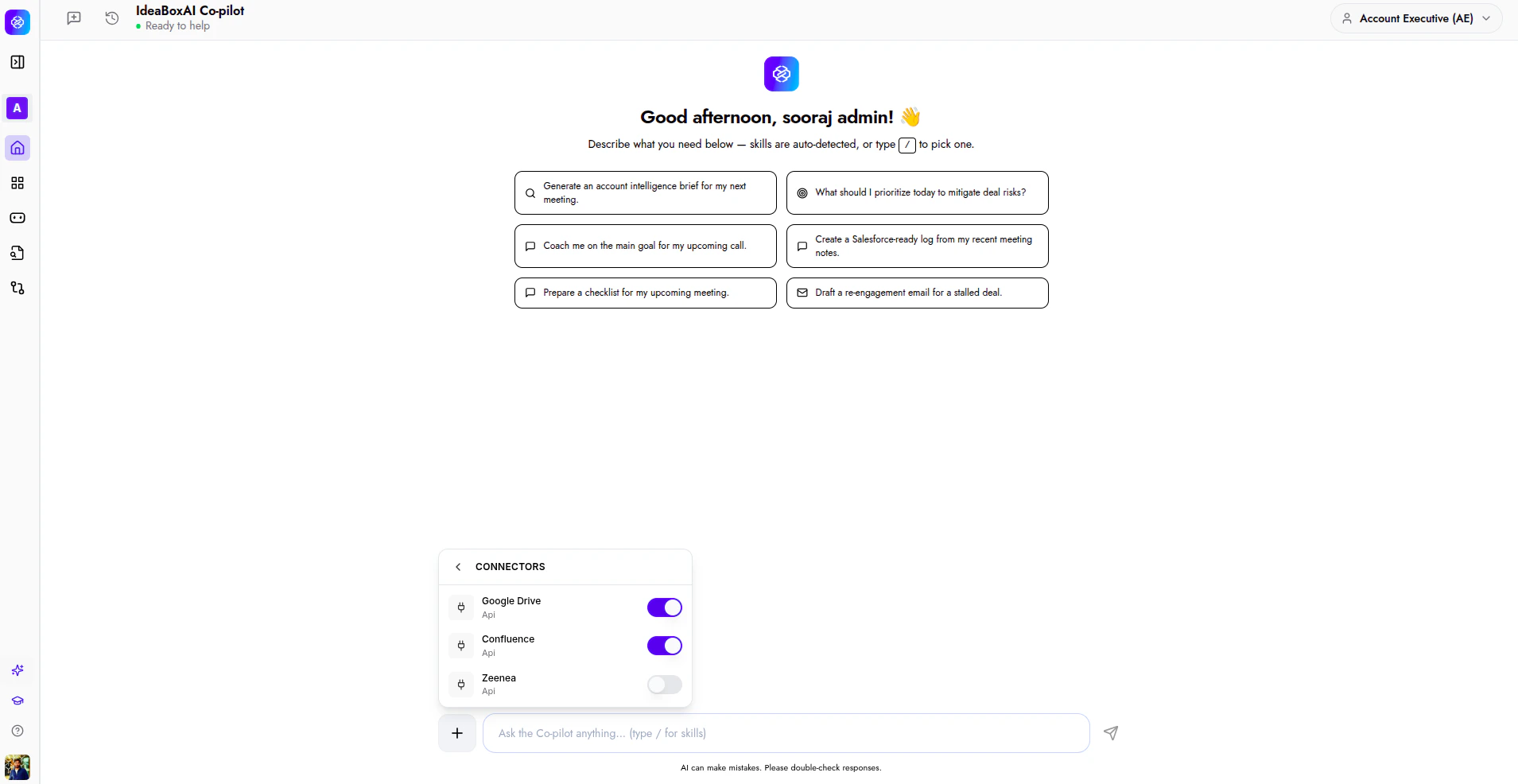 If the folder you need is in a **Shared drive**, then let the Co-pilot know so it can locate it correctly. To learn more about setting up and managing connectors, see [Connectors overview](/connectors/overview).
Once Google Drive is connected, type:
*"List the folders inside my Google Drive folder called 'Sales Co-Pilot (AE-01)'"*
The Co-pilot searches your Drive, locates the folder, and returns a list of all subfolders with direct links.
If the folder you need is in a **Shared drive**, then let the Co-pilot know so it can locate it correctly. To learn more about setting up and managing connectors, see [Connectors overview](/connectors/overview).
Once Google Drive is connected, type:
*"List the folders inside my Google Drive folder called 'Sales Co-Pilot (AE-01)'"*
The Co-pilot searches your Drive, locates the folder, and returns a list of all subfolders with direct links.
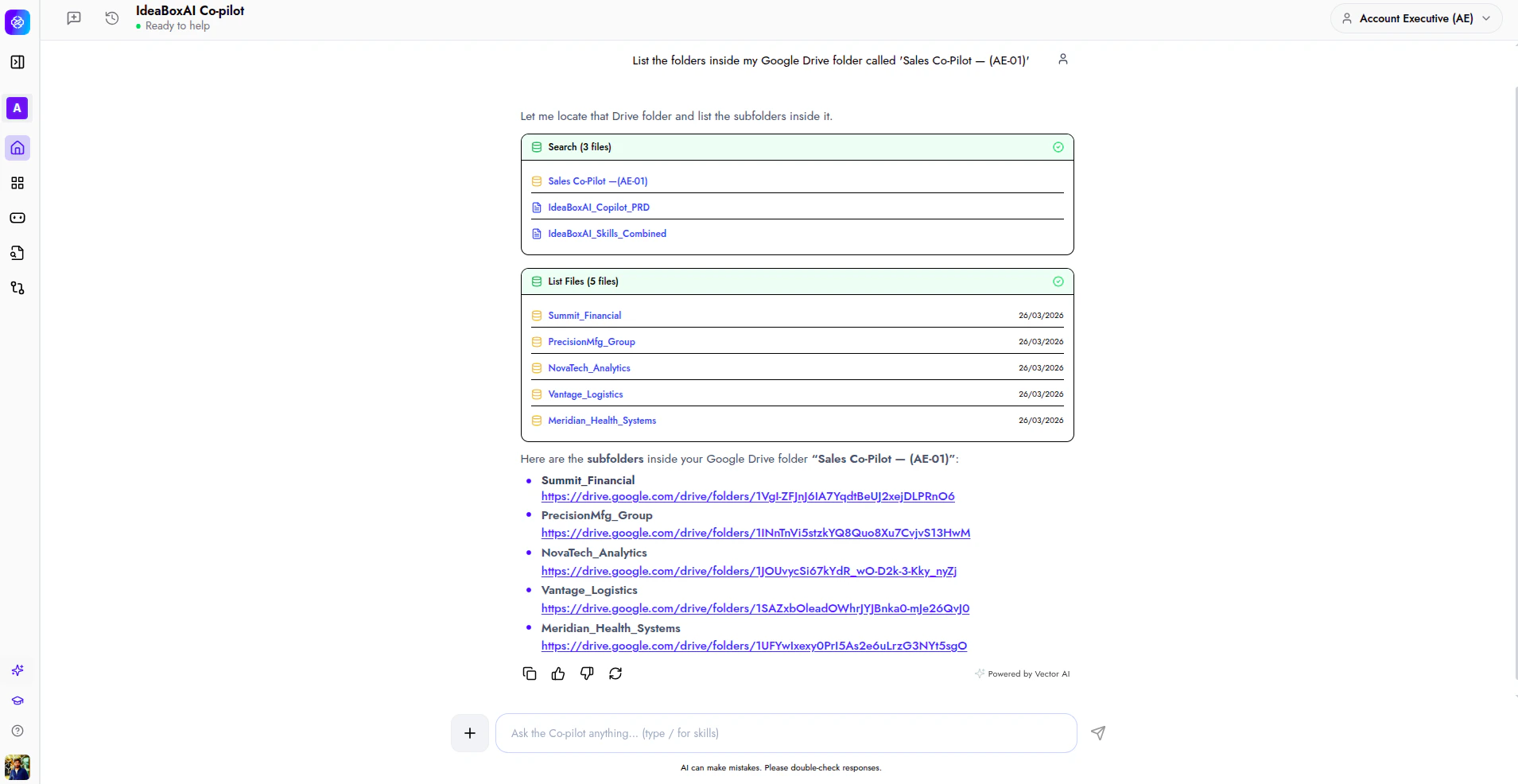 Click any subfolder name or link to open it directly in Google Drive. You can also ask the Co-pilot to list the files inside a specific account folder.
## Walkthrough: meeting prep
This walkthrough shows how the AE persona prepares you for an upcoming meeting. The Co-pilot pulls from your Drive files, runs web research, and generates a tailored briefing.
Type a prompt that includes the account name, meeting context, and any relevant details:
*"Prep me for my first meeting with Meridian Health Systems next Tuesday. Healthcare company, \$200K opportunity, Stage 1. I've never engaged with them before."*
The Co-pilot automatically:
* **Searches Google Drive** for relevant files in your account folders, such as case studies and benchmark decks.
* **Retrieves file content** from matched documents to extract key talking points.
* **Runs a web search** on the account to surface recent news, company profile, industry context, and key contacts.
Click any subfolder name or link to open it directly in Google Drive. You can also ask the Co-pilot to list the files inside a specific account folder.
## Walkthrough: meeting prep
This walkthrough shows how the AE persona prepares you for an upcoming meeting. The Co-pilot pulls from your Drive files, runs web research, and generates a tailored briefing.
Type a prompt that includes the account name, meeting context, and any relevant details:
*"Prep me for my first meeting with Meridian Health Systems next Tuesday. Healthcare company, \$200K opportunity, Stage 1. I've never engaged with them before."*
The Co-pilot automatically:
* **Searches Google Drive** for relevant files in your account folders, such as case studies and benchmark decks.
* **Retrieves file content** from matched documents to extract key talking points.
* **Runs a web search** on the account to surface recent news, company profile, industry context, and key contacts.
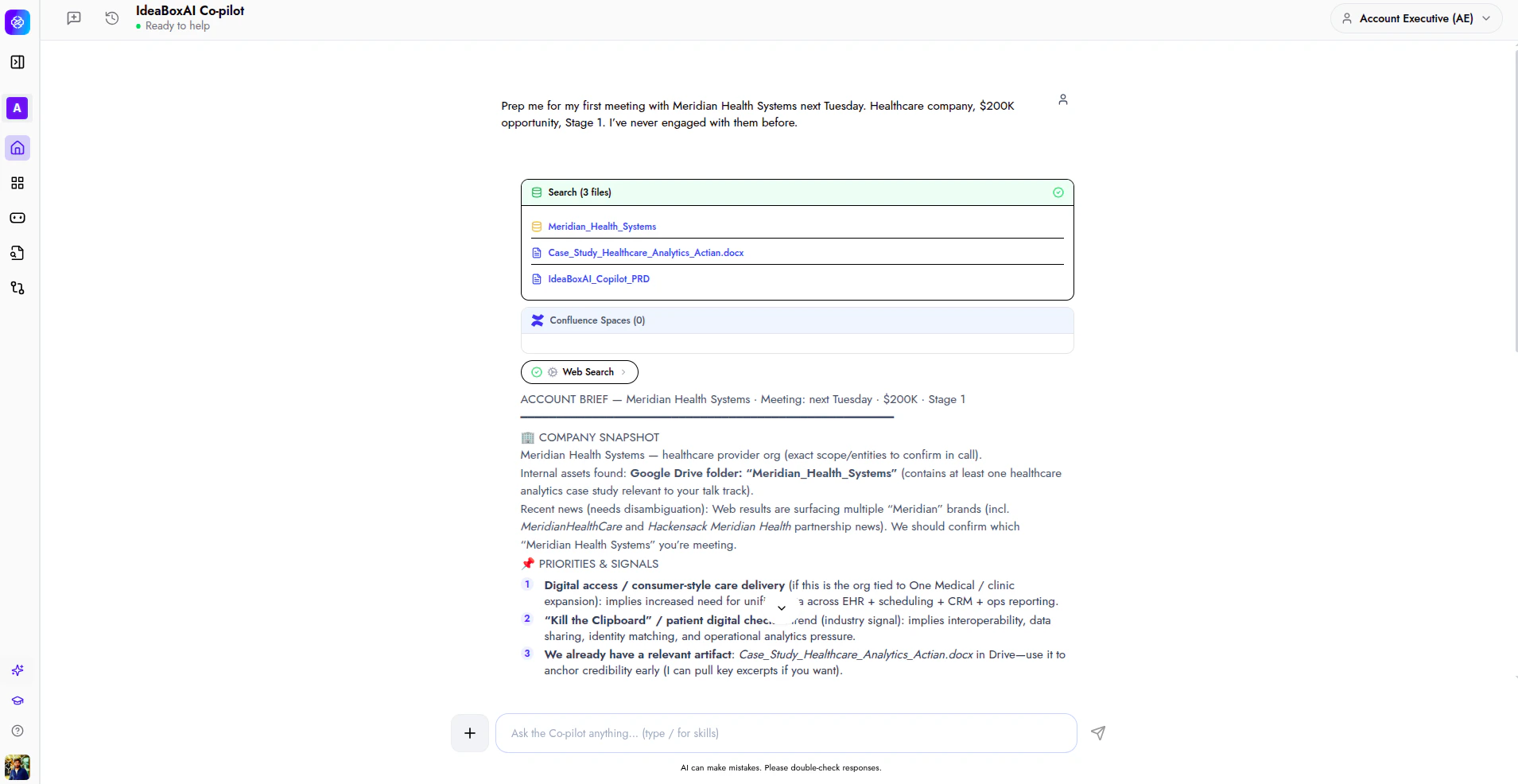 The response includes:
* **Company overview**: Industry, key roles, and business context.
* **Internal assets**: Relevant case studies, benchmark decks, and collateral from your Drive.
* **Suggested talk track**: An opening approach and top questions tailored to the account's industry and deal stage.
Use the suggested talk track directly or ask follow-up questions such as *"What objections should I expect?"* or *"Draft the follow-up email."* The Co-pilot retains the full meeting context.
## Walkthrough: email follow-up
This walkthrough shows how to draft and send a follow-up email directly from the Co-pilot after a meeting prep or account interaction.
After completing a meeting prep or account research, type:
*"Draft the follow-up email to \[contact name]. Send the email to \[email address]."*
The Co-pilot generates a follow-up email and opens the **Email Composer**. The draft includes:
* **To**: Pre-filled with the contact's email address.
* **Subject line**: A clear subject referencing the account and proposed next step.
* **Body**: A professional follow-up grounded in the meeting context, including action items and next steps.
The response includes:
* **Company overview**: Industry, key roles, and business context.
* **Internal assets**: Relevant case studies, benchmark decks, and collateral from your Drive.
* **Suggested talk track**: An opening approach and top questions tailored to the account's industry and deal stage.
Use the suggested talk track directly or ask follow-up questions such as *"What objections should I expect?"* or *"Draft the follow-up email."* The Co-pilot retains the full meeting context.
## Walkthrough: email follow-up
This walkthrough shows how to draft and send a follow-up email directly from the Co-pilot after a meeting prep or account interaction.
After completing a meeting prep or account research, type:
*"Draft the follow-up email to \[contact name]. Send the email to \[email address]."*
The Co-pilot generates a follow-up email and opens the **Email Composer**. The draft includes:
* **To**: Pre-filled with the contact's email address.
* **Subject line**: A clear subject referencing the account and proposed next step.
* **Body**: A professional follow-up grounded in the meeting context, including action items and next steps.
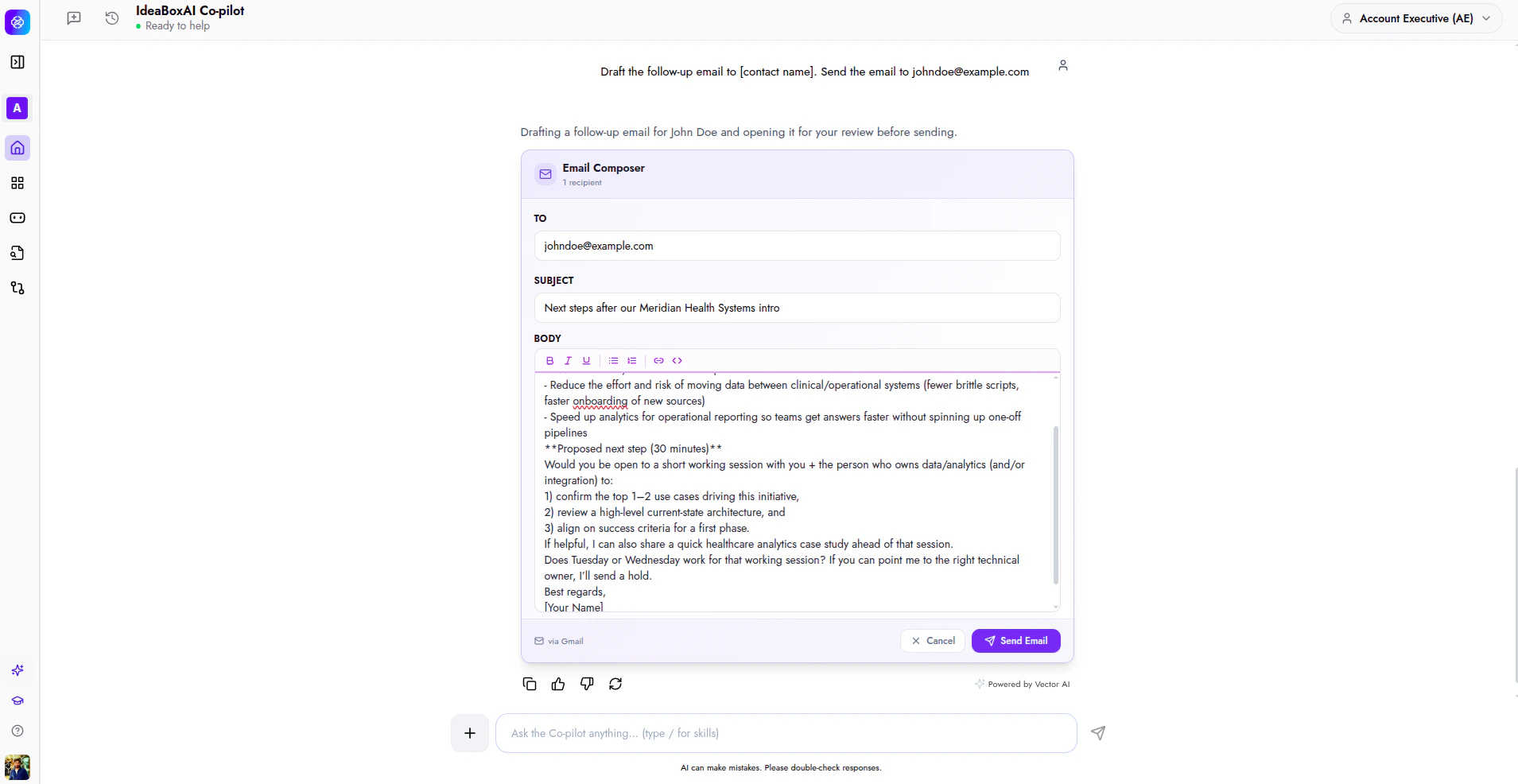 Review the draft in the Email Composer. Click **Edit draft** to make changes, **Cancel** to discard, or **Send Email** to deliver it directly from the Co-pilot.
Drafting an email in the same conversation as a meeting prep lets the Co-pilot use the full account briefing to personalise the message. This produces better results than drafting in a fresh conversation.
## Next steps
Now that the AE persona is configured, explore related tutorials to expand your setup.
Learn how to send prompts, hold multi-turn conversations, and generate documents.
Configure the SE persona for technical discovery, demo prep, and POC planning.
Set up the SDR persona for prospect research and outreach generation.
Learn how to set up and manage data source connectors for your workspace.
Review the draft in the Email Composer. Click **Edit draft** to make changes, **Cancel** to discard, or **Send Email** to deliver it directly from the Co-pilot.
Drafting an email in the same conversation as a meeting prep lets the Co-pilot use the full account briefing to personalise the message. This produces better results than drafting in a fresh conversation.
## Next steps
Now that the AE persona is configured, explore related tutorials to expand your setup.
Learn how to send prompts, hold multi-turn conversations, and generate documents.
Configure the SE persona for technical discovery, demo prep, and POC planning.
Set up the SDR persona for prospect research and outreach generation.
Learn how to set up and manage data source connectors for your workspace.