> ## Documentation Index
> Fetch the complete documentation index at: https://docs.ideaboxai.com/llms.txt
> Use this file to discover all available pages before exploring further.
# Sales Development Rep persona
> Set up and use the Sales Development Rep persona for prospect research, outreach generation, and pipeline building.
The Sales Development Rep (SDR) persona is built for users who own top-of-funnel pipeline generation. It provides prospect enrichment, personalised outreach at scale, ICP scoring, and objection handling, enabling reps to go from 4-5 quality outreaches per day to 15-20 without sacrificing personalisation.
## SDR use cases
The following table summarises the primary use cases for the SDR persona.
| Use Case | Problem Solved | Key Output |
| ------------------------------------- | -------------------------------------------------------- | ---------------------------------------------------------------- |
| Prospect Research and Personalisation | Shallow research; outreach feels generic. | Auto-enriched profile: triggers, tech stack, pain points, hooks. |
| Outreach Email Drafting | Stale templates; low reply rates. | AI-personalised emails with A/B variants. |
| ICP Scoring and Prioritisation | All leads treated equally; reps chase low-fit accounts. | AI-scored ICP fit with ranked lists. |
| Call Script Generator | No standardised call framework; new reps wing it. | Dynamic scripts adapted to prospect role, industry, and stage. |
| Objection Handling Guide | Reps freeze on objections; responses vary by experience. | Real-time objection library with rebuttals. |
| Follow-up Sequence Creator | Follow-up is ad hoc; ghost rate high. | Multi-step sequences timed to engagement signals. |
## Set up the SDR persona
In the Admin Console, click **Persona Management** and then **+ Create New Persona**.
* **Name:** SDR
* **Behaviour:** "You are a Sales Development Rep. Help research prospects, generate personalised outreach, score ICP fit, build call scripts, handle objections, and create follow-up sequences. Ground all responses in CRM data, data warehouse signals, and public web intelligence."
* **Enable Memory:** ON
Enable **Access Connections**, **Access Knowledge Base**, **Use Email Tools**, and **Browse Web** (SDRs need web research for prospect enrichment).
Assign the following skills to the persona:
* Prospect Research
* Email Drafting
* ICP Scoring
* Call Script Generator
* Objection Handling
Add starter prompts tailored to the SDR role:
* "Research \[company name] before outreach"
* "Draft outreach email for \[company name]"
* "Build a call script for \[company name]"
* "Handle 'we already have a tool' objection"
* "Which prospects should I prioritise this week?"
* "Build follow-up sequence for \[contact name] at \[company name]"
Assign your SDR team members to this persona. They will see the SDR-specific home screen on their next login.
## Walkthrough: prospect research
This walkthrough demonstrates how the SDR persona handles a prospect research request end to end.
Open the Conversational AI and type:
*"Research \[company name] and give me cold outreach angles for their Head of Data Platform."*
The AI returns a multi-section prospect profile:
* **ICP Score**: A fit rating with rationale based on CRM data, hiring signals, and tech stack analysis.
* **Company snapshot**: Industry, revenue, employee count, recent funding, and key initiatives.
* **Trigger events**: Leadership changes, product launches, earnings calls, job postings, and expansion signals relevant to your value proposition.
* **Pain points and hooks**: Identified challenges mapped to your solution's strengths, ready to use in outreach.
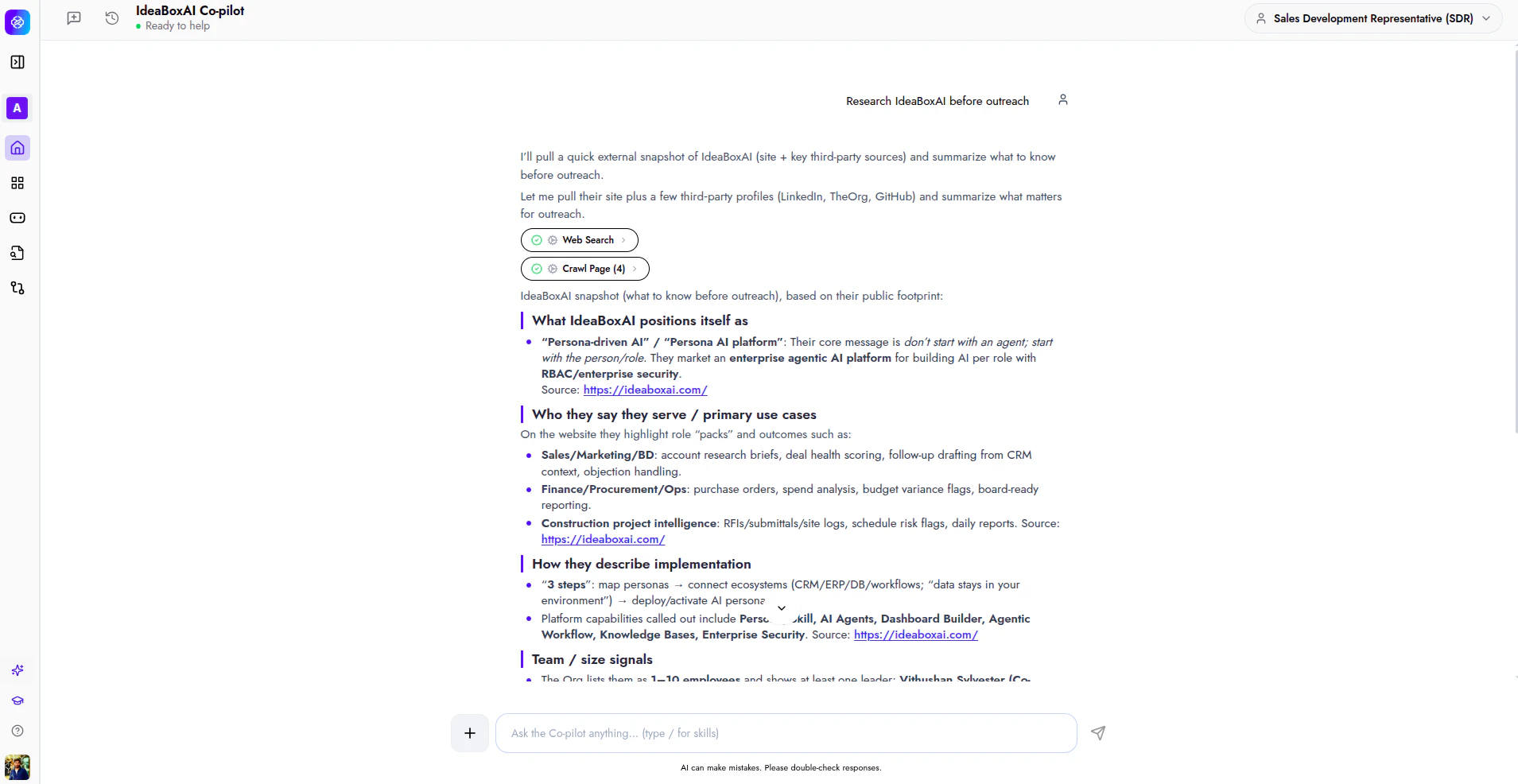 Click a suggested follow-up such as *"Draft the cold email"* or *"Write a cold call script"*, or type your own follow-up prompt. The AI retains the full prospect context.
## Walkthrough: outreach drafting
This walkthrough shows how to generate personalised outreach emails from a prospect research result.
After completing prospect research (or in a new conversation), type:
*"Draft outreach email for \[company name]."*
The AI produces a personalised email that includes:
* **Subject line**: Tailored to the prospect's trigger events or pain points.
* **Opening hook**: A personalised reference grounded in real signals (not generic flattery).
* **Value proposition**: Mapped to the prospect's specific challenges and tech stack.
* **Call to action**: A clear, low-friction next step.
* **A/B variant**: An alternative version with a different angle for testing.
Review the draft, make any adjustments, and click **Send** to deliver the email or **Copy** to use it in your email client.
When you generate outreach from within the same conversation as a prospect research query, the AI uses the full enriched profile to personalise the email. This produces significantly better results than drafting in a fresh conversation.
## Example starter prompts
The following starter prompts are recommended for the SDR persona. Each one maps to a common SDR task.
* *"Research \[company name] before outreach."*
* *"Draft outreach email for \[company name]."*
* *"Build a call script for \[company name]."*
* *"Handle 'we already have a tool' objection."*
* *"Which prospects should I prioritise this week?"*
* *"Build follow-up sequence for \[contact name] at \[company name]."*
Click a suggested follow-up such as *"Draft the cold email"* or *"Write a cold call script"*, or type your own follow-up prompt. The AI retains the full prospect context.
## Walkthrough: outreach drafting
This walkthrough shows how to generate personalised outreach emails from a prospect research result.
After completing prospect research (or in a new conversation), type:
*"Draft outreach email for \[company name]."*
The AI produces a personalised email that includes:
* **Subject line**: Tailored to the prospect's trigger events or pain points.
* **Opening hook**: A personalised reference grounded in real signals (not generic flattery).
* **Value proposition**: Mapped to the prospect's specific challenges and tech stack.
* **Call to action**: A clear, low-friction next step.
* **A/B variant**: An alternative version with a different angle for testing.
Review the draft, make any adjustments, and click **Send** to deliver the email or **Copy** to use it in your email client.
When you generate outreach from within the same conversation as a prospect research query, the AI uses the full enriched profile to personalise the email. This produces significantly better results than drafting in a fresh conversation.
## Example starter prompts
The following starter prompts are recommended for the SDR persona. Each one maps to a common SDR task.
* *"Research \[company name] before outreach."*
* *"Draft outreach email for \[company name]."*
* *"Build a call script for \[company name]."*
* *"Handle 'we already have a tool' objection."*
* *"Which prospects should I prioritise this week?"*
* *"Build follow-up sequence for \[contact name] at \[company name]."*