> ## Documentation Index
> Fetch the complete documentation index at: https://docs.ideaboxai.com/llms.txt
> Use this file to discover all available pages before exploring further.
# Share a skill
> Share any skill with teammates or people outside your team using a link that lets anyone add the skill to their own workspace.
You can share any of your skills with teammates or people outside your team using a link. Anyone who has the link can add the skill to their own workspace. This guide covers copying the share link, confirming it copied, and sending it on.
## Copy the share link
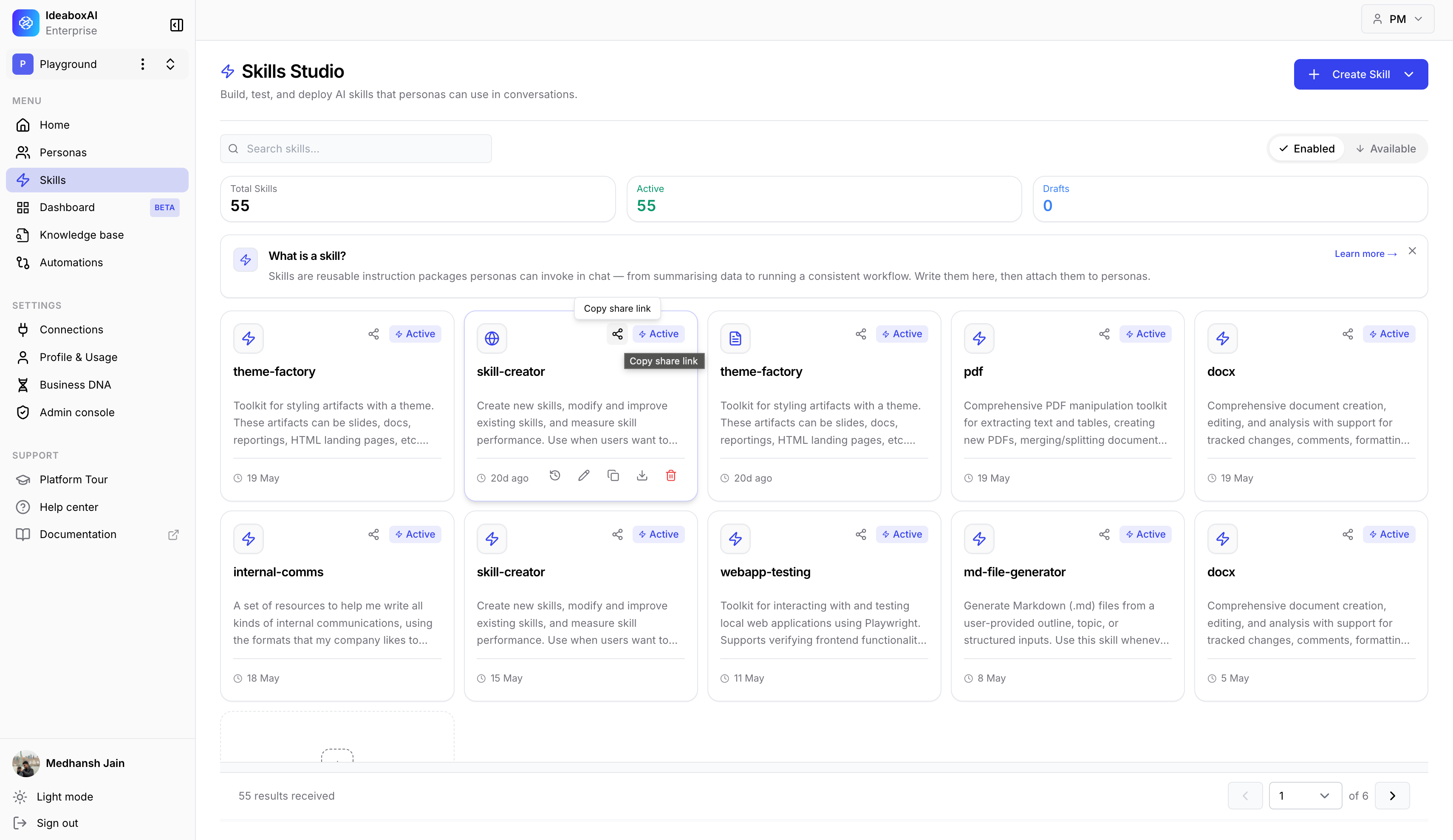
Copy the link straight from the skill's card in Skills Studio.
Go to **Skills Studio** by clicking **Skills** in the left menu.
Move your mouse over the card for the skill you want to share.
Click the **Share** icon (the arrow at the top of the card). A small label appears saying "Copy share link". Click it to copy the link.
 ## Check that the link copied
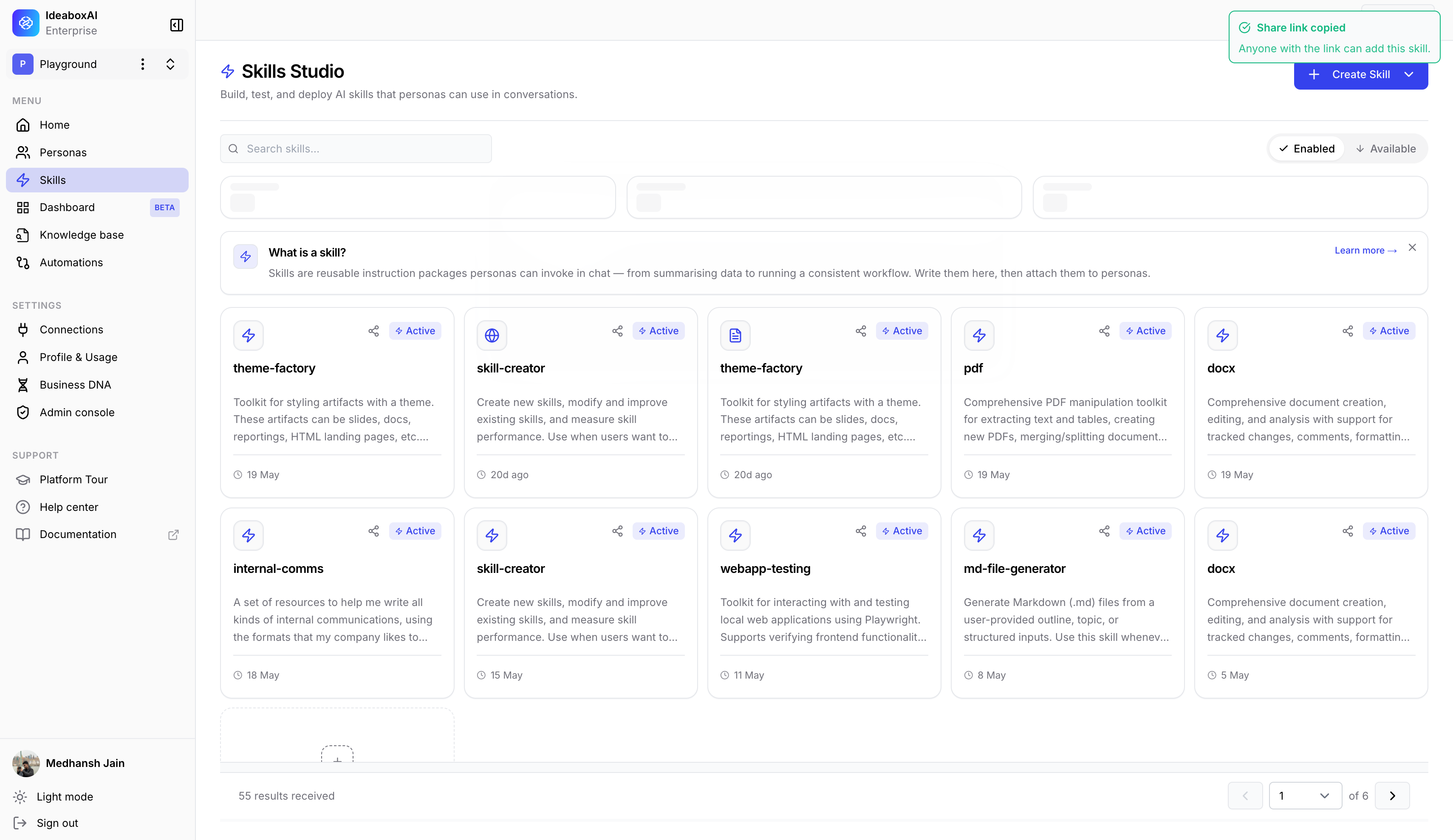
A message appears at the top of the screen to confirm the link is ready to paste.
> **Share link copied.** Anyone with the link can add this skill.
## Check that the link copied
A message appears at the top of the screen to confirm the link is ready to paste.
> **Share link copied.** Anyone with the link can add this skill.
 ## Send the link
Paste the link into Slack, an email, or wherever you like. When someone opens it, they can add the skill straight to their workspace.
Anyone with the link can add the skill, so only share it with people you want to give access to.
Share skills across your teams so everyone works the same way and gets consistent results. To improve a skill after sharing, tell the Co-pilot what you'd like changed and it makes an updated version.
## Send the link
Paste the link into Slack, an email, or wherever you like. When someone opens it, they can add the skill straight to their workspace.
Anyone with the link can add the skill, so only share it with people you want to give access to.
Share skills across your teams so everyone works the same way and gets consistent results. To improve a skill after sharing, tell the Co-pilot what you'd like changed and it makes an updated version.