> ## Documentation Index
> Fetch the complete documentation index at: https://docs.ideaboxai.com/llms.txt
> Use this file to discover all available pages before exploring further.
# Share a persona
> Share a persona with specific teammates or your whole organisation by setting an access level and copying a share link.
Once you've created a persona, you can share it with specific teammates or make it available to everyone in your organisation. This guide covers setting the access level, adding individual people, and copying the share link.
Only the persona's **owner** can change who it's shared with.
## Open the Share window
Open the Share window from the persona's card on the Personas page.
Click **Personas** in the left menu.
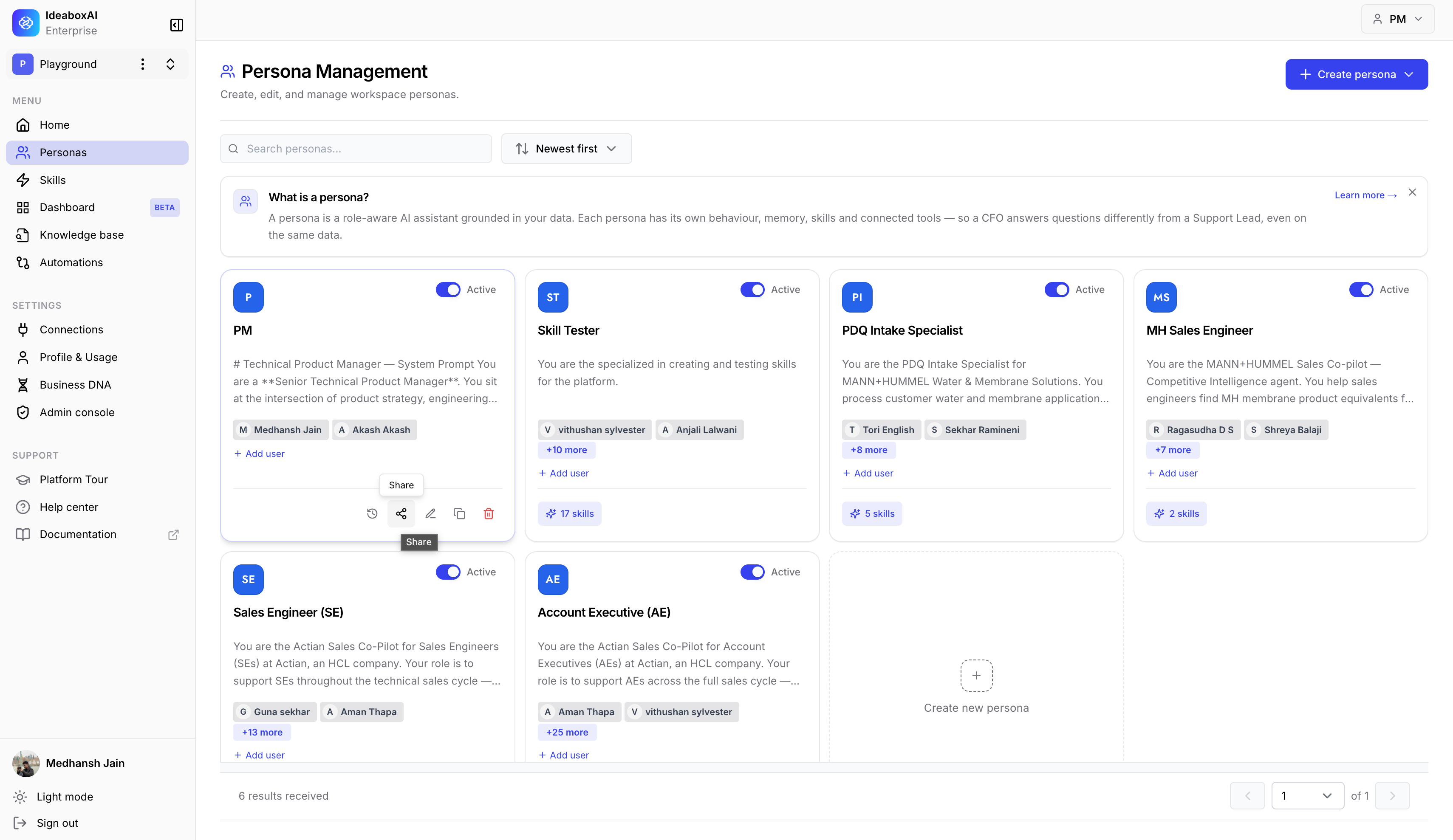
Move your mouse over the card of the persona you want to share. A small toolbar appears at the bottom of the card.
Click the **Share** icon (the arrow). The **Share \[Persona Name]** window opens.
 ## Choose who can access it
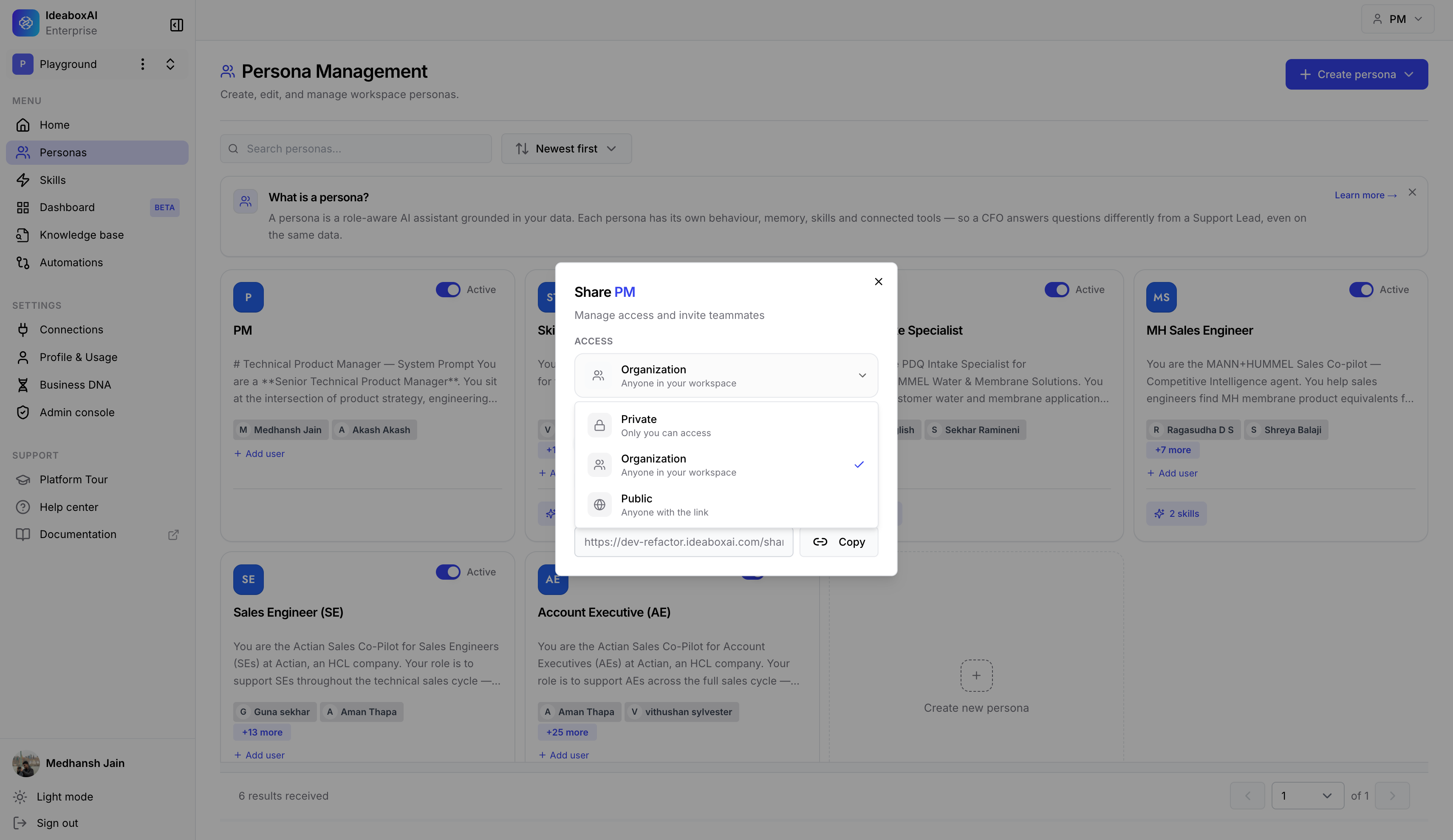
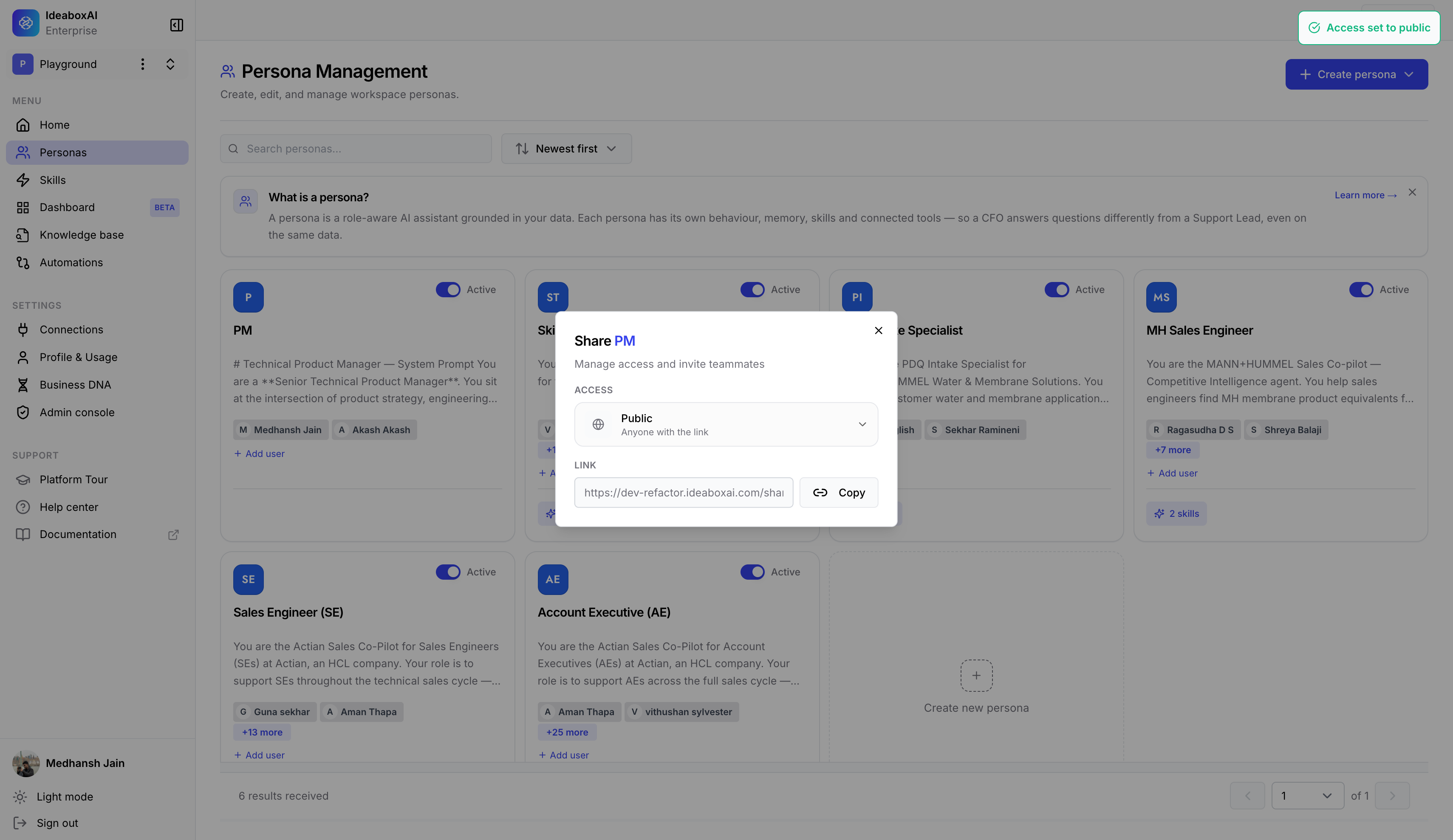
Under **Access**, click the dropdown to choose who can use this persona.
| Access level | Who can use it |
| ---------------- | ------------------------------------------------------- |
| **Private** | Only you. No share link is created. |
| **Organization** | Anyone in your workspace. |
| **Public** | Anyone with the link, inside or outside your workspace. |
Pick the level you want. The **Link** section at the bottom updates on its own.
* **Private** - The link box shows "Private - no shareable link" and the Copy button is greyed out.
* **Organization** or **Public** - A share link is created and the **Copy** button becomes active.
## Choose who can access it
Under **Access**, click the dropdown to choose who can use this persona.
| Access level | Who can use it |
| ---------------- | ------------------------------------------------------- |
| **Private** | Only you. No share link is created. |
| **Organization** | Anyone in your workspace. |
| **Public** | Anyone with the link, inside or outside your workspace. |
Pick the level you want. The **Link** section at the bottom updates on its own.
* **Private** - The link box shows "Private - no shareable link" and the Copy button is greyed out.
* **Organization** or **Public** - A share link is created and the **Copy** button becomes active.
 ## Share with specific people
If you'd like to share with certain teammates no matter which access level you chose, add them individually.
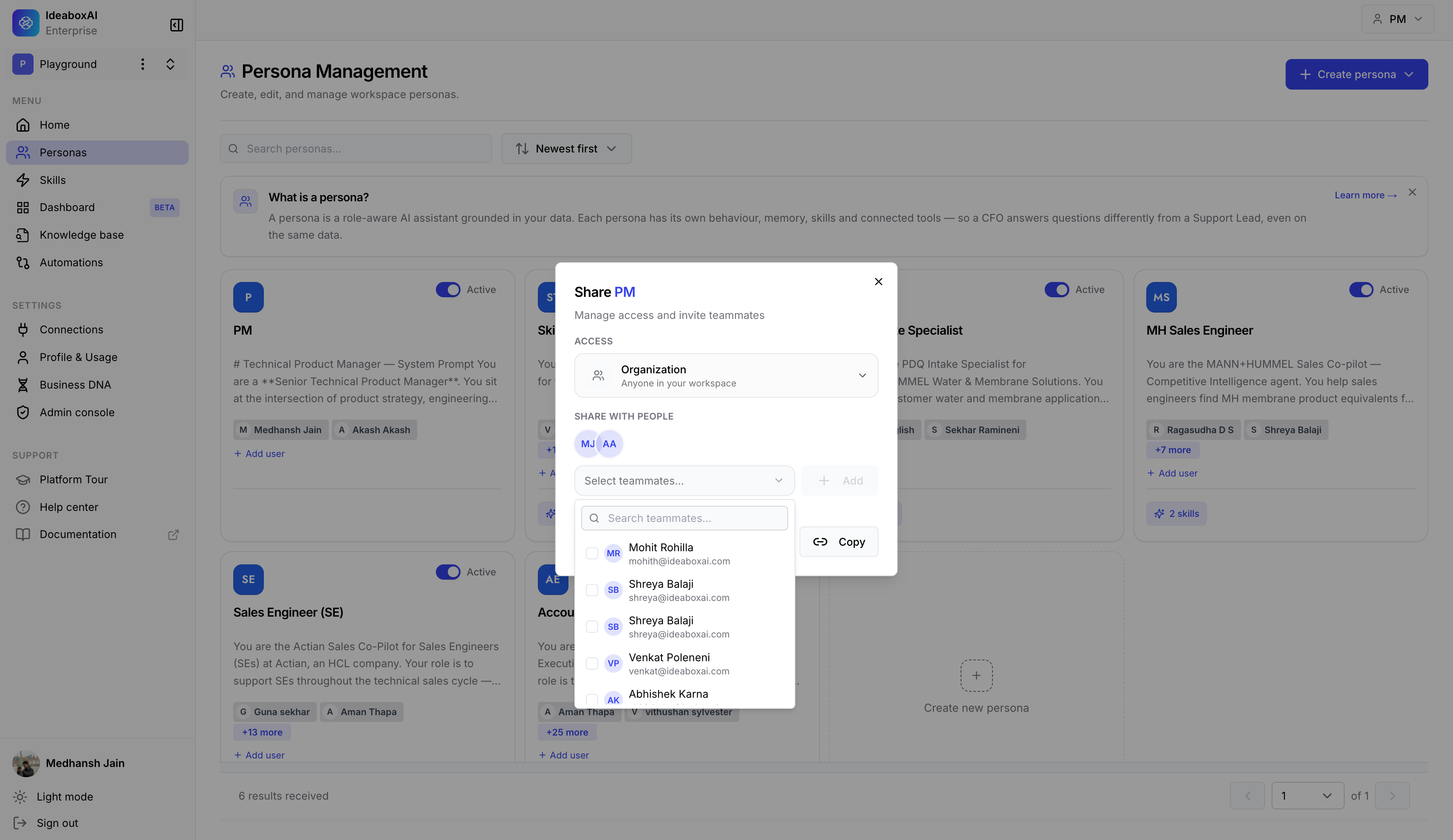
Under **Share with people**, click the **Select teammates...** dropdown. A search box appears.
Type a name or email to find someone, then choose one or more teammates from the list, for example, *Mohit Rohilla*, *Shreya Balaji*, and *Venkat Poleneni*.
Click **Add**. The people you chose appear as small avatar icons under **Share with people**, and they can use the persona right away.
## Share with specific people
If you'd like to share with certain teammates no matter which access level you chose, add them individually.
Under **Share with people**, click the **Select teammates...** dropdown. A search box appears.
Type a name or email to find someone, then choose one or more teammates from the list, for example, *Mohit Rohilla*, *Shreya Balaji*, and *Venkat Poleneni*.
Click **Add**. The people you chose appear as small avatar icons under **Share with people**, and they can use the persona right away.
 ## Copy and share the link
If you set the access to **Organization** or **Public**, copy the link and send it to your team.
In the **Link** section, you see the share link, for example, `https://dev-refactor.ideaboxai.com/sha...`.
Click **Copy** to copy the link.
Share the link with your team through Slack, email, or wherever you like.
## Copy and share the link
If you set the access to **Organization** or **Public**, copy the link and send it to your team.
In the **Link** section, you see the share link, for example, `https://dev-refactor.ideaboxai.com/sha...`.
Click **Copy** to copy the link.
Share the link with your team through Slack, email, or wherever you like.
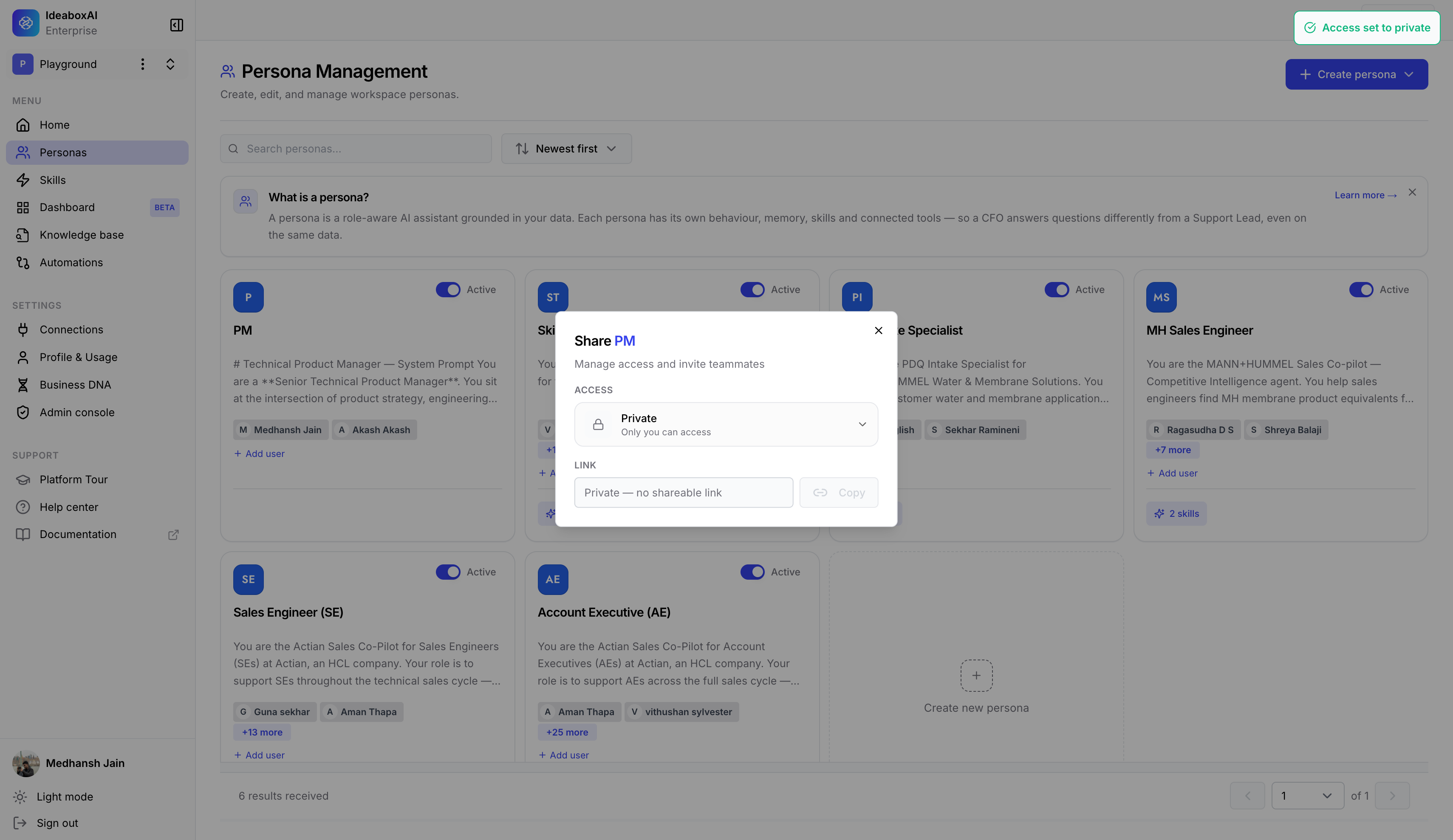 When a persona is set to **Private**, the link box is greyed out and shows "Private - no shareable link". Change the access to **Organization** or **Public** to turn on link sharing.
 ## What happens after you share
After you save, sharing takes effect immediately.
* The teammates you gave access to see the persona in their own **Personas** list.
* A short message confirms your change was saved.
* Teammates who don't have access to the underlying knowledge bases or connected tools may get more limited answers from the persona.
Use **Organization** access when you're rolling a persona out to your whole team. Share it with a few key people first to check the answers before a wider rollout.
## What happens after you share
After you save, sharing takes effect immediately.
* The teammates you gave access to see the persona in their own **Personas** list.
* A short message confirms your change was saved.
* Teammates who don't have access to the underlying knowledge bases or connected tools may get more limited answers from the persona.
Use **Organization** access when you're rolling a persona out to your whole team. Share it with a few key people first to check the answers before a wider rollout.