> ## Documentation Index
> Fetch the complete documentation index at: https://docs.ideaboxai.com/llms.txt
> Use this file to discover all available pages before exploring further.
# Getting started with the Persona AI
> Navigate the home screen, switch between personas, use the chat input, and access the Admin Console.
This guide walks you through the Persona AI interface. By the end, you will know how to navigate the home screen, switch between personas, use skill cards, access conversation history, and open the Admin Console.
## Home screen
The home screen is your primary workspace. It displays a personalised greeting, skill cards tailored to the active persona, and a persistent chat input bar.
 ### Greeting
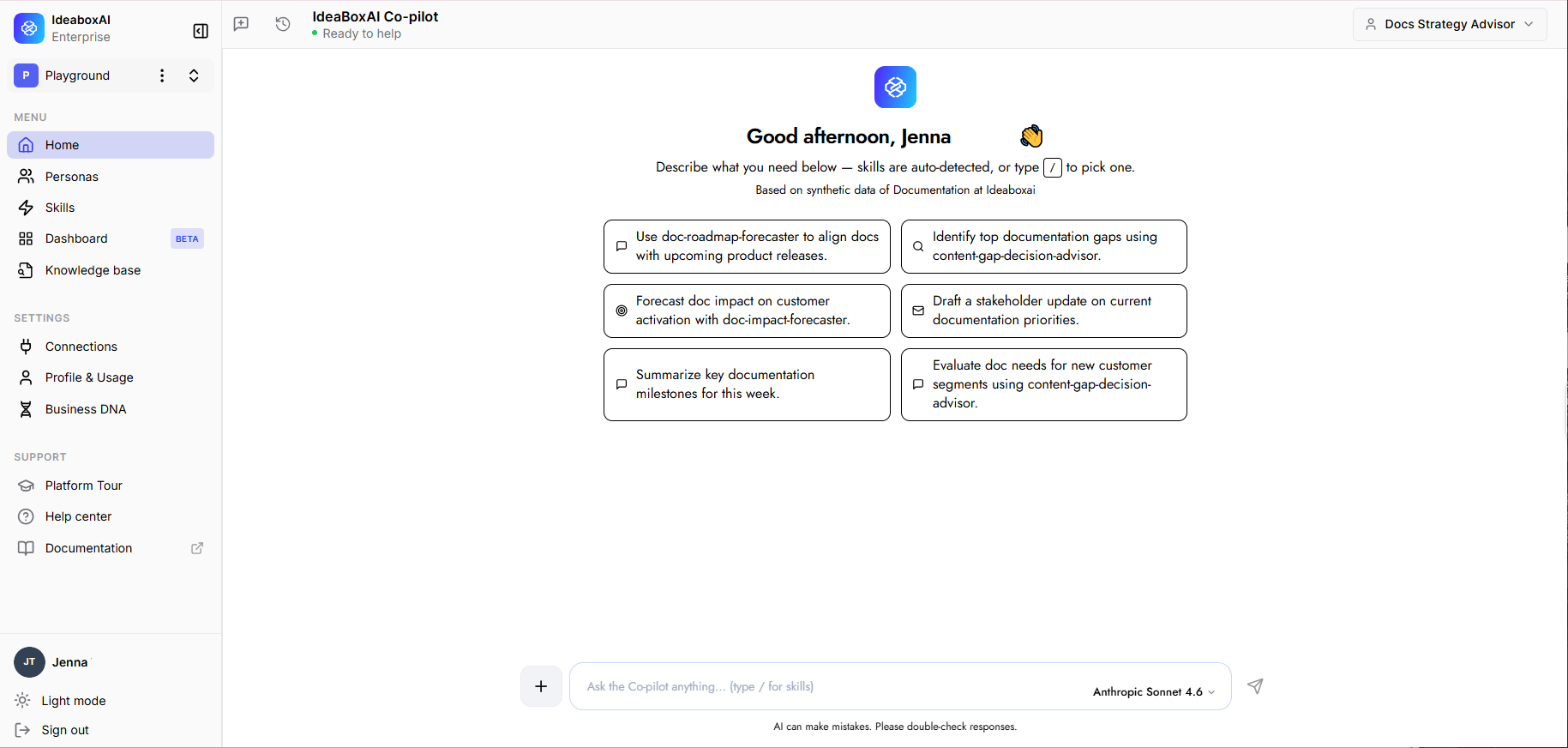
The home screen displays a personalised welcome message along with a description of the Persona AI's capabilities.
> **Good morning, \[name]!**
> Describe what you need below, skills are auto-detected, or type `/` to pick one.
### Quick starter prompts
Six quick-start prompts are displayed in a **2-column grid**, tailored to the active persona.
### Greeting
The home screen displays a personalised welcome message along with a description of the Persona AI's capabilities.
> **Good morning, \[name]!**
> Describe what you need below, skills are auto-detected, or type `/` to pick one.
### Quick starter prompts
Six quick-start prompts are displayed in a **2-column grid**, tailored to the active persona.
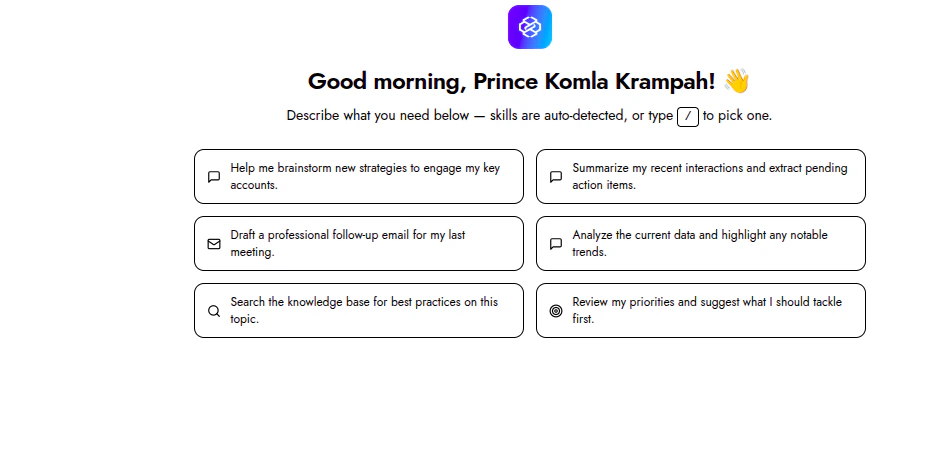 * **Icon and prompt**: Each card contains an icon paired with a natural language prompt that represents a common task for the current persona.
* **One-click pre-fill**: Clicking a card pre-fills the chat input with that prompt, so you can review it before sending.
* **Persona-tailored**: Cards change when you switch personas, reflecting the tasks and prompts relevant to each role.
### Chat input bar
The chat input bar is **persistent at the bottom** of the home screen.
* **Placeholder text:** *Ask the Co-pilot anything... (type / for skills)*
* **Attach button:** The **+** icon on the left allows you to attach files or context to your message.
* **Submit button:** The arrow icon on the right sends your message.
* **Status indicator:** Displays **Ready to help** (green dot) in the top bar, or a processing state while the system is working.
The chat input remains visible on every screen so you can send a message at any time without navigating back to the home screen.
## Persona switching
Each persona surfaces different skill cards and knowledge base scope. Switching personas updates all of these immediately.
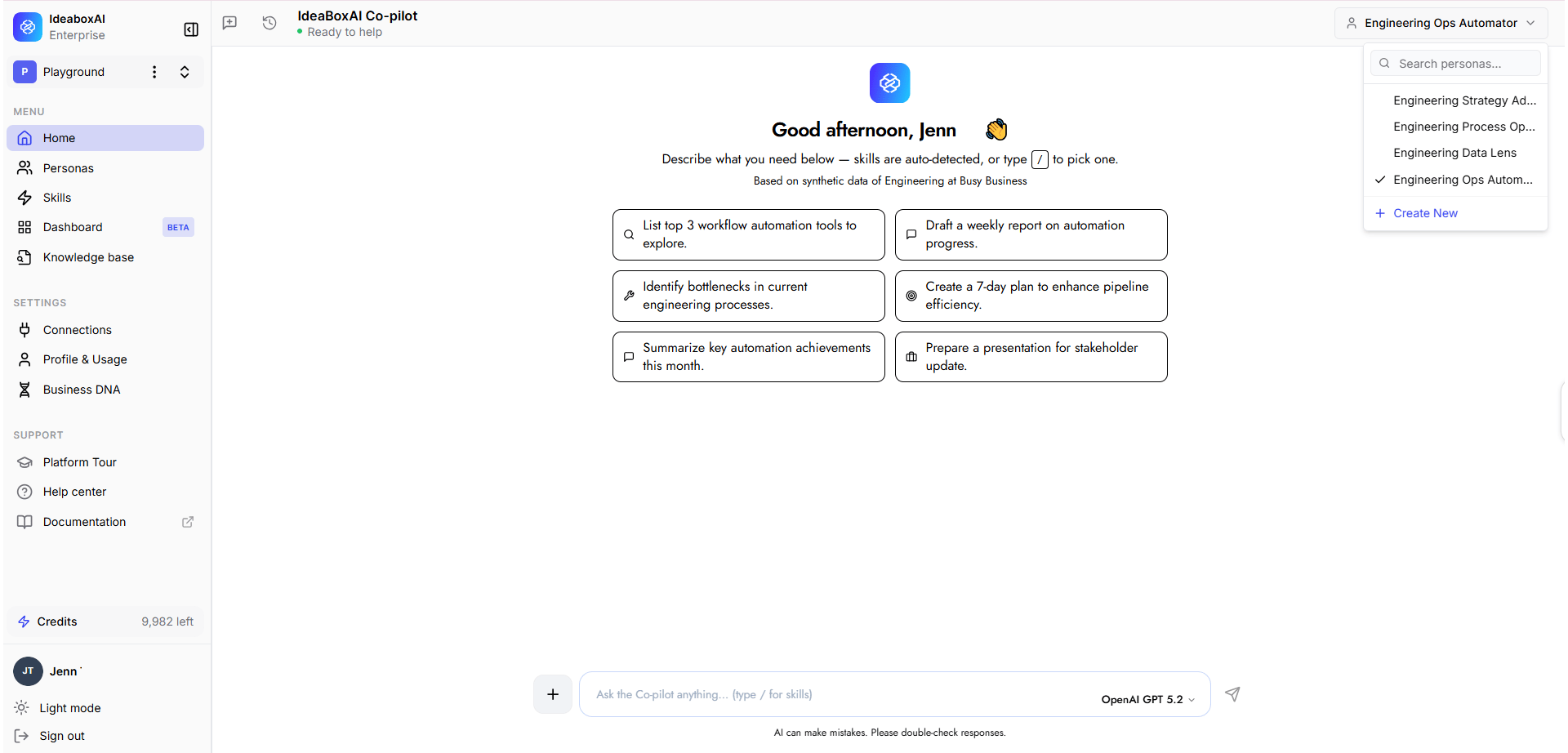
Click the persona selector in the **top-right corner** of the header.
Choose the desired persona from the list. A checkmark indicates the currently active persona. You can also click **+ Create New** to create a persona directly from this dropdown.
The home screen refreshes: skill cards and knowledge base scope all reflect the newly selected persona.
* **Icon and prompt**: Each card contains an icon paired with a natural language prompt that represents a common task for the current persona.
* **One-click pre-fill**: Clicking a card pre-fills the chat input with that prompt, so you can review it before sending.
* **Persona-tailored**: Cards change when you switch personas, reflecting the tasks and prompts relevant to each role.
### Chat input bar
The chat input bar is **persistent at the bottom** of the home screen.
* **Placeholder text:** *Ask the Co-pilot anything... (type / for skills)*
* **Attach button:** The **+** icon on the left allows you to attach files or context to your message.
* **Submit button:** The arrow icon on the right sends your message.
* **Status indicator:** Displays **Ready to help** (green dot) in the top bar, or a processing state while the system is working.
The chat input remains visible on every screen so you can send a message at any time without navigating back to the home screen.
## Persona switching
Each persona surfaces different skill cards and knowledge base scope. Switching personas updates all of these immediately.
Click the persona selector in the **top-right corner** of the header.
Choose the desired persona from the list. A checkmark indicates the currently active persona. You can also click **+ Create New** to create a persona directly from this dropdown.
The home screen refreshes: skill cards and knowledge base scope all reflect the newly selected persona.
 Switching personas does not affect your conversation history. You can change personas mid-session and still access previous conversations.
## Chat History panel
Click the **history icon** (clock) in the **top-left header** to expand the Chat History panel as a left sidebar.
Switching personas does not affect your conversation history. You can change personas mid-session and still access previous conversations.
## Chat History panel
Click the **history icon** (clock) in the **top-left header** to expand the Chat History panel as a left sidebar.
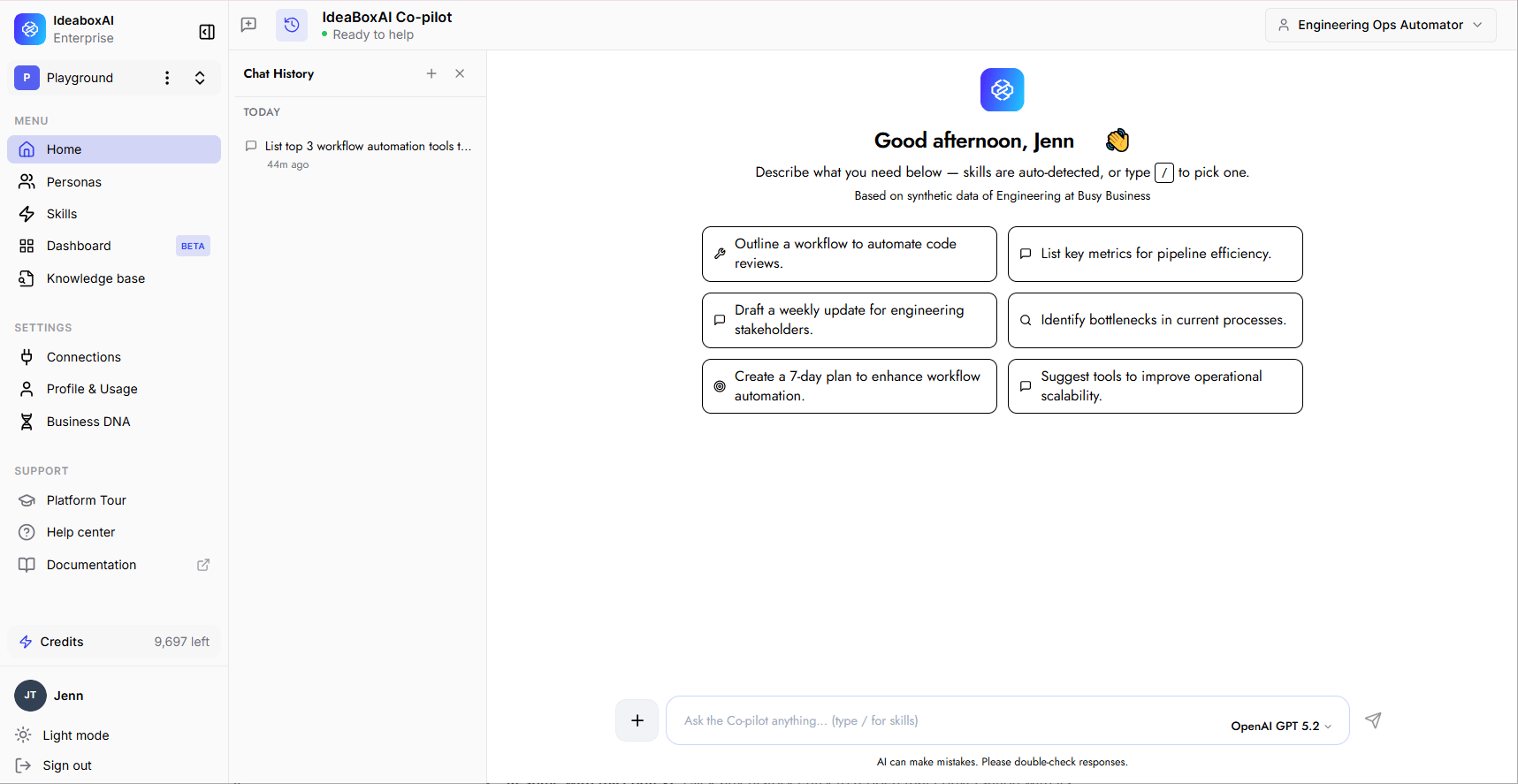 * **Grouped by recency:** Conversations are organised under headings such as *Last 7 Days*.
* **Truncated summaries:** Each entry shows a short summary of the conversation topic with a relative timestamp.
* **New conversation:** Click the **+** button at the top of the panel to start a fresh conversation.
* **Close the panel:** Click the **x** button to collapse it.
* **Resume with full context:** Click any history entry to reopen that conversation with its complete context intact.
## Accessing the Admin Console
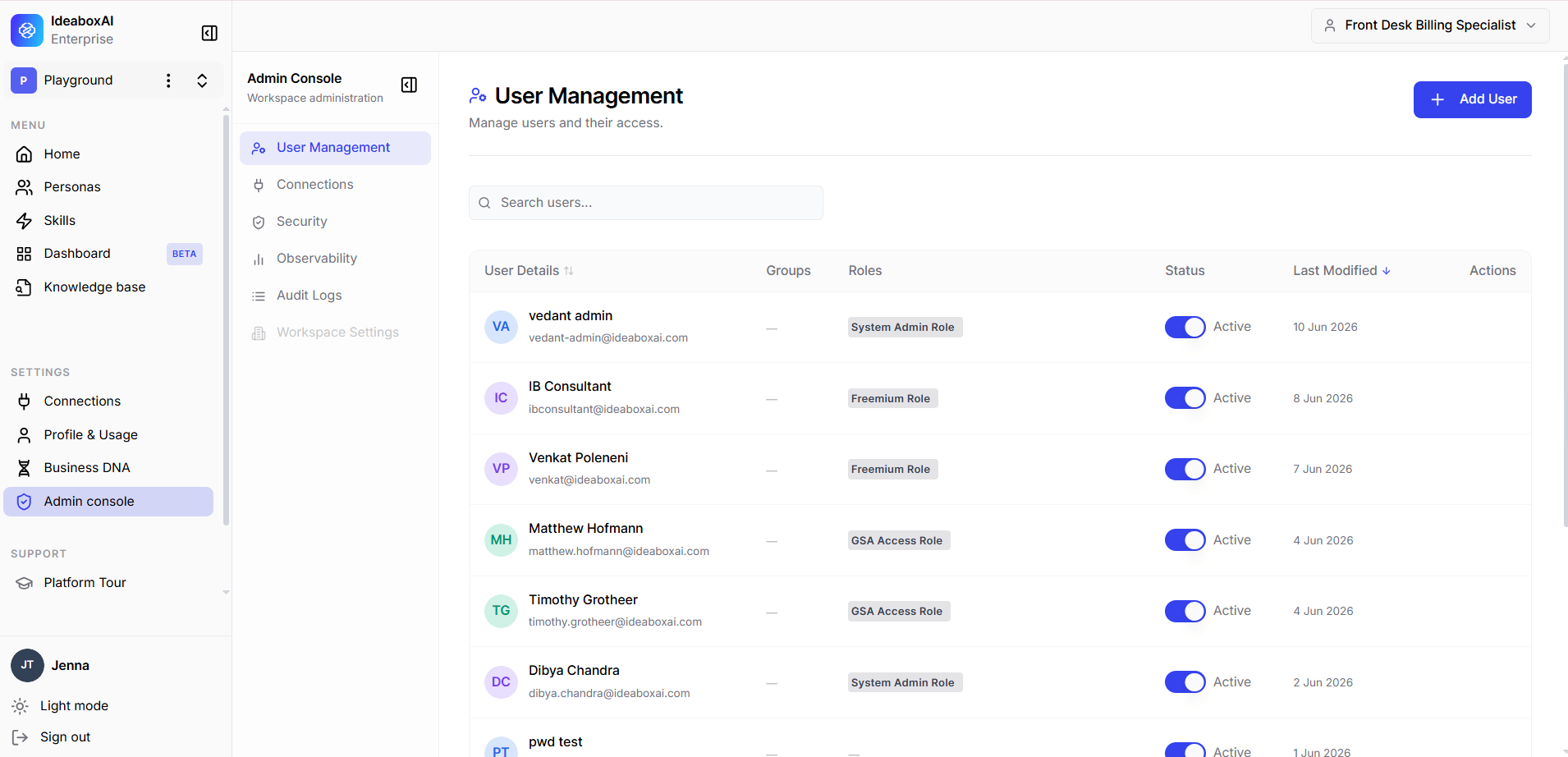
Access User Management, Connections, Security, Observability, and Audit Logs from the Admin Console. Only users with admin privileges can access this area.
The Admin Console's left navigation opens; there, you can access User Management, Connections, Security, Observability, and Audit Logs.
* **Grouped by recency:** Conversations are organised under headings such as *Last 7 Days*.
* **Truncated summaries:** Each entry shows a short summary of the conversation topic with a relative timestamp.
* **New conversation:** Click the **+** button at the top of the panel to start a fresh conversation.
* **Close the panel:** Click the **x** button to collapse it.
* **Resume with full context:** Click any history entry to reopen that conversation with its complete context intact.
## Accessing the Admin Console
Access User Management, Connections, Security, Observability, and Audit Logs from the Admin Console. Only users with admin privileges can access this area.
The Admin Console's left navigation opens; there, you can access User Management, Connections, Security, Observability, and Audit Logs.