> ## Documentation Index
> Fetch the complete documentation index at: https://docs.ideaboxai.com/llms.txt
> Use this file to discover all available pages before exploring further.
# Working with Drive
> A walkthrough of uploading, organizing, sharing, and opening files in Drive.
This page walks through the day to day of using Drive: browsing and organizing files, sharing them, and opening a file to see where it came from. For a conceptual introduction, see [Drive Overview](/copilot/drive/overview).
## Browsing your files
Drive lives in its own section in the left hand navigation. The main view is a shared team space. Every file traces back to the session that created it, with context on why and when.
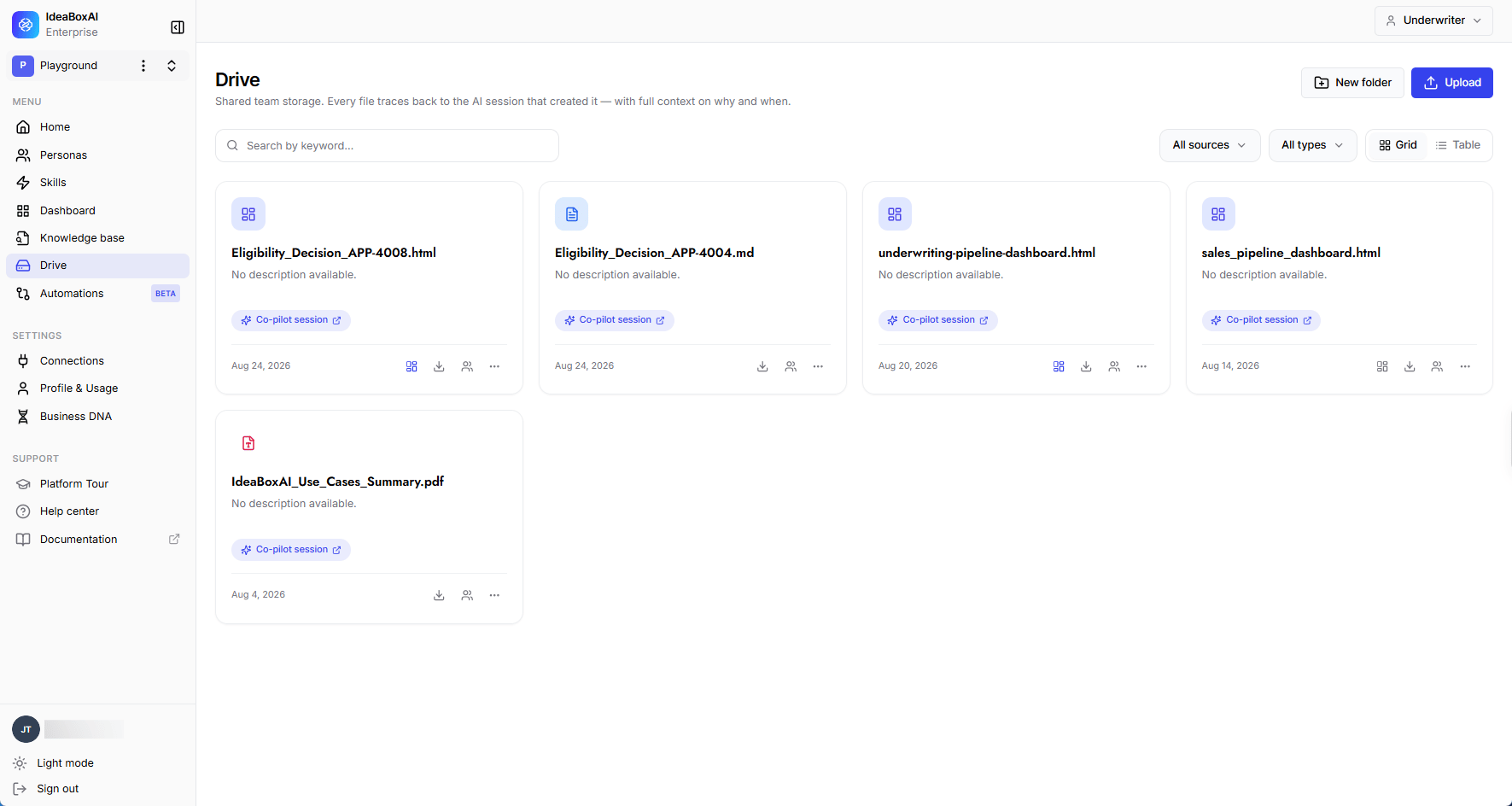 Switch between **Table** and **Grid** view from the toggle in the top right. Same files, laid out either as a sortable list or as visual cards.
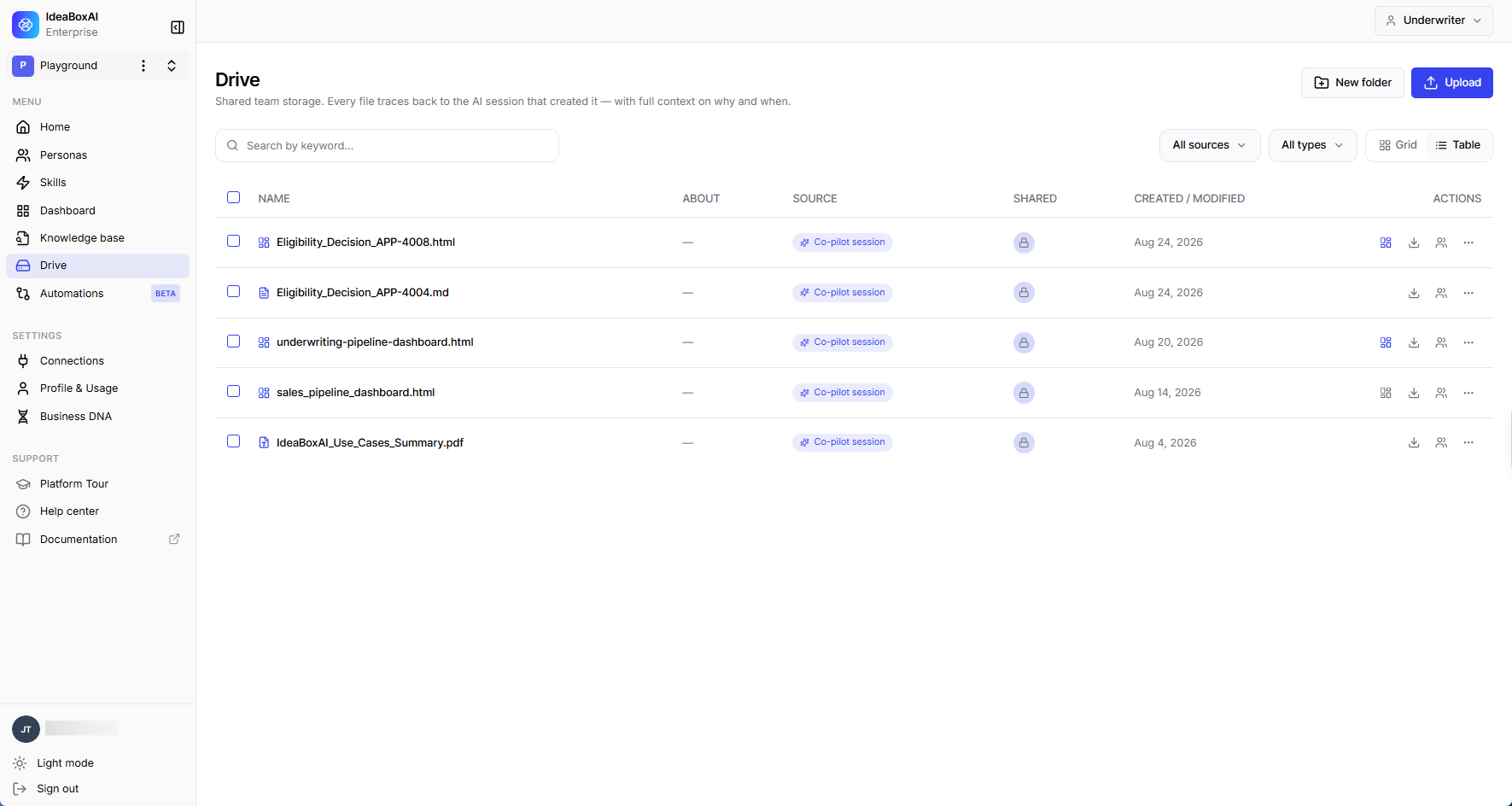 From either view, you can:
| Action | Description |
| --------------------- | -------------------------------------------------------------------------------------------------------------------- |
| **Search by keyword** | Find a file by name from the search bar at the top of Drive. |
| **Filter by source** | Narrow the list to Persona AI generated, automation delivered, or uploaded files using the **All sources** dropdown. |
| **Filter by type** | Narrow to a specific file type using the **All types** dropdown. |
| **Create a folder** | Click **New folder** to start organizing files into groups. |
| **Upload** | Click **Upload** to add a file or folder from your device. |
## File actions
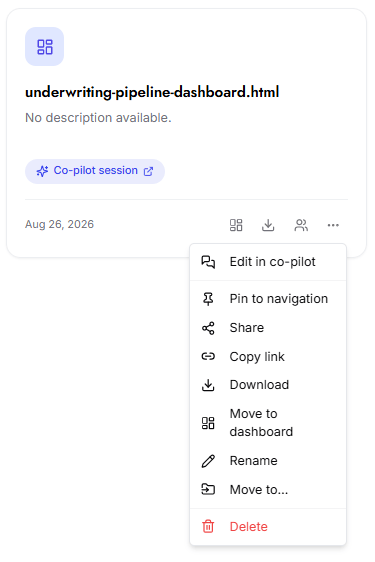
Every file has a **⋯** menu, available from both Table and Grid view, for quick actions without opening the file's detail page.
From either view, you can:
| Action | Description |
| --------------------- | -------------------------------------------------------------------------------------------------------------------- |
| **Search by keyword** | Find a file by name from the search bar at the top of Drive. |
| **Filter by source** | Narrow the list to Persona AI generated, automation delivered, or uploaded files using the **All sources** dropdown. |
| **Filter by type** | Narrow to a specific file type using the **All types** dropdown. |
| **Create a folder** | Click **New folder** to start organizing files into groups. |
| **Upload** | Click **Upload** to add a file or folder from your device. |
## File actions
Every file has a **⋯** menu, available from both Table and Grid view, for quick actions without opening the file's detail page.
* **Edit in Persona AI**: Opens the file in a Persona AI conversation so you can continue iterating on it.
* **Pin to navigation**: Adds a shortcut to this file in the left hand navigation for quick access.
* **Share**: Opens sharing options, where you can add specific people or generate a link.
* **Copy link**: Copies a shareable link to the file to your clipboard.
* **Download**: Downloads a copy of the file to your device.
* **Move to dashboard / Remove from dashboard**: This item toggles depending on the file's current state. If the file isn't on a dashboard yet, it reads **Move to dashboard**; if it's already there, it reads **Remove from dashboard**.
* **Rename**: Renames the file.
* **Move to...**: Moves the file into a different folder.
* **Delete**: Moves the file to trash.
## Opening a file
Click any file to open its detail page. This is where you see everything about that file in one place, not just its contents, but where it came from and who can see it.
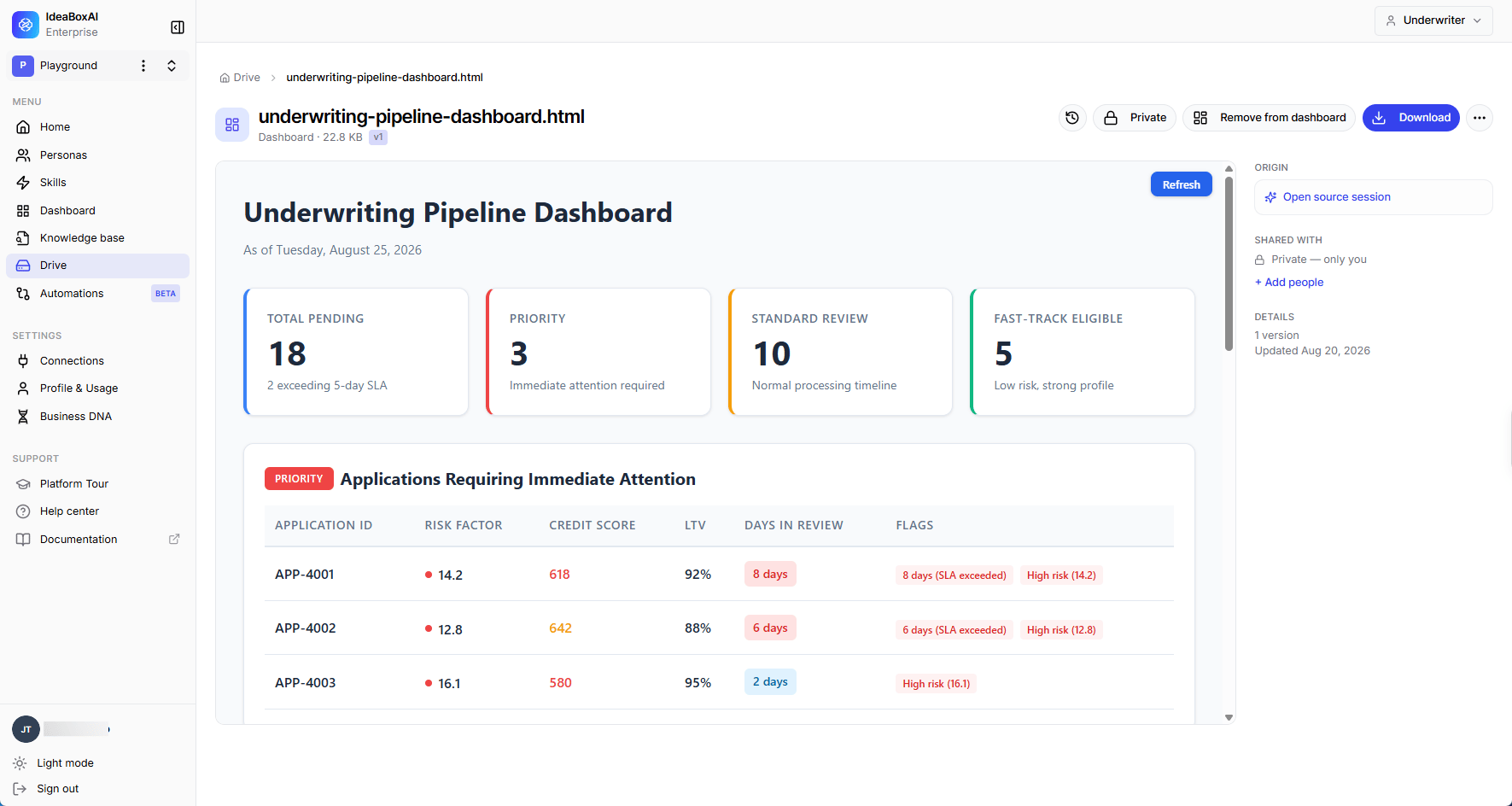 The side panel on a file's detail page shows:
* **Origin**: a link back to the session that created the file, so you can trace exactly why and when it was generated.
* **Shared with**: who currently has access, and a shortcut to add more people.
* **Details**: version number and when the file was last updated.
From the top of the page you can also open version history, toggle a file between private and shared, remove it from a dashboard, or download it.
## Sharing a file or folder
There are two ways to share something in Drive, and both keep the file inside the product rather than sending a copy out into email:
* **Share with specific people**: add teammates by name and give them viewer or contributor access. Sharing a folder passes that access down to everything inside it.
* **Share a link**: generate a link, optionally with an expiry date. Anyone signed in to your workspace who opens it gets access. Turning the link off removes access only for people who joined that way. Anyone added by name keeps their access.
## Automations file their own output
When a scheduled or manual automation run produces a file, it's filed automatically into a folder for that automation, organized by month. You don't need to set this up. It happens the first time an automation produces a deliverable, and stays out of the way otherwise.
Drive is still catching up on a few rough edges:
* The search bar doesn't yet filter or prioritize results by search term
* The **All sources** filter dropdown doesn't reliably filter the listing
* Multi sheet Excel files preview as one continuous feed instead of separate tabs
* PowerPoint files preview as raw text instead of rendered slides
If you're troubleshooting one of these while working, it's worth checking whether it's a known issue before assuming it's something in your file.
Persona AI only ever reads Drive files as the person asking. It can't see anything you wouldn't already be able to open yourself. It also treats the contents of uploaded documents as data, never as instructions: text inside a file can't direct Persona AI to take an action, even if it's phrased like a command.
## Getting started
Go to **Drive** in the left navigation.
Create a folder to group related files, or click **Upload** to add files from your device.
Click any file to see its contents, origin, and sharing status.
Add specific people or generate a link from the file or folder's sharing options.
The side panel on a file's detail page shows:
* **Origin**: a link back to the session that created the file, so you can trace exactly why and when it was generated.
* **Shared with**: who currently has access, and a shortcut to add more people.
* **Details**: version number and when the file was last updated.
From the top of the page you can also open version history, toggle a file between private and shared, remove it from a dashboard, or download it.
## Sharing a file or folder
There are two ways to share something in Drive, and both keep the file inside the product rather than sending a copy out into email:
* **Share with specific people**: add teammates by name and give them viewer or contributor access. Sharing a folder passes that access down to everything inside it.
* **Share a link**: generate a link, optionally with an expiry date. Anyone signed in to your workspace who opens it gets access. Turning the link off removes access only for people who joined that way. Anyone added by name keeps their access.
## Automations file their own output
When a scheduled or manual automation run produces a file, it's filed automatically into a folder for that automation, organized by month. You don't need to set this up. It happens the first time an automation produces a deliverable, and stays out of the way otherwise.
Drive is still catching up on a few rough edges:
* The search bar doesn't yet filter or prioritize results by search term
* The **All sources** filter dropdown doesn't reliably filter the listing
* Multi sheet Excel files preview as one continuous feed instead of separate tabs
* PowerPoint files preview as raw text instead of rendered slides
If you're troubleshooting one of these while working, it's worth checking whether it's a known issue before assuming it's something in your file.
Persona AI only ever reads Drive files as the person asking. It can't see anything you wouldn't already be able to open yourself. It also treats the contents of uploaded documents as data, never as instructions: text inside a file can't direct Persona AI to take an action, even if it's phrased like a command.
## Getting started
Go to **Drive** in the left navigation.
Create a folder to group related files, or click **Upload** to add files from your device.
Click any file to see its contents, origin, and sharing status.
Add specific people or generate a link from the file or folder's sharing options.