> ## Documentation Index
> Fetch the complete documentation index at: https://docs.ideaboxai.com/llms.txt
> Use this file to discover all available pages before exploring further.
# Admin Console
> Manage users, personas, connections, and security policies from the Admin Console.
The Admin Console is accessible to users with the **Admin** persona. It provides controls over the entire workspace, including user management, persona management, connections, and security policies. All changes made in the Admin Console affect the entire workspace.
Only users assigned the **Admin** persona can access the Admin Console.
## User Management
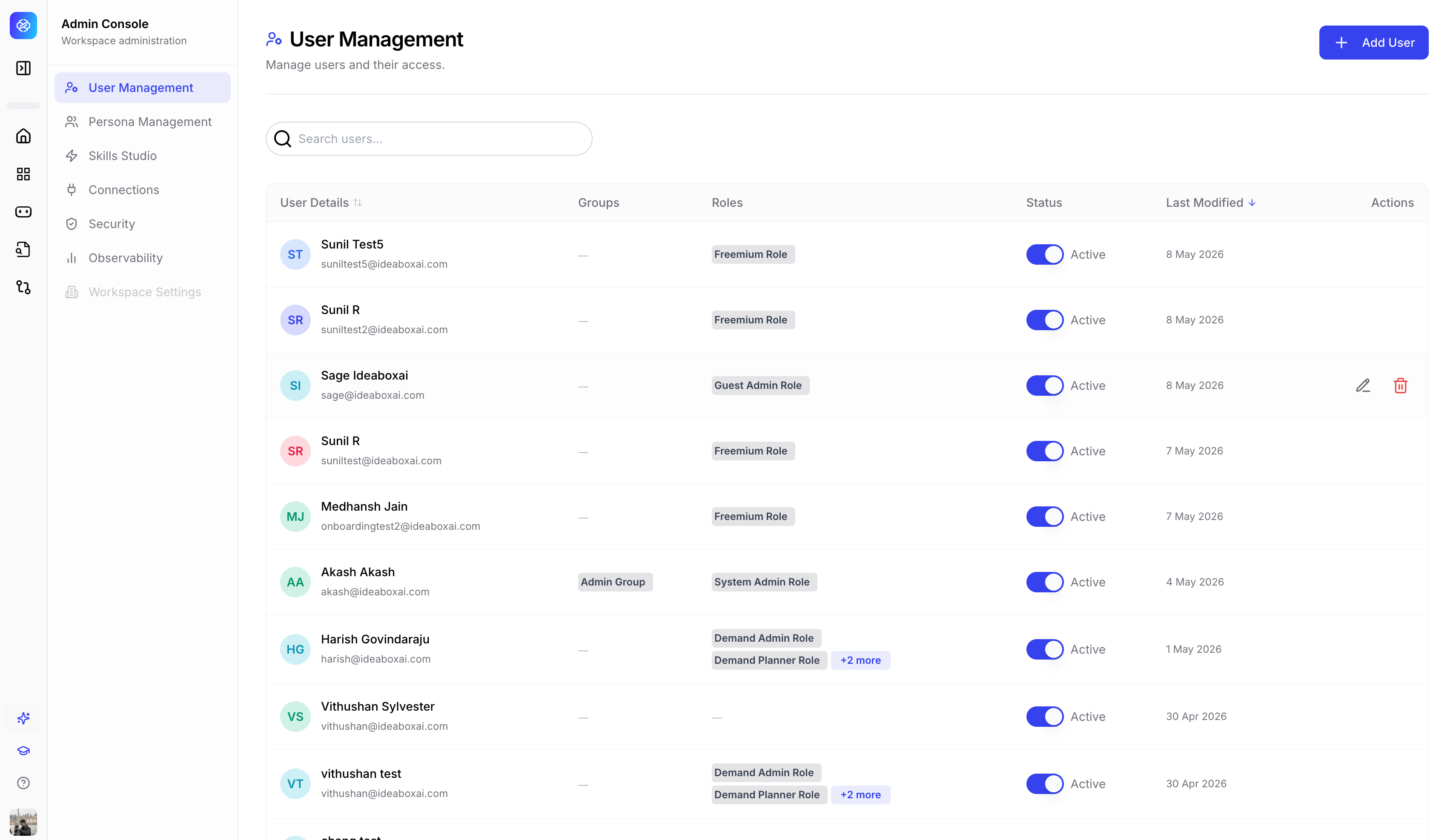
Manage all users in your workspace and control their access. The user management table displays the following columns.
| Column | Description |
| ----------------- | ------------------------------------------------------------------------------ |
| **User Details** | Avatar, full name, and email address. |
| **Groups** | Groups the user belongs to. |
| **Roles** | Role pills showing assigned roles (e.g. System Admin Role, Demand Admin Role). |
| **Status** | Active or inactive toggle. |
| **Last Modified** | Timestamp of the most recent change. |
| **Actions** | Edit and manage user settings. |
Use the **+ Add User** button to invite new users to the workspace. Use the search bar to quickly find users by name or email.
 ## Persona Management
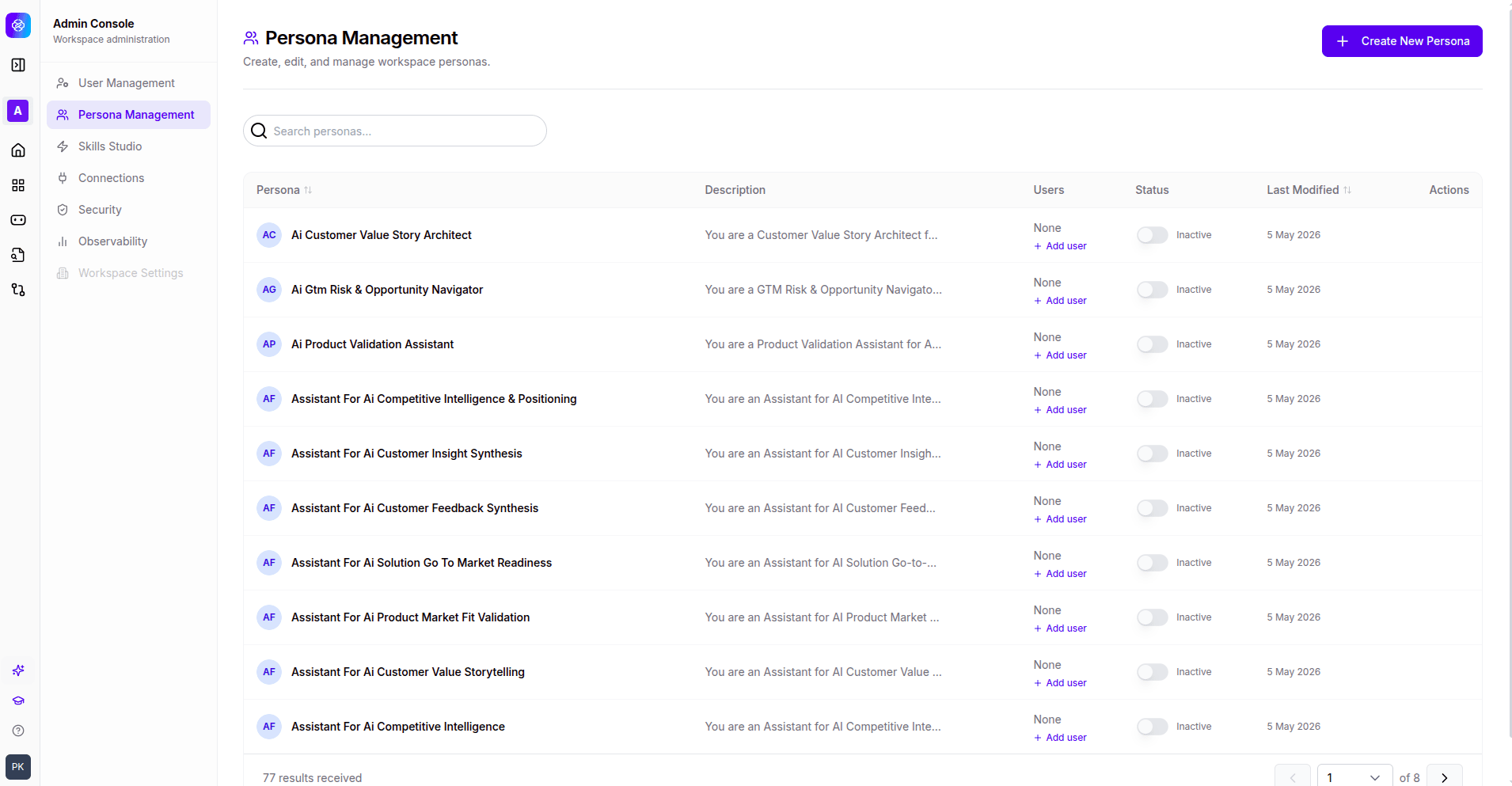
Create, edit, and manage workspace personas. The persona management table displays the following columns.
| Column | Description |
| ----------------- | ------------------------------------------- |
| **Persona** | Name of the persona. |
| **Description** | Short description of the persona's purpose. |
| **Users** | Number of users assigned to the persona. |
| **Status** | Active or inactive status. |
| **Last Modified** | Timestamp of the most recent change. |
Use the **+ Create New Persona** button to add a new persona to the workspace. Each persona defines a distinct role with its own skills, knowledge bases, and data source access.
## Persona Management
Create, edit, and manage workspace personas. The persona management table displays the following columns.
| Column | Description |
| ----------------- | ------------------------------------------- |
| **Persona** | Name of the persona. |
| **Description** | Short description of the persona's purpose. |
| **Users** | Number of users assigned to the persona. |
| **Status** | Active or inactive status. |
| **Last Modified** | Timestamp of the most recent change. |
Use the **+ Create New Persona** button to add a new persona to the workspace. Each persona defines a distinct role with its own skills, knowledge bases, and data source access.
 ## Connection management
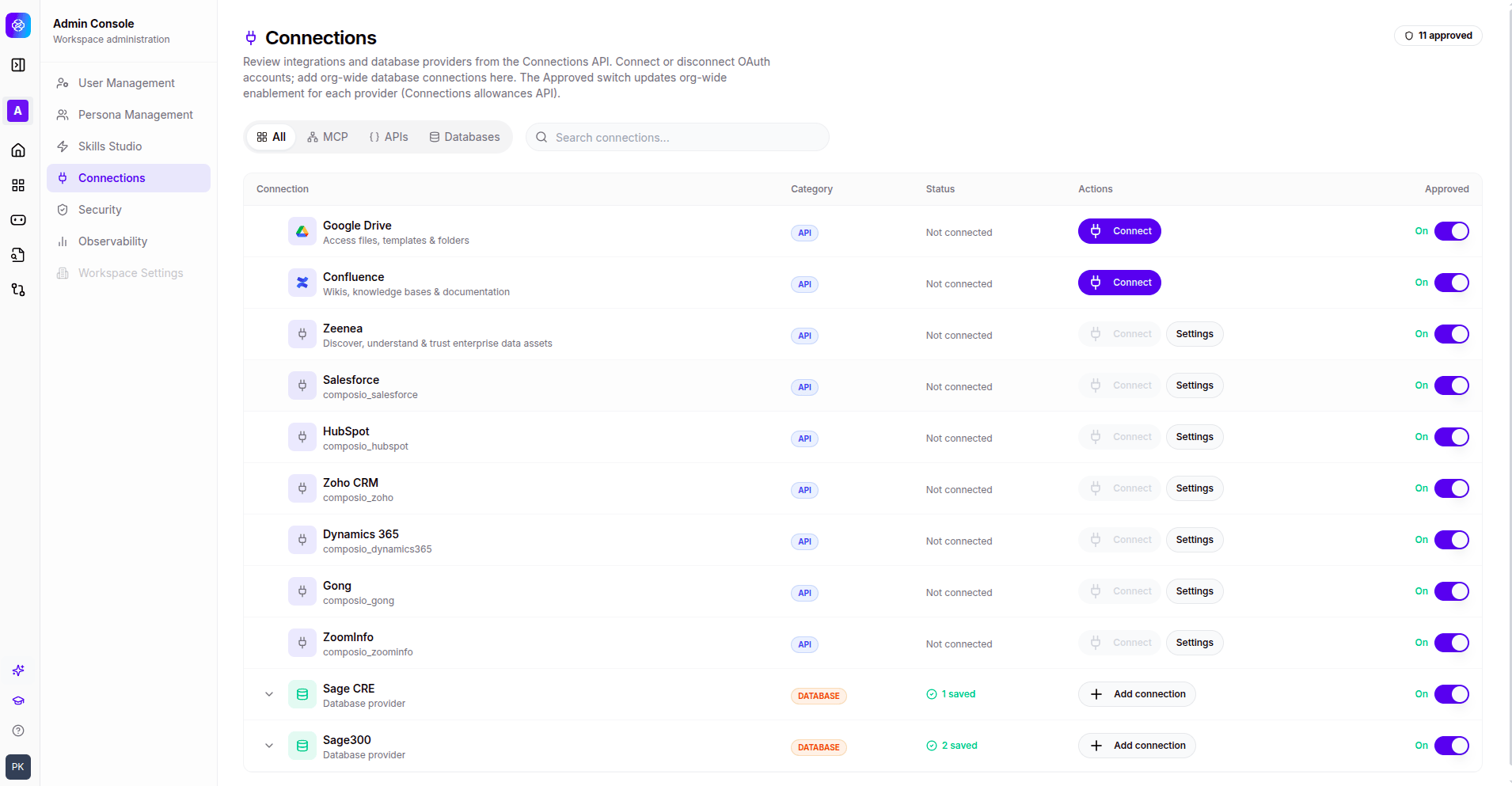
Admin-level connection management determines which integrations are visible to users. Only approved connections appear in user **Settings > Connections**. The header displays the total count of approved connections.
### Connection list
The connection list is presented as a table with the following columns.
| Column | Description |
| -------------- | ------------------------------------------------------------------------------------------ |
| **Connection** | Icon, name, and short description of the integration. |
| **Category** | Badge indicating the type: `API`, `MCP`, or `DATABASE`. |
| **Status** | Current connection status (e.g. `Not connected`, or saved connection count). |
| **Actions** | **Connect** button to initiate setup, or **Settings** to reconfigure existing connections. |
| **Approved** | On/Off toggle controlling user visibility. |
The list is filterable by **All**, **MCP**, **APIs**, and **Databases**, and includes a search bar for quick lookup.
**Approved ON** means users can see and connect the integration in their own Settings. **Approved OFF** hides the integration from all non-admin users.
## Connection management
Admin-level connection management determines which integrations are visible to users. Only approved connections appear in user **Settings > Connections**. The header displays the total count of approved connections.
### Connection list
The connection list is presented as a table with the following columns.
| Column | Description |
| -------------- | ------------------------------------------------------------------------------------------ |
| **Connection** | Icon, name, and short description of the integration. |
| **Category** | Badge indicating the type: `API`, `MCP`, or `DATABASE`. |
| **Status** | Current connection status (e.g. `Not connected`, or saved connection count). |
| **Actions** | **Connect** button to initiate setup, or **Settings** to reconfigure existing connections. |
| **Approved** | On/Off toggle controlling user visibility. |
The list is filterable by **All**, **MCP**, **APIs**, and **Databases**, and includes a search bar for quick lookup.
**Approved ON** means users can see and connect the integration in their own Settings. **Approved OFF** hides the integration from all non-admin users.
 ### APIs
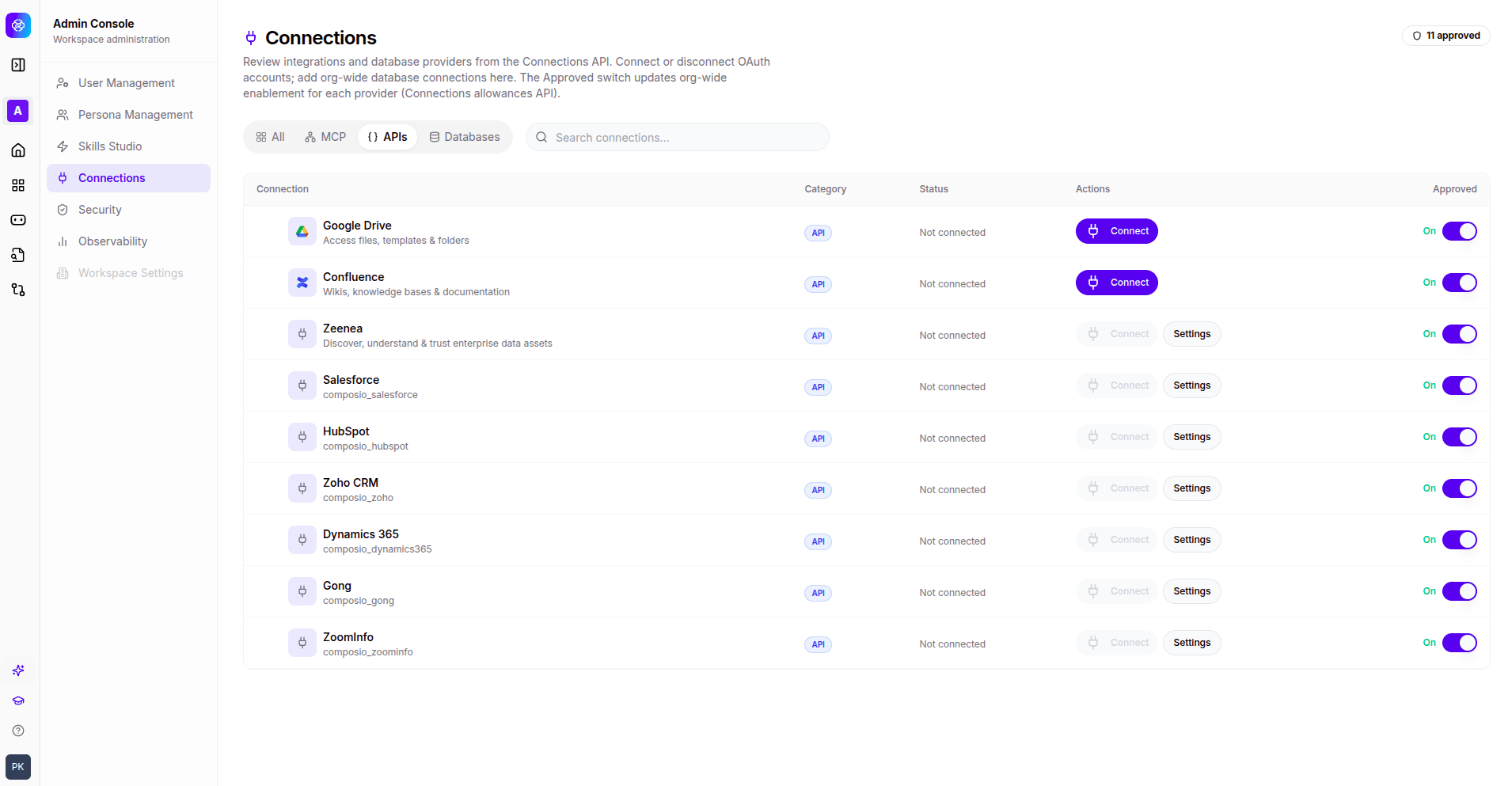
Filter by **APIs** to view all API-based integrations. Each row shows the connection name, category badge, connection status, and an **Approved** toggle. Use the **Connect** button to initiate OAuth or API key setup, and **Settings** to reconfigure existing connections.
### APIs
Filter by **APIs** to view all API-based integrations. Each row shows the connection name, category badge, connection status, and an **Approved** toggle. Use the **Connect** button to initiate OAuth or API key setup, and **Settings** to reconfigure existing connections.
 ### Databases
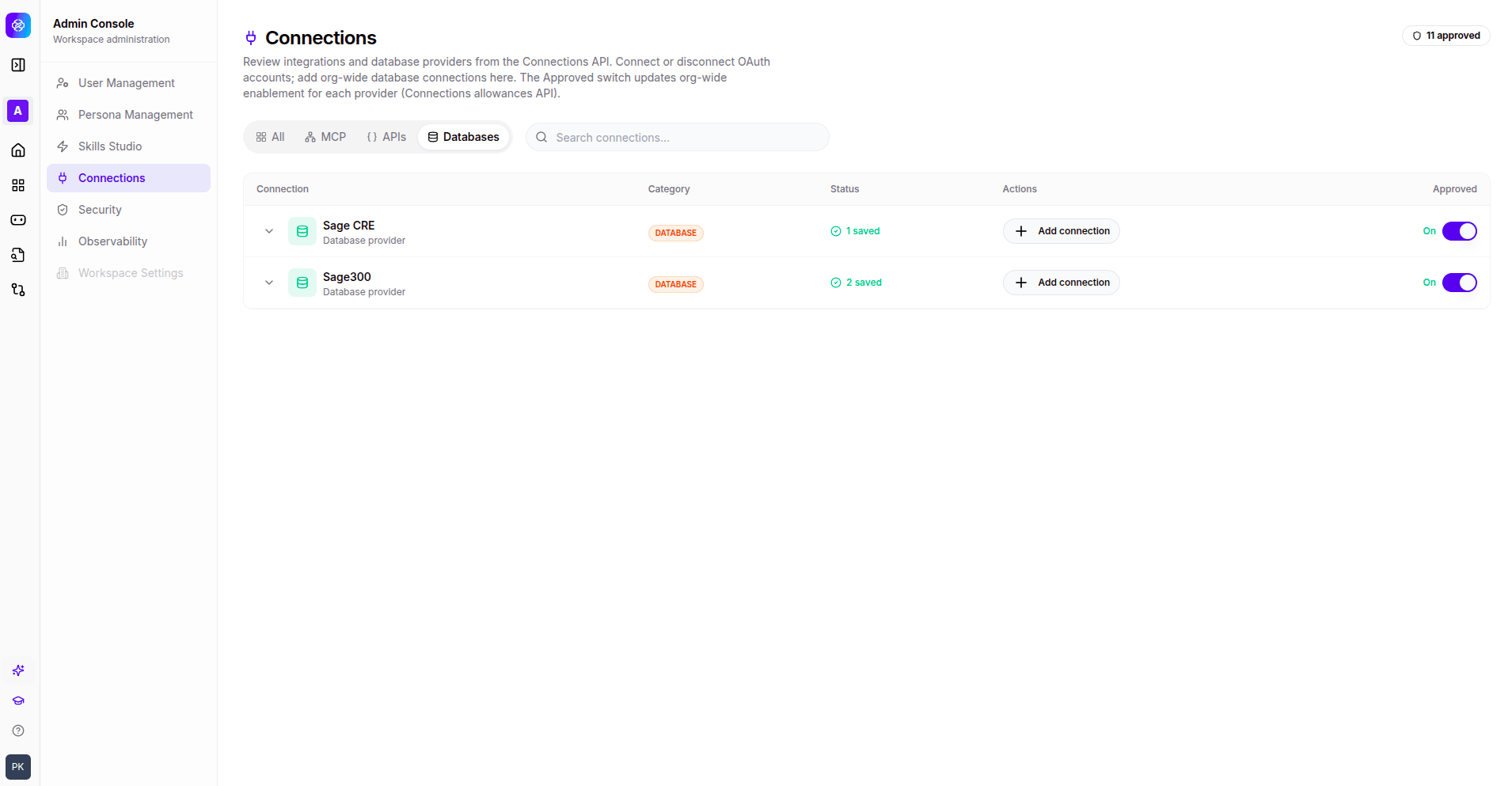
Filter by **Databases** to view database providers. Each database connection shows the provider name, category badge, saved connection count, and an **Add connection** action for configuring additional database instances.
### Databases
Filter by **Databases** to view database providers. Each database connection shows the provider name, category badge, saved connection count, and an **Add connection** action for configuring additional database instances.
 ## Security
Granular access control organised into four tabs: **Resources**, **Policies**, **Roles**, and **Groups**.
### Resources tab
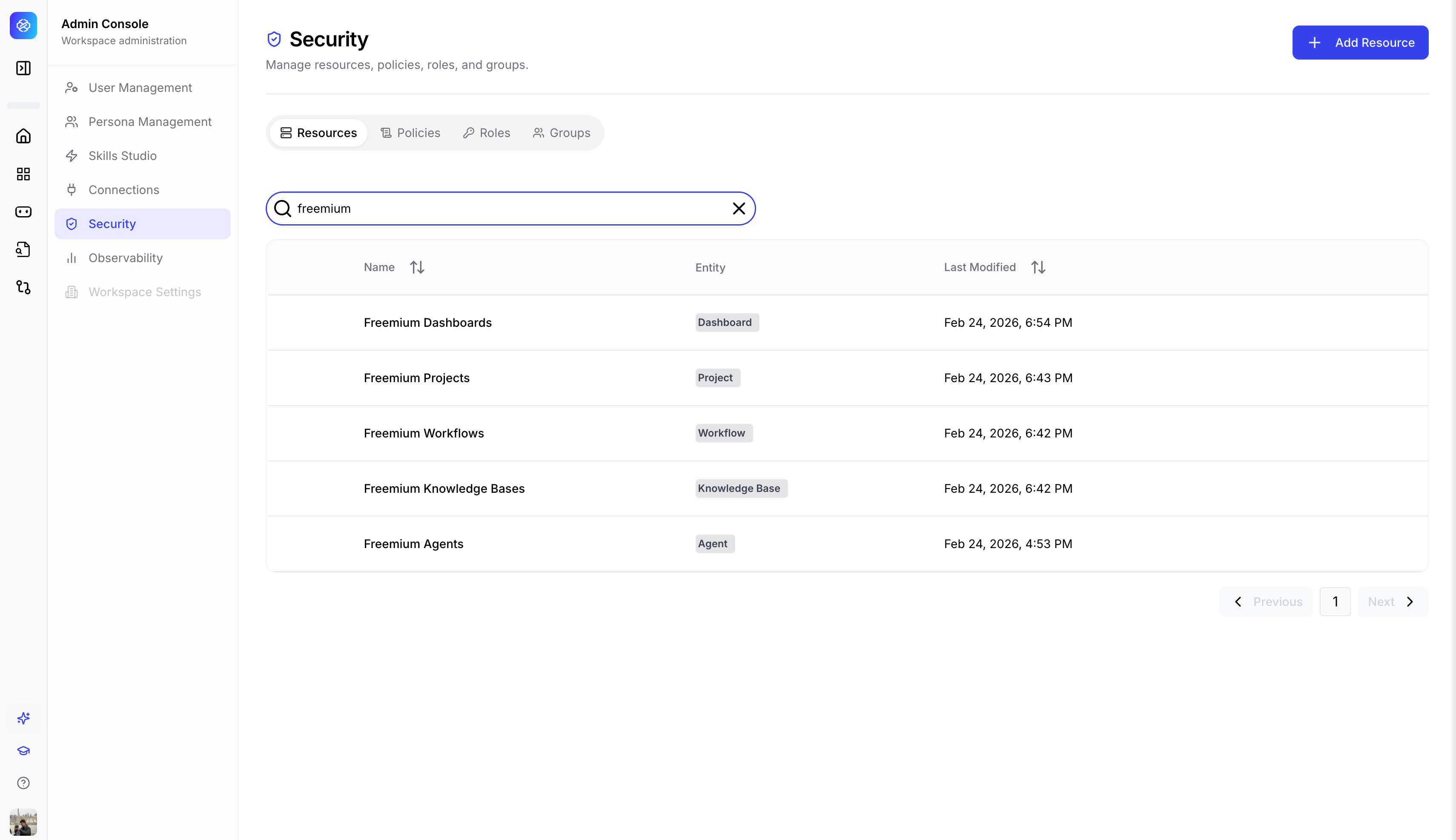
Resources are named groups that represent collections of platform entities. The resources table displays the following columns.
| Column | Description |
| ----------------- | --------------------------------------------------------------------------- |
| **Name** | The resource group name. |
| **Entity** | Badge indicating the type: Dashboard, Knowledge Base, Project, or Resource. |
| **Last Modified** | Timestamp of the most recent change. |
#### Add resource modal
Choose from the available entity types: Dashboard, Knowledge Base, Project, User, Resource, Policy, Role, or Group.
Enter a **Resource Name** and **Description**.
Build conditional rules using a field dropdown, operator, and value. Combine conditions with **AND** / **OR** logic.
## Security
Granular access control organised into four tabs: **Resources**, **Policies**, **Roles**, and **Groups**.
### Resources tab
Resources are named groups that represent collections of platform entities. The resources table displays the following columns.
| Column | Description |
| ----------------- | --------------------------------------------------------------------------- |
| **Name** | The resource group name. |
| **Entity** | Badge indicating the type: Dashboard, Knowledge Base, Project, or Resource. |
| **Last Modified** | Timestamp of the most recent change. |
#### Add resource modal
Choose from the available entity types: Dashboard, Knowledge Base, Project, User, Resource, Policy, Role, or Group.
Enter a **Resource Name** and **Description**.
Build conditional rules using a field dropdown, operator, and value. Combine conditions with **AND** / **OR** logic.
 ### Policies tab
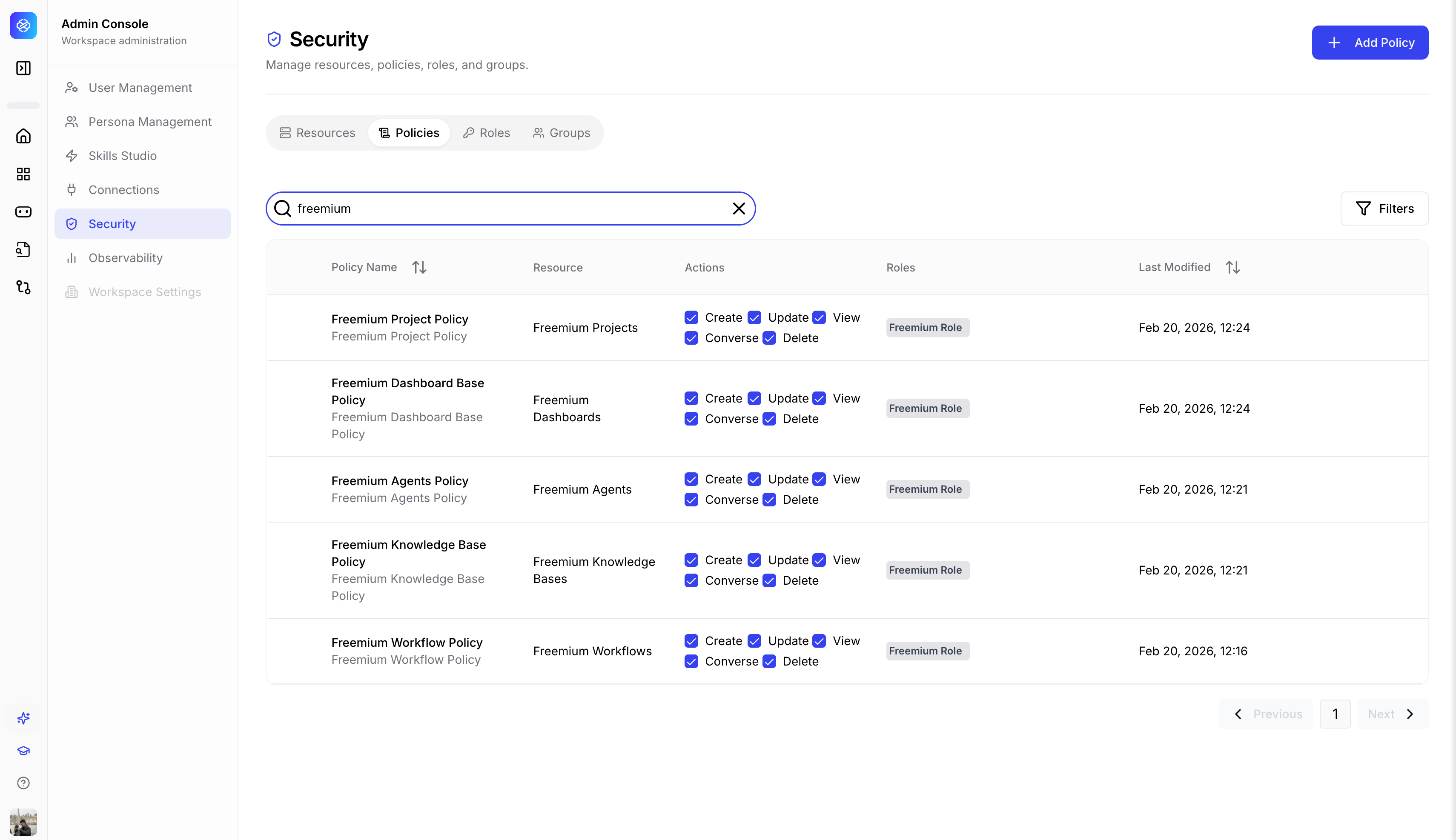
Policies define access rules by combining a **subject** (role), **actions** (permissions), and a **resource**. The policies table displays the following columns.
| Column | Description |
| ----------------- | ------------------------------------------------------------------------------------ |
| **Policy Admin** | Name and description of the policy. |
| **Resources** | The resource group the policy applies to. |
| **Actions** | Permission icons indicating granted actions: Create, Converse, Update, View, Delete. |
| **Roles** | Roles assigned to this policy. |
| **Last Modified** | Timestamp of the most recent change. |
Use the **+ Add Policy** button to create a new access rule.
### Policies tab
Policies define access rules by combining a **subject** (role), **actions** (permissions), and a **resource**. The policies table displays the following columns.
| Column | Description |
| ----------------- | ------------------------------------------------------------------------------------ |
| **Policy Admin** | Name and description of the policy. |
| **Resources** | The resource group the policy applies to. |
| **Actions** | Permission icons indicating granted actions: Create, Converse, Update, View, Delete. |
| **Roles** | Roles assigned to this policy. |
| **Last Modified** | Timestamp of the most recent change. |
Use the **+ Add Policy** button to create a new access rule.
 ### Roles tab
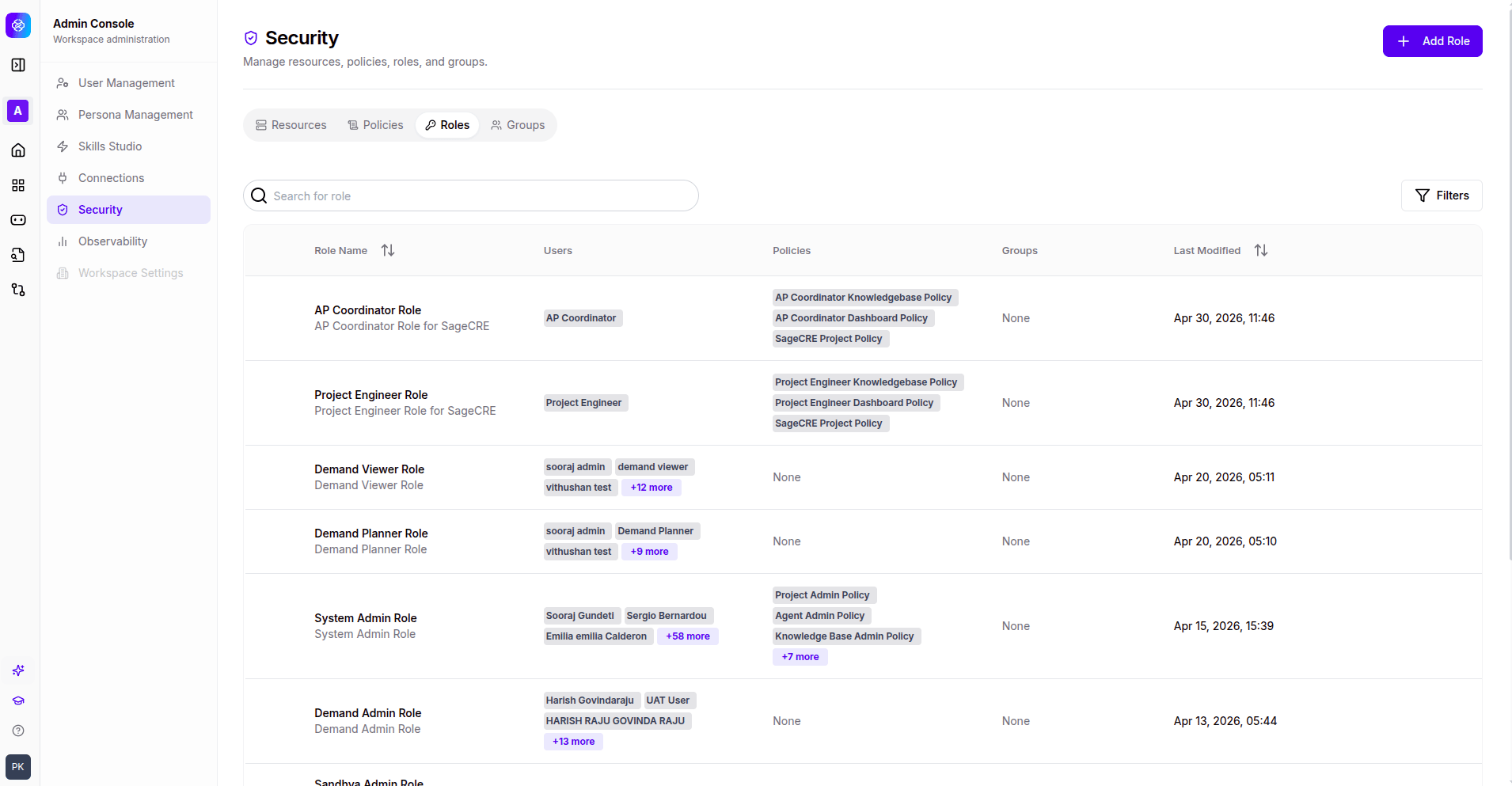
Roles are named permission levels that control what users can do within the workspace. The roles table displays the following columns.
| Column | Description |
| ----------------- | ----------------------------------------------------------------------- |
| **Role Name** | Name and description of the role. |
| **Users** | User pills showing assigned members, with a count for additional users. |
| **Policies** | Policy pills showing attached policies. |
| **Groups** | Associated groups. |
| **Last Modified** | Timestamp of the most recent change. |
Use the **+ Add Role** button to create a new role. Use the **Filters** button to narrow down the list.
### Roles tab
Roles are named permission levels that control what users can do within the workspace. The roles table displays the following columns.
| Column | Description |
| ----------------- | ----------------------------------------------------------------------- |
| **Role Name** | Name and description of the role. |
| **Users** | User pills showing assigned members, with a count for additional users. |
| **Policies** | Policy pills showing attached policies. |
| **Groups** | Associated groups. |
| **Last Modified** | Timestamp of the most recent change. |
Use the **+ Add Role** button to create a new role. Use the **Filters** button to narrow down the list.
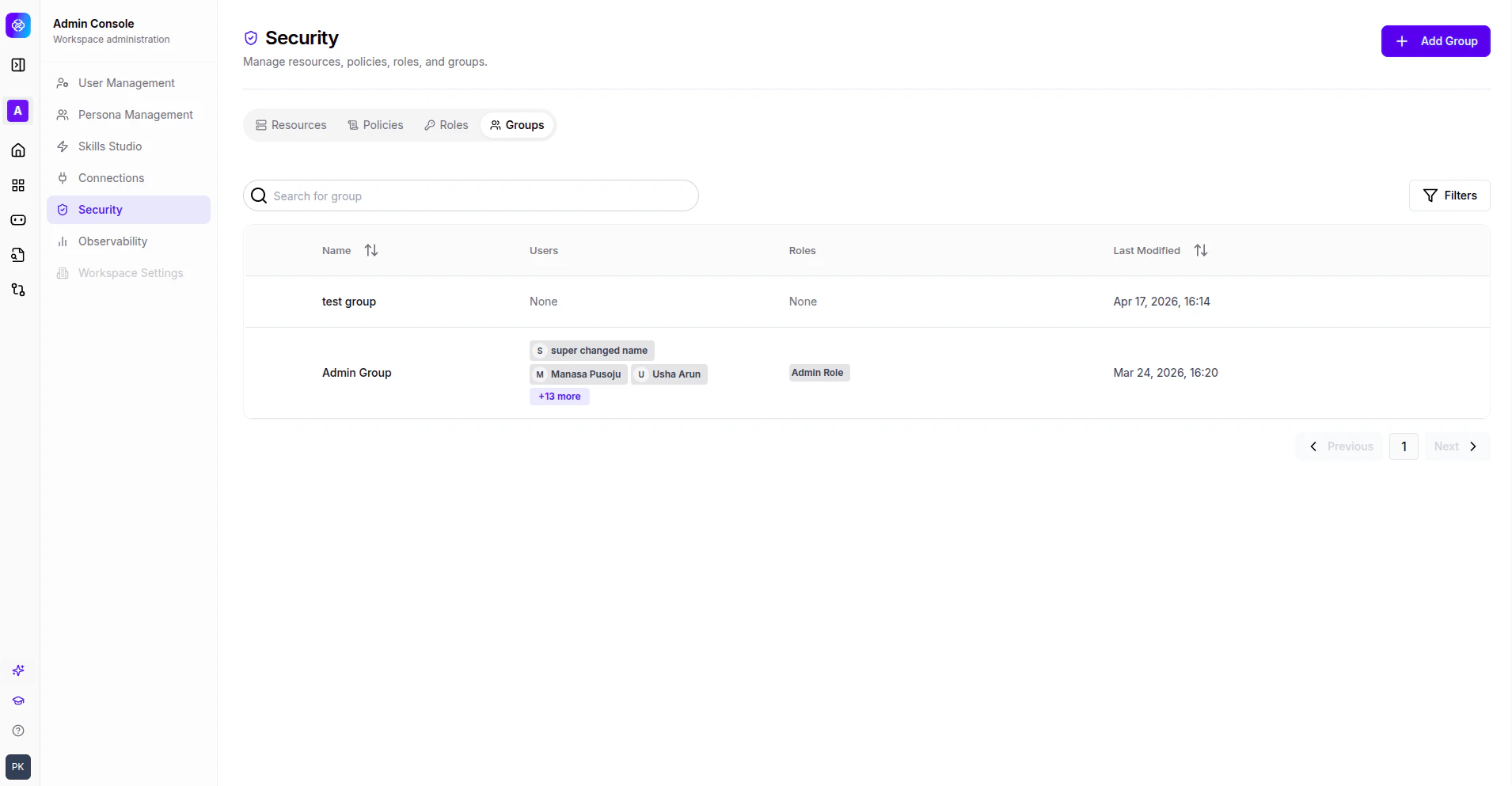
 ### Groups tab
Groups are named collections of users for bulk role assignment. The groups table displays the following columns.
| Column | Description |
| ----------------- | -------------------------------------------------------------------- |
| **Name** | Group name. |
| **Users** | User pills showing group members, with a count for additional users. |
| **Roles** | Role pills showing assigned roles. |
| **Last Modified** | Timestamp of the most recent change. |
Use the **+ Add Group** button to create a new group. Use the **Filters** button to narrow down the list.
### Groups tab
Groups are named collections of users for bulk role assignment. The groups table displays the following columns.
| Column | Description |
| ----------------- | -------------------------------------------------------------------- |
| **Name** | Group name. |
| **Users** | User pills showing group members, with a count for additional users. |
| **Roles** | Role pills showing assigned roles. |
| **Last Modified** | Timestamp of the most recent change. |
Use the **+ Add Group** button to create a new group. Use the **Filters** button to narrow down the list.