> ## Documentation Index
> Fetch the complete documentation index at: https://docs.ideaboxai.com/llms.txt
> Use this file to discover all available pages before exploring further.
# Set up full integration for a sales persona
> Learn how to configure all required connections for a Sales Account Executive persona on IdeaBoxAI.
This tutorial walks through configuring all required connections for a Sales Account Executive (AE) persona on IdeaBoxAI. At the end, the Sales AE agent will query live pipeline data, search Confluence for playbooks, research prospects on the web, and send emails. All of this happens from a single chat interface.
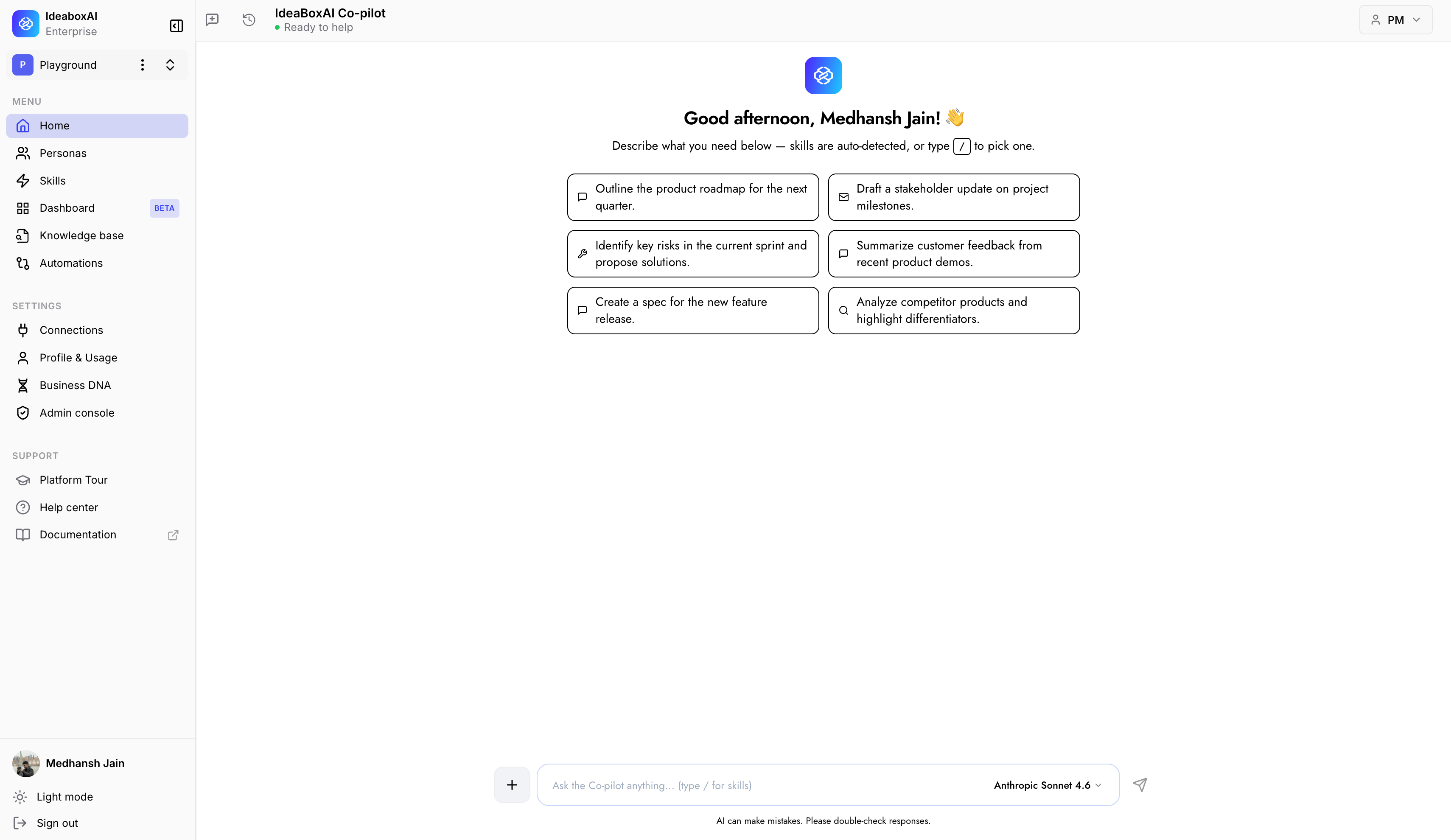 The home screen shows a personalised landing page for the Sales AE persona. Skill prompts are auto-detected based on the agent's configuration. As you complete the setup below, these prompts will be backed by live data.
## Target architecture
The following table shows the connections you will configure and the purpose each one serves.
| Connection | Purpose |
| ---------------------------------- | ------------------------------------------------------------------------------------- |
| **Structured KB (data warehouse)** | Live pipeline data, deal analytics, quota tracking, and forecast views. |
| **Unstructured KB (Confluence)** | Sales playbooks, battlecards, RFP answers, objection library, and onboarding content. |
| **Unstructured KB (Google Drive)** | Proposal templates, case study documents, pricing files, and email templates. |
| **Gmail tool** | Draft and send follow-up emails, outreach sequences, and meeting invites. |
| **Web Search tool** | Company profiles, news, job postings, and tech stack signals for prospect research. |
## Phase A: Create the structured knowledge base (pipeline data)
Navigate to **Knowledge Bases > + Create Knowledge Base > Structured Data**. Enter a name (for example, "Sales Data Warehouse"), a description (for example, "Live pipeline, deal, account, and quota data"), and relevant tags. Click **Create**.
Enter your database connection credentials: host, port, database name, username (read-only service account), and password. Enable **SSL Mode** if required. Click **Connect** and wait for schema import to complete.
Click **+ Add Cube > AI Generate** and create cubes for your key analytics views. For example:
* **Pipeline Overview**: "Total open deals by stage, value, and close date." Business context: "B2B SaaS sales pipeline tracking."
* **Deal Health Monitor**: "Deals with no activity in 5+ days and high value." Business context: "Sales deal risk monitoring."
* **Quota Attainment**: "Closed won value compared to quota target by rep for the current quarter." Business context: "Sales quota tracking."
Click **Generate** for each cube, then **Save**. Run test queries on each cube and validate results match your source data.
## Phase B: Create the unstructured knowledge base (Confluence sales content)
Navigate to **Knowledge Bases > + Create Knowledge Base > Unstructured Data**. Name it (for example, "Sales Knowledge: Confluence"), add a description and tags, then click **Create**.
Click **Add Data > Upload from Confluence**. Authenticate with your Atlassian email and API token. Select the spaces to import: for example, Sales Playbooks, Competitive Intelligence, RFP Library, and Onboarding and Training. Click **Import** and monitor status until all pages show **Processed**.
## Phase C: Create the unstructured knowledge base (Google Drive templates)
Navigate to **Knowledge Bases > + Create Knowledge Base > Unstructured Data**. Name it (for example, "Sales Templates: Google Drive"), add a description and tags, then click **Create**.
Click **Add Data > Upload from Google Drive**. Authenticate with Google, navigate to your sales folders (for example, Proposal Templates, Case Studies, Pricing, Email Sequences), and select them. Click **Import** and wait for all files to show **Processed**.
## Phase D: Create and configure the Sales AE agent
Navigate to **Agents > + Create Agent**. In the General tab, enter a name (for example, "Sales AE Agent"), a description, and relevant tags. Set visibility to **Workspace** and click **Save**.
Open the **Configuration** tab and navigate to the **Instructions** box. Either write manually or use AI-assisted generation. Include the agent's role, capabilities, and any behavioural guidelines.
In the **Configuration** tab, scroll to the **Knowledge Bases** dropdown. Select all three knowledge bases you created: the structured data warehouse, the Confluence knowledge base, and the Google Drive knowledge base. Click **Save**.
Navigate to the **Tools** tab. Add and configure the following:
* **Gmail (Google SMTP)**: Enter the sending email address, App Password, SMTP host, and port.
* **Tavily Web Search**: Enter the API key.
Click **Save**.
If you use a CRM platform, navigate to **Connections > CRM** and connect your CRM before finishing. The CRM tab lists all supported platforms — Salesforce, HubSpot, Zoho CRM, Dynamics 365, Gong, and ZoomInfo — and shows how many are currently connected.
The home screen shows a personalised landing page for the Sales AE persona. Skill prompts are auto-detected based on the agent's configuration. As you complete the setup below, these prompts will be backed by live data.
## Target architecture
The following table shows the connections you will configure and the purpose each one serves.
| Connection | Purpose |
| ---------------------------------- | ------------------------------------------------------------------------------------- |
| **Structured KB (data warehouse)** | Live pipeline data, deal analytics, quota tracking, and forecast views. |
| **Unstructured KB (Confluence)** | Sales playbooks, battlecards, RFP answers, objection library, and onboarding content. |
| **Unstructured KB (Google Drive)** | Proposal templates, case study documents, pricing files, and email templates. |
| **Gmail tool** | Draft and send follow-up emails, outreach sequences, and meeting invites. |
| **Web Search tool** | Company profiles, news, job postings, and tech stack signals for prospect research. |
## Phase A: Create the structured knowledge base (pipeline data)
Navigate to **Knowledge Bases > + Create Knowledge Base > Structured Data**. Enter a name (for example, "Sales Data Warehouse"), a description (for example, "Live pipeline, deal, account, and quota data"), and relevant tags. Click **Create**.
Enter your database connection credentials: host, port, database name, username (read-only service account), and password. Enable **SSL Mode** if required. Click **Connect** and wait for schema import to complete.
Click **+ Add Cube > AI Generate** and create cubes for your key analytics views. For example:
* **Pipeline Overview**: "Total open deals by stage, value, and close date." Business context: "B2B SaaS sales pipeline tracking."
* **Deal Health Monitor**: "Deals with no activity in 5+ days and high value." Business context: "Sales deal risk monitoring."
* **Quota Attainment**: "Closed won value compared to quota target by rep for the current quarter." Business context: "Sales quota tracking."
Click **Generate** for each cube, then **Save**. Run test queries on each cube and validate results match your source data.
## Phase B: Create the unstructured knowledge base (Confluence sales content)
Navigate to **Knowledge Bases > + Create Knowledge Base > Unstructured Data**. Name it (for example, "Sales Knowledge: Confluence"), add a description and tags, then click **Create**.
Click **Add Data > Upload from Confluence**. Authenticate with your Atlassian email and API token. Select the spaces to import: for example, Sales Playbooks, Competitive Intelligence, RFP Library, and Onboarding and Training. Click **Import** and monitor status until all pages show **Processed**.
## Phase C: Create the unstructured knowledge base (Google Drive templates)
Navigate to **Knowledge Bases > + Create Knowledge Base > Unstructured Data**. Name it (for example, "Sales Templates: Google Drive"), add a description and tags, then click **Create**.
Click **Add Data > Upload from Google Drive**. Authenticate with Google, navigate to your sales folders (for example, Proposal Templates, Case Studies, Pricing, Email Sequences), and select them. Click **Import** and wait for all files to show **Processed**.
## Phase D: Create and configure the Sales AE agent
Navigate to **Agents > + Create Agent**. In the General tab, enter a name (for example, "Sales AE Agent"), a description, and relevant tags. Set visibility to **Workspace** and click **Save**.
Open the **Configuration** tab and navigate to the **Instructions** box. Either write manually or use AI-assisted generation. Include the agent's role, capabilities, and any behavioural guidelines.
In the **Configuration** tab, scroll to the **Knowledge Bases** dropdown. Select all three knowledge bases you created: the structured data warehouse, the Confluence knowledge base, and the Google Drive knowledge base. Click **Save**.
Navigate to the **Tools** tab. Add and configure the following:
* **Gmail (Google SMTP)**: Enter the sending email address, App Password, SMTP host, and port.
* **Tavily Web Search**: Enter the API key.
Click **Save**.
If you use a CRM platform, navigate to **Connections > CRM** and connect your CRM before finishing. The CRM tab lists all supported platforms — Salesforce, HubSpot, Zoho CRM, Dynamics 365, Gong, and ZoomInfo — and shows how many are currently connected.
 Click **Connect** next to your platform and follow the OAuth flow. Once connected, the Sales AE agent can read pipeline data, log call notes, and update deal stages directly from the chat interface.
Open the Sales AE Agent chat and test each connection with these prompts:
* **Pipeline data**: "How is my pipeline looking this quarter? Show me open deals by stage."
* **Confluence**: "What does the playbook say about handling security objections?"
* **Google Drive**: "Show me the structure of the proposal template."
* **Web search**: "What are the latest news about \[prospect company name]?"
* **Email**: "Draft a follow-up email to John at Acme Corp after our call today."
Verify each response pulls from the correct data source.
Always ask the agent for confirmation before sending any email. Review the drafted content and recipient list before approving.
## Next steps
Explore the full sales persona setup and walkthrough scenarios.
Browse all available connectors by category.
Resolve common connection issues.
Click **Connect** next to your platform and follow the OAuth flow. Once connected, the Sales AE agent can read pipeline data, log call notes, and update deal stages directly from the chat interface.
Open the Sales AE Agent chat and test each connection with these prompts:
* **Pipeline data**: "How is my pipeline looking this quarter? Show me open deals by stage."
* **Confluence**: "What does the playbook say about handling security objections?"
* **Google Drive**: "Show me the structure of the proposal template."
* **Web search**: "What are the latest news about \[prospect company name]?"
* **Email**: "Draft a follow-up email to John at Acme Corp after our call today."
Verify each response pulls from the correct data source.
Always ask the agent for confirmation before sending any email. Review the drafted content and recipient list before approving.
## Next steps
Explore the full sales persona setup and walkthrough scenarios.
Browse all available connectors by category.
Resolve common connection issues.