> ## Documentation Index
> Fetch the complete documentation index at: https://docs.ideaboxai.com/llms.txt
> Use this file to discover all available pages before exploring further.
# What are connectors?
> Learn how IdeaBoxAI connectors bridge the platform to your external data sources, business tools, and communication services.
Connectors in IdeaBoxAI bridge the platform to your external data sources, business tools, and communication services. Every piece of live data that an agent queries, every email it sends, and every CRM record it reads flows through a configured connector.
Connectors are configured per-organisation and scoped by persona permissions. Users only access data they are authorised to use.
## Accessing connections
Navigate to **Connections** in the left sidebar. The Connections page is divided into two tabs, each covering a different category of integration.
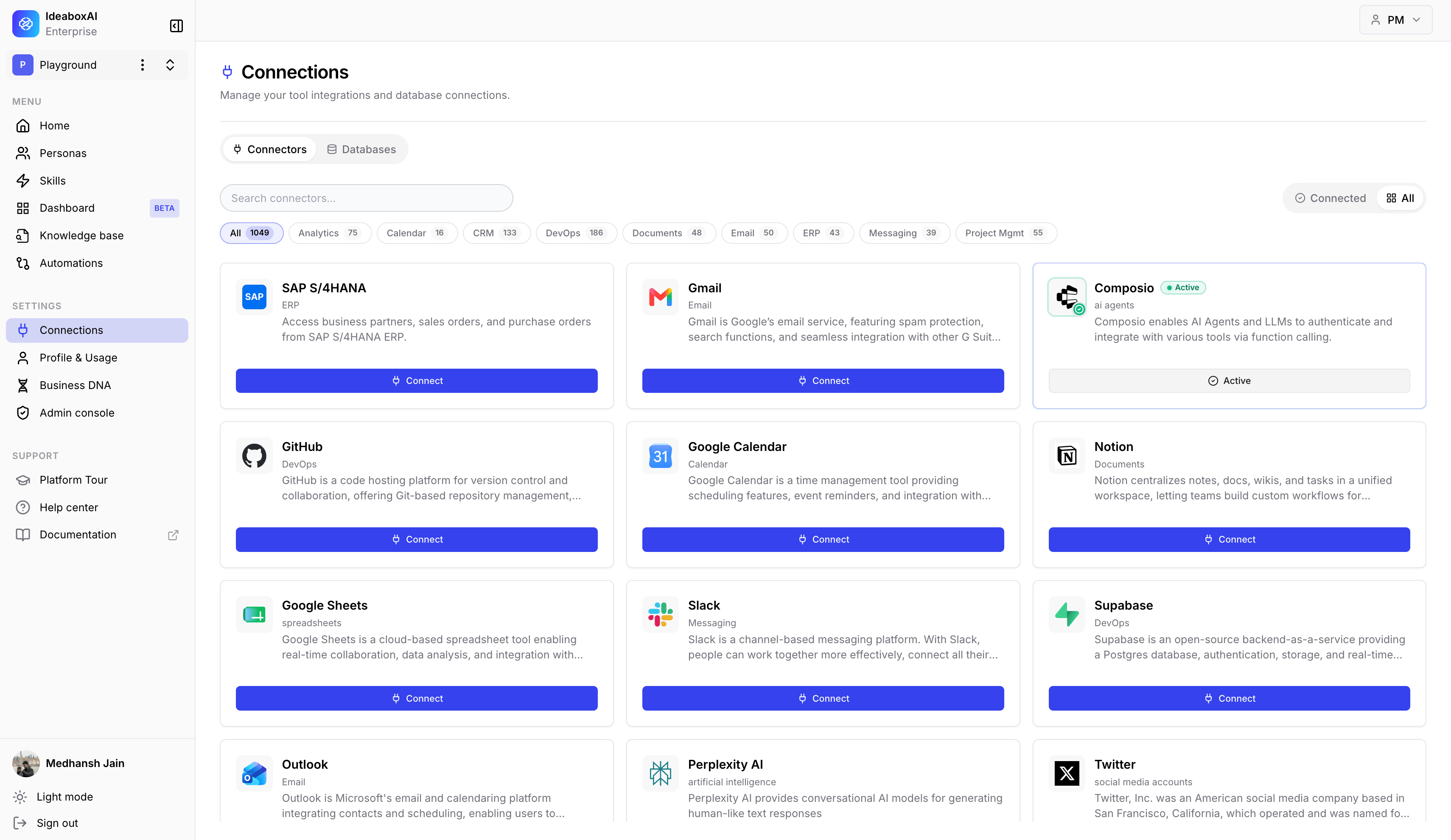 | Tab | What it contains |
| -------------- | ---------------------------------------------------------------------------------------------------------------------------------------------------------------------------------------------------------------------------------------------------- |
| **Connectors** | OAuth and API-based service integrations — Google Drive, Confluence, Zeenea, Salesforce, HubSpot, Zoho CRM, Dynamics 365, Gong, and ZoomInfo. Click **Connect** to authenticate each service. Use **+ Add Custom** to register a custom integration. |
| **Databases** | Org-wide database connections (PostgreSQL, MySQL, Snowflake, and others). Named connections here are reusable across knowledge bases. Admin permissions may be required to add or remove connections. |
## How to connect a connector
The following steps walk through how to connect an external service to IdeaBoxAI. Google Drive is used as an example, but the same flow applies to all OAuth-based connectors.
Go to **Settings** in the left sidebar to go to Connections.
| Tab | What it contains |
| -------------- | ---------------------------------------------------------------------------------------------------------------------------------------------------------------------------------------------------------------------------------------------------- |
| **Connectors** | OAuth and API-based service integrations — Google Drive, Confluence, Zeenea, Salesforce, HubSpot, Zoho CRM, Dynamics 365, Gong, and ZoomInfo. Click **Connect** to authenticate each service. Use **+ Add Custom** to register a custom integration. |
| **Databases** | Org-wide database connections (PostgreSQL, MySQL, Snowflake, and others). Named connections here are reusable across knowledge bases. Admin permissions may be required to add or remove connections. |
## How to connect a connector
The following steps walk through how to connect an external service to IdeaBoxAI. Google Drive is used as an example, but the same flow applies to all OAuth-based connectors.
Go to **Settings** in the left sidebar to go to Connections.
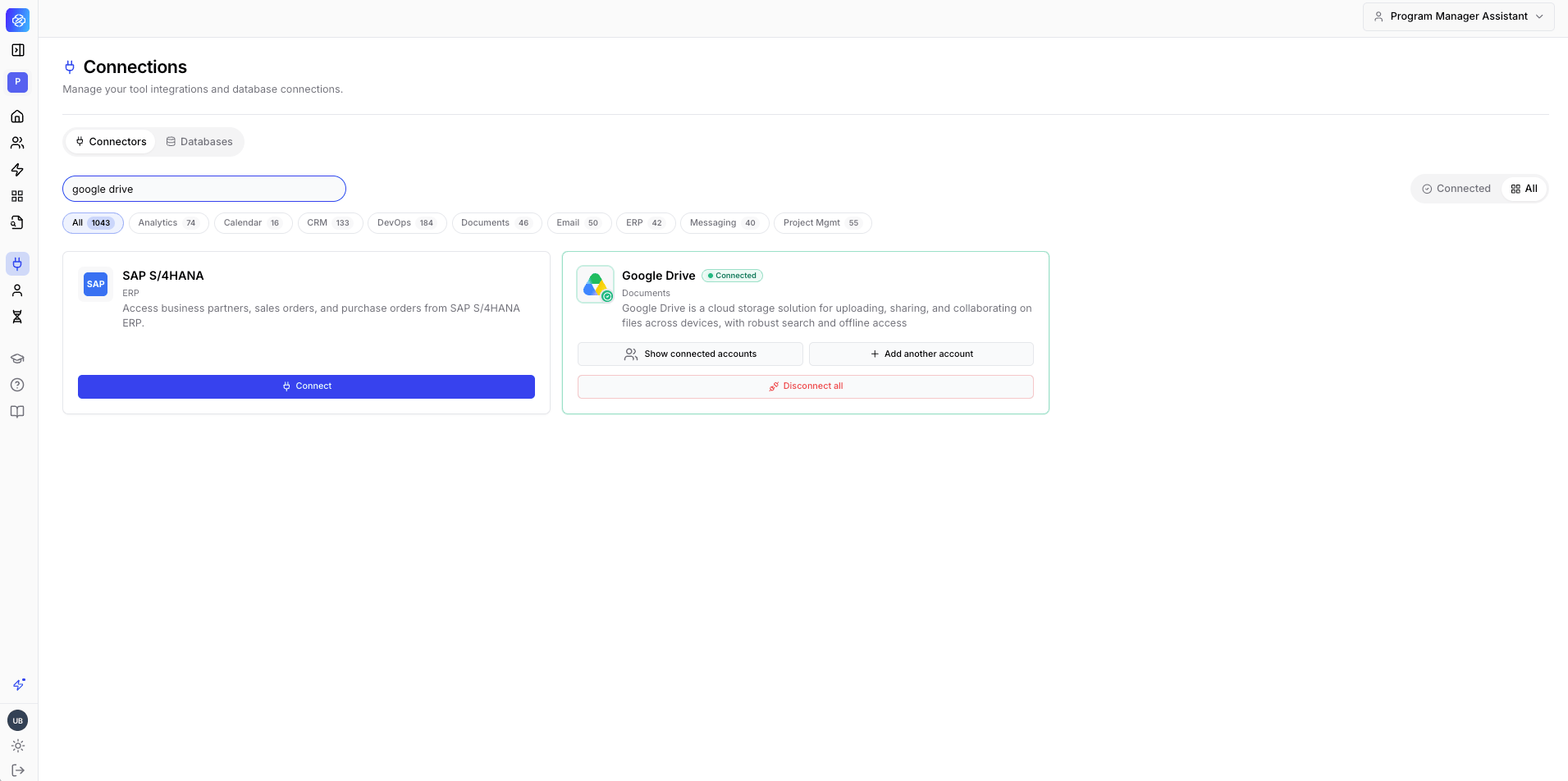
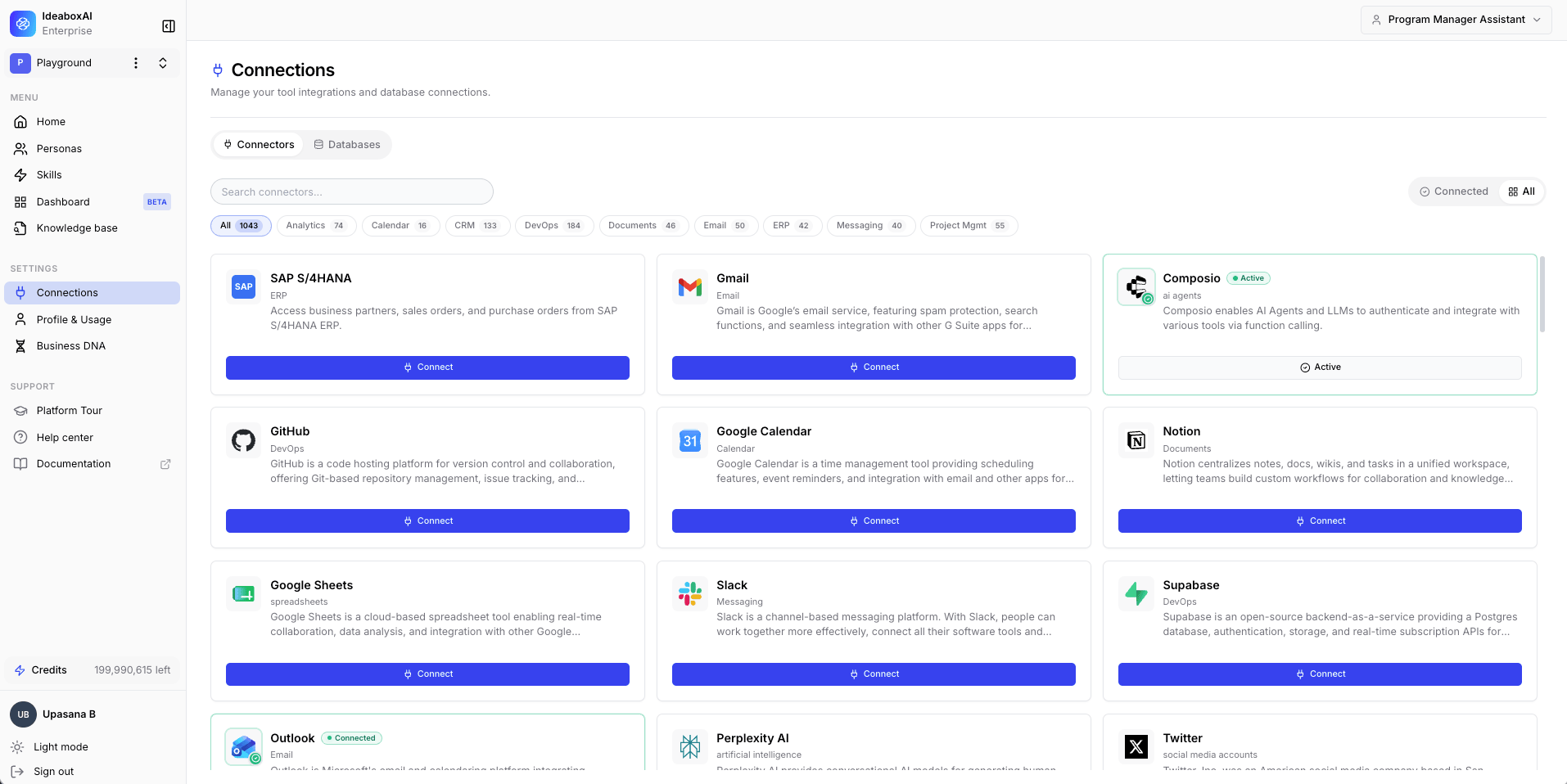 The Connectors page displays all available integrations across different categories. Use the **search bar** to find a specific connector. For example, type "Google Drive" to filter the list and locate the Google Drive connector.
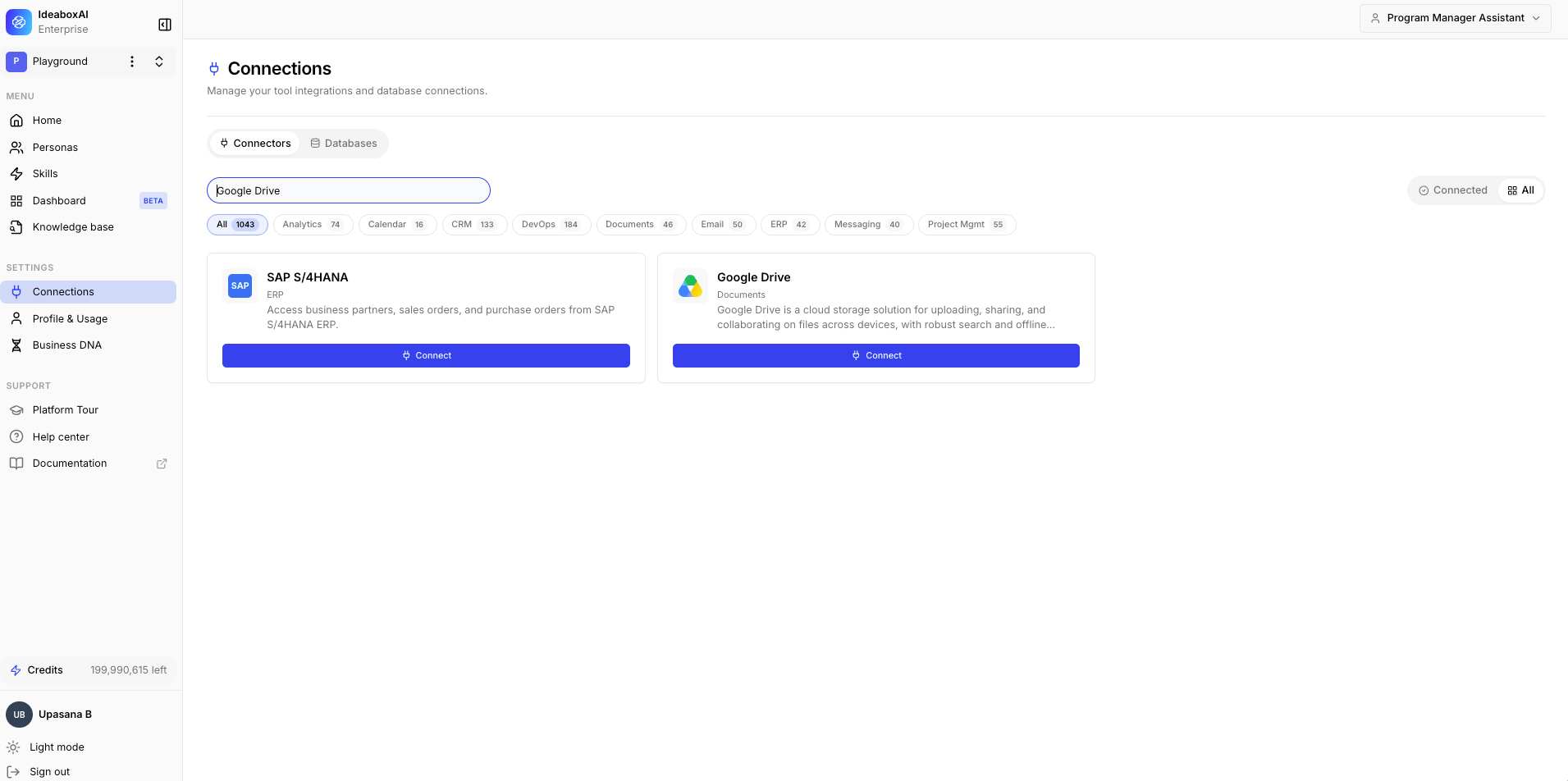 Click the **Connect** button on the Google Drive connector card. The platform navigates to the **Connect your Google account** screen. Sign in with your Google credentials and grant the requested permissions.
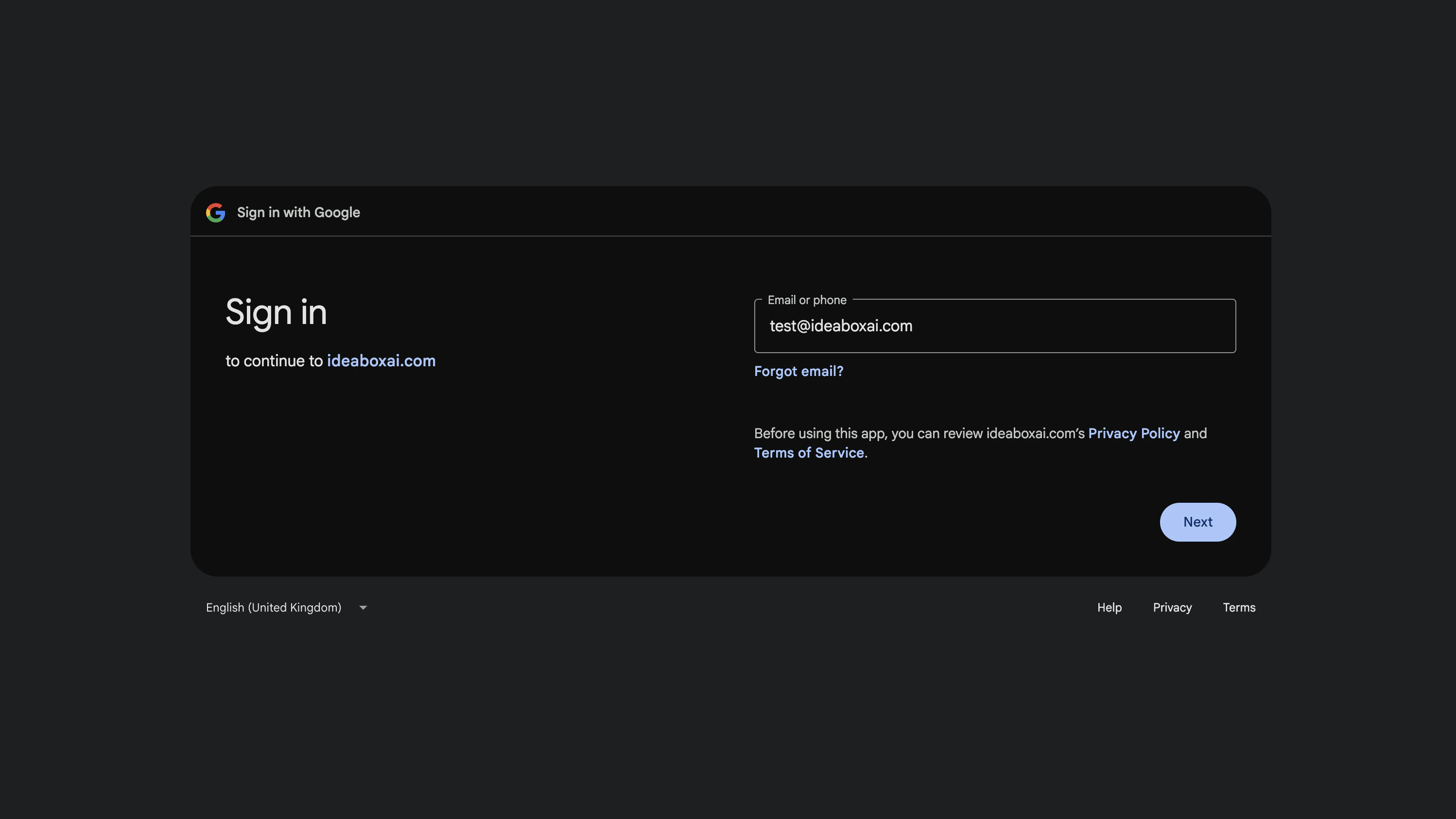 After authenticating, the Google Drive connector shows a **Connected** status on the Connectors page. The integration is now active and ready to use across agents, knowledge bases, and automations.
 The same steps apply to all OAuth-based connectors. For connectors that use API keys or tokens instead of OAuth, you will be prompted to enter your credentials in a modal after clicking Connect.
## Connection layers
IdeaBoxAI uses connections to integrate with external data sources and services. Connectors are configured inside knowledge bases to provide access to databases, documents, and cloud services.
| Layer | What it does |
| ------------------------------ | ------------------------------------------------------------------------------------------------------------------------------------------------------------------------------------------------------------------- |
| **Knowledge base connections** | Database and document connectors configured inside a knowledge base. These provide access to structured or unstructured data, such as a PostgreSQL database, a Snowflake warehouse, or a set of uploaded documents. |
## How connectors power the platform
IdeaBoxAI workflows depend on connectors to access data and services. The following table shows how connectors support different platform features.
| Platform feature | Connection used | Example |
| ----------------- | ------------------------------------------------------- | --------------------------------------------------------------------------------- |
| Knowledge bases | Database connector (PostgreSQL, Snowflake, MySQL) | Query sales tables through an ODBC driver. |
| Data queries | Structured KB connection | Query a data warehouse for pipeline statistics. |
| Document search | Unstructured KB (Confluence, Google Drive, file upload) | Search Confluence for RFP answer library content. |
| Email integration | Gmail or Microsoft Mail 365 connector | Send follow-up emails from a configured account. |
| CRM integration | Salesforce, HubSpot, or Zoho CRM connector | Log call notes back into a Salesforce opportunity. |
| Automations | All of the above, chained in sequence | Scheduled automation queries a knowledge base, generates a report, and emails it. |
## Core value proposition
Connectors deliver measurable improvements by removing manual data retrieval and enabling AI-powered workflows.
* Query live databases and documents through natural language without writing SQL or switching tools.
* Send emails, post to Slack, and update CRM records directly from the agent chat interface.
* Combine multiple data sources in a single agent for comprehensive, cross-system intelligence.
* Automate multi-step workflows that span databases, documents, and communication tools.
* Maintain security through per-persona permission scoping and organisation-level configuration.
## Next steps
Explore the following guides to configure your connectors.
Connect databases, documents, and cloud warehouses to your knowledge bases.
Browse all available connectors by category with setup requirements.
Resolve common connection issues for databases and imports.
The same steps apply to all OAuth-based connectors. For connectors that use API keys or tokens instead of OAuth, you will be prompted to enter your credentials in a modal after clicking Connect.
## Connection layers
IdeaBoxAI uses connections to integrate with external data sources and services. Connectors are configured inside knowledge bases to provide access to databases, documents, and cloud services.
| Layer | What it does |
| ------------------------------ | ------------------------------------------------------------------------------------------------------------------------------------------------------------------------------------------------------------------- |
| **Knowledge base connections** | Database and document connectors configured inside a knowledge base. These provide access to structured or unstructured data, such as a PostgreSQL database, a Snowflake warehouse, or a set of uploaded documents. |
## How connectors power the platform
IdeaBoxAI workflows depend on connectors to access data and services. The following table shows how connectors support different platform features.
| Platform feature | Connection used | Example |
| ----------------- | ------------------------------------------------------- | --------------------------------------------------------------------------------- |
| Knowledge bases | Database connector (PostgreSQL, Snowflake, MySQL) | Query sales tables through an ODBC driver. |
| Data queries | Structured KB connection | Query a data warehouse for pipeline statistics. |
| Document search | Unstructured KB (Confluence, Google Drive, file upload) | Search Confluence for RFP answer library content. |
| Email integration | Gmail or Microsoft Mail 365 connector | Send follow-up emails from a configured account. |
| CRM integration | Salesforce, HubSpot, or Zoho CRM connector | Log call notes back into a Salesforce opportunity. |
| Automations | All of the above, chained in sequence | Scheduled automation queries a knowledge base, generates a report, and emails it. |
## Core value proposition
Connectors deliver measurable improvements by removing manual data retrieval and enabling AI-powered workflows.
* Query live databases and documents through natural language without writing SQL or switching tools.
* Send emails, post to Slack, and update CRM records directly from the agent chat interface.
* Combine multiple data sources in a single agent for comprehensive, cross-system intelligence.
* Automate multi-step workflows that span databases, documents, and communication tools.
* Maintain security through per-persona permission scoping and organisation-level configuration.
## Next steps
Explore the following guides to configure your connectors.
Connect databases, documents, and cloud warehouses to your knowledge bases.
Browse all available connectors by category with setup requirements.
Resolve common connection issues for databases and imports.